Enabling & Exploring Stable Defussion – Part 3

Before we dive into the details of this post, let us provide the previous two links that precede it.

Enabling & Exploring Stable Defussion – Part 1

Enabling & Exploring Stable Defussion – Part 2

For, reference, we’ll share the demo before deep dive into the actual follow-up analysis in the below section –


Now, let us continue our discussions from where we left.

class clsText2Image:
    def __init__(self, pipe, output_path, filename):

        self.pipe = pipe
        
        # More aggressive attention slicing
        self.pipe.enable_attention_slicing(slice_size=1)

        self.output_path = f"{output_path}{filename}"
        
        # Warm up the pipeline
        self._warmup()
    
    def _warmup(self):
        """Warm up the pipeline to optimize memory allocation"""
        with torch.no_grad():
            _ = self.pipe("warmup", num_inference_steps=1, height=512, width=512)
        torch.mps.empty_cache()
        gc.collect()
    
    def generate(self, prompt, num_inference_steps=12, guidance_scale=3.0):
        try:
            torch.mps.empty_cache()
            gc.collect()
            
            with torch.autocast(device_type="mps"):
                with torch.no_grad():
                    image = self.pipe(
                        prompt,
                        num_inference_steps=num_inference_steps,
                        guidance_scale=guidance_scale,
                        height=1024,
                        width=1024,
                    ).images[0]
            
            image.save(self.output_path)
            return 0
        except Exception as e:
            print(f'Error: {str(e)}')
            return 1
        finally:
            torch.mps.empty_cache()
            gc.collect()

    def genImage(self, prompt):
        try:

            # Initialize generator
            x = self.generate(prompt)

            if x == 0:
                print('Successfully processed first pass!')
            else:
                print('Failed complete first pass!')
                raise 

            return 0

        except Exception as e:
            print(f"\nAn unexpected error occurred: {str(e)}")

            return 1

This is the initialization method for the clsText2Image class:

  • Takes a pre-configured pipe (text-to-image pipeline), an output_path, and a filename.
  • Enables more aggressive memory optimization by setting “attention slicing.”
  • Prepares the full file path for saving generated images.
  • Calls a _warmup method to pre-load the pipeline and optimize memory allocation.

This private method warms up the pipeline:

  • Sends a dummy “warmup” request with basic parameters to allocate memory efficiently.
  • Clears any cached memory (torch.mps.empty_cache()) and performs garbage collection (gc.collect()).
  • Ensures smoother operation for future image generation tasks.

This method generates an image from a text prompt:

  • Clears memory cache and performs garbage collection before starting.
  • Uses the text-to-image pipeline (pipe) to generate an image:
    • Takes the prompt, number of inference steps, and guidance scale as input.
    • Outputs an image at 1024×1024 resolution.
  • Saves the generated image to the specified output path.
  • Returns 0 on success or 1 on failure.
  • Ensures cleanup by clearing memory and collecting garbage, even in case of errors.

This method simplifies image generation:

  • Calls the generate method with the given prompt.
  • Prints a success message if the image is generated (0 return value).
  • On failure, logs the error and raises an exception.
  • Returns 0 on success or 1 on failure.
class clsImage2Video:
    def __init__(self, pipeline):
        
        # Optimize model loading
        torch.mps.empty_cache()
        self.pipeline = pipeline

    def generate_frames(self, pipeline, init_image, prompt, duration_seconds=10):
        try:
            torch.mps.empty_cache()
            gc.collect()

            base_frames = []
            img = Image.open(init_image).convert("RGB").resize((1024, 1024))
            
            for _ in range(10):
                result = pipeline(
                    prompt=prompt,
                    image=img,
                    strength=0.45,
                    guidance_scale=7.5,
                    num_inference_steps=25
                ).images[0]

                base_frames.append(np.array(result))
                img = result
                torch.mps.empty_cache()

            frames = []
            for i in range(len(base_frames)-1):
                frame1, frame2 = base_frames[i], base_frames[i+1]
                for t in np.linspace(0, 1, int(duration_seconds*24/10)):
                    frame = (1-t)*frame1 + t*frame2
                    frames.append(frame.astype(np.uint8))
            
            return frames
        except Exception as e:
            frames = []
            print(f'Error: {str(e)}')

            return frames
        finally:
            torch.mps.empty_cache()
            gc.collect()

    # Main method
    def genVideo(self, prompt, inputImage, targetVideo, fps):
        try:
            print("Starting animation generation...")
            
            init_image_path = inputImage
            output_path = targetVideo
            fps = fps
            
            frames = self.generate_frames(
                pipeline=self.pipeline,
                init_image=init_image_path,
                prompt=prompt,
                duration_seconds=20
            )
            
            imageio.mimsave(output_path, frames, fps=30)

            print("Animation completed successfully!")

            return 0
        except Exception as e:
            x = str(e)
            print('Error: ', x)

            return 1

This initializes the clsImage2Video class:

  • Clears the GPU cache to optimize memory before loading.
  • Sets up the pipeline for generating frames, which uses an image-to-video transformation model.

This function generates frames for a video:

  • Starts by clearing GPU memory and running garbage collection.
  • Loads the init_image, resizes it to 1024×1024 pixels, and converts it to RGB format.
  • Iteratively applies the pipeline to transform the image:
    • Uses the prompt and specified parameters like strengthguidance_scale, and num_inference_steps.
    • Stores the resulting frames in a list.
  • Interpolates between consecutive frames to create smooth transitions:
    • Uses linear blending for smooth animation across a specified duration and frame rate (24 fps for 10 segments).
  • Returns the final list of generated frames or an empty list if an error occurs.
  • Always clears memory after execution.

This is the main function for creating a video from an image and text prompt:

  • Logs the start of the animation generation process.
  • Calls generate_frames() with the given pipelineinputImage, and prompt to create frames.
  • Saves the generated frames as a video using the imageio library, setting the specified frame rate (fps).
  • Logs a success message and returns 0 if the process is successful.
  • On error, logs the issue and returns 1.

Now, let us understand the performance. But, before that let us explore the device on which we’ve performed these stress test that involves GPU & CPUs as well.

And, here is the performance stats –

From the above snapshot, we can clearly communicate that the GPU is 100% utilized. However, the CPU has shown a significant % of availability.

As you can see, the first pass converts the input prompt to intermediate images within 1 min 30 sec. However, the second pass constitutes multiple hops (11 hops) on an avg 22 seconds. Overall, the application will finish in 5 minutes 36 seconds for a 10-second video clip.


So, we’ve done it.

You can find the detailed code at the GitHub link.

I’ll bring some more exciting topics in the coming days from the Python verse.

Till then, Happy Avenging! 🙂

Enabling & Exploring Stable Defussion – Part 2

As we’ve started explaining, the importance & usage of Stable Defussion in our previous post:

Enabling & Exploring Stable Defussion – Part 1

In today’s post, we’ll discuss another approach, where we built the custom Python-based SDK solution that consumes HuggingFace Library, which generates video out of the supplied prompt.

But, before that, let us view the demo generated from a custom solution.

Isn’t it exciting? Let us dive deep into the details.


Let us understand basic flow of events for the custom solution –

So, the application will interact with the python-sdk like “stable-diffusion-3.5-large” & “dreamshaper-xl-1-0”, which is available in HuggingFace. As part of the process, these libraries will load all the large models inside the local laptop that require some time depend upon the bandwidth of your internet.

Before we even deep dive into the code, let us understand the flow of Python scripts as shown below:

From the above diagram, we can understand that the main application will be triggered by “generateText2Video.py”. As you can see that “clsConfigClient.py” has all the necessary parameter information that will be supplied to all the scripts.

“generateText2Video.py” will trigger the main class named “clsText2Video.py”, which then calls all the subsequent classes.

Great! Since we now have better visibility of the script flow, let’s examine the key snippets individually.


class clsText2Video:
    def __init__(self, model_id_1, model_id_2, output_path, filename, vidfilename, fps, force_cpu=False):
        self.model_id_1 = model_id_1
        self.model_id_2 = model_id_2
        self.output_path = output_path
        self.filename = filename
        self.vidfilename = vidfilename
        self.force_cpu = force_cpu
        self.fps = fps

        # Initialize in main process
        os.environ["TOKENIZERS_PARALLELISM"] = "true"
        self.r1 = cm.clsMaster(force_cpu)
        self.torch_type = self.r1.getTorchType()
        
        torch.mps.empty_cache()
        self.pipe = self.r1.getText2ImagePipe(self.model_id_1, self.torch_type)
        self.pipeline = self.r1.getImage2VideoPipe(self.model_id_2, self.torch_type)

        self.text2img = cti.clsText2Image(self.pipe, self.output_path, self.filename)
        self.img2vid = civ.clsImage2Video(self.pipeline)

    def getPrompt2Video(self, prompt):
        try:
            input_image = self.output_path + self.filename
            target_video = self.output_path + self.vidfilename

            if self.text2img.genImage(prompt) == 0:
                print('Pass 1: Text to intermediate images generated!')
                
                if self.img2vid.genVideo(prompt, input_image, target_video, self.fps) == 0:
                    print('Pass 2: Successfully generated!')
                    return 0
            return 1
        except Exception as e:
            print(f"\nAn unexpected error occurred: {str(e)}")
            return 1

Now, let us interpret:

This is the initialization method for the class. It does the following:

  • Sets up configurations like model IDs, output paths, filenames, video filename, frames per second (fps), and whether to use the CPU (force_cpu).
  • Configures an environment variable for tokenizer parallelism.
  • Initializes helper classes (clsMaster) to manage system resources and retrieve appropriate PyTorch settings.
  • Creates two pipelines:
    • pipe: For converting text to images using the first model.
    • pipeline: For converting images to video using the second model.
  • Initializes text2img and img2vid objects:
    • text2img handles text-to-image conversions.
    • img2vid handles image-to-video conversions.

This method generates a video from a text prompt in two steps:

  1. Text-to-Image Conversion:
    • Calls genImage(prompt) using the text2img object to create an intermediate image file.
    • If successful, it prints confirmation.
  2. Image-to-Video Conversion:
    • Uses the img2vid object to convert the intermediate image into a video file.
    • Includes the input image path, target video path, and frames per second (fps).
    • If successful, it prints confirmation.
  • If either step fails, the method returns 1.
  • Logs any unexpected errors and returns 1 in such cases.
# Set device for Apple Silicon GPU
def setup_gpu(force_cpu=False):
    if not force_cpu and torch.backends.mps.is_available() and torch.backends.mps.is_built():
        print('Running on Apple Silicon MPS GPU!')
        return torch.device("mps")
    return torch.device("cpu")

######################################
####         Global Flag      ########
######################################

class clsMaster:
    def __init__(self, force_cpu=False):
        self.device = setup_gpu(force_cpu)

    def getTorchType(self):
        try:
            # Check if MPS (Apple Silicon GPU) is available
            if not torch.backends.mps.is_available():
                torch_dtype = torch.float32
                raise RuntimeError("MPS (Metal Performance Shaders) is not available on this system.")
            else:
                torch_dtype = torch.float16
            
            return torch_dtype
        except Exception as e:
            torch_dtype = torch.float16
            print(f'Error: {str(e)}')

            return torch_dtype

    def getText2ImagePipe(self, model_id, torchType):
        try:
            device = self.device

            torch.mps.empty_cache()
            self.pipe = StableDiffusion3Pipeline.from_pretrained(model_id, torch_dtype=torchType, use_safetensors=True, variant="fp16",).to(device)

            return self.pipe
        except Exception as e:
            x = str(e)
            print('Error: ', x)

            torch.mps.empty_cache()
            self.pipe = StableDiffusion3Pipeline.from_pretrained(model_id, torch_dtype=torchType,).to(device)

            return self.pipe
        
    def getImage2VideoPipe(self, model_id, torchType):
        try:
            device = self.device

            torch.mps.empty_cache()
            self.pipeline = StableDiffusionXLImg2ImgPipeline.from_pretrained(model_id, torch_dtype=torchType, use_safetensors=True, use_fast=True).to(device)

            return self.pipeline
        except Exception as e:
            x = str(e)
            print('Error: ', x)

            torch.mps.empty_cache()
            self.pipeline = StableDiffusionXLImg2ImgPipeline.from_pretrained(model_id, torch_dtype=torchType).to(device)

            return self.pipeline

Let us interpret:

This function determines whether to use the Apple Silicon GPU (MPS) or the CPU:

  • If force_cpu is False and the MPS GPU is available, it sets the device to “mps” (Apple GPU) and prints a message.
  • Otherwise, it defaults to the CPU.

This is the initializer for the clsMaster class:

  • It sets the device to either GPU or CPU using the setup_gpu function (mentioned above) based on the force_cpu flag.

This method determines the PyTorch data type to use:

  • Checks if MPS GPU is available:
    • If available, uses torch.float16 for optimized performance.
    • If unavailable, defaults to torch.float32 and raises a warning.
  • Handles errors gracefully by defaulting to torch.float16 and printing the error.

This method initializes a text-to-image pipeline:

  • Loads the Stable Diffusion model with the given model_id and torchType.
  • Configures it for MPS GPU or CPU, based on the device.
  • Clears the GPU cache before loading the model to optimize memory usage.
  • If an error occurs, attempts to reload the pipeline without safetensors.

This method initializes an image-to-video pipeline:

  • Similar to getText2ImagePipe, it loads the Stable Diffusion XL Img2Img pipeline with the specified model_id and torchType.
  • Configures it for MPS GPU or CPU and clears the cache before loading.
  • On error, reloads the pipeline without additional optimization settings and prints the error.

Let us continue this in the next post:

Enabling & Exploring Stable Defussion – Part 3

Till then, Happy Avenging! 🙂

Scanned data extraction from a prefilled form using OpenCV & Python

This week we will discuss another important topic that many of us had in our mind. Today, we’ll try extracting the texts from scanned, formatted forms. This use case is instrumental when we need to process information prefilled by someone or some process.

To make things easier, I’ve packaged my entire solution & published that as a PyPi package after a long time. But, even before I start, why don’t we see the demo & then discuss it in detail?

Demo

Architecture:

Let us understand the architecture flow –

Reference Pattern

From the above diagram, one can understand the overall flow of this process. We’ll be using our second PyPi package, which will scan the source scanned copy of a formatted page & then tries to extract the relevant information.

Python Packages:

Following are the key python packages that we need apart from these dependent created packages & they are as follows –

cmake==3.22.1
dlib==19.19.0
imutils==0.5.3
jsonschema==4.4.0
numpy==1.23.2
oauthlib==3.1.1
opencv-contrib-python==4.6.0.66
opencv-contrib-python-headless==4.4.0.46
opencv-python==4.6.0.66
opencv-python-headless==4.5.5.62
pandas==1.4.3
python-dateutil==2.8.2
pytesseract==0.3.10
requests==2.27.1
requests-oauthlib==1.3.0

And the newly created package –

ReadingFilledForm==0.0.7

To know more about this, please visit the following PyPi link.


CODE:

Let us now understand the code. For this use case, we will only discuss three python scripts. However, we need more than these three. However, we have already discussed them in some of the early posts. Hence, we will skip them here.

  • clsConfigClient.py (This is the configuration class of the python script that will extract the text from the preformatted scanned copy.)


################################################
#### Written By: SATYAKI DE ####
#### Written On: 15-May-2020 ####
#### Modified On: 18-Sep-2022 ####
#### ####
#### Objective: This script is a config ####
#### file, contains all the keys for ####
#### text extraction via image scanning. ####
#### ####
################################################
import os
import platform as pl
my_dict = {}
class clsConfigClient(object):
Curr_Path = os.path.dirname(os.path.realpath(__file__))
os_det = pl.system()
if os_det == "Windows":
sep = '\\'
else:
sep = '/'
conf = {
'APP_ID': 1,
'ARCH_DIR': Curr_Path + sep + 'arch' + sep,
'PROFILE_PATH': Curr_Path + sep + 'profile' + sep,
'LOG_PATH': Curr_Path + sep + 'log' + sep,
'REPORT_PATH': Curr_Path + sep + 'report',
'SRC_PATH': Curr_Path + sep + 'data' + sep,
'FINAL_PATH': Curr_Path + sep + 'Target' + sep,
'IMAGE_PATH': Curr_Path + sep + 'Scans' + sep,
'TEMPLATE_PATH': Curr_Path + sep + 'Template' + sep,
'APP_DESC_1': 'Text Extraction from Video!',
'DEBUG_IND': 'N',
'INIT_PATH': Curr_Path,
'SUBDIR': 'data',
'WIDTH': 320,
'HEIGHT': 320,
'PADDING': 0.1,
'SEP': sep,
'MIN_CONFIDENCE':0.5,
'GPU':-1,
'FILE_NAME':'FilledUp.jpeg',
'TEMPLATE_FILE_NAME':'Template.jpeg',
'TITLE': "Text Reading!",
'ORIG_TITLE': "Camera Source!",
'LANG':"en",
'OEM_VAL': 1,
'PSM_VAL': 7,
'DRAW_TAG': (0, 0, 255),
'LAYER_DET':[
"feature_fusion/Conv_7/Sigmoid",
"feature_fusion/concat_3"],
"CACHE_LIM": 1,
'ASCII_RANGE': 128,
'SUBTRACT_PARAM': (123.68, 116.78, 103.94),
'MY_DICT': {
"atrib_1": {"id": "FileNo", "bbox": (425, 60, 92, 34), "filter_keywords": tuple(["FILE", "DEPT"])},
"atrib_2": {"id": "DeptNo", "bbox": (545, 60, 87, 40), "filter_keywords": tuple(["DEPT", "CLOCK"])},
"atrib_3": {"id": "ClockNo", "bbox": (673, 60, 75, 36), "filter_keywords": tuple(["CLOCK","VCHR.","NO."])},
"atrib_4": {"id": "VCHRNo", "bbox": (785, 60, 136, 40), "filter_keywords": tuple(["VCHR.","NO."])},
"atrib_5": {"id": "DigitNo", "bbox": (949, 60, 50, 38), "filter_keywords": tuple(["VCHR.","NO.", "056"])},
"atrib_6": {"id": "CompanyName", "bbox": (326, 140, 621, 187), "filter_keywords": tuple(["COMPANY","FILE"])},
"atrib_7": {"id": "StartDate", "bbox": (1264, 143, 539, 44), "filter_keywords": tuple(["Period", "Beginning:"])},
"atrib_8": {"id": "EndDate", "bbox": (1264, 193, 539, 44), "filter_keywords": tuple(["Period", "Ending:"])},
"atrib_9": {"id": "PayDate", "bbox": (1264, 233, 539, 44), "filter_keywords": tuple(["Pay", "Date:"])},
}
}

The only important part of these configurations are the following –

'MY_DICT': {
            "atrib_1": {"id": "FileNo", "bbox": (425, 60, 92, 34), "filter_keywords": tuple(["FILE", "DEPT"])},
            "atrib_2": {"id": "DeptNo", "bbox": (545, 60, 87, 40), "filter_keywords": tuple(["DEPT", "CLOCK"])},
            "atrib_3": {"id": "ClockNo", "bbox": (673, 60, 75, 36), "filter_keywords": tuple(["CLOCK","VCHR.","NO."])},
            "atrib_4": {"id": "VCHRNo", "bbox": (785, 60, 136, 40), "filter_keywords": tuple(["VCHR.","NO."])},
            "atrib_5": {"id": "DigitNo", "bbox": (949, 60, 50, 38), "filter_keywords": tuple(["VCHR.","NO.", "056"])},
            "atrib_6": {"id": "CompanyName", "bbox": (326, 140, 621, 187), "filter_keywords": tuple(["COMPANY","FILE"])},
            "atrib_7": {"id": "StartDate", "bbox": (1264, 143, 539, 44), "filter_keywords": tuple(["Period", "Beginning:"])},
            "atrib_8": {"id": "EndDate", "bbox": (1264, 193, 539, 44), "filter_keywords": tuple(["Period", "Ending:"])},
            "atrib_9": {"id": "PayDate", "bbox": (1264, 233, 539, 44), "filter_keywords": tuple(["Pay", "Date:"])},
      }

Let us understand this part, as it is very critical for this entire package.

We need to define the areas in terms of pixel position, which we need to extract. Hence, we follow the following pattern –

"atrib_": {"id": , "bbox": (x-Coordinates, y-Coordinates, Width, Height), "filter_keywords": tuple(["Mention the overlapping printed text that you don't want to capture. Make sure you are following the exact Case to proper detection."])}

You can easily get the individual intended text position by using any Photo editor.

Still not clear how to select?

Let’s watch the next video –

How to fetch the extracted location pixel metadata – Demo

The above demo should explain what we are trying to achieve. Also, you need to understand that if your two values are extremely close, then we’re taking both the non-desired labels & put them under the filter keywords to ensure extracting the correct values.

For example, on the top left side, where the values are very close, we’re putting both closed labels as filter keywords. One such example is as follows –

"filter_keywords": tuple(["FILE", "DEPT"])

The same logic applies to the other labels as well.

  • readingFormLib.py (This is the main calling python script that will extract the text from the preformatted scanned copy.)


#####################################################
#### Written By: SATYAKI DE ####
#### Written On: 22-Jul-2022 ####
#### Modified On 18-Sep-2022 ####
#### ####
#### Objective: This is the main calling ####
#### python script that will invoke the ####
#### clsReadForm class to initiate ####
#### the reading capability in real-time ####
#### & display text from a formatted forms. ####
#####################################################
# We keep the setup code in a different class as shown below.
from ReadingFilledForm import clsReadForm as rf
from clsConfigClient import clsConfigClient as cf
import datetime
import logging
###############################################
### Global Section ###
###############################################
# Instantiating all the main class
scannedImagePath = str(cf.conf['IMAGE_PATH']) + str(cf.conf['FILE_NAME'])
templatePath = str(cf.conf['TEMPLATE_PATH']) + str(cf.conf['TEMPLATE_FILE_NAME'])
x1 = rf.clsReadForm(scannedImagePath, templatePath)
###############################################
### End of Global Section ###
###############################################
def main():
try:
# Other useful variables
debugInd = 'Y'
var = datetime.datetime.now().strftime("%Y-%m-%d_%H-%M-%S")
var1 = datetime.datetime.now()
print('Start Time: ', str(var))
# End of useful variables
# Initiating Log Class
general_log_path = str(cf.conf['LOG_PATH'])
# Enabling Logging Info
logging.basicConfig(filename=general_log_path + 'readingForm.log', level=logging.INFO)
print('Started extracting text from formatted forms!')
# Getting the dictionary
my_dict = cf.conf['MY_DICT']
# Execute all the pass
r1 = x1.startProcess(debugInd, var, my_dict)
if (r1 == 0):
print('Successfully extracted text from the formatted forms!')
else:
print('Failed to extract the text from the formatted forms!')
var2 = datetime.datetime.now()
c = var2 – var1
minutes = c.total_seconds() / 60
print('Total difference in minutes: ', str(minutes))
print('End Time: ', str(var1))
except Exception as e:
x = str(e)
print('Error: ', x)
if __name__ == "__main__":
main()

Key snippets from the above script –

# We keep the setup code in a different class as shown below.
from ReadingFilledForm import clsReadForm as rf

from clsConfigClient import clsConfigClient as cf

The above lines import the newly created PyPi package into the memory.

###############################################
###           Global Section                ###
###############################################
# Instantiating all the main class
scannedImagePath = str(cf.conf['IMAGE_PATH']) + str(cf.conf['FILE_NAME'])
templatePath = str(cf.conf['TEMPLATE_PATH']) + str(cf.conf['TEMPLATE_FILE_NAME'])

x1 = rf.clsReadForm(scannedImagePath, templatePath)

###############################################
###    End of Global Section                ###
###############################################

Now, the application is fetching both the template copy & the intended scanned copy & load them into the memory.

# Getting the dictionary
my_dict = cf.conf['MY_DICT']

After this, the application will try to extract the focus area dictionary, indicating the areas of particular interest.

# Execute all the pass
r1 = x1.startProcess(debugInd, var, my_dict)

Finally, pass it inside the new package to get the correct outcome.


FOLDER STRUCTURE:

Here is the folder structure that contains all the files & directories in MAC O/S –

Directory

Similar structures are present in the Windows environment as well.


You will get the complete calling codebase in the following GitHub link.

I’ll bring some more exciting topics in the coming days from the Python verse. Please share & subscribe to my post & let me know your feedback.

Till then, Happy Avenging! 🙂

Note: All the data & scenarios posted here are representational data & scenarios & available over the internet & for educational purposes only. There is always room for improvement & especially in the prediction quality.

Realtime reading from a Streaming using Computer Vision

This week we’re going to extend one of our earlier posts & trying to read an entire text from streaming using computer vision. If you want to view the previous post, please click the following link.

But, before we proceed, why don’t we view the demo first?

Demo

Architecture:

Let us understand the architecture flow –

Architecture flow

The above diagram shows that the application, which uses the Open-CV, analyzes individual frames from the source & extracts the complete text within the video & displays it on top of the target screen besides prints the same in the console.

Python Packages:

pip install imutils==0.5.4
pip install matplotlib==3.5.2
pip install numpy==1.21.6
pip install opencv-contrib-python==4.6.0.66
pip install opencv-contrib-python-headless==4.6.0.66
pip install opencv-python==4.6.0.66
pip install opencv-python-headless==4.6.0.66
pip install pandas==1.3.5
pip install Pillow==9.1.1
pip install pytesseract==0.3.9
pip install python-dateutil==2.8.2

CODE:

Let us now understand the code. For this use case, we will only discuss three python scripts. However, we need more than these three. However, we have already discussed them in some of the early posts. Hence, we will skip them here.

  • clsReadingTextFromStream.py (This is the main class of python script that will extract the text from the WebCAM streaming in real-time.)


##################################################
#### Written By: SATYAKI DE ####
#### Written On: 22-Jul-2022 ####
#### Modified On 25-Jul-2022 ####
#### ####
#### Objective: This is the main class of ####
#### python script that will invoke the ####
#### extraction of texts from a WebCAM. ####
#### ####
##################################################
# Importing necessary packages
from clsConfig import clsConfig as cf
from imutils.object_detection import non_max_suppression
import numpy as np
import pytesseract
import imutils
import time
import cv2
import time
###############################################
### Global Section ###
###############################################
# Two output layer names for the text detector model
lNames = cf.conf['LAYER_DET']
# Tesseract OCR text param values
strVal = "-l " + str(cf.conf['LANG']) + " –oem " + str(cf.conf['OEM_VAL']) + " –psm " + str(cf.conf['PSM_VAL']) + ""
config = (strVal)
###############################################
### End of Global Section ###
###############################################
class clsReadingTextFromStream:
def __init__(self):
self.sep = str(cf.conf['SEP'])
self.Curr_Path = str(cf.conf['INIT_PATH'])
self.CacheL = int(cf.conf['CACHE_LIM'])
self.modelPath = str(cf.conf['MODEL_PATH']) + str(cf.conf['MODEL_FILE_NAME'])
self.minConf = float(cf.conf['MIN_CONFIDENCE'])
self.wt = int(cf.conf['WIDTH'])
self.ht = int(cf.conf['HEIGHT'])
self.pad = float(cf.conf['PADDING'])
self.title = str(cf.conf['TITLE'])
self.Otitle = str(cf.conf['ORIG_TITLE'])
self.drawTag = cf.conf['DRAW_TAG']
self.aRange = int(cf.conf['ASCII_RANGE'])
self.sParam = cf.conf['SUBTRACT_PARAM']
def findBoundBox(self, boxes, res, rW, rH, orig, origW, origH, pad):
try:
# Loop over the bounding boxes
for (spX, spY, epX, epY) in boxes:
# Scale the bounding box coordinates based on the respective
# ratios
spX = int(spX * rW)
spY = int(spY * rH)
epX = int(epX * rW)
epY = int(epY * rH)
# To obtain a better OCR of the text we can potentially
# apply a bit of padding surrounding the bounding box.
# And, computing the deltas in both the x and y directions
dX = int((epX – spX) * pad)
dY = int((epY – spY) * pad)
# Apply padding to each side of the bounding box, respectively
spX = max(0, spX – dX)
spY = max(0, spY – dY)
epX = min(origW, epX + (dX * 2))
epY = min(origH, epY + (dY * 2))
# Extract the actual padded ROI
roi = orig[spY:epY, spX:epX]
# Choose the proper OCR Config
text = pytesseract.image_to_string(roi, config=config)
# Add the bounding box coordinates and OCR'd text to the list
# of results
res.append(((spX, spY, epX, epY), text))
# Sort the results bounding box coordinates from top to bottom
res = sorted(res, key=lambda r:r[0][1])
return res
except Exception as e:
x = str(e)
print(x)
return res
def predictText(self, imgScore, imgGeo):
try:
minConf = self.minConf
# Initializing the bounding box rectangles & confidence score by
# extracting the rows & columns from the imgScore volume.
(numRows, numCols) = imgScore.shape[2:4]
rects = []
confScore = []
for y in range(0, numRows):
# Extract the imgScore probabilities to derive potential
# bounding box coordinates that surround text
imgScoreData = imgScore[0, 0, y]
xVal0 = imgGeo[0, 0, y]
xVal1 = imgGeo[0, 1, y]
xVal2 = imgGeo[0, 2, y]
xVal3 = imgGeo[0, 3, y]
anglesData = imgGeo[0, 4, y]
for x in range(0, numCols):
# If our score does not have sufficient probability,
# ignore it
if imgScoreData[x] < minConf:
continue
# Compute the offset factor as our resulting feature
# maps will be 4x smaller than the input frame
(offX, offY) = (x * 4.0, y * 4.0)
# Extract the rotation angle for the prediction and
# then compute the sin and cosine
angle = anglesData[x]
cos = np.cos(angle)
sin = np.sin(angle)
# Derive the width and height of the bounding box from
# imgGeo
h = xVal0[x] + xVal2[x]
w = xVal1[x] + xVal3[x]
# Compute both the starting and ending (x, y)-coordinates
# for the text prediction bounding box
epX = int(offX + (cos * xVal1[x]) + (sin * xVal2[x]))
epY = int(offY – (sin * xVal1[x]) + (cos * xVal2[x]))
spX = int(epX – w)
spY = int(epY – h)
# Adding bounding box coordinates and probability score
# to the respective lists
rects.append((spX, spY, epX, epY))
confScore.append(imgScoreData[x])
# return a tuple of the bounding boxes and associated confScore
return (rects, confScore)
except Exception as e:
x = str(e)
print(x)
rects = []
confScore = []
return (rects, confScore)
def processStream(self, debugInd, var):
try:
sep = self.sep
Curr_Path = self.Curr_Path
CacheL = self.CacheL
modelPath = self.modelPath
minConf = self.minConf
wt = self.wt
ht = self.ht
pad = self.pad
title = self.title
Otitle = self.Otitle
drawTag = self.drawTag
aRange = self.aRange
sParam = self.sParam
val = 0
# Initialize the video stream and allow the camera sensor to warm up
print("[INFO] Starting video stream…")
cap = cv2.VideoCapture(0)
# Loading the pre-trained text detector
print("[INFO] Loading Text Detector…")
net = cv2.dnn.readNet(modelPath)
# Loop over the frames from the video stream
while True:
try:
# Grab the frame from our video stream and resize it
success, frame = cap.read()
orig = frame.copy()
(origH, origW) = frame.shape[:2]
# Setting new width and height and then determine the ratio in change
# for both the width and height
(newW, newH) = (wt, ht)
rW = origW / float(newW)
rH = origH / float(newH)
# Resize the frame and grab the new frame dimensions
frame = cv2.resize(frame, (newW, newH))
(H, W) = frame.shape[:2]
# Construct a blob from the frame and then perform a forward pass of
# the model to obtain the two output layer sets
blob = cv2.dnn.blobFromImage(frame, 1.0, (W, H), sParam, swapRB=True, crop=False)
net.setInput(blob)
(confScore, imgGeo) = net.forward(lNames)
# Decode the predictions, then apply non-maxima suppression to
# suppress weak, overlapping bounding boxes
(rects, confidences) = self.predictText(confScore, imgGeo)
boxes = non_max_suppression(np.array(rects), probs=confidences)
# Initialize the list of results
res = []
# Getting BoundingBox boundaries
res = self.findBoundBox(boxes, res, rW, rH, orig, origW, origH, pad)
for ((spX, spY, epX, epY), text) in res:
# Display the text OCR by using Tesseract APIs
print("Reading Text::")
print("=" *60)
print(text)
print("=" *60)
# Removing the non-ASCII text so it can draw the text on the frame
# using OpenCV, then draw the text and a bounding box surrounding
# the text region of the input frame
text = "".join([c if ord(c) < aRange else "" for c in text]).strip()
output = orig.copy()
cv2.rectangle(output, (spX, spY), (epX, epY), drawTag, 2)
cv2.putText(output, text, (spX, spY – 20), cv2.FONT_HERSHEY_SIMPLEX, 1.2, drawTag, 3)
# Show the output frame
cv2.imshow(title, output)
#cv2.imshow(Otitle, frame)
# If the `q` key was pressed, break from the loop
if cv2.waitKey(1) == ord('q'):
break
val = 0
except Exception as e:
x = str(e)
print(x)
val = 1
# Performing cleanup at the end
cap.release()
cv2.destroyAllWindows()
return val
except Exception as e:
x = str(e)
print('Error:', x)
return 1

Please find the key snippet from the above script –

# Two output layer names for the text detector model

lNames = cf.conf['LAYER_DET']

# Tesseract OCR text param values

strVal = "-l " + str(cf.conf['LANG']) + " --oem " + str(cf.conf['OEM_VAL']) + " --psm " + str(cf.conf['PSM_VAL']) + ""
config = (strVal)

The first line contains the two output layers’ names for the text detector model. Among them, the first one indicates the outcome possibilities & the second one use to derive the bounding box coordinates of the predicted text.

The second line contains various options for the tesseract APIs. You need to understand the opportunities in detail to make them work. These are the essential options for our use case –

  • Language – The intended language, for example, English, Spanish, Hindi, Bengali, etc.
  • OEM flag – In this case, the application will use 4 to indicate LSTM neural net model for OCR.
  • OEM Value – In this case, the selected value is 7, indicating that the application treats the ROI as a single line of text.

For more details, please refer to the config file.

print("[INFO] Loading Text Detector...")
net = cv2.dnn.readNet(modelPath)

The above lines bring the already created model & load it to memory for evaluation.

# Setting new width and height and then determine the ratio in change
# for both the width and height
(newW, newH) = (wt, ht)
rW = origW / float(newW)
rH = origH / float(newH)

# Resize the frame and grab the new frame dimensions
frame = cv2.resize(frame, (newW, newH))
(H, W) = frame.shape[:2]

# Construct a blob from the frame and then perform a forward pass of
# the model to obtain the two output layer sets
blob = cv2.dnn.blobFromImage(frame, 1.0, (W, H), sParam, swapRB=True, crop=False)
net.setInput(blob)
(confScore, imgGeo) = net.forward(lNames)

# Decode the predictions, then apply non-maxima suppression to
# suppress weak, overlapping bounding boxes
(rects, confidences) = self.predictText(confScore, imgGeo)
boxes = non_max_suppression(np.array(rects), probs=confidences)

The above lines are more of preparing individual frames to get the bounding box by resizing the height & width followed by a forward pass of the model to obtain two output layer sets. And then apply the non-maxima suppression to remove the weak, overlapping bounding box by interpreting the prediction. In short, this will identify the potential text region & put the bounding box surrounding it.

# Initialize the list of results
res = []

# Getting BoundingBox boundaries
res = self.findBoundBox(boxes, res, rW, rH, orig, origW, origH, pad)

The above function will create the bounding box surrounding the predicted text regions. Also, we will capture the expected text inside the result variable.

for (spX, spY, epX, epY) in boxes:
  # Scale the bounding box coordinates based on the respective
  # ratios
  spX = int(spX * rW)
  spY = int(spY * rH)
  epX = int(epX * rW)
  epY = int(epY * rH)

  # To obtain a better OCR of the text we can potentially
  # apply a bit of padding surrounding the bounding box.
  # And, computing the deltas in both the x and y directions
  dX = int((epX - spX) * pad)
  dY = int((epY - spY) * pad)

  # Apply padding to each side of the bounding box, respectively
  spX = max(0, spX - dX)
  spY = max(0, spY - dY)
  epX = min(origW, epX + (dX * 2))
  epY = min(origH, epY + (dY * 2))

  # Extract the actual padded ROI
  roi = orig[spY:epY, spX:epX]

Now, the application will scale the bounding boxes based on the previously computed ratio for actual text recognition. In this process, the application also padded the bounding boxes & then extracted the padded region of interest.

# Choose the proper OCR Config
text = pytesseract.image_to_string(roi, config=config)

# Add the bounding box coordinates and OCR'd text to the list
# of results
res.append(((spX, spY, epX, epY), text))

Using OCR options, the application extracts the text within the video frame & adds that to the res list.

# Sort the results bounding box coordinates from top to bottom
res = sorted(res, key=lambda r:r[0][1])

It then sends a sorted output to the primary calling functions.

for ((spX, spY, epX, epY), text) in res:
  # Display the text OCR by using Tesseract APIs
  print("Reading Text::")
  print("=" *60)
  print(text)
  print("=" *60)

  # Removing the non-ASCII text so it can draw the text on the frame
  # using OpenCV, then draw the text and a bounding box surrounding
  # the text region of the input frame
  text = "".join([c if ord(c) < aRange else "" for c in text]).strip()
  output = orig.copy()

  cv2.rectangle(output, (spX, spY), (epX, epY), drawTag, 2)
  cv2.putText(output, text, (spX, spY - 20), cv2.FONT_HERSHEY_SIMPLEX, 1.2, drawTag, 3)

  # Show the output frame
  cv2.imshow(title, output)

Finally, it fetches the potential text region along with the text & then prints on top of the source video. Also, it removed some non-printable characters during this time to avoid any cryptic texts.

  • readingVideo.py (Main calling script.)


#####################################################
#### Written By: SATYAKI DE ####
#### Written On: 22-Jul-2022 ####
#### Modified On 25-Jul-2022 ####
#### ####
#### Objective: This is the main calling ####
#### python script that will invoke the ####
#### clsReadingTextFromStream class to initiate ####
#### the reading capability in real-time ####
#### & display text via Web-CAM. ####
#####################################################
# We keep the setup code in a different class as shown below.
import clsReadingTextFromStream as rtfs
from clsConfig import clsConfig as cf
import datetime
import logging
###############################################
### Global Section ###
###############################################
# Instantiating all the main class
x1 = rtfs.clsReadingTextFromStream()
###############################################
### End of Global Section ###
###############################################
def main():
try:
# Other useful variables
debugInd = 'Y'
var = datetime.datetime.now().strftime("%Y-%m-%d_%H-%M-%S")
var1 = datetime.datetime.now()
print('Start Time: ', str(var))
# End of useful variables
# Initiating Log Class
general_log_path = str(cf.conf['LOG_PATH'])
# Enabling Logging Info
logging.basicConfig(filename=general_log_path + 'readingTextFromVideo.log', level=logging.INFO)
print('Started reading text from videos!')
# Execute all the pass
r1 = x1.processStream(debugInd, var)
if (r1 == 0):
print('Successfully read text from the Live Stream!')
else:
print('Failed to read text from the Live Stream!')
var2 = datetime.datetime.now()
c = var2 – var1
minutes = c.total_seconds() / 60
print('Total difference in minutes: ', str(minutes))
print('End Time: ', str(var1))
except Exception as e:
x = str(e)
print('Error: ', x)
if __name__ == "__main__":
main()

view raw

readingVideo.py

hosted with ❤ by GitHub

Please find the key snippet –

# Instantiating all the main class

x1 = rtfs.clsReadingTextFromStream()

# Execute all the pass
r1 = x1.processStream(debugInd, var)

if (r1 == 0):
    print('Successfully read text from the Live Stream!')
else:
    print('Failed to read text from the Live Stream!')

The above lines instantiate the main calling class & then invoke the function to get the desired extracted text from the live streaming video if that is successful.

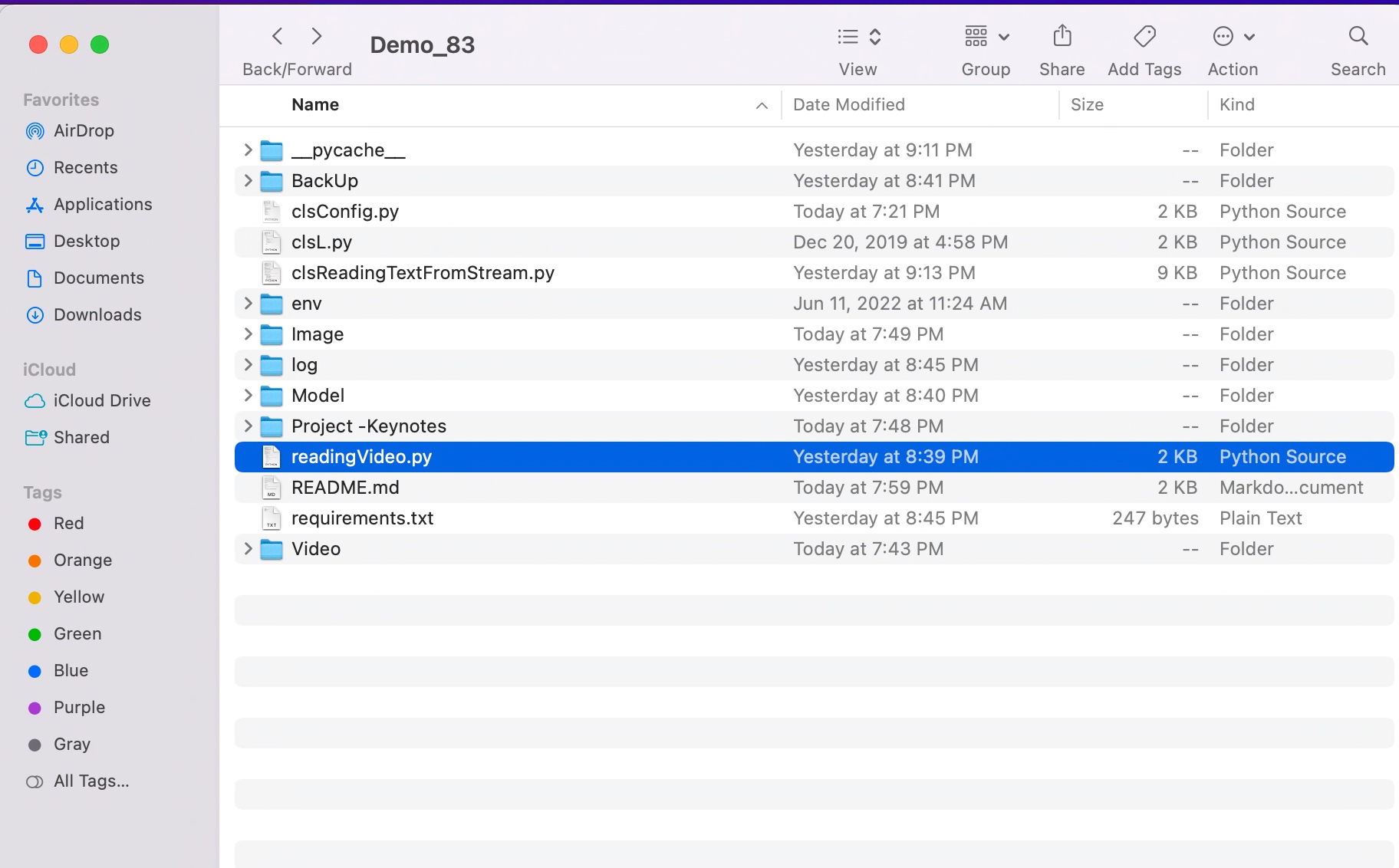
FOLDER STRUCTURE:

Here is the folder structure that contains all the files & directories in MAC O/S –

You will get the complete codebase in the following Github link.

Unfortunately, I cannot upload the model due to it’s size. I will share on the need basis.

I’ll bring some more exciting topic in the coming days from the Python verse. Please share & subscribe my post & let me know your feedback.

Till then, Happy Avenging! 🙂

Note: All the data & scenario posted here are representational data & scenarios & available over the internet & for educational purpose only. Some of the images (except my photo) that we’ve used are available over the net. We don’t claim the ownership of these images. There is an always room for improvement & especially the prediction quality.