Monitoring & evaluating the leading LLMs (both the established & new) by Python-based evaluator

As we’re leaping more & more into the field of Generative AI, one of the frequent questions or challenges people are getting more & more is the performance & other evaluation factors. These factors will eventually bring the fruit of this technology; otherwise, you will end up in technical debt.

This post will discuss the key snippets of the monitoring app based on the Python-based AI app. But before that, let us first view the demo.

Isn’t it exciting?


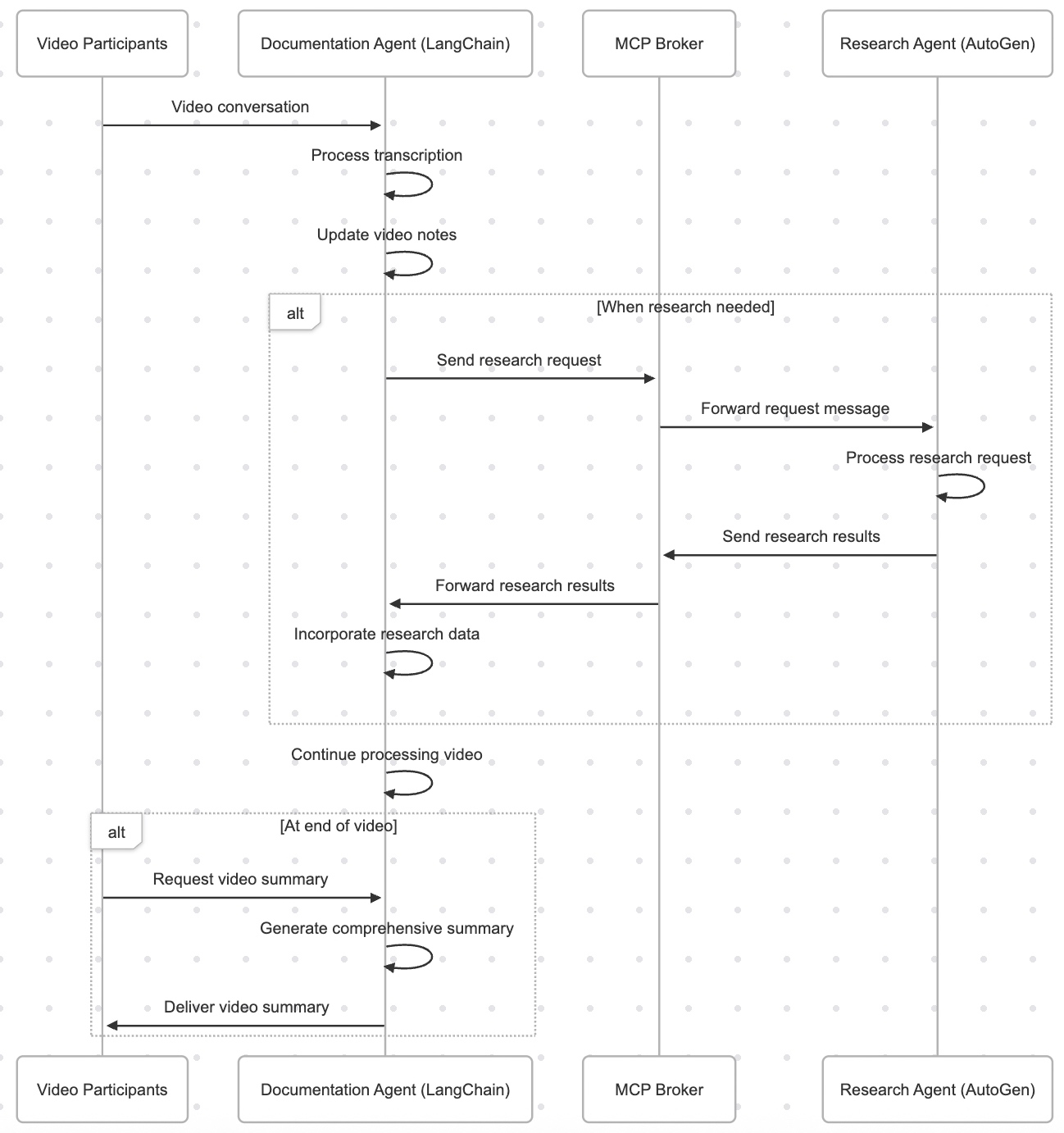
Let us deep dive into it. But, here is the flow this solution will follow.

So, the current application will invoke the industry bigshots and some relatively unknown or new LLMs.

In this case, we’ll evaluate Anthropic, Open AI, DeepSeek, and Bharat GPT’s various models. However, Bharat GPT is open source, so we’ll use the Huggingface library and execute it locally against my MacBook Pro M4 Max.

The following are the KPIs we’re going to evaluate:

Here are the lists of dependant python packages that is require to run this application –

pip install certifi==2024.8.30
pip install anthropic==0.42.0
pip install huggingface-hub==0.27.0
pip install nltk==3.9.1
pip install numpy==2.2.1
pip install moviepy==2.1.1
pip install numpy==2.1.3
pip install openai==1.59.3
pip install pandas==2.2.3
pip install pillow==11.1.0
pip install pip==24.3.1
pip install psutil==6.1.1
pip install requests==2.32.3
pip install rouge_score==0.1.2
pip install scikit-learn==1.6.0
pip install setuptools==70.2.0
pip install tokenizers==0.21.0
pip install torch==2.6.0.dev20250104
pip install torchaudio==2.6.0.dev20250104
pip install torchvision==0.22.0.dev20250104
pip install tqdm==4.67.1
pip install transformers==4.47.1
    @retry(stop=stop_after_attempt(3), wait=wait_exponential(multiplier=1, min=4, max=10))
    def get_claude_response(self, prompt: str) -> str:
        response = self.anthropic_client.messages.create(
            model=anthropic_model,
            max_tokens=maxToken,
            messages=[{"role": "user", "content": prompt}]
        )
        return response.content[0].text
  1. The Retry Mechanism
    • The @retry line means this function will automatically try again if it fails.
    • It will stop retrying after 3 attempts (stop_after_attempt(3)).
    • It will wait longer between retries, starting at 4 seconds and increasing up to 10 seconds (wait_exponential(multiplier=1, min=4, max=10)).
  2. The Function Purpose
    • The function takes a message, called prompt, as input (a string of text).
    • It uses a service (likely an AI system like Claude) to generate a response to this prompt.
  3. Sending the Message
    • Inside the function, the code self.anthropic_client.messages.create is the part that actually sends the prompt to the AI.
    • It specifies:Which AI model to use (e.g., anthropic_model).
    • The maximum length of the response (controlled by maxToken).
    • The input message for the AI has a “role” (user), as well as the content of the prompt.
  4. Getting the Response
    • Once the AI generates a response, it’s saved as response.
    • The code retrieves the first part of the response (response.content[0].text) and sends it back to whoever called the function.

Similarly, it will work for Open AI as well.

    @retry(stop=stop_after_attempt(3), wait=wait_exponential(multiplier=1, min=4, max=10))
    def get_deepseek_response(self, prompt: str) -> tuple:
        deepseek_api_key = self.deepseek_api_key

        headers = {
            "Authorization": f"Bearer {deepseek_api_key}",
            "Content-Type": "application/json"
            }
        
        payload = {
            "model": deepseek_model,  
            "messages": [{"role": "user", "content": prompt}],
            "max_tokens": maxToken
            }
        
        response = requests.post(DEEPSEEK_API_URL, headers=headers, json=payload)

        if response.status_code == 200:
            res = response.json()["choices"][0]["message"]["content"]
        else:
            res = "API request failed with status code " + str(response.status_code) + ":" + str(response.text)

        return res
  1. Retry Mechanism:
    • The @retry line ensures the function will try again if it fails.
    • It will stop retrying after 3 attempts (stop_after_attempt(3)).
    • It waits between retries, starting at 4 seconds and increasing up to 10 seconds (wait_exponential(multiplier=1, min=4, max=10)).

  1. What the Function Does:
    • The function takes one input, prompt, which is the message or question you want to send to the AI.
    • It returns the AI’s response or an error message.

  1. Preparing to Communicate with the API:
    • API Key: It gets the API key for the DeepSeek service from self.deepseek_api_key.
    • Headers: These tell the API that the request will use the API key (for security) and that the data format is JSON (structured text).
    • Payload: This is the information sent to the AI. It includes:
      • Model: Specifies which version of the AI to use (deepseek_model).
      • Messages: The input message with the role “user” and your prompt.
      • Max Tokens: Defines the maximum size of the AI’s response (maxToken).

  1. Sending the Request:
    • It uses the requests.post() method to send the payload and headers to the DeepSeek API using the URL DEEPSEEK_API_URL.

  1. Processing the Response:
    • If the API responds successfully (status_code == 200):
      • It extracts the AI’s reply from the response data.
      • Specifically, it gets the first choice’s message content: response.json()["choices"][0]["message"]["content"].
    • If there’s an error:
      • It constructs an error message with the status code and detailed error text from the API.

  1. Returning the Result:
    • The function outputs either the AI’s response or the error message.
    @retry(stop=stop_after_attempt(3), wait=wait_exponential(multiplier=1, min=4, max=10))
    def get_bharatgpt_response(self, prompt: str) -> tuple:
        try:
            messages = [[{"role": "user", "content": prompt}]]
            
            response = pipe(messages, max_new_tokens=maxToken,)

            # Extract 'content' field safely
            res = next((entry.get("content", "")
                        for entry in response[0][0].get("generated_text", [])
                        if isinstance(entry, dict) and entry.get("role") == "assistant"
                        ),
                        None,
                        )
            
            return res
        except Exception as e:
            x = str(e)
            print('Error: ', x)

            return ""
  1. Retry Mechanism:The @retry ensures the function will try again if it fails.
    • It will stop retrying after 3 attempts (stop_after_attempt(3)).
    • The waiting time between retries starts at 4 seconds and increases exponentially up to 10 seconds (wait_exponential(multiplier=1, min=4, max=10)).
  2. What the Function Does:The function takes one input, prompt, which is the message or question you want to send to BharatGPT.
    • It returns the AI’s response or an empty string if something goes wrong.
  3. Sending the Prompt:Messages Structure: The function wraps the user’s prompt in a format that the BharatGPT AI understands:
    • messages = [[{"role": "user", "content": prompt}]]
    • This tells the AI that the prompt is coming from the “user.”
  4. Pipe Function: It uses a pipe() method to send the messages to the AI system.
    • max_new_tokens=maxToken: Limits how long the AI’s response can be.
  5. Extracting the Response:The response from the AI is in a structured format. The code looks for the first piece of text where:
    • The role is “assistant” (meaning it’s the AI’s reply).
    • The text is in the “content” field.
    • The next() function safely extracts this “content” field or returns None if it can’t find it.
  6. Error Handling:If something goes wrong (e.g., the AI doesn’t respond or there’s a technical issue), the code:
    • Captures the error message in e.
    • Prints the error message: print('Error: ', x).
    • Returns an empty string ("") instead of crashing.
  7. Returning the Result:If everything works, the function gives you the AI’s response as plain text.
    • If there’s an error, it gives you an empty string, indicating no response was received.

    def get_model_response(self, model_name: str, prompt: str) -> ModelResponse:
        """Get response from specified model with metrics"""
        start_time = time.time()
        start_memory = psutil.Process(os.getpid()).memory_info().rss / 1024 / 1024

        try:
            if model_name == "claude-3":
                response_content = self.get_claude_response(prompt)
            elif model_name == "gpt4":
                response_content = self.get_gpt4_response(prompt)
            elif model_name == "deepseek-chat":
                response_content = self.get_deepseek_response(prompt)
            elif model_name == "bharat-gpt":
                response_content = self.get_bharatgpt_response(prompt)

            # Model-specific API calls 
            token_count = len(self.bert_tokenizer.encode(response_content))
            
            end_memory = psutil.Process(os.getpid()).memory_info().rss / 1024 / 1024
            memory_usage = end_memory - start_memory
            
            return ModelResponse(
                content=response_content,
                response_time=time.time() - start_time,
                token_count=token_count,
                memory_usage=memory_usage
            )
        except Exception as e:
            logging.error(f"Error getting response from {model_name}: {str(e)}")
            return ModelResponse(
                content="",
                response_time=0,
                token_count=0,
                memory_usage=0,
                error=str(e)
            )

Start Tracking Time and Memory:

    • The function starts a timer (start_time) to measure how long it takes to get a response.
    • It also checks how much memory is being used at the beginning (start_memory).

    Choose the AI Model:

    • Based on the model_name provided, the function selects the appropriate method to get a response:
      • "claude-3" → Calls get_claude_response(prompt).
      • "gpt4" → Calls get_gpt4_response(prompt).
      • "deepseek-chat" → Calls get_deepseek_response(prompt).
      • "bharat-gpt" → Calls get_bharatgpt_response(prompt).

    Process the Response:

    • Once the response is received, the function calculates:
      • Token Count: The number of tokens (small chunks of text) in the response using a tokenizer.
      • Memory Usage: The difference between memory usage after the response (end_memory) and before it (start_memory).

    Return the Results:

    • The function bundles all the information into a ModelResponse object:
      • The AI’s reply (content).
      • How long the response took (response_time).
      • The number of tokens in the reply (token_count).
      • How much memory was used (memory_usage).

    Handle Errors:

    • If something goes wrong (e.g., the AI doesn’t respond), the function:
      • Logs the error message.
      • Returns an empty response with default values and the error message.
        def evaluate_text_quality(self, generated: str, reference: str) -> Dict[str, float]:
            """Evaluate text quality metrics"""
            # BERTScore
            gen_embedding = self.sentence_model.encode([generated])
            ref_embedding = self.sentence_model.encode([reference])
            bert_score = cosine_similarity(gen_embedding, ref_embedding)[0][0]
    
            # BLEU Score
            generated_tokens = word_tokenize(generated.lower())
            reference_tokens = word_tokenize(reference.lower())
            bleu = sentence_bleu([reference_tokens], generated_tokens)
    
            # METEOR Score
            meteor = meteor_score([reference_tokens], generated_tokens)
    
            return {
                'bert_score': bert_score,
                'bleu_score': bleu,
                'meteor_score': meteor
            }

    Inputs:

    • generated: The text produced by the AI.
    • reference: The correct or expected version of the text.

    Calculating BERTScore:

    • Converts the generated and reference texts into numerical embeddings (mathematical representations) using a pre-trained model (self.sentence_model.encode).
    • Measures the similarity between the two embeddings using cosine similarity. This gives the bert_score, which ranges from -1 (completely different) to 1 (very similar).

    Calculating BLEU Score:

    • Breaks the generated and reference texts into individual words (tokens) using word_tokenize.
    • Converts both texts to lowercase for consistent comparison.
    • Calculates the BLEU Score (sentence_bleu), which checks how many words or phrases in the generated text overlap with the reference. BLEU values range from 0 (no match) to 1 (perfect match).

    Calculating METEOR Score:

    • Also uses the tokenized versions of generated and reference texts.
    • Calculates the METEOR Score (meteor_score), which considers exact matches, synonyms, and word order. Scores range from 0 (no match) to 1 (perfect match).

    Returning the Results:

    • Combines the three scores into a dictionary with the keys 'bert_score''bleu_score', and 'meteor_score'.

    Similarly, other functions are developed.

        def run_comprehensive_evaluation(self, evaluation_data: List[Dict]) -> pd.DataFrame:
            """Run comprehensive evaluation on all metrics"""
            results = []
            
            for item in evaluation_data:
                prompt = item['prompt']
                reference = item['reference']
                task_criteria = item.get('task_criteria', {})
                
                for model_name in self.model_configs.keys():
                    # Get multiple responses to evaluate reliability
                    responses = [
                        self.get_model_response(model_name, prompt)
                        for _ in range(3)  # Get 3 responses for reliability testing
                    ]
                    
                    # Use the best response for other evaluations
                    best_response = max(responses, key=lambda x: len(x.content) if not x.error else 0)
                    
                    if best_response.error:
                        logging.error(f"Error in model {model_name}: {best_response.error}")
                        continue
                    
                    # Gather all metrics
                    metrics = {
                        'model': model_name,
                        'prompt': prompt,
                        'response': best_response.content,
                        **self.evaluate_text_quality(best_response.content, reference),
                        **self.evaluate_factual_accuracy(best_response.content, reference),
                        **self.evaluate_task_performance(best_response.content, task_criteria),
                        **self.evaluate_technical_performance(best_response),
                        **self.evaluate_reliability(responses),
                        **self.evaluate_safety(best_response.content)
                    }
                    
                    # Add business impact metrics using task performance
                    metrics.update(self.evaluate_business_impact(
                        best_response,
                        metrics['task_completion']
                    ))
                    
                    results.append(metrics)
            
            return pd.DataFrame(results)
    • Input:
      • evaluation_data: A list of test cases, where each case is a dictionary containing:
        • prompt: The question or input to the AI model.
        • reference: The ideal or expected answer.
        • task_criteria (optional): Additional rules or requirements for the task.
    • Initialize Results:
      • An empty list results is created to store the evaluation metrics for each model and test case.
    • Iterate Through Test Cases:
      • For each item in the evaluation_data:
        • Extract the promptreference, and task_criteria.
    • Evaluate Each Model:
      • Loop through all available AI models (self.model_configs.keys()).
      • Generate three responses for each model to test reliability.
    • Select the Best Response:
      • Out of the three responses, pick the one with the most content (best_response), ignoring responses with errors.
    • Handle Errors:
      • If a response has an error, log the issue and skip further evaluation for that model.
    • Evaluate Metrics:
      • Using the best_response, calculate a variety of metrics, including:
        • Text Quality: How similar the response is to the reference.
        • Factual Accuracy: Whether the response is factually correct.
        • Task Performance: How well it meets task-specific criteria.
        • Technical Performance: Evaluate time, memory, or other system-related metrics.
        • Reliability: Check consistency across multiple responses.
        • Safety: Ensure the response is safe and appropriate.
    • Evaluate Business Impact:
      • Add metrics for business impact (e.g., how well the task was completed, using task_completion as a key factor).
    • Store Results:
      • Add the calculated metrics for this model and prompt to the results list.
    • Return Results as a DataFrame:
      • Convert the results list into a structured table (a pandas DataFrame) for easy analysis and visualization.

    Great! So, now, we’ve explained the code.

    Let us understand the final outcome of this run & what we can conclude from that.

    1. BERT Score (Semantic Understanding):
      • GPT4 leads slightly at 0.8322 (83.22%)
      • Bharat-GPT close second at 0.8118 (81.18%)
      • Claude-3 at 0.8019 (80.19%)
      • DeepSeek-Chat at 0.7819 (78.19%) Think of this like a “comprehension score” – how well the models understand the context. All models show strong understanding, with only a 5% difference between best and worst.
    2. BLEU Score (Word-for-Word Accuracy):
      • Bharat-GPT leads at 0.0567 (5.67%)
      • Claude-3 at 0.0344 (3.44%)
      • GPT4 at 0.0306 (3.06%)
      • DeepSeek-Chat lowest at 0.0189 (1.89%) These low scores suggest models use different wording than references, which isn’t necessarily bad.
    3. METEOR Score (Meaning Preservation):
      • Bharat-GPT leads at 0.4684 (46.84%)
      • Claude-3 close second at 0.4507 (45.07%)
      • GPT4 at 0.2960 (29.60%)
      • DeepSeek-Chat at 0.2652 (26.52%) This shows how well models maintain meaning while using different words.
    4. Response Time (Speed):
      • Claude-3 fastest: 4.40 seconds
      • Bharat-GPT: 6.35 seconds
      • GPT4: 6.43 seconds
      • DeepSeek-Chat slowest: 8.52 seconds
    5. Safety and Reliability:
      • Error Rate: Perfect 0.0 for all models
      • Toxicity: All very safe (below 0.15%) 
        • Claude-3 safest at 0.0007GPT4 at 0.0008Bharat-GPT at 0.0012
        • DeepSeek-Chat at 0.0014
    6. Cost Efficiency:
      • Claude-3 most economical: $0.0019 per response
      • Bharat-GPT close: $0.0021
      • GPT4: $0.0038
      • DeepSeek-Chat highest: $0.0050

    Key Takeaways by Model:

    1. Claude-3: ✓ Fastest responses ✓ Most cost-effective ✓ Excellent meaning preservation ✓ Lowest toxicity
    2. Bharat-GPT: ✓ Best BLEU and METEOR scores ✓ Strong semantic understanding ✓ Cost-effective ✗ Moderate response time
    3. GPT4: ✓ Best semantic understanding ✓ Good safety metrics ✗ Higher cost ✗ Moderate response time
    4. DeepSeek-Chat: ✗ Generally lower performance ✗ Slowest responses ✗ Highest cost ✗ Slightly higher toxicity

    Reliability of These Statistics:

    Strong Points:

    • Comprehensive metric coverage
    • Consistent patterns across evaluations
    • Zero error rates show reliability
    • Clear differentiation between models

    Limitations:

    • BLEU scores are quite low across all models
    • Doesn’t measure creative or innovative responses
    • May not reflect specific use case performance
    • Single snapshot rather than long-term performance

    Final Observation:

    1. Best Overall Value: Claude-3
      • Fast, cost-effective, safe, good performance
    2. Best for Accuracy: Bharat-GPT
      • Highest meaning preservation and precision
    3. Best for Understanding: GPT4
      • Strongest semantic comprehension
    4. Consider Your Priorities: 
      • Speed → Choose Claude-3
      • Cost → Choose Claude-3 or Bharat-GPT
      • Accuracy → Choose Bharat-GPT
      • Understanding → Choose GPT4

    These statistics provide reliable comparative data but should be part of a broader decision-making process that includes your specific needs, budget, and use cases.


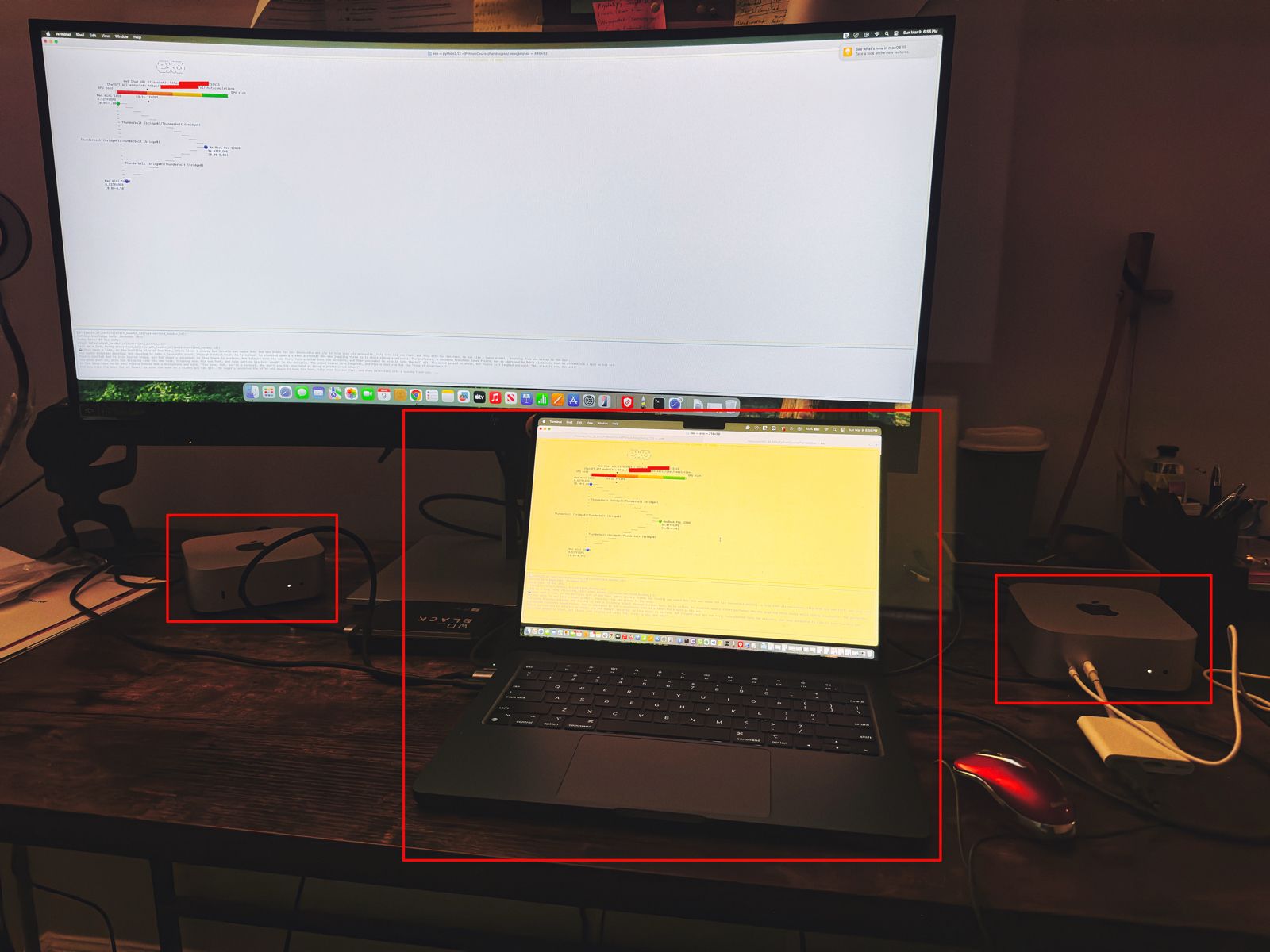
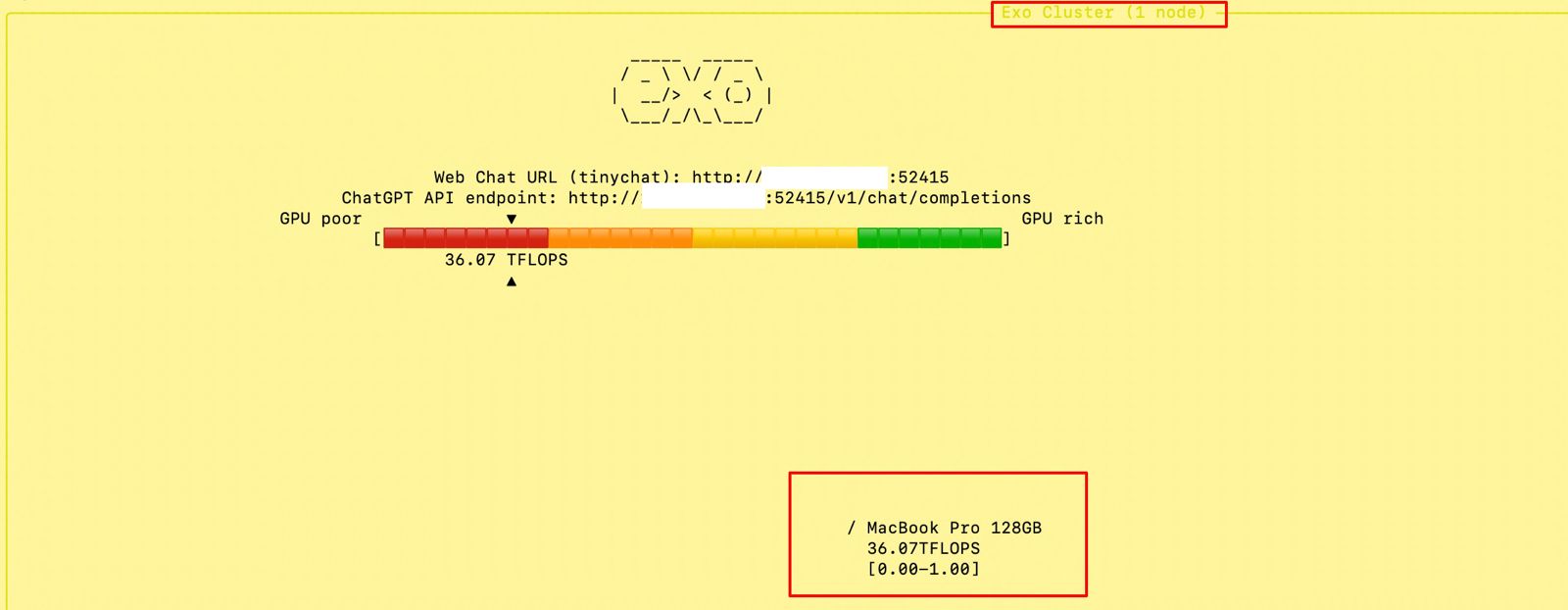
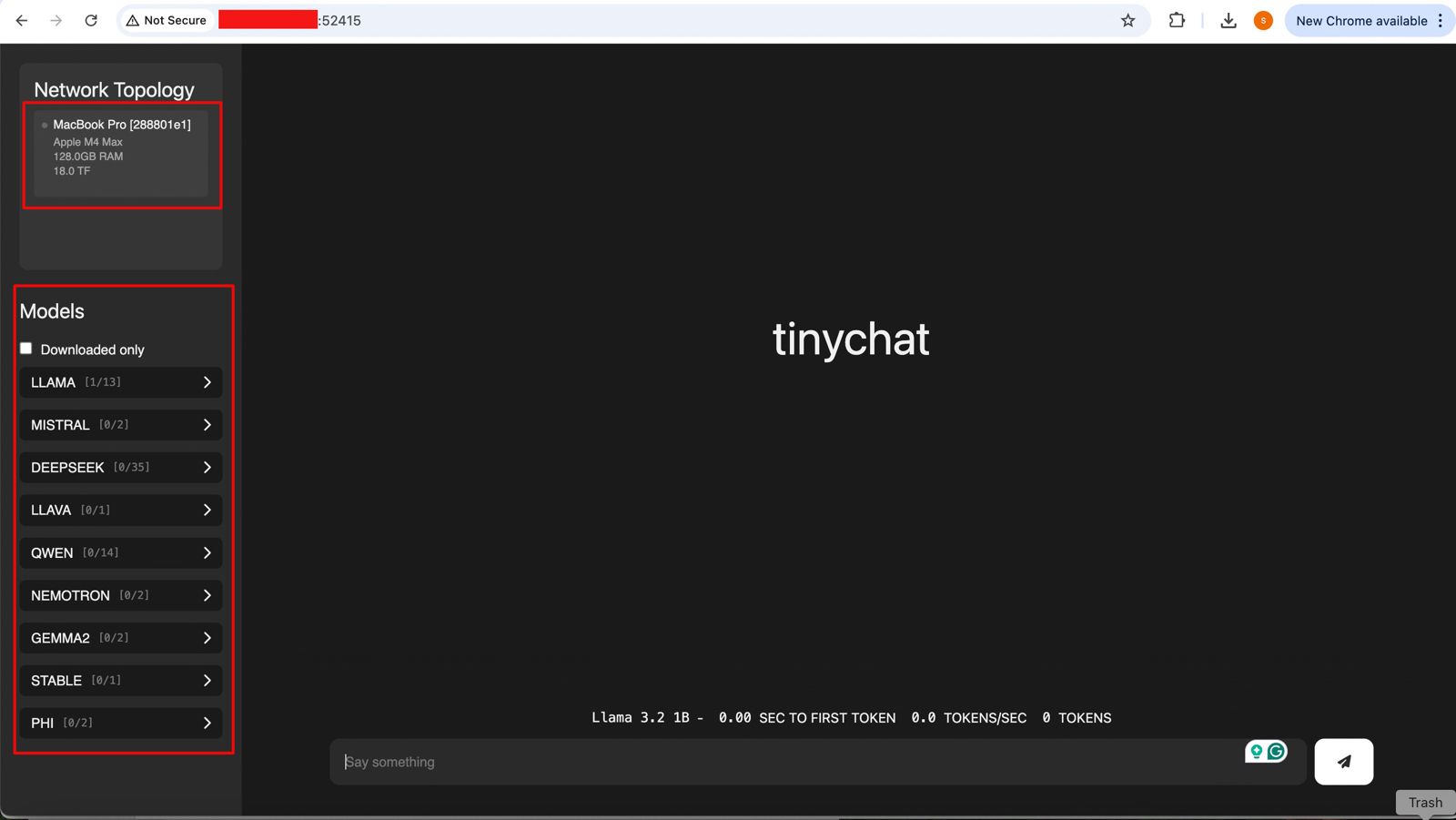
    For the Bharat GPT model, we’ve tested this locally on my MacBook Pro 4 Max. And, the configuration is as follows –

    I’ve tried the API version locally, & it provided a similar performance against the stats that we received by running locally. Unfortunately, they haven’t made the API version public yet.

    So, apart from the Anthropic & Open AI, I’ll watch this new LLM (Bharat GPT) for overall stats in the coming days.


    So, we’ve done it.

    You can find the detailed code at the GitHub link.

    I’ll bring some more exciting topics in the coming days from the Python verse.

    Till then, Happy Avenging! 🙂

    Enabling & Exploring Stable Defussion – Part 3

    Before we dive into the details of this post, let us provide the previous two links that precede it.

    Enabling & Exploring Stable Defussion – Part 1

    Enabling & Exploring Stable Defussion – Part 2

    For, reference, we’ll share the demo before deep dive into the actual follow-up analysis in the below section –


    Now, let us continue our discussions from where we left.

    class clsText2Image:
        def __init__(self, pipe, output_path, filename):
    
            self.pipe = pipe
            
            # More aggressive attention slicing
            self.pipe.enable_attention_slicing(slice_size=1)
    
            self.output_path = f"{output_path}{filename}"
            
            # Warm up the pipeline
            self._warmup()
        
        def _warmup(self):
            """Warm up the pipeline to optimize memory allocation"""
            with torch.no_grad():
                _ = self.pipe("warmup", num_inference_steps=1, height=512, width=512)
            torch.mps.empty_cache()
            gc.collect()
        
        def generate(self, prompt, num_inference_steps=12, guidance_scale=3.0):
            try:
                torch.mps.empty_cache()
                gc.collect()
                
                with torch.autocast(device_type="mps"):
                    with torch.no_grad():
                        image = self.pipe(
                            prompt,
                            num_inference_steps=num_inference_steps,
                            guidance_scale=guidance_scale,
                            height=1024,
                            width=1024,
                        ).images[0]
                
                image.save(self.output_path)
                return 0
            except Exception as e:
                print(f'Error: {str(e)}')
                return 1
            finally:
                torch.mps.empty_cache()
                gc.collect()
    
        def genImage(self, prompt):
            try:
    
                # Initialize generator
                x = self.generate(prompt)
    
                if x == 0:
                    print('Successfully processed first pass!')
                else:
                    print('Failed complete first pass!')
                    raise 
    
                return 0
    
            except Exception as e:
                print(f"\nAn unexpected error occurred: {str(e)}")
    
                return 1

    This is the initialization method for the clsText2Image class:

    • Takes a pre-configured pipe (text-to-image pipeline), an output_path, and a filename.
    • Enables more aggressive memory optimization by setting “attention slicing.”
    • Prepares the full file path for saving generated images.
    • Calls a _warmup method to pre-load the pipeline and optimize memory allocation.

    This private method warms up the pipeline:

    • Sends a dummy “warmup” request with basic parameters to allocate memory efficiently.
    • Clears any cached memory (torch.mps.empty_cache()) and performs garbage collection (gc.collect()).
    • Ensures smoother operation for future image generation tasks.

    This method generates an image from a text prompt:

    • Clears memory cache and performs garbage collection before starting.
    • Uses the text-to-image pipeline (pipe) to generate an image:
      • Takes the prompt, number of inference steps, and guidance scale as input.
      • Outputs an image at 1024×1024 resolution.
    • Saves the generated image to the specified output path.
    • Returns 0 on success or 1 on failure.
    • Ensures cleanup by clearing memory and collecting garbage, even in case of errors.

    This method simplifies image generation:

    • Calls the generate method with the given prompt.
    • Prints a success message if the image is generated (0 return value).
    • On failure, logs the error and raises an exception.
    • Returns 0 on success or 1 on failure.
    class clsImage2Video:
        def __init__(self, pipeline):
            
            # Optimize model loading
            torch.mps.empty_cache()
            self.pipeline = pipeline
    
        def generate_frames(self, pipeline, init_image, prompt, duration_seconds=10):
            try:
                torch.mps.empty_cache()
                gc.collect()
    
                base_frames = []
                img = Image.open(init_image).convert("RGB").resize((1024, 1024))
                
                for _ in range(10):
                    result = pipeline(
                        prompt=prompt,
                        image=img,
                        strength=0.45,
                        guidance_scale=7.5,
                        num_inference_steps=25
                    ).images[0]
    
                    base_frames.append(np.array(result))
                    img = result
                    torch.mps.empty_cache()
    
                frames = []
                for i in range(len(base_frames)-1):
                    frame1, frame2 = base_frames[i], base_frames[i+1]
                    for t in np.linspace(0, 1, int(duration_seconds*24/10)):
                        frame = (1-t)*frame1 + t*frame2
                        frames.append(frame.astype(np.uint8))
                
                return frames
            except Exception as e:
                frames = []
                print(f'Error: {str(e)}')
    
                return frames
            finally:
                torch.mps.empty_cache()
                gc.collect()
    
        # Main method
        def genVideo(self, prompt, inputImage, targetVideo, fps):
            try:
                print("Starting animation generation...")
                
                init_image_path = inputImage
                output_path = targetVideo
                fps = fps
                
                frames = self.generate_frames(
                    pipeline=self.pipeline,
                    init_image=init_image_path,
                    prompt=prompt,
                    duration_seconds=20
                )
                
                imageio.mimsave(output_path, frames, fps=30)
    
                print("Animation completed successfully!")
    
                return 0
            except Exception as e:
                x = str(e)
                print('Error: ', x)
    
                return 1

    This initializes the clsImage2Video class:

    • Clears the GPU cache to optimize memory before loading.
    • Sets up the pipeline for generating frames, which uses an image-to-video transformation model.

    This function generates frames for a video:

    • Starts by clearing GPU memory and running garbage collection.
    • Loads the init_image, resizes it to 1024×1024 pixels, and converts it to RGB format.
    • Iteratively applies the pipeline to transform the image:
      • Uses the prompt and specified parameters like strengthguidance_scale, and num_inference_steps.
      • Stores the resulting frames in a list.
    • Interpolates between consecutive frames to create smooth transitions:
      • Uses linear blending for smooth animation across a specified duration and frame rate (24 fps for 10 segments).
    • Returns the final list of generated frames or an empty list if an error occurs.
    • Always clears memory after execution.

    This is the main function for creating a video from an image and text prompt:

    • Logs the start of the animation generation process.
    • Calls generate_frames() with the given pipelineinputImage, and prompt to create frames.
    • Saves the generated frames as a video using the imageio library, setting the specified frame rate (fps).
    • Logs a success message and returns 0 if the process is successful.
    • On error, logs the issue and returns 1.

    Now, let us understand the performance. But, before that let us explore the device on which we’ve performed these stress test that involves GPU & CPUs as well.

    And, here is the performance stats –

    From the above snapshot, we can clearly communicate that the GPU is 100% utilized. However, the CPU has shown a significant % of availability.

    As you can see, the first pass converts the input prompt to intermediate images within 1 min 30 sec. However, the second pass constitutes multiple hops (11 hops) on an avg 22 seconds. Overall, the application will finish in 5 minutes 36 seconds for a 10-second video clip.


    So, we’ve done it.

    You can find the detailed code at the GitHub link.

    I’ll bring some more exciting topics in the coming days from the Python verse.

    Till then, Happy Avenging! 🙂

    Enabling & Exploring Stable Defussion – Part 2

    As we’ve started explaining, the importance & usage of Stable Defussion in our previous post:

    Enabling & Exploring Stable Defussion – Part 1

    In today’s post, we’ll discuss another approach, where we built the custom Python-based SDK solution that consumes HuggingFace Library, which generates video out of the supplied prompt.

    But, before that, let us view the demo generated from a custom solution.

    Isn’t it exciting? Let us dive deep into the details.


    Let us understand basic flow of events for the custom solution –

    So, the application will interact with the python-sdk like “stable-diffusion-3.5-large” & “dreamshaper-xl-1-0”, which is available in HuggingFace. As part of the process, these libraries will load all the large models inside the local laptop that require some time depend upon the bandwidth of your internet.

    Before we even deep dive into the code, let us understand the flow of Python scripts as shown below:

    From the above diagram, we can understand that the main application will be triggered by “generateText2Video.py”. As you can see that “clsConfigClient.py” has all the necessary parameter information that will be supplied to all the scripts.

    “generateText2Video.py” will trigger the main class named “clsText2Video.py”, which then calls all the subsequent classes.

    Great! Since we now have better visibility of the script flow, let’s examine the key snippets individually.


    class clsText2Video:
        def __init__(self, model_id_1, model_id_2, output_path, filename, vidfilename, fps, force_cpu=False):
            self.model_id_1 = model_id_1
            self.model_id_2 = model_id_2
            self.output_path = output_path
            self.filename = filename
            self.vidfilename = vidfilename
            self.force_cpu = force_cpu
            self.fps = fps
    
            # Initialize in main process
            os.environ["TOKENIZERS_PARALLELISM"] = "true"
            self.r1 = cm.clsMaster(force_cpu)
            self.torch_type = self.r1.getTorchType()
            
            torch.mps.empty_cache()
            self.pipe = self.r1.getText2ImagePipe(self.model_id_1, self.torch_type)
            self.pipeline = self.r1.getImage2VideoPipe(self.model_id_2, self.torch_type)
    
            self.text2img = cti.clsText2Image(self.pipe, self.output_path, self.filename)
            self.img2vid = civ.clsImage2Video(self.pipeline)
    
        def getPrompt2Video(self, prompt):
            try:
                input_image = self.output_path + self.filename
                target_video = self.output_path + self.vidfilename
    
                if self.text2img.genImage(prompt) == 0:
                    print('Pass 1: Text to intermediate images generated!')
                    
                    if self.img2vid.genVideo(prompt, input_image, target_video, self.fps) == 0:
                        print('Pass 2: Successfully generated!')
                        return 0
                return 1
            except Exception as e:
                print(f"\nAn unexpected error occurred: {str(e)}")
                return 1

    Now, let us interpret:

    This is the initialization method for the class. It does the following:

    • Sets up configurations like model IDs, output paths, filenames, video filename, frames per second (fps), and whether to use the CPU (force_cpu).
    • Configures an environment variable for tokenizer parallelism.
    • Initializes helper classes (clsMaster) to manage system resources and retrieve appropriate PyTorch settings.
    • Creates two pipelines:
      • pipe: For converting text to images using the first model.
      • pipeline: For converting images to video using the second model.
    • Initializes text2img and img2vid objects:
      • text2img handles text-to-image conversions.
      • img2vid handles image-to-video conversions.

    This method generates a video from a text prompt in two steps:

    1. Text-to-Image Conversion:
      • Calls genImage(prompt) using the text2img object to create an intermediate image file.
      • If successful, it prints confirmation.
    2. Image-to-Video Conversion:
      • Uses the img2vid object to convert the intermediate image into a video file.
      • Includes the input image path, target video path, and frames per second (fps).
      • If successful, it prints confirmation.
    • If either step fails, the method returns 1.
    • Logs any unexpected errors and returns 1 in such cases.
    # Set device for Apple Silicon GPU
    def setup_gpu(force_cpu=False):
        if not force_cpu and torch.backends.mps.is_available() and torch.backends.mps.is_built():
            print('Running on Apple Silicon MPS GPU!')
            return torch.device("mps")
        return torch.device("cpu")
    
    ######################################
    ####         Global Flag      ########
    ######################################
    
    class clsMaster:
        def __init__(self, force_cpu=False):
            self.device = setup_gpu(force_cpu)
    
        def getTorchType(self):
            try:
                # Check if MPS (Apple Silicon GPU) is available
                if not torch.backends.mps.is_available():
                    torch_dtype = torch.float32
                    raise RuntimeError("MPS (Metal Performance Shaders) is not available on this system.")
                else:
                    torch_dtype = torch.float16
                
                return torch_dtype
            except Exception as e:
                torch_dtype = torch.float16
                print(f'Error: {str(e)}')
    
                return torch_dtype
    
        def getText2ImagePipe(self, model_id, torchType):
            try:
                device = self.device
    
                torch.mps.empty_cache()
                self.pipe = StableDiffusion3Pipeline.from_pretrained(model_id, torch_dtype=torchType, use_safetensors=True, variant="fp16",).to(device)
    
                return self.pipe
            except Exception as e:
                x = str(e)
                print('Error: ', x)
    
                torch.mps.empty_cache()
                self.pipe = StableDiffusion3Pipeline.from_pretrained(model_id, torch_dtype=torchType,).to(device)
    
                return self.pipe
            
        def getImage2VideoPipe(self, model_id, torchType):
            try:
                device = self.device
    
                torch.mps.empty_cache()
                self.pipeline = StableDiffusionXLImg2ImgPipeline.from_pretrained(model_id, torch_dtype=torchType, use_safetensors=True, use_fast=True).to(device)
    
                return self.pipeline
            except Exception as e:
                x = str(e)
                print('Error: ', x)
    
                torch.mps.empty_cache()
                self.pipeline = StableDiffusionXLImg2ImgPipeline.from_pretrained(model_id, torch_dtype=torchType).to(device)
    
                return self.pipeline

    Let us interpret:

    This function determines whether to use the Apple Silicon GPU (MPS) or the CPU:

    • If force_cpu is False and the MPS GPU is available, it sets the device to “mps” (Apple GPU) and prints a message.
    • Otherwise, it defaults to the CPU.

    This is the initializer for the clsMaster class:

    • It sets the device to either GPU or CPU using the setup_gpu function (mentioned above) based on the force_cpu flag.

    This method determines the PyTorch data type to use:

    • Checks if MPS GPU is available:
      • If available, uses torch.float16 for optimized performance.
      • If unavailable, defaults to torch.float32 and raises a warning.
    • Handles errors gracefully by defaulting to torch.float16 and printing the error.

    This method initializes a text-to-image pipeline:

    • Loads the Stable Diffusion model with the given model_id and torchType.
    • Configures it for MPS GPU or CPU, based on the device.
    • Clears the GPU cache before loading the model to optimize memory usage.
    • If an error occurs, attempts to reload the pipeline without safetensors.

    This method initializes an image-to-video pipeline:

    • Similar to getText2ImagePipe, it loads the Stable Diffusion XL Img2Img pipeline with the specified model_id and torchType.
    • Configures it for MPS GPU or CPU and clears the cache before loading.
    • On error, reloads the pipeline without additional optimization settings and prints the error.

    Let us continue this in the next post:

    Enabling & Exploring Stable Defussion – Part 3

    Till then, Happy Avenging! 🙂

    Building solutions using LLM AutoGen in Python – Part 3

    Before we dive into the details of this post, let us provide the previous two links that precede it.

    Building solutions using LLM AutoGen in Python – Part 1

    Building solutions using LLM AutoGen in Python – Part 2

    For, reference, we’ll share the demo before deep dive into the actual follow-up analysis in the below section –


    In this post, we will understand the initial code generated & then the revised code to compare them for a better understanding of the impact of revised prompts.

    But, before that let us broadly understand the communication types between the agents.

    • Agents InvolvedAgent1Agent2
    • Flow:
      • Agent1 sends a request directly to Agent2.
      • Agent2 processes the request and sends the response back to Agent1.
    • Use Case: Simple query-response interactions without intermediaries.
    • Agents InvolvedUserAgentMediatorSpecialistAgent1SpecialistAgent2
    • Flow:
      • UserAgent sends input to Mediator.
      • Mediator delegates tasks to SpecialistAgent1 and SpecialistAgent2.
      • Specialists process tasks and return results to Mediator.
      • Mediator consolidates results and sends them back to UserAgent.
    • Agents InvolvedBroadcasterAgentAAgentBAgentC
    • Flow:
      • Broadcaster sends a message to multiple agents simultaneously.
      • Agents that find the message relevant (AgentAAgentC) acknowledge or respond.
    • Use Case: System-wide notifications or alerts.
    • Agents InvolvedSupervisorWorker1Worker2
    • Flow:
      • Supervisor assigns tasks to Worker1 and Worker2.
      • Workers execute tasks and report progress back to Supervisor.
    • Use Case: Task delegation in structured organizations.
    • Agents InvolvedPublisherSubscriber1Topic
    • Flow:
      • Publisher publishes an event or message to a Topic.
      • Subscriber1, who is subscribed to the Topic, receives the event.
    • Use Case: Decoupled systems where publishers and subscribers do not need direct knowledge of each other.
    • Agents InvolvedTriggerEventReactiveAgentNextStep
    • Flow:
      • An event occurs (TriggerEvent).
      • ReactiveAgent detects the event and acts.
      • The action leads to the NextStep in the process.
    • Use Case: Systems that need to respond to asynchronous events or changes in the environment.

    Since, we now understand the basic communication types. Let us understand the AutoGen generated first code & the last code (That satisfies our need) –

    # filename: simple_snake.py (Generated by AutoGen)
    
    import pygame
    import time
    import random
     
    snake_speed = 15
     
    # Window color
    white = pygame.Color(255, 255, 255)
     
    # Snake color
    green = pygame.Color(0, 255, 0)
     
    snake_position = [100, 50]
     
    # defining first 4 blocks 
    # of snake body
    snake_body = [ [100, 50], 
                   [90, 50],
                   [80, 50],
                   [70, 50]
                ]
    # fruit position
    fruit_position = [random.randrange(1, (1000//10)) * 10, 
                      random.randrange(1, (600//10)) * 10]
    fruit_spawn = True
     
    direction = 'RIGHT'
    change_to = direction
     
    score = 0
     
    # Initialising pygame
    pygame.init()
     
    # Initialise game window
    win = pygame.display.set_mode((1000, 600))
    pygame.display.set_caption("Snake game for kids")
     
    # FPS (frames per second) controller
    fps_controller = pygame.time.Clock()
     
      
    while True:
        # handling key events
        for event in pygame.event.get():
            if event.type == pygame.KEYDOWN:
                if event.key == pygame.K_UP:
                    change_to = 'UP'
                if event.key == pygame.K_DOWN:
                    change_to = 'DOWN'
                if event.key == pygame.K_LEFT:
                    change_to = 'LEFT'
                if event.key == pygame.K_RIGHT:
                    change_to = 'RIGHT'
    
        # If two keys pressed simultaneously
        # we don't want snake to move into two
        # directions simultaneously
        if change_to == 'UP' and direction != 'DOWN':
            direction = 'UP'
        if change_to == 'DOWN' and direction != 'UP':
            direction = 'DOWN'
        if change_to == 'LEFT' and direction != 'RIGHT':
            direction = 'LEFT'
        if change_to == 'RIGHT' and direction != 'LEFT':
            direction = 'RIGHT'
     
        # Moving the snake
        if direction == 'UP':
            snake_position[1] -= 10
        if direction == 'DOWN':
            snake_position[1] += 10
        if direction == 'LEFT':
            snake_position[0] -= 10
        if direction == 'RIGHT':
            snake_position[0] += 10
     
        # Snake body growing mechanism
        # if fruits and snakes collide then scores
        # will increase by 10
        snake_body.insert(0, list(snake_position))
        if snake_position[0] == fruit_position[0] and snake_position[1] == fruit_position[1]:
            score += 10
            fruit_spawn = False
        else:
            snake_body.pop()
             
        if not fruit_spawn:
            fruit_position = [random.randrange(1, (1000//10)) * 10, 
                              random.randrange(1, (600//10)) * 10]
             
        fruit_spawn = True
        win.fill(white)
        
        for pos in snake_body:
            pygame.draw.rect(win, green, pygame.Rect(pos[0], pos[1], 10, 10))
        pygame.draw.rect(win, white, pygame.Rect(
        fruit_position[0], fruit_position[1], 10, 10))
     
        # Game Over conditions
        if snake_position[0] < 0 or snake_position[0] > 1000-10:
            break
        if snake_position[1] < 0 or snake_position[1] > 600-10:
            break
     
        # Touching the snake body
        for block in snake_body[1:]:
            if snake_position[0] == block[0] and snake_position[1] == block[1]:
                break
        
        # refresh game screen
        pygame.display.update()
    
        # Frame Per Second /Refresh rate
        fps_controller.tick(snake_speed)
    
    # displaying final score after game over
    print(f"You scored {score} in the game.")

    Now, let us remember the prompt refinement that we’ve done (We’ve already posted that in our last post as well) –

    I want to place the snake within the boundary of the visual wall & it should bounce each wall & then hit the target. And, it should increase the size. And, every time when it hits the target it will increase the score by 10. And, the application will run for 2 minutes, which will be displayed on the screen. This will exit once 2 minute is over.
    # filename: simple_snake.py (Generated by AutoGen)
    
    import pygame
    import time
    import random
    import math
    
    pygame.init()
    
    white = (255, 255, 255)
    yellow = (255, 255, 102)
    green = (0, 255, 0)
    red = (255, 0, 0)
    black = (0, 0, 0)
    blue = (0, 0, 255)
    
    dis_width = 800
    dis_height = 600
    
    dis = pygame.display.set_mode((dis_width, dis_height))
    pygame.display.set_caption('Snake Game')
    
    clock = pygame.time.Clock()
    snake_block = 10
    snake_speed = 30
    font_style = pygame.font.SysFont(None, 50)
    score_font = pygame.font.SysFont(None, 35)
    
    def our_snake(snake_block, snake_List):
        for x in snake_List:
            pygame.draw.rect(dis, green, [x[0], x[1], snake_block, snake_block])
    
    def message(msg,color):
        mesg = font_style.render(msg, True, color)
        dis.blit(mesg, [dis_width / 3, dis_height / 3])
    
    def gameLoop():  # creating a function
        game_over = False
        game_close = False
    
        # snake starting coordinates
        x1 = dis_width / 2
        y1 = dis_height / 2
    
        # snake initial movement direction
        x1_change = 0
        y1_change = 0
    
        # initialize snake length and list of coordinates
        snake_List = []
        Length_of_snake = 1
    
        # random starting point for the food
        foodx = round(random.randrange(0, dis_width - snake_block) / 10.0) * 10.0
        foody = round(random.randrange(0, dis_height - snake_block) / 10.0) * 10.0
    
        # initialize score
        score = 0
    
        # store starting time
        start_time = time.time()
    
        while not game_over:
    
            # Remaining time
            elapsed_time = time.time() - start_time
            remaining_time = 120 - elapsed_time  # 2 minutes game
            if remaining_time <= 0:
                game_over = True
    
            # event handling loop
            for event in pygame.event.get():
                if event.type == pygame.QUIT:
                    game_over = True  # when closing window
                if event.type == pygame.MOUSEBUTTONUP:
                    # get mouse click coordinates
                    pos = pygame.mouse.get_pos()
    
                    # calculate new direction vector from snake to click position
                    x1_change = pos[0] - x1
                    y1_change = pos[1] - y1
    
                    # normalize direction vector
                    norm = math.sqrt(x1_change ** 2 + y1_change ** 2)
                    if norm != 0:
                        x1_change /= norm
                        y1_change /= norm
    
                    # multiply direction vector by step size
                    x1_change *= snake_block
                    y1_change *= snake_block
    
            x1 += x1_change
            y1 += y1_change
            dis.fill(white)
            pygame.draw.rect(dis, red, [foodx, foody, snake_block, snake_block])
            pygame.draw.rect(dis, green, [x1, y1, snake_block, snake_block])
            snake_Head = []
            snake_Head.append(x1)
            snake_Head.append(y1)
            snake_List.append(snake_Head)
            if len(snake_List) > Length_of_snake:
                del snake_List[0]
    
            our_snake(snake_block, snake_List)
    
            # Bounces the snake back if it hits the edge
            if x1 < 0 or x1 > dis_width:
                x1_change *= -1
            if y1 < 0 or y1 > dis_height:
                y1_change *= -1
    
            # Display score
            value = score_font.render("Your Score: " + str(score), True, black)
            dis.blit(value, [0, 0])
    
            # Display remaining time
            time_value = score_font.render("Remaining Time: " + str(int(remaining_time)), True, blue)
            dis.blit(time_value, [0, 30])
    
            pygame.display.update()
    
            # Increase score and length of snake when snake gets the food
            if abs(x1 - foodx) < snake_block and abs(y1 - foody) < snake_block:
                foodx = round(random.randrange(0, dis_width - snake_block) / 10.0) * 10.0
                foody = round(random.randrange(0, dis_height - snake_block) / 10.0) * 10.0
                Length_of_snake += 1
                score += 10
    
            # Snake movement speed
            clock.tick(snake_speed)
    
        pygame.quit()
        quit()
    
    gameLoop()
    

    Now, let us understand the difference here –

    The first program is a snake game controlled by arrow keys that end if the Snake hits a wall or itself. The second game uses mouse clicks for control, bounces off walls instead of ending, includes a 2-minute timer, and displays the remaining time.

    So, we’ve done it. 🙂

    You can find the detailed code in the following Github link.


    I’ll bring some more exciting topics in the coming days from the Python verse.

    Till then, Happy Avenging! 🙂

    Building solutions using LLM AutoGen in Python – Part 1

    Today, I’ll be publishing a series of posts on LLM agents and how they can help you improve your delivery capabilities for various tasks.

    Also, we’re providing the demo here –

    Isn’t it exciting?


    The application will interact with the AutoGen agents, use underlying Open AI APIs to follow the instructions, generate the steps, and then follow that path to generate the desired code. Finally, it will execute the generated scripts if the first outcome of the demo satisfies users.


    Let us understand some of the key snippets –

    # Create the assistant agent
    assistant = autogen.AssistantAgent(
        name="AI_Assistant",
        llm_config={
            "config_list": config_list,
        }
    )

    Purpose: This line creates an AI assistant agent named “AI_Assistant”.

    Function: It uses a language model configuration provided in config_list to define how the assistant behaves.

    Role: The assistant serves as the primary agent who will coordinate with other agents to solve problems.

    user_proxy = autogen.UserProxyAgent(
        name="Admin",
        system_message=templateVal_1,
        human_input_mode="TERMINATE",
        max_consecutive_auto_reply=10,
        is_termination_msg=lambda x: x.get("content", "").rstrip().endswith("TERMINATE"),
        code_execution_config={
            "work_dir": WORK_DIR,
            "use_docker": False,
        },
    )

    Purpose: This code creates a user proxy agent named “Admin”.

    Function:

    • System Message: Uses templateVal_1 as its initial message to set the context.
    • Human Input Mode: Set to "TERMINATE", meaning it will keep interacting until a termination condition is met.
    • Auto-Reply Limit: Can automatically reply up to 10 times without human intervention.
    • Termination Condition: A message is considered a termination message if it ends with the word “TERMINATE”.
    • Code Execution: Configured to execute code in the directory specified by WORK_DIR without using Docker.

    Role: Acts as an intermediary between the user and the assistant, handling interactions and managing the conversation flow.

    engineer = autogen.AssistantAgent(
        name="Engineer",
        llm_config={
            "config_list": config_list,
        },
        system_message=templateVal_2,
    )

    Purpose: Creates an assistant agent named “Engineer”.

    Function: Uses templateVal_2 as its system message to define its expertise in engineering matters.

    Role: Specializes in technical and engineering aspects of the problem.

    game_designer = autogen.AssistantAgent(
        name="GameDesigner",
        llm_config={
            "config_list": config_list,
        },
        system_message=templateVal_3,
    )

    Purpose: Creates an assistant agent named “GameDesigner”.

    Function: Uses templateVal_3 to set its focus on game design.

    Role: Provides insights and solutions related to game design aspects.

    planner = autogen.AssistantAgent(
        name="Planer",
        llm_config={
            "config_list": config_list,
        },
        system_message=templateVal_4,
    )

    Purpose: Creates an assistant agent named “Planer” (likely intended to be “Planner”).

    Function: Uses templateVal_4 to define its role in planning.

    Role: Responsible for organizing and planning tasks to solve the problem.

    critic = autogen.AssistantAgent(
        name="Critic",
        llm_config={
            "config_list": config_list,
        },
        system_message=templateVal_5,
    )

    Purpose: Creates an assistant agent named “Critic”.

    Function: Uses templateVal_5 to set its function as a critic.

    Role: Provide feedback, critique solutions, and help improve the overall response.

    logging.basicConfig(level=logging.ERROR)
    logger = logging.getLogger(__name__)

    Purpose: Configures the logging system.

    Function: Sets the logging level to only capture error messages to avoid cluttering the output.

    Role: Helps in debugging by capturing and displaying error messages.

    def buildAndPlay(self, inputPrompt):
        try:
            user_proxy.initiate_chat(
                assistant,
                message=f"We need to solve the following problem: {inputPrompt}. "
                        "Please coordinate with the admin, engineer, game_designer, planner and critic to provide a comprehensive solution. "
            )
    
            return 0
        except Exception as e:
            x = str(e)
            print('Error: <<Real-time Translation>>: ', x)
    
            return 1

    Purpose: Defines a method to initiate the problem-solving process.

    Function:

    • Parameters: Takes inputPrompt, which is the problem to be solved.
    • Action:
      • Calls user_proxy.initiate_chat() to start a conversation between the user proxy agent and the assistant agent.
      • Sends a message requesting coordination among all agents to provide a comprehensive solution to the problem.
    • Error Handling: If an exception occurs, it prints an error message and returns 1.

    Role: Initiates collaboration among all agents to solve the provided problem.

    Agents Setup: Multiple agents with specialized roles are created.
    Initiating Conversation: The buildAndPlay method starts a conversation, asking agents to collaborate.
    Problem Solving: Agents communicate and coordinate to provide a comprehensive solution to the input problem.
    Error Handling: The system captures and logs any errors that occur during execution.


    We’ll continue to discuss this topic in the upcoming post.

    I’ll bring some more exciting topics in the coming days from the Python verse.

    Till then, Happy Avenging! 🙂

    Demystifying Modern Data Technologies: Insights from the Global PowerBI Summit

    In an engaging session at the Global PowerBI Summit, we and our co-host delved into the evolving landscape of data technologies. Our discussion aimed to illuminate the distinctions and applications of several pivotal technologies in the data sphere, ranging from Lakehouse vs. Storage Account to the nuanced differences between Fabric Pipeline and Data Pipeline and the critical comparisons of Notebooks vs. Databricks, including their performance metrics. Furthermore, we explored the realm of model experimentation and Azure ML, shedding light on their performance benchmarks.

    • Enhanced File Previews and Transformations: The Lakehouse paradigm revolutionizes how we preview and transform files into SQL tables, offering a seamless data manipulation experience.
    • Robust Data Governance: It introduces native indexing for data lineage, PII scans, and discovery, thus laying a solid foundation for data governance.
    • Optimized Performance for Reporting: With direct lake mode, Lakehouse significantly improves performance for Power BI Reporting, catering to the needs of data analysts and business intelligence professionals.
    • Functional Restrictions: Despite its strengths, Lakehouse falls short in providing a native file download feature, demands manual refresh for new file visibility, and has limited support for file formats outside of Delta and Parquet.
    • Lakehouse distinguishes itself by being user-friendly and efficient in data uploading, albeit with slower previews. Its distinction from a Storage Account lies in these unique functionalities and user experience.
    • Ease of Data Transformation: It introduces a low-code, no-code approach with the Power Query Editor, enriching the data transformation process.
    • Advanced Monitoring Capabilities: The ability to monitor pipelines and trace lineage enhances the management and integration of fabric artifacts.
    • Artifact and Trigger Limitations: A notable drawback is the isolated nature of each pipeline artifact and the limitation to a single scheduled trigger type per pipeline.
    • Our analysis reveals that while both platforms share a user-friendly interface reminiscent of Azure’s, navigating between pipelines in Fabric requires additional steps. However, both platforms demonstrate rapid execution capabilities, with Azure slightly leading due to its unified pipeline management.
    • Comprehensive Support and Integration: Notably, Notebooks excel in providing native support for various programming and visualization packages, coupled with a direct connection to Lakehouse.
    • Collaborative Features and Efficiency: The platform encourages collaboration through real-time co-editing and optimizes resource usage by stopping clusters when not in use.
    • Cluster and Resource Management: External management of clusters and the absence of a shared folder or user notebooks present challenges in collaborative environments.
    • Our discussion highlighted that Notebooks offers a superior user interface and connectivity options despite Databricks’ having certain advantages in data processing speeds.

    Our performance analysis underscored Fabric Notebooks’ superiority in handling large datasets and running machine learning models more efficiently than Databricks, especially highlighting Lakehouse’s faster cluster initiation times and data storage efficiencies.

    • Seamless Integration and Configuration: Fabric’s integration with Lakehouse and direct pipeline connections streamline the data science workflow.
    • Graphical Interface and Focus: Fabric’s lack of a graphical interface contrasts with Azure ML’s user-friendly studio, indicating Fabric’s analytics and BI focus against Azure ML’s comprehensive experiment capabilities.
    • Our comparative performance review revealed that Fabric excels in dataset loading and model execution speeds, offering significant advantages over Azure ML.

    Our Global PowerBI Summit session aimed to demystify the complexities of modern data technologies, providing attendees with clear, actionable insights. Our collaborative presentation underscored the importance of understanding each technology’s strengths and limitations, empowering data professionals to make informed decisions in their projects. The dynamic interplay between these technologies illustrates the vibrant and evolving nature of the data landscape, promising exciting possibilities for innovation and efficiency in data management and analysis.

    These stats were taken during the early release of the product. However, there is a continuous improvement of this product. Hence, we need to revisit this after a period of some time.

    Text2SQL Data Extractor (T2SDE) using Python & Open AI LLM

    Today, I will share a new post that will contextualize the source files & then read the data into the pandas data frame, and then dynamically create the SQL & execute it. Then, fetch the data from the sources based on the query generated dynamically. This project is for the advanced Python developer and data Science Newbie.

    In this post, I’ve directly subscribed to OpenAI & I’m not using OpenAI from Azure. However, I’ll explore that in the future as well.

    Before I explain the process to invoke this new library, why not view the demo first & then discuss it?

    Demo

    Let us look at the flow diagram as it captures the sequence of events that unfold as part of the process.


    The application will take the metadata captured from source data dynamically. It blends the metadata and enhances the prompt to pass to the Flask server. The Flask server has all the limits of contexts.

    Once the application receives the correct generated SQL, it will then apply the SQL using the SQLAlchemy package to get the desired results.

    The following are the important packages that are essential to this project –

    pip install openai==1.6.1
    pip install pandas==2.1.4
    pip install Flask==3.0.0
    pip install SQLAlchemy==2.0.23

    We’ll have both the server and the main application. Today, we’ll be going in reverse mode. We first discuss the main script & then explain all the other class scripts.

    • 1_invokeSQLServer.py (This is the main calling Python script to invoke the OpenAI-Server.)

    Please find some of the key snippet from this discussion –

    @app.route('/message', methods=['POST'])
    def message():
        input_text = request.json.get('input_text', None)
        session_id = request.json.get('session_id', None)
    
        print('*' * 240)
        print('User Input:')
        print(str(input_text))
        print('*' * 240)
    
        # Retrieve conversation history from the session or database
        conversation_history = session.get(session_id, [])
    
        # Add the new message to the conversation history
        conversation_history.append(input_text)
    
        # Call OpenAI API with the updated conversation
        response = client.with_options(max_retries=0).chat.completions.create(
            messages=[
                {
                    "role": "user",
                    "content": input_text,
                }
            ],
            model=cf.conf['MODEL_NAME'],
        )
    
        # Extract the content from the first choice's message
        chat_response = response.choices[0].message.content
        print('*' * 240)
        print('Resposne::')
        print(chat_response)
        print('*' * 240)
    
        conversation_history.append(chat_response)
    
        # Store the updated conversation history in the session or database
        session[session_id] = conversation_history
    
        return chat_response

    This code defines a web application route that handles POST requests sent to the /message endpoint:

    1. Route Declaration: The @app.route('/message', methods=['POST']) part specifies that the function message() is executed when the server receives a POST request at the /message URL.
    2. Function Definition: Inside the message() function:
      • It retrieves two pieces of data from the request’s JSON body: input_text (the user’s input message) and session_id (a unique identifier for the user’s session).
      • It prints the user’s input message, surrounded by lines of asterisks for emphasis.
    3. Conversation History Management:
      • The code retrieves the conversation history associated with the given session_id. This history is a list of messages.
      • It then adds the new user message (input_text) to this conversation history.
    4. OpenAI API Call:
      • The function makes a call to the OpenAI API, passing the user’s message. It specifies not to retry the request if it fails (max_retries=0).
      • The model used for the OpenAI API call is taken from some configurations (cf.conf['MODEL_NAME']).
    5. Processing API Response:
      • The response from the OpenAI API is processed to extract the content of the chat response.
      • This chat response is printed.
    6. Updating Conversation History:
      • The chat response is added to the conversation history.
      • The updated conversation history is then stored back in the session or database, associated with the session_id.
    7. Returning the Response: Finally, the function returns the chat response.

    • clsDynamicSQLProcess.py (This Python class generates the SQL & then executes the flask server to invoke the OpenAI-Server.)

    Now, let us understand the few important piece of snippet –

    def text2SQLBegin(self, DBFileNameList, fileDBPath, srcQueryPrompt, joinCond, debugInd='N'):
    
            question = srcQueryPrompt
            create_table_statement = ''
            jStr = ''
    
            print('DBFileNameList::', DBFileNameList)
            print('prevSessionDBFileNameList::', self.prevSessionDBFileNameList)
    
            if set(self.prevSessionDBFileNameList) == set(DBFileNameList):
                self.flag = 'Y'
            else:
                self.flag = 'N'
    
            if self.flag == 'N':
    
                for i in DBFileNameList:
                    DBFileName = i
    
                    FullDBname = fileDBPath + DBFileName
                    print('File: ', str(FullDBname))
    
                    tabName, _ = DBFileName.split('.')
    
                    # Reading the source data
                    df = pd.read_csv(FullDBname)
    
                    # Convert all string columns to lowercase
                    df = df.apply(lambda x: x.str.lower() if x.dtype == "object" else x)
    
                    # Convert DataFrame to SQL table
                    df.to_sql(tabName, con=engine, index=False)
    
                    # Create a MetaData object and reflect the existing database
                    metadata = MetaData()
                    metadata.reflect(bind=engine)
    
                    # Access the 'users' table from the reflected metadata
                    table = metadata.tables[tabName]
    
                    # Generate the CREATE TABLE statement
                    create_table_statement = create_table_statement + str(CreateTable(table)) + '; \n'
    
                    tabName = ''
    
                for joinS in joinCond:
                    jStr = jStr + joinS + '\n'
    
                self.prevSessionDBFileNameList = DBFileNameList
                self.prev_create_table_statement = create_table_statement
    
                masterSessionDBFileNameList = self.prevSessionDBFileNameList
                mast_create_table_statement = self.prev_create_table_statement
    
            else:
                masterSessionDBFileNameList = self.prevSessionDBFileNameList
                mast_create_table_statement = self.prev_create_table_statement
    
            inputPrompt = (templateVal_1 + mast_create_table_statement + jStr + templateVal_2).format(question=question)
    
            if debugInd == 'Y':
                print('INPUT PROMPT::')
                print(inputPrompt)
    
            print('*' * 240)
            print('Find the Generated SQL:')
            print()
    
            DBFileNameList = []
            create_table_statement = ''
    
            return inputPrompt
    1. Function Overview: The text2SQLBegin function processes a list of database file names (DBFileNameList), a file path (fileDBPath), a query prompt (srcQueryPrompt), join conditions (joinCond), and a debug indicator (debugInd) to generate SQL commands.
    2. Initial Setup: It starts by initializing variables for the question, the SQL table creation statement, and a string for join conditions.
    3. Debug Prints: The function prints the current and previous session database file names for debugging purposes.
    4. Flag Setting: A flag is set to ‘Y’ if the current session’s database file names match the previous session’s; otherwise, it’s set to ‘N’.
    5. Processing New Session Data: If the flag is ‘N’, indicating new session data:
      • For each database file, it reads the data, converts string columns to lowercase, and creates a corresponding SQL table in a database using the pandas library.
      • Metadata is generated for each table and a CREATE TABLE SQL statement is created.
    6. Join Conditions and Statement Aggregation: Join conditions are concatenated, and previous session information is updated with the current session’s data.
    7. Handling Repeated Sessions: If the session data is repeated (flag is ‘Y’), it uses the previous session’s SQL table creation statements and database file names.
    8. Final Input Prompt Creation: It constructs the final input prompt by combining template values with the create table statement, join conditions, and the original question.
    9. Debug Printing: If debug mode is enabled, it prints the final input prompt.
    10. Conclusion: The function clears the DBFileNameList and create_table_statement variables, and returns the constructed input prompt.
      def text2SQLEnd(self, srcContext, debugInd='N'):
          url = self.url
    
          payload = json.dumps({"input_text": srcContext,"session_id": ""})
          headers = {'Content-Type': 'application/json', 'Cookie': cf.conf['HEADER_TOKEN']}
    
          response = requests.request("POST", url, headers=headers, data=payload)
    
          return response.text

    The text2SQLEnd function sends an HTTP POST request to a specified URL and returns the response. It takes two parameters: srcContext which contains the input text, and an optional debugInd for debugging purposes. The function constructs the request payload by converting the input text and an empty session ID to JSON format. It sets the request headers, including a content type of ‘application/json’ and a token from the configuration file. The function then sends the POST request using the requests library and returns the text content of the response.

      def sql2Data(self, srcSQL):
          # Executing the query on top of your data
          resultSQL = pd.read_sql_query(srcSQL, con=engine)
    
          return resultSQL

    The sql2Data function is designed to execute a SQL query on a database and return the result. It takes a single parameter, srcSQL, which contains the SQL query to be executed. The function uses the pandas library to run the provided SQL query (srcSQL) against a database connection (engine). It then returns the result of this query, which is typically a DataFrame object containing the data retrieved from the database.

    def genData(self, srcQueryPrompt, fileDBPath, DBFileNameList, joinCond, debugInd='N'):
        try:
            authorName = self.authorName
            website = self.website
            var = datetime.now().strftime("%Y-%m-%d_%H-%M-%S")
    
            print('*' * 240)
            print('SQL Start Time: ' + str(var))
            print('*' * 240)
    
            print('*' * 240)
            print()
    
            if debugInd == 'Y':
                print('Author Name: ', authorName)
                print('For more information, please visit the following Website: ', website)
                print()
    
                print('*' * 240)
            print('Your Data for Retrieval:')
            print('*' * 240)
    
            if debugInd == 'Y':
    
                print()
                print('Converted File to Dataframe Sample:')
                print()
    
            else:
                print()
    
            context = self.text2SQLBegin(DBFileNameList, fileDBPath, srcQueryPrompt, joinCond, debugInd)
            srcSQL = self.text2SQLEnd(context, debugInd)
    
            print(srcSQL)
            print('*' * 240)
            print()
            resDF = self.sql2Data(srcSQL)
    
            print('*' * 240)
            print('SQL End Time: ' + str(var))
            print('*' * 240)
    
            return resDF
    
        except Exception as e:
            x = str(e)
            print('Error: ', x)
    
            df = pd.DataFrame()
    
            return df
    1. Initialization and Debug Information: The function begins by initializing variables like authorName, website, and a timestamp (var). It then prints the start time of the SQL process. If the debug indicator (debugInd) is ‘Y’, it prints additional information like the author’s name and website.
    2. Generating SQL Context and Query: The function calls text2SQLBegin with various parameters (file paths, database file names, query prompt, join conditions, and the debug indicator) to generate an SQL context. Then it calls text2SQLEnd with this context and the debug indicator to generate the actual SQL query.
    3. Executing the SQL Query: It prints the generated SQL query for visibility, especially in debug mode. The query is then executed by calling sql2Data, which returns the result as a data frame (resDF).
    4. Finalization and Error Handling: After executing the query, it prints the SQL end time. In case of any exceptions during the process, it catches the error, prints it, and returns an empty DataFrame.
    5. Return Value: The function returns the DataFrame (resDF) containing the results of the executed SQL query. If an error occurs, it returns an empty DataFrame instead.

    Let us explore the directory structure starting from the parent to some of the important child folder should look like this –

    Let us understand the important screenshots of this entire process –


    So, finally, we’ve done it.

    You will get the complete codebase in the following GitHub link.

    I’ll bring some more exciting topics in the coming days from the Python verse. Please share & subscribe to my post & let me know your feedback.

    Till then, Happy Avenging! 🙂

    Exploring the new Polars library in Python

    Today, I will present some valid Python packages where you can explore most of the complex SQLs by using this new package named “Polars,” which can be extremely handy on many occasions.

    This post will be short posts where I’ll prepare something new on LLMs for the upcoming posts for the next month.

    Why not view the demo before going through it?


    Demo
    pip install polars
    pip install pandas

    Let us understand the key class & snippets.

    • clsConfigClient.py (Key entries that will be discussed later)
    ################################################
    #### Written By: SATYAKI DE                 ####
    #### Written On:  15-May-2020               ####
    #### Modified On: 28-Oct-2023               ####
    ####                                        ####
    #### Objective: This script is a config     ####
    #### file, contains all the keys for        ####
    #### personal OpenAI-based MAC-shortcuts    ####
    #### enable bot.                            ####
    ####                                        ####
    ################################################
    
    import os
    import platform as pl
    
    class clsConfigClient(object):
        Curr_Path = os.path.dirname(os.path.realpath(__file__))
    
        os_det = pl.system()
        if os_det == "Windows":
            sep = '\\'
        else:
            sep = '/'
    
        conf = {
            'APP_ID': 1,
            'ARCH_DIR': Curr_Path + sep + 'arch' + sep,
            'LOG_PATH': Curr_Path + sep + 'log' + sep,
            'DATA_PATH': Curr_Path + sep + 'data' + sep,
            'TEMP_PATH': Curr_Path + sep + 'temp' + sep,
            'OUTPUT_DIR': 'model',
            'APP_DESC_1': 'Polars Demo!',
            'DEBUG_IND': 'Y',
            'INIT_PATH': Curr_Path,
            'TITLE': "Polars Demo!",
            'PATH' : Curr_Path,
            'OUT_DIR': 'data',
            'MERGED_FILE': 'mergedFile.csv',
            'ACCT_FILE': 'AccountAddress.csv',
            'ORDER_FILE': 'Orders.csv',
            'CUSTOMER_FILE': 'CustomerDetails.csv',
            'STATE_CITY_WISE_REPORT_FILE': 'StateCityWiseReport.csv'
        }
    
    • clsSQL.py (Main class file that contains how to use the SQL)
    #####################################################
    #### Written By: SATYAKI DE                      ####
    #### Written On: 27-May-2023                     ####
    #### Modified On 28-Oct-2023                     ####
    ####                                             ####
    #### Objective: This is the main calling         ####
    #### python class that will invoke the           ####
    #### Polar class, which will enable SQL          ####
    #### capabilitites.                              ####
    ####                                             ####
    #####################################################
    
    import polars as pl
    import os
    from clsConfigClient import clsConfigClient as cf
    import pandas as p
    
    ###############################################
    ###           Global Section                ###
    ###############################################
    
    # Disbling Warning
    def warn(*args, **kwargs):
        pass
    
    import warnings
    warnings.warn = warn
    
    ###############################################
    ###    End of Global Section                ###
    ###############################################
    
    class clsSQL:
        def __init__(self):
            self.acctFile = cf.conf['ACCT_FILE']
            self.orderFile = cf.conf['ORDER_FILE']
            self.stateWiseReport = cf.conf['STATE_CITY_WISE_REPORT_FILE']
            self.custFile = cf.conf['CUSTOMER_FILE']
            self.dataPath = cf.conf['DATA_PATH']
    
        def execSQL(self):
            try:
                dataPath = self.dataPath
                acctFile = self.acctFile
                orderFile = self.orderFile
                stateWiseReport = self.stateWiseReport
                custFile = self.custFile
    
                fullAcctFile = dataPath + acctFile
                fullOrderFile = dataPath + orderFile
                fullStateWiseReportFile = dataPath + stateWiseReport
                fullCustomerFile = dataPath + custFile
    
                ctx = pl.SQLContext(accountMaster = pl.scan_csv(fullAcctFile),
                orderMaster = pl.scan_csv(fullOrderFile),
                stateMaster = pl.scan_csv(fullStateWiseReportFile))
    
                querySQL = """
                SELECT orderMaster.order_id,
                orderMaster.total,
                stateMaster.state,
                accountMaster.Acct_Nbr,
                accountMaster.Name,
                accountMaster.Email,
                accountMaster.user_id,
                COUNT(*) TotalCount
                FROM orderMaster
                JOIN stateMaster USING (city)
                JOIN accountMaster USING (user_id)
                ORDER BY stateMaster.state
                """
    
                res = ctx.execute(querySQL, eager=True)
                res_Pandas = res.to_pandas()
    
                print('Result:')
                print(res_Pandas)
                print(type(res_Pandas))
    
                ctx_1 = pl.SQLContext(customerMaster = pl.scan_csv(fullCustomerFile),
                tempMaster=pl.from_pandas(res_Pandas))
    
                querySQL_1 = """
                SELECT tempMaster.order_id,
                tempMaster.total,
                tempMaster.state,
                tempMaster.Acct_Nbr,
                tempMaster.Name,
                tempMaster.Email,
                tempMaster.TotalCount,
                tempMaster.user_id,
                COUNT(*) OVER(PARTITION BY tempMaster.state ORDER BY tempMaster.state, tempMaster.Acct_Nbr) StateWiseCount,
                MAX(tempMaster.Acct_Nbr) OVER(PARTITION BY tempMaster.state ORDER BY tempMaster.state, tempMaster.Acct_Nbr) MaxAccountByState,
                MIN(tempMaster.Acct_Nbr) OVER(PARTITION BY tempMaster.state ORDER BY tempMaster.state, tempMaster.Acct_Nbr) MinAccountByState,
                CASE WHEN tempMaster.total < 70 THEN 'SILVER' ELSE 'GOLD' END CategoryStat,
                SUM(customerMaster.Balance) OVER(PARTITION BY tempMaster.state) SumBalance
                FROM tempMaster
                JOIN customerMaster USING (user_id)
                ORDER BY tempMaster.state
                """
    
                res_1 = ctx_1.execute(querySQL_1, eager=True)
    
                finDF = res_1.to_pandas()
    
                print('Result 2:')
                print(finDF)
    
                return 0
            except Exception as e:
                discussedTopic = []
                x = str(e)
                print('Error: ', x)
    
                return 1
    

    If we go through some of the key lines, we will understand how this entire package works.

    But, before that, let us understand the source data –

    Let us understand the steps –

    1. Join orderMaster, stateMaster & accountMaster and fetch the selected attributes. Store this in a temporary data frame named tempMaster.
    2. Join tempMaster & customerMaster and fetch the relevant attributes with some more aggregation, which is required for the business KPIs.
    ctx = pl.SQLContext(accountMaster = pl.scan_csv(fullAcctFile),
    orderMaster = pl.scan_csv(fullOrderFile),
    stateMaster = pl.scan_csv(fullStateWiseReportFile))

    The above method will create three temporary tables by reading the source files – AccountAddress.csv, Orders.csv & StateCityWiseReport.csv.

    And, let us understand the supported SQLs –

    SELECT  orderMaster.order_id,
            orderMaster.total,
            stateMaster.state,
            accountMaster.Acct_Nbr,
            accountMaster.Name,
            accountMaster.Email,
            accountMaster.user_id,
            COUNT(*) TotalCount
    FROM orderMaster
    JOIN stateMaster USING (city)
    JOIN accountMaster USING (user_id)
    ORDER BY stateMaster.state

    In this step, we’re going to store the output of the above query into a temporary view named – tempMaster data frame.

    Since this is a polar data frame, we’re converting it to the pandas data frame.

    res_Pandas = res.to_pandas()

    Finally, let us understand the next part –

    ctx_1 = pl.SQLContext(customerMaster = pl.scan_csv(fullCustomerFile),
    tempMaster=pl.from_pandas(res_Pandas))

    In the above section, one source is getting populated from the CSV file, whereas the other source is feeding from a pandas data frame populated in the previous step.

    Now, let us understand the SQL supported by this package, which is impressive –

    SELECT  tempMaster.order_id,
            tempMaster.total,
            tempMaster.state,
            tempMaster.Acct_Nbr,
            tempMaster.Name,
            tempMaster.Email,
            tempMaster.TotalCount,
            tempMaster.user_id,
            COUNT(*) OVER(PARTITION BY tempMaster.state ORDER BY tempMaster.state, tempMaster.Acct_Nbr) StateWiseCount,
            MAX(tempMaster.Acct_Nbr) OVER(PARTITION BY tempMaster.state ORDER BY tempMaster.state, tempMaster.Acct_Nbr) MaxAccountByState,
            MIN(tempMaster.Acct_Nbr) OVER(PARTITION BY tempMaster.state ORDER BY tempMaster.state, tempMaster.Acct_Nbr) MinAccountByState,
            CASE WHEN tempMaster.total < 70 THEN 'SILVER' ELSE 'GOLD' END CategoryStat,
            SUM(customerMaster.Balance) OVER(PARTITION BY tempMaster.state) SumBalance
    FROM tempMaster
    JOIN customerMaster USING (user_id)
    ORDER BY tempMaster.state

    As you can see it has the capability of all the advanced analytics SQL using partitions, and CASE statements.

    The only problem with COUNT(*) with the partition is not working as expected. Not sure, whether that is related to any version issues or not.

    COUNT(*) OVER(PARTITION BY tempMaster.state ORDER BY tempMaster.state, tempMaster.Acct_Nbr) StateWiseCount

    I’m trying to get more information on this. Except for this statement, everything works perfectly.

    • 1_testSQL.py (Main class file that contains how to use the SQL)
    #########################################################
    #### Written By: SATYAKI DE                          ####
    #### Written On: 27-Jun-2023                         ####
    #### Modified On 28-Oct-2023                         ####
    ####                                                 ####
    #### Objective: This is the main class that invokes  ####
    #### advanced analytic SQL in python.                ####
    ####                                                 ####
    #########################################################
    
    from clsConfigClient import clsConfigClient as cf
    import clsL as log
    import clsSQL as ccl
    
    from datetime import datetime, timedelta
    
    # Disbling Warning
    def warn(*args, **kwargs):
        pass
    
    import warnings
    warnings.warn = warn
    
    ###############################################
    ###           Global Section                ###
    ###############################################
    
    #Initiating Logging Instances
    clog = log.clsL()
    cl = ccl.clsSQL()
    
    var = datetime.now().strftime(".%H.%M.%S")
    
    documents = []
    
    ###############################################
    ###    End of Global Section                ###
    ###############################################
    def main():
        try:
            var = datetime.now().strftime("%Y-%m-%d_%H-%M-%S")
            print('*'*120)
            print('Start Time: ' + str(var))
            print('*'*120)
    
            r1 = cl.execSQL()
    
            if r1 == 0:
                print()
                print('Successfully SQL-enabled!')
            else:
                print()
                print('Failed to senable SQL!')
    
            print('*'*120)
            var1 = datetime.now().strftime("%Y-%m-%d_%H-%M-%S")
            print('End Time: ' + str(var1))
    
        except Exception as e:
            x = str(e)
            print('Error: ', x)
    
    if __name__ == '__main__':
        main()
    

    As this is extremely easy to understand & self-explanatory.

    To learn more about this package, please visit the following link.


    So, finally, we’ve done it. I know that this post is relatively smaller than my earlier post. But, I think, you can get a good hack to improve some of your long-running jobs by applying this trick.

    I’ll bring some more exciting topics in the coming days from the Python verse. Please share & subscribe to my post & let me know your feedback.

    Till then, Happy Avenging!  🙂

    RAG implementation of LLMs by using Python, Haystack & React (Part – 2)

    Today, we’ll share the second installment of the RAG implementation. If you are new here, please visit the previous post for full context.

    In this post, we’ll be discussing the Haystack framework more. Again, before discussing the main context, I want to present the demo here.

    Demo

    Let us look at the flow diagram as it captures the sequence of events that unfold as part of the process, where today, we’ll pay our primary attention.

    As you can see today, we’ll discuss the red dotted line, which contextualizes the source data into the Vector DBs.

    Let us understand the flow of events here –

    1. The main Python application will consume the nested JSON by invoking the museum API in multiple threads.
    2. The application will clean the nested data & extract the relevant attributes after flattening the JSON.
    3. It will create the unstructured text-based context, which is later fed to the Vector DB framework.

    pip install farm-haystack==1.19.0
    pip install Flask==2.2.5
    pip install Flask-Cors==4.0.0
    pip install Flask-JWT-Extended==4.5.2
    pip install Flask-Session==0.5.0
    pip install openai==0.27.8
    pip install pandas==2.0.3
    pip install tensorflow==2.11.1

    We’re using the Metropolitan Museum API to feed the data to our Vector DB. For more information, please visit the following link. And this is free to use & moreover, we’re using it for education scenarios.


    We’ll discuss the tokenization part highlighted in a red dotted line from the above picture.

    We’ll discuss the scripts in the diagram as part of the flow mentioned above.

    • clsExtractJSON.py (This is the main class that will extract the content from the museum API using parallel calls.)
    def genData(self):
        try:
            base_url = self.base_url
            header_token = self.header_token
            basePath = self.basePath
            outputPath = self.outputPath
            mergedFile = self.mergedFile
            subdir = self.subdir
            Ind = self.Ind
            var_1 = datetime.now().strftime("%H.%M.%S")
    
    
            devVal = list()
            objVal = list()
    
            # Main Details
            headers = {'Cookie':header_token}
            payload={}
    
            url = base_url + '/departments'
    
            date_ranges = self.generateFirstDayOfLastTenYears()
    
            # Getting all the departments
            try:
                print('Department URL:')
                print(str(url))
    
                response = requests.request("GET", url, headers=headers, data=payload)
                parsed_data = json.loads(response.text)
    
                print('Department JSON:')
                print(str(parsed_data))
    
                # Extract the "departmentId" values into a Python list
                for dept_det in parsed_data['departments']:
                    for info in dept_det:
                        if info == 'departmentId':
                            devVal.append(dept_det[info])
    
            except Exception as e:
                x = str(e)
                print('Error: ', x)
                devVal = list()
    
            # List to hold thread objects
            threads = []
    
            # Calling the Data using threads
            for dep in devVal:
                t = threading.Thread(target=self.getDataThread, args=(dep, base_url, headers, payload, date_ranges, objVal, subdir, Ind,))
                threads.append(t)
                t.start()
    
            # Wait for all threads to complete
            for t in threads:
                t.join()
    
            res = self.mergeCsvFilesInDirectory(basePath, outputPath, mergedFile)
    
            if res == 0:
                print('Successful!')
            else:
                print('Failure!')
    
            return 0
    
        except Exception as e:
            x = str(e)
            print('Error: ', x)
    
            return 1

    The above code translates into the following steps –

    1. The above method first calls the generateFirstDayOfLastTenYears() plan to populate records for every department after getting all the unique departments by calling another API.
    2. Then, it will call the getDataThread() methods to fetch all the relevant APIs simultaneously to reduce the overall wait time & create individual smaller files.
    3. Finally, the application will invoke the mergeCsvFilesInDirectory() method to merge all the chunk files into one extensive historical data.
    def generateFirstDayOfLastTenYears(self):
        yearRange = self.yearRange
        date_format = "%Y-%m-%d"
        current_year = datetime.now().year
    
        date_ranges = []
        for year in range(current_year - yearRange, current_year + 1):
            first_day_of_year_full = datetime(year, 1, 1)
            first_day_of_year = first_day_of_year_full.strftime(date_format)
            date_ranges.append(first_day_of_year)
    
        return date_ranges

    The first method will generate the first day of each year for the last ten years, including the current year.

    def getDataThread(self, dep, base_url, headers, payload, date_ranges, objVal, subdir, Ind):
        try:
            cnt = 0
            cnt_x = 1
            var_1 = datetime.now().strftime("%H.%M.%S")
    
            for x_start_date in date_ranges:
                try:
                    urlM = base_url + '/objects?metadataDate=' + str(x_start_date) + '&departmentIds=' + str(dep)
    
                    print('Nested URL:')
                    print(str(urlM))
    
                    response_obj = requests.request("GET", urlM, headers=headers, data=payload)
                    objectDets = json.loads(response_obj.text)
    
                    for obj_det in objectDets['objectIDs']:
                        objVal.append(obj_det)
    
                    for objId in objVal:
                        urlS = base_url + '/objects/' + str(objId)
    
                        print('Final URL:')
                        print(str(urlS))
    
                        response_det = requests.request("GET", urlS, headers=headers, data=payload)
                        objDetJSON = response_det.text
    
                        retDB = self.createData(objDetJSON)
                        retDB['departmentId'] = str(dep)
    
                        if cnt == 0:
                            df_M = retDB
                        else:
                            d_frames = [df_M, retDB]
                            df_M = pd.concat(d_frames)
    
                        if cnt == 1000:
                            cnt = 0
                            clog.logr('df_M_' + var_1 + '_' + str(cnt_x) + '_' + str(dep) +'.csv', Ind, df_M, subdir)
                            cnt_x += 1
                            df_M = pd.DataFrame()
    
                        cnt += 1
    
                except Exception as e:
                    x = str(e)
                    print('Error X:', x)
            return 0
    
        except Exception as e:
            x = str(e)
            print('Error: ', x)
    
            return 1

    The above method will invoke the individual API call to fetch the relevant artifact information.

    def mergeCsvFilesInDirectory(self, directory_path, output_path, output_file):
        try:
            csv_files = [file for file in os.listdir(directory_path) if file.endswith('.csv')]
            data_frames = []
    
            for file in csv_files:
                encodings_to_try = ['utf-8', 'utf-8-sig', 'latin-1', 'cp1252']
                for encoding in encodings_to_try:
                    try:
                        FullFileName = directory_path + file
                        print('File Name: ', FullFileName)
                        df = pd.read_csv(FullFileName, encoding=encoding)
                        data_frames.append(df)
                        break  # Stop trying other encodings if the reading is successful
                    except UnicodeDecodeError:
                        continue
    
            if not data_frames:
                raise Exception("Unable to read CSV files. Check encoding or file format.")
    
            merged_df = pd.concat(data_frames, ignore_index=True)
    
            merged_full_name = os.path.join(output_path, output_file)
            merged_df.to_csv(merged_full_name, index=False)
    
            for file in csv_files:
                os.remove(os.path.join(directory_path, file))
    
            return 0
    
        except Exception as e:
            x = str(e)
            print('Error: ', x)
            return 1

    The above method will merge all the small files into a single, more extensive historical data that contains over ten years of data (the first day of ten years of data, to be precise).

    For the complete code, please visit the GitHub.

    • 1_ReadMuseumJSON.py (This is the main class that will invoke the class, which will extract the content from the museum API using parallel calls.)
    #########################################################
    #### Written By: SATYAKI DE                          ####
    #### Written On: 27-Jun-2023                         ####
    #### Modified On 28-Jun-2023                         ####
    ####                                                 ####
    #### Objective: This is the main calling             ####
    #### python script that will invoke the              ####
    #### shortcut application created inside MAC         ####
    #### enviornment including MacBook, IPad or IPhone.  ####
    ####                                                 ####
    #########################################################
    import datetime
    from clsConfigClient import clsConfigClient as cf
    
    import clsExtractJSON as cej
    
    ########################################################
    ################    Global Area   ######################
    ########################################################
    
    cJSON = cej.clsExtractJSON()
    
    basePath = cf.conf['DATA_PATH']
    outputPath = cf.conf['OUTPUT_PATH']
    mergedFile = cf.conf['MERGED_FILE']
    
    ########################################################
    ################  End Of Global Area   #################
    ########################################################
    
    # Disbling Warning
    def warn(*args, **kwargs):
        pass
    
    import warnings
    warnings.warn = warn
    
    def main():
        try:
            var = datetime.datetime.now().strftime("%Y-%m-%d_%H-%M-%S")
            print('*'*120)
            print('Start Time: ' + str(var))
            print('*'*120)
    
            r1 = cJSON.genData()
    
            if r1 == 0:
                print()
                print('Successfully Scrapped!')
            else:
                print()
                print('Failed to Scrappe!')
    
            print('*'*120)
            var1 = datetime.datetime.now().strftime("%Y-%m-%d_%H-%M-%S")
            print('End Time: ' + str(var1))
    
        except Exception as e:
            x = str(e)
            print('Error: ', x)
    
    if __name__ == '__main__':
        main()
    

    The above script calls the main class after instantiating the class.

    • clsCreateList.py (This is the main class that will extract the relevant attributes from the historical files & then create the right input text to create the documents for contextualize into the Vector DB framework.)
    def createRec(self):
        try:
            basePath = self.basePath
            fileName = self.fileName
            Ind = self.Ind
            subdir = self.subdir
            base_url = self.base_url
            outputPath = self.outputPath
            mergedFile = self.mergedFile
            cleanedFile = self.cleanedFile
    
            FullFileName = outputPath + mergedFile
    
            df = pd.read_csv(FullFileName)
            df2 = df[listCol]
            dfFin = df2.drop_duplicates().reset_index(drop=True)
    
            dfFin['artist_URL'] = dfFin['artistWikidata_URL'].combine_first(dfFin['artistULAN_URL'])
            dfFin['object_URL'] = dfFin['objectURL'].combine_first(dfFin['objectWikidata_URL'])
            dfFin['Wiki_URL'] = dfFin['Wikidata_URL'].combine_first(dfFin['AAT_URL']).combine_first(dfFin['URL']).combine_first(dfFin['object_URL'])
    
            # Dropping the old Dtype Columns
            dfFin.drop(['artistWikidata_URL'], axis=1, inplace=True)
            dfFin.drop(['artistULAN_URL'], axis=1, inplace=True)
            dfFin.drop(['objectURL'], axis=1, inplace=True)
            dfFin.drop(['objectWikidata_URL'], axis=1, inplace=True)
            dfFin.drop(['AAT_URL'], axis=1, inplace=True)
            dfFin.drop(['Wikidata_URL'], axis=1, inplace=True)
            dfFin.drop(['URL'], axis=1, inplace=True)
    
            # Save the filtered DataFrame to a new CSV file
            #clog.logr(cleanedFile, Ind, dfFin, subdir)
            res = self.addHash(dfFin)
    
            if res == 0:
                print('Added Hash!')
            else:
                print('Failed to add hash!')
    
            # Generate the text for each row in the dataframe
            for _, row in dfFin.iterrows():
                x = self.genPrompt(row)
                self.addDocument(x, cleanedFile)
    
            return documents
    
        except Exception as e:
            x = str(e)
            print('Record Error: ', x)
    
            return documents

    The above code will read the data from the extensive historical file created from the earlier steps & then it will clean the file by removing all the duplicate records (if any) & finally, it will create three unique URLs that constitute artist, object & wiki.

    Also, this application will remove the hyperlink with a specific hash value, which will feed into the vector DB. Vector DB could be better with the URLs. Hence, we will store the URLs in a separate file by storing the associate hash value & later, we’ll fetch it in a lookup from the open AI response.

    Then, this application will generate prompts dynamically & finally create the documents for later steps of vector DB consumption by invoking the addDocument() methods.

    For more details, please visit the GitHub link.

    • 1_1_testCreateRec.py (This is the main class that will call the above class.)
    #########################################################
    #### Written By: SATYAKI DE                          ####
    #### Written On: 27-Jun-2023                         ####
    #### Modified On 28-Jun-2023                         ####
    ####                                                 ####
    #### Objective: This is the main calling             ####
    #### python script that will invoke the              ####
    #### shortcut application created inside MAC         ####
    #### enviornment including MacBook, IPad or IPhone.  ####
    ####                                                 ####
    #########################################################
    
    from clsConfigClient import clsConfigClient as cf
    import clsL as log
    import clsCreateList as ccl
    
    from datetime import datetime, timedelta
    
    # Disbling Warning
    def warn(*args, **kwargs):
        pass
    
    import warnings
    warnings.warn = warn
    
    ###############################################
    ###           Global Section                ###
    ###############################################
    
    #Initiating Logging Instances
    clog = log.clsL()
    cl = ccl.clsCreateList()
    
    var = datetime.now().strftime(".%H.%M.%S")
    
    documents = []
    
    ###############################################
    ###    End of Global Section                ###
    ###############################################
    def main():
        try:
            var = datetime.now().strftime("%Y-%m-%d_%H-%M-%S")
            print('*'*120)
            print('Start Time: ' + str(var))
            print('*'*120)
    
            print('*'*240)
            print('Creating Index store:: ')
            print('*'*240)
    
            documents = cl.createRec()
    
            print('Inserted Sample Records: ')
            print(str(documents))
            print('\n')
    
            r1 = len(documents)
    
            if r1 > 0:
                print()
                print('Successfully Indexed sample records!')
            else:
                print()
                print('Failed to sample Indexed recrods!')
    
            print('*'*120)
            var1 = datetime.now().strftime("%Y-%m-%d_%H-%M-%S")
            print('End Time: ' + str(var1))
    
        except Exception as e:
            x = str(e)
            print('Error: ', x)
    
    if __name__ == '__main__':
        main()
    

    The above script invokes the main class after instantiating it & invokes the createRec() methods to tokenize the data into the vector DB.

    This above test script will be used to test the above clsCreateList class. However, the class will be used inside another class.

    – Satyaki
    • clsFeedVectorDB.py (This is the main class that will feed the documents into the vector DB.)
    #########################################################
    #### Written By: SATYAKI DE                          ####
    #### Written On: 27-Jun-2023                         ####
    #### Modified On 28-Sep-2023                         ####
    ####                                                 ####
    #### Objective: This is the main calling             ####
    #### python script that will invoke the              ####
    #### haystack frameowrk to contextulioze the docs    ####
    #### inside the vector DB.                           ####
    ####                                                 ####
    #########################################################
    
    from haystack.document_stores.faiss import FAISSDocumentStore
    from haystack.nodes import DensePassageRetriever
    import openai
    import pandas as pd
    import os
    import clsCreateList as ccl
    
    from clsConfigClient import clsConfigClient as cf
    import clsL as log
    
    from datetime import datetime, timedelta
    
    # Disbling Warning
    def warn(*args, **kwargs):
        pass
    
    import warnings
    warnings.warn = warn
    
    ###############################################
    ###           Global Section                ###
    ###############################################
    
    Ind = cf.conf['DEBUG_IND']
    openAIKey = cf.conf['OPEN_AI_KEY']
    
    os.environ["TOKENIZERS_PARALLELISM"] = "false"
    
    #Initiating Logging Instances
    clog = log.clsL()
    cl = ccl.clsCreateList()
    
    var = datetime.now().strftime(".%H.%M.%S")
    
    # Encode your data to create embeddings
    documents = []
    
    var_1 = datetime.now().strftime("%Y-%m-%d_%H-%M-%S")
    print('*'*120)
    print('Start Time: ' + str(var_1))
    print('*'*120)
    
    print('*'*240)
    print('Creating Index store:: ')
    print('*'*240)
    
    documents = cl.createRec()
    
    print('Inserted Sample Records: ')
    print(documents[:5])
    print('\n')
    print('Type:')
    print(type(documents))
    
    r1 = len(documents)
    
    if r1 > 0:
        print()
        print('Successfully Indexed records!')
    else:
        print()
        print('Failed to Indexed recrods!')
    
    print('*'*120)
    var_2 = datetime.now().strftime("%Y-%m-%d_%H-%M-%S")
    print('End Time: ' + str(var_2))
    
    # Passing OpenAI API Key
    openai.api_key = openAIKey
    
    ###############################################
    ###    End of Global Section                ###
    ###############################################
    
    class clsFeedVectorDB:
        def __init__(self):
            self.basePath = cf.conf['DATA_PATH']
            self.modelFileName = cf.conf['CACHE_FILE']
            self.vectorDBPath = cf.conf['VECTORDB_PATH']
            self.vectorDBFileName = cf.conf['VECTORDB_FILE_NM']
            self.queryModel = cf.conf['QUERY_MODEL']
            self.passageModel = cf.conf['PASSAGE_MODEL']
    
        def retrieveDocuments(self, question, retriever, top_k=3):
            return retriever.retrieve(question, top_k=top_k)
    
        def generateAnswerWithGPT3(self, retrievedDocs, question):
            documents_text = " ".join([doc.content for doc in retrievedDocs])
            prompt = f"Given the following documents: {documents_text}, answer the question: {question}"
    
            response = openai.Completion.create(
                model="text-davinci-003",
                prompt=prompt,
                max_tokens=150
            )
            return response.choices[0].text.strip()
    
        def ragAnswerWithHaystackAndGPT3(self, question, retriever):
            retrievedDocs = self.retrieveDocuments(question, retriever)
            return self.generateAnswerWithGPT3(retrievedDocs, question)
    
        def genData(self, strVal):
            try:
                basePath = self.basePath
                modelFileName = self.modelFileName
                vectorDBPath = self.vectorDBPath
                vectorDBFileName = self.vectorDBFileName
                queryModel = self.queryModel
                passageModel = self.passageModel
    
                print('*'*120)
                print('Index Your Data for Retrieval:')
                print('*'*120)
    
                FullFileName = basePath + modelFileName
                FullVectorDBname = vectorDBPath + vectorDBFileName
    
                sqlite_path = "sqlite:///" + FullVectorDBname + '.db'
                print('Vector DB Path: ', str(sqlite_path))
    
                indexFile = "vectorDB/" + str(vectorDBFileName) + '.faiss'
                indexConfig = "vectorDB/" + str(vectorDBFileName) + ".json"
    
                print('File: ', str(indexFile))
                print('Config: ', str(indexConfig))
    
                # Initialize DocumentStore
                document_store = FAISSDocumentStore(sql_url=sqlite_path)
    
                libName = "vectorDB/" + str(vectorDBFileName) + '.faiss'
    
                document_store.write_documents(documents)
    
                # Initialize Retriever
                retriever = DensePassageRetriever(document_store=document_store,
                                                  query_embedding_model=queryModel,
                                                  passage_embedding_model=passageModel,
                                                  use_gpu=False)
    
                document_store.update_embeddings(retriever=retriever)
    
                document_store.save(index_path=libName, config_path="vectorDB/" + str(vectorDBFileName) + ".json")
    
                print('*'*120)
                print('Testing with RAG & OpenAI...')
                print('*'*120)
    
                answer = self.ragAnswerWithHaystackAndGPT3(strVal, retriever)
    
                print('*'*120)
                print('Testing Answer:: ')
                print(answer)
                print('*'*120)
    
                return 0
    
            except Exception as e:
                x = str(e)
                print('Error: ', x)
    
                return 1
    

    In the above script, the following essential steps took place –

    1. First, the application calls the clsCreateList class to store all the documents inside a dictionary.
    2. Then it stores the data inside the vector DB & creates & stores the model, which will be later reused (If you remember, we’ve used this as a model in our previous post).
    3. Finally, test with some sample use cases by providing the proper context to OpenAI & confirm the response.

    Here is a short clip of how the RAG models contextualize with the source data.

    RAG-Model Contextualization

    So, finally, we’ve done it.

    I know that this post is relatively bigger than my earlier post. But, I think, you can get all the details once you go through it.

    You will get the complete codebase in the following GitHub link.

    I’ll bring some more exciting topics in the coming days from the Python verse. Please share & subscribe to my post & let me know your feedback.

    Till then, Happy Avenging! 🙂

    Hacking the performance of Python Solutions with a custom-built library

    Today, I’m very excited to demonstrate an effortless & new way to hack the performance of Python. This post will be a super short & yet crisp presentation of improving the overall performance.

    Why not view the demo before going through it?


    Demo

    Isn’t it exciting? Let’s understand the steps to improve your code.

    pip install cython

    Cython is a Python-to-C compiler. It can significantly improve performance for specific tasks, especially those with heavy computation and loops. Also, Cython’s syntax is very similar to Python, which makes it easy to learn.

    Let’s consider an example where we calculate the sum of squares for a list of numbers. The code without optimization would look like this:

    • perfTest_1.py (First untuned Python class.)
    #########################################################
    #### Written By: SATYAKI DE                          ####
    #### Written On: 31-Jul-2023                         ####
    #### Modified On 31-Jul-2023                         ####
    ####                                                 ####
    #### Objective: This is the main calling             ####
    #### python script that will invoke the              ####
    #### first version of accute computation.            ####
    ####                                                 ####
    #########################################################
    from clsConfigClient import clsConfigClient as cf
    
    import time
    start = time.time()
    
    n_val = cf.conf['INPUT_VAL']
    
    def compute_sum_of_squares(n):
        return sum([i**2 for i in range(n)])
    
    n = n_val
    
    print(compute_sum_of_squares(n))
    
    print(f"Test - 1: Execution time: {time.time() - start} seconds")
    

    Here, n_val contains the value as – “1000000000”.

    Now, let’s optimize it using Cython by installing the abovementioned packages. Then, you will have to create a .pyx file, say “compute.pyx”, with the following code:

    cpdef double compute_sum_of_squares(int n):
        return sum([i**2 for i in range(n)])
    

    Now, create a setup.py file to compile it:

    ###########################################################
    #### Written By: SATYAKI DE                            ####
    #### Written On: 31-Jul-2023                           ####
    #### Modified On 31-Jul-2023                           ####
    ####                                                   ####
    #### Objective: This is the main calling               ####
    #### python script that will create the                ####
    #### compiled library after executing the compute.pyx. ####
    ####                                                   ####
    ###########################################################
    
    from setuptools import setup
    from Cython.Build import cythonize
    
    setup(
        ext_modules = cythonize("compute.pyx")
    )
    

    Compile it using the command:

    python setup.py build_ext --inplace

    This will look like the following –

    Finally, you can import the function from the compiled “.pyx” file inside the improved code.

    • perfTest_2.py (First untuned Python class.)
    #########################################################
    #### Written By: SATYAKI DE                          ####
    #### Written On: 31-Jul-2023                         ####
    #### Modified On 31-Jul-2023                         ####
    ####                                                 ####
    #### Objective: This is the main calling             ####
    #### python script that will invoke the              ####
    #### optimized & precompiled custom library, which   ####
    #### will significantly improve the performance.     ####
    ####                                                 ####
    #########################################################
    from clsConfigClient import clsConfigClient as cf
    from compute import compute_sum_of_squares
    
    import time
    start = time.time()
    
    n_val = cf.conf['INPUT_VAL']
    
    n = n_val
    
    print(compute_sum_of_squares(n))
    
    print(f"Test - 2: Execution time with multiprocessing: {time.time() - start} seconds")
    

    By compiling to C, Cython can speed up loop and function calls, leading to significant speedup for CPU-bound tasks.

    Please note that while Cython can dramatically improve performance, it can make the code more complex and harder to debug. Therefore, starting with regular Python and switching to Cython for the performance-critical parts of the code is recommended.


    So, finally, we’ve done it. I know that this post is relatively smaller than my earlier post. But, I think, you can get a good hack to improve some of your long-running jobs by applying this trick.

    I’ll bring some more exciting topics in the coming days from the Python verse. Please share & subscribe to my post & let me know your feedback.

    Till then, Happy Avenging! 🙂