Real-time video summary assistance App – Part 2

As a continuation of the previous post, I would like to continue my discussion about the implementation of MCP protocols among agents. But before that, I want to add the quick demo one more time to recap our objectives.

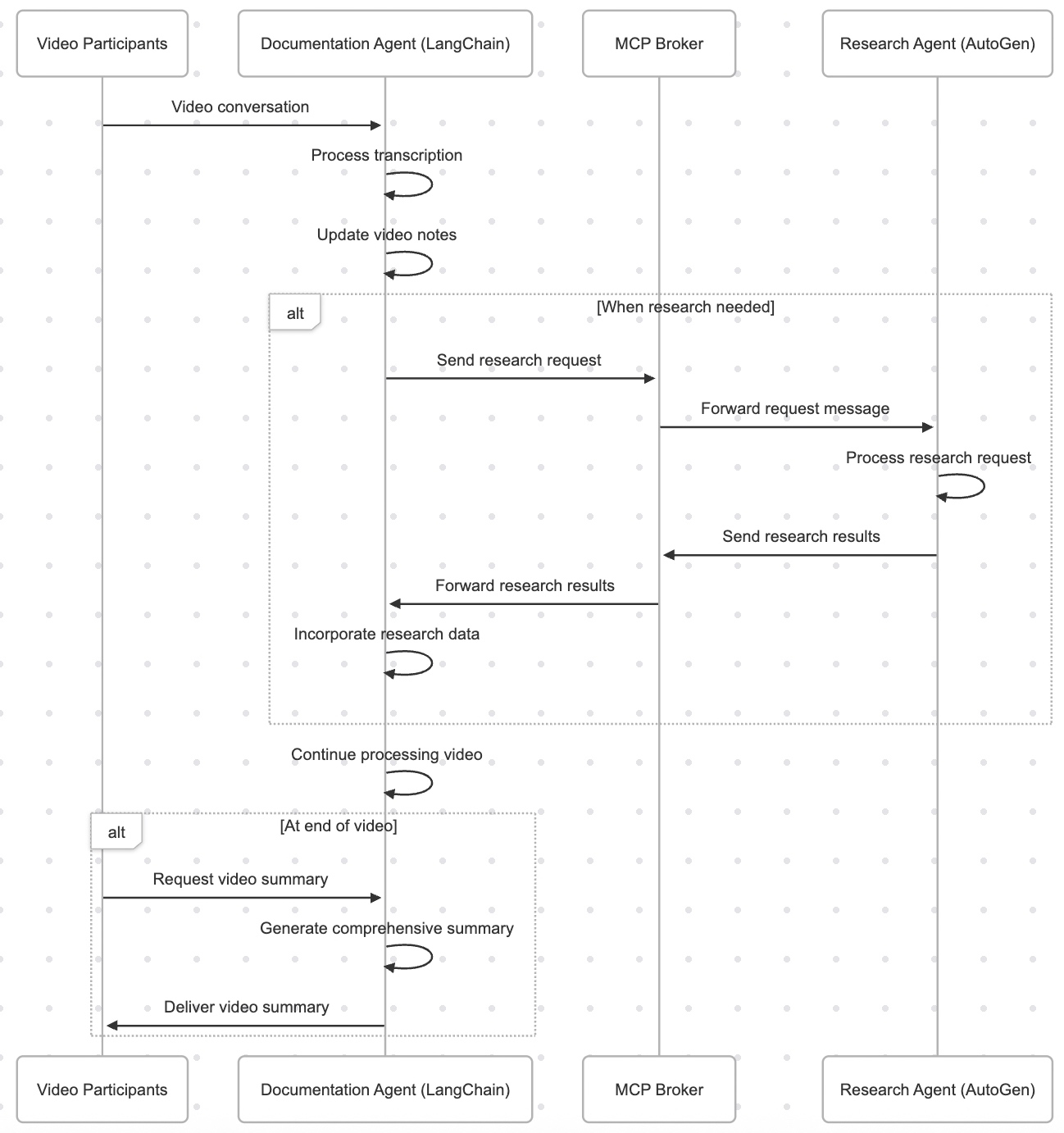
Let us recap the process flow –

Also, understand the groupings of scripts by each group as posted in the previous post –

Message-Chaining Protocol (MCP) Implementation:

    clsMCPMessage.py
    clsMCPBroker.py

YouTube Transcript Extraction:

    clsYouTubeVideoProcessor.py

Language Detection:

    clsLanguageDetector.py

Translation Services & Agents:

    clsTranslationAgent.py
    clsTranslationService.py

Documentation Agent:

    clsDocumentationAgent.py
    
Research Agent:

    clsDocumentationAgent.py

Great! Now, we’ll continue with the main discussion.


def extract_youtube_id(youtube_url):
    """Extract YouTube video ID from URL"""
    youtube_id_match = re.search(r'(?:v=|\/)([0-9A-Za-z_-]{11}).*', youtube_url)
    if youtube_id_match:
        return youtube_id_match.group(1)
    return None

def get_youtube_transcript(youtube_url):
    """Get transcript from YouTube video"""
    video_id = extract_youtube_id(youtube_url)
    if not video_id:
        return {"error": "Invalid YouTube URL or ID"}
    
    try:
        transcript_list = YouTubeTranscriptApi.list_transcripts(video_id)
        
        # First try to get manual transcripts
        try:
            transcript = transcript_list.find_manually_created_transcript(["en"])
            transcript_data = transcript.fetch()
            print(f"Debug - Manual transcript format: {type(transcript_data)}")
            if transcript_data and len(transcript_data) > 0:
                print(f"Debug - First item type: {type(transcript_data[0])}")
                print(f"Debug - First item sample: {transcript_data[0]}")
            return {"text": transcript_data, "language": "en", "auto_generated": False}
        except Exception as e:
            print(f"Debug - No manual transcript: {str(e)}")
            # If no manual English transcript, try any available transcript
            try:
                available_transcripts = list(transcript_list)
                if available_transcripts:
                    transcript = available_transcripts[0]
                    print(f"Debug - Using transcript in language: {transcript.language_code}")
                    transcript_data = transcript.fetch()
                    print(f"Debug - Auto transcript format: {type(transcript_data)}")
                    if transcript_data and len(transcript_data) > 0:
                        print(f"Debug - First item type: {type(transcript_data[0])}")
                        print(f"Debug - First item sample: {transcript_data[0]}")
                    return {
                        "text": transcript_data, 
                        "language": transcript.language_code, 
                        "auto_generated": transcript.is_generated
                    }
                else:
                    return {"error": "No transcripts available for this video"}
            except Exception as e:
                return {"error": f"Error getting transcript: {str(e)}"}
    except Exception as e:
        return {"error": f"Error getting transcript list: {str(e)}"}

# ----------------------------------------------------------------------------------
# YouTube Video Processor
# ----------------------------------------------------------------------------------

class clsYouTubeVideoProcessor:
    """Process YouTube videos using the agent system"""
    
    def __init__(self, documentation_agent, translation_agent, research_agent):
        self.documentation_agent = documentation_agent
        self.translation_agent = translation_agent
        self.research_agent = research_agent
    
    def process_youtube_video(self, youtube_url):
        """Process a YouTube video"""
        print(f"Processing YouTube video: {youtube_url}")
        
        # Extract transcript
        transcript_result = get_youtube_transcript(youtube_url)
        
        if "error" in transcript_result:
            return {"error": transcript_result["error"]}
        
        # Start a new conversation
        conversation_id = self.documentation_agent.start_processing()
        
        # Process transcript segments
        transcript_data = transcript_result["text"]
        transcript_language = transcript_result["language"]
        
        print(f"Debug - Type of transcript_data: {type(transcript_data)}")
        
        # For each segment, detect language and translate if needed
        processed_segments = []
        
        try:
            # Make sure transcript_data is a list of dictionaries with text and start fields
            if isinstance(transcript_data, list):
                for idx, segment in enumerate(transcript_data):
                    print(f"Debug - Processing segment {idx}, type: {type(segment)}")
                    
                    # Extract text properly based on the type
                    if isinstance(segment, dict) and "text" in segment:
                        text = segment["text"]
                        start = segment.get("start", 0)
                    else:
                        # Try to access attributes for non-dict types
                        try:
                            text = segment.text
                            start = getattr(segment, "start", 0)
                        except AttributeError:
                            # If all else fails, convert to string
                            text = str(segment)
                            start = idx * 5  # Arbitrary timestamp
                    
                    print(f"Debug - Extracted text: {text[:30]}...")
                    
                    # Create a standardized segment
                    std_segment = {
                        "text": text,
                        "start": start
                    }
                    
                    # Process through translation agent
                    translation_result = self.translation_agent.process_text(text, conversation_id)
                    
                    # Update segment with translation information
                    segment_with_translation = {
                        **std_segment,
                        "translation_info": translation_result
                    }
                    
                    # Use translated text for documentation
                    if "final_text" in translation_result and translation_result["final_text"] != text:
                        std_segment["processed_text"] = translation_result["final_text"]
                    else:
                        std_segment["processed_text"] = text
                    
                    processed_segments.append(segment_with_translation)
            else:
                # If transcript_data is not a list, treat it as a single text block
                print(f"Debug - Transcript is not a list, treating as single text")
                text = str(transcript_data)
                std_segment = {
                    "text": text,
                    "start": 0
                }
                
                translation_result = self.translation_agent.process_text(text, conversation_id)
                segment_with_translation = {
                    **std_segment,
                    "translation_info": translation_result
                }
                
                if "final_text" in translation_result and translation_result["final_text"] != text:
                    std_segment["processed_text"] = translation_result["final_text"]
                else:
                    std_segment["processed_text"] = text
                
                processed_segments.append(segment_with_translation)
                
        except Exception as e:
            print(f"Debug - Error processing transcript: {str(e)}")
            return {"error": f"Error processing transcript: {str(e)}"}
        
        # Process the transcript with the documentation agent
        documentation_result = self.documentation_agent.process_transcript(
            processed_segments,
            conversation_id
        )
        
        return {
            "youtube_url": youtube_url,
            "transcript_language": transcript_language,
            "processed_segments": processed_segments,
            "documentation": documentation_result,
            "conversation_id": conversation_id
        }

Let us understand this step-by-step:

Part 1: Getting the YouTube Transcript

def extract_youtube_id(youtube_url):
    ...

This extracts the unique video ID from any YouTube link. 

def get_youtube_transcript(youtube_url):
    ...
  • This gets the actual spoken content of the video.
  • It tries to get a manual transcript first (created by humans).
  • If not available, it falls back to an auto-generated version (created by YouTube’s AI).
  • If nothing is found, it gives back an error message like: “Transcript not available.”

Part 2: Processing the Video with Agents

class clsYouTubeVideoProcessor:
    ...

This is like the control center that tells each intelligent agent what to do with the transcript. Here are the detailed steps:

1. Start the Process

def process_youtube_video(self, youtube_url):
    ...
  • The system starts with a YouTube video link.
  • It prints a message like: “Processing YouTube video: [link]”

2. Extract the Transcript

  • The system runs the get_youtube_transcript() function.
  • If it fails, it returns an error (e.g., invalid link or no subtitles available).

3. Start a “Conversation”

  • The documentation agent begins a new session, tracked by a unique conversation ID.
  • Think of this like opening a new folder in a shared team workspace to store everything related to this video.

4. Go Through Each Segment of the Transcript

  • The spoken text is often broken into small parts (segments), like subtitles.
  • For each part:
    • It checks the text.
    • It finds out the time that part was spoken.
    • It sends it to the translation agent to clean up or translate the text.

5. Translate (if needed)

  • If the translation agent finds a better or translated version, it replaces the original.
  • Otherwise, it keeps the original.

6. Prepare for Documentation

  • After translation, the segment is passed to the documentation agent.
  • This agent might:
    • Summarize the content,
    • Highlight important terms,
    • Structure it into a readable format.

7. Return the Final Result

The system gives back a structured package with:

  • The video link
  • The original language
  • The transcript in parts (processed and translated)
  • A documentation summary
  • The conversation ID (for tracking or further updates)

class clsDocumentationAgent:
    """Documentation Agent built with LangChain"""
    
    def __init__(self, agent_id: str, broker: clsMCPBroker):
        self.agent_id = agent_id
        self.broker = broker
        self.broker.register_agent(agent_id)
        
        # Initialize LangChain components
        self.llm = ChatOpenAI(
            model="gpt-4-0125-preview",
            temperature=0.1,
            api_key=OPENAI_API_KEY
        )
        
        # Create tools
        self.tools = [
            clsSendMessageTool(sender_id=self.agent_id, broker=self.broker)
        ]
        
        # Set up LLM with tools
        self.llm_with_tools = self.llm.bind(
            tools=[tool.tool_config for tool in self.tools]
        )
        
        # Setup memory
        self.memory = ConversationBufferMemory(
            memory_key="chat_history",
            return_messages=True
        )
        
        # Create prompt
        self.prompt = ChatPromptTemplate.from_messages([
            ("system", """You are a Documentation Agent for YouTube video transcripts. Your responsibilities include:
                1. Process YouTube video transcripts
                2. Identify key points, topics, and main ideas
                3. Organize content into a coherent and structured format
                4. Create concise summaries
                5. Request research information when necessary
                
                When you need additional context or research, send a request to the Research Agent.
                Always maintain a professional tone and ensure your documentation is clear and organized.
            """),
            MessagesPlaceholder(variable_name="chat_history"),
            ("human", "{input}"),
            MessagesPlaceholder(variable_name="agent_scratchpad"),
        ])
        
        # Create agent
        self.agent = (
            {
                "input": lambda x: x["input"],
                "chat_history": lambda x: self.memory.load_memory_variables({})["chat_history"],
                "agent_scratchpad": lambda x: format_to_openai_tool_messages(x["intermediate_steps"]),
            }
            | self.prompt
            | self.llm_with_tools
            | OpenAIToolsAgentOutputParser()
        )
        
        # Create agent executor
        self.agent_executor = AgentExecutor(
            agent=self.agent,
            tools=self.tools,
            verbose=True,
            memory=self.memory
        )
        
        # Video data
        self.current_conversation_id = None
        self.video_notes = {}
        self.key_points = []
        self.transcript_segments = []
        
    def start_processing(self) -> str:
        """Start processing a new video"""
        self.current_conversation_id = str(uuid.uuid4())
        self.video_notes = {}
        self.key_points = []
        self.transcript_segments = []
        
        return self.current_conversation_id
    
    def process_transcript(self, transcript_segments, conversation_id=None):
        """Process a YouTube transcript"""
        if not conversation_id:
            conversation_id = self.start_processing()
        self.current_conversation_id = conversation_id
        
        # Store transcript segments
        self.transcript_segments = transcript_segments
        
        # Process segments
        processed_segments = []
        for segment in transcript_segments:
            processed_result = self.process_segment(segment)
            processed_segments.append(processed_result)
        
        # Generate summary
        summary = self.generate_summary()
        
        return {
            "processed_segments": processed_segments,
            "summary": summary,
            "conversation_id": conversation_id
        }
    
    def process_segment(self, segment):
        """Process individual transcript segment"""
        text = segment.get("text", "")
        start = segment.get("start", 0)
        
        # Use LangChain agent to process the segment
        result = self.agent_executor.invoke({
            "input": f"Process this video transcript segment at timestamp {start}s: {text}. If research is needed, send a request to the research_agent."
        })
        
        # Update video notes
        timestamp = start
        self.video_notes[timestamp] = {
            "text": text,
            "analysis": result["output"]
        }
        
        return {
            "timestamp": timestamp,
            "text": text,
            "analysis": result["output"]
        }
    
    def handle_mcp_message(self, message: clsMCPMessage) -> Optional[clsMCPMessage]:
        """Handle an incoming MCP message"""
        if message.message_type == "research_response":
            # Process research information received from Research Agent
            research_info = message.content.get("text", "")
            
            result = self.agent_executor.invoke({
                "input": f"Incorporate this research information into video analysis: {research_info}"
            })
            
            # Send acknowledgment back to Research Agent
            response = clsMCPMessage(
                sender=self.agent_id,
                receiver=message.sender,
                message_type="acknowledgment",
                content={"text": "Research information incorporated into video analysis."},
                reply_to=message.id,
                conversation_id=message.conversation_id
            )
            
            self.broker.publish(response)
            return response
        
        elif message.message_type == "translation_response":
            # Process translation response from Translation Agent
            translation_result = message.content
            
            # Process the translated text
            if "final_text" in translation_result:
                text = translation_result["final_text"]
                original_text = translation_result.get("original_text", "")
                language_info = translation_result.get("language", {})
                
                result = self.agent_executor.invoke({
                    "input": f"Process this translated text: {text}\nOriginal language: {language_info.get('language', 'unknown')}\nOriginal text: {original_text}"
                })
                
                # Update notes with translation information
                for timestamp, note in self.video_notes.items():
                    if note["text"] == original_text:
                        note["translated_text"] = text
                        note["language"] = language_info
                        break
            
            return None
        
        return None
    
    def run(self):
        """Run the agent to listen for MCP messages"""
        print(f"Documentation Agent {self.agent_id} is running...")
        while True:
            message = self.broker.get_message(self.agent_id, timeout=1)
            if message:
                self.handle_mcp_message(message)
            time.sleep(0.1)
    
    def generate_summary(self) -> str:
        """Generate a summary of the video"""
        if not self.video_notes:
            return "No video data available to summarize."
        
        all_notes = "\n".join([f"{ts}: {note['text']}" for ts, note in self.video_notes.items()])
        
        result = self.agent_executor.invoke({
            "input": f"Generate a concise summary of this YouTube video, including key points and topics:\n{all_notes}"
        })
        
        return result["output"]

Let us understand the key methods in a step-by-step manner:

The Documentation Agent is like a smart assistant that watches a YouTube video, takes notes, pulls out important ideas, and creates a summary — almost like a professional note-taker trained to help educators, researchers, and content creators. It works with a team of other assistants, like a Translator Agent and a Research Agent, and they all talk to each other through a messaging system.

1. Starting to Work on a New Video

    def start_processing(self) -> str
    

    When a new video is being processed:

    • A new project ID is created.
    • Old notes and transcripts are cleared to start fresh.

    2. Processing the Whole Transcript

    def process_transcript(...)
    

    This is where the assistant:

    • Takes in the full transcript (what was said in the video).
    • Breaks it into small parts (like subtitles).
    • Sends each part to the smart brain for analysis.
    • Collects the results.
    • Finally, a summary of all the main ideas is created.

    3. Processing One Transcript Segment at a Time

    def process_segment(self, segment)
    

    For each chunk of the video:

    • The assistant reads the text and timestamp.
    • It asks GPT-4 to analyze it and suggest important insights.
    • It saves that insight along with the original text and timestamp.

    4. Handling Incoming Messages from Other Agents

    def handle_mcp_message(self, message)
    

    The assistant can also receive messages from teammates (other agents):

    If the message is from the Research Agent:

    • It reads new information and adds it to its notes.
    • It replies with a thank-you message to say it got the research.

    If the message is from the Translation Agent:

    • It takes the translated version of a transcript.
    • Updates its notes to reflect the translated text and its language.

    This is like a team of assistants emailing back and forth to make sure the notes are complete and accurate.

    5. Summarizing the Whole Video

    def generate_summary(self)
    

    After going through all the transcript parts, the agent asks GPT-4 to create a short, clean summary — identifying:

    • Main ideas
    • Key talking points
    • Structure of the content

    The final result is clear, professional, and usable in learning materials or documentation.


    class clsResearchAgent:
        """Research Agent built with AutoGen"""
        
        def __init__(self, agent_id: str, broker: clsMCPBroker):
            self.agent_id = agent_id
            self.broker = broker
            self.broker.register_agent(agent_id)
            
            # Configure AutoGen directly with API key
            if not OPENAI_API_KEY:
                print("Warning: OPENAI_API_KEY not set for ResearchAgent")
                
            # Create config list directly instead of loading from file
            config_list = [
                {
                    "model": "gpt-4-0125-preview",
                    "api_key": OPENAI_API_KEY
                }
            ]
            # Create AutoGen assistant for research
            self.assistant = AssistantAgent(
                name="research_assistant",
                system_message="""You are a Research Agent for YouTube videos. Your responsibilities include:
                    1. Research topics mentioned in the video
                    2. Find relevant information, facts, references, or context
                    3. Provide concise, accurate information to support the documentation
                    4. Focus on delivering high-quality, relevant information
                    
                    Respond directly to research requests with clear, factual information.
                """,
                llm_config={"config_list": config_list, "temperature": 0.1}
            )
            
            # Create user proxy to handle message passing
            self.user_proxy = UserProxyAgent(
                name="research_manager",
                human_input_mode="NEVER",
                code_execution_config={"work_dir": "coding", "use_docker": False},
                default_auto_reply="Working on the research request..."
            )
            
            # Current conversation tracking
            self.current_requests = {}
        
        def handle_mcp_message(self, message: clsMCPMessage) -> Optional[clsMCPMessage]:
            """Handle an incoming MCP message"""
            if message.message_type == "request":
                # Process research request from Documentation Agent
                request_text = message.content.get("text", "")
                
                # Use AutoGen to process the research request
                def research_task():
                    self.user_proxy.initiate_chat(
                        self.assistant,
                        message=f"Research request for YouTube video content: {request_text}. Provide concise, factual information."
                    )
                    # Return last assistant message
                    return self.assistant.chat_messages[self.user_proxy.name][-1]["content"]
                
                # Execute research task
                research_result = research_task()
                
                # Send research results back to Documentation Agent
                response = clsMCPMessage(
                    sender=self.agent_id,
                    receiver=message.sender,
                    message_type="research_response",
                    content={"text": research_result},
                    reply_to=message.id,
                    conversation_id=message.conversation_id
                )
                
                self.broker.publish(response)
                return response
            
            return None
        
        def run(self):
            """Run the agent to listen for MCP messages"""
            print(f"Research Agent {self.agent_id} is running...")
            while True:
                message = self.broker.get_message(self.agent_id, timeout=1)
                if message:
                    self.handle_mcp_message(message)
                time.sleep(0.1)
    

    Let us understand the key methods in detail.

    1. Receiving and Responding to Research Requests

      def handle_mcp_message(self, message)
      

      When the Research Agent gets a message (like a question or request for info), it:

      1. Reads the message to see what needs to be researched.
      2. Asks GPT-4 to find helpful, accurate info about that topic.
      3. Sends the answer back to whoever asked the question (usually the Documentation Agent).

      class clsTranslationAgent:
          """Agent for language detection and translation"""
          
          def __init__(self, agent_id: str, broker: clsMCPBroker):
              self.agent_id = agent_id
              self.broker = broker
              self.broker.register_agent(agent_id)
              
              # Initialize language detector
              self.language_detector = clsLanguageDetector()
              
              # Initialize translation service
              self.translation_service = clsTranslationService()
          
          def process_text(self, text, conversation_id=None):
              """Process text: detect language and translate if needed, handling mixed language content"""
              if not conversation_id:
                  conversation_id = str(uuid.uuid4())
              
              # Detect language with support for mixed language content
              language_info = self.language_detector.detect(text)
              
              # Decide if translation is needed
              needs_translation = True
              
              # Pure English content doesn't need translation
              if language_info["language_code"] == "en-IN" or language_info["language_code"] == "unknown":
                  needs_translation = False
              
              # For mixed language, check if it's primarily English
              if language_info.get("is_mixed", False) and language_info.get("languages", []):
                  english_langs = [
                      lang for lang in language_info.get("languages", []) 
                      if lang["language_code"] == "en-IN" or lang["language_code"].startswith("en-")
                  ]
                  
                  # If the highest confidence language is English and > 60% confident, don't translate
                  if english_langs and english_langs[0].get("confidence", 0) > 0.6:
                      needs_translation = False
              
              if needs_translation:
                  # Translate using the appropriate service based on language detection
                  translation_result = self.translation_service.translate(text, language_info)
                  
                  return {
                      "original_text": text,
                      "language": language_info,
                      "translation": translation_result,
                      "final_text": translation_result.get("translated_text", text),
                      "conversation_id": conversation_id
                  }
              else:
                  # Already English or unknown language, return as is
                  return {
                      "original_text": text,
                      "language": language_info,
                      "translation": {"provider": "none"},
                      "final_text": text,
                      "conversation_id": conversation_id
                  }
          
          def handle_mcp_message(self, message: clsMCPMessage) -> Optional[clsMCPMessage]:
              """Handle an incoming MCP message"""
              if message.message_type == "translation_request":
                  # Process translation request from Documentation Agent
                  text = message.content.get("text", "")
                  
                  # Process the text
                  result = self.process_text(text, message.conversation_id)
                  
                  # Send translation results back to requester
                  response = clsMCPMessage(
                      sender=self.agent_id,
                      receiver=message.sender,
                      message_type="translation_response",
                      content=result,
                      reply_to=message.id,
                      conversation_id=message.conversation_id
                  )
                  
                  self.broker.publish(response)
                  return response
              
              return None
          
          def run(self):
              """Run the agent to listen for MCP messages"""
              print(f"Translation Agent {self.agent_id} is running...")
              while True:
                  message = self.broker.get_message(self.agent_id, timeout=1)
                  if message:
                      self.handle_mcp_message(message)
                  time.sleep(0.1)

      Let us understand the key methods in step-by-step manner:

      1. Understanding and Translating Text:

      def process_text(...)
      

      This is the core job of the agent. Here’s what it does with any piece of text:

      Step 1: Detect the Language

      • It tries to figure out the language of the input text.
      • It can handle cases where more than one language is mixed together, which is common in casual speech or subtitles.

      Step 2: Decide Whether to Translate

      • If the text is clearly in English, or it’s unclear what the language is, it decides not to translate.
      • If the text is mostly in another language or has less than 60% confidence in being English, it will translate it into English.

      Step 3: Translate (if needed)

      • If translation is required, it uses the translation service to do the job.
      • Then it packages all the information: the original text, detected language, the translated version, and a unique conversation ID.

      Step 4: Return the Results

      • If no translation is needed, it returns the original text and a note saying “no translation was applied.”

      2. Receiving Messages and Responding

      def handle_mcp_message(...)
      

      The agent listens for messages from other agents. When someone asks it to translate something:

      • It takes the text from the message.
      • Runs it through the process_text function (as explained above).
      • Sends the translated (or original) result to the person who asked.
      class clsTranslationService:
          """Translation service using multiple providers with support for mixed languages"""
          
          def __init__(self):
              # Initialize Sarvam AI client
              self.sarvam_api_key = SARVAM_API_KEY
              self.sarvam_url = "https://api.sarvam.ai/translate"
              
              # Initialize Google Cloud Translation client using simple HTTP requests
              self.google_api_key = GOOGLE_API_KEY
              self.google_translate_url = "https://translation.googleapis.com/language/translate/v2"
          
          def translate_with_sarvam(self, text, source_lang, target_lang="en-IN"):
              """Translate text using Sarvam AI (for Indian languages)"""
              if not self.sarvam_api_key:
                  return {"error": "Sarvam API key not set"}
              
              headers = {
                  "Content-Type": "application/json",
                  "api-subscription-key": self.sarvam_api_key
              }
              
              payload = {
                  "input": text,
                  "source_language_code": source_lang,
                  "target_language_code": target_lang,
                  "speaker_gender": "Female",
                  "mode": "formal",
                  "model": "mayura:v1"
              }
              
              try:
                  response = requests.post(self.sarvam_url, headers=headers, json=payload)
                  if response.status_code == 200:
                      return {"translated_text": response.json().get("translated_text", ""), "provider": "sarvam"}
                  else:
                      return {"error": f"Sarvam API error: {response.text}", "provider": "sarvam"}
              except Exception as e:
                  return {"error": f"Error calling Sarvam API: {str(e)}", "provider": "sarvam"}
          
          def translate_with_google(self, text, target_lang="en"):
              """Translate text using Google Cloud Translation API with direct HTTP request"""
              if not self.google_api_key:
                  return {"error": "Google API key not set"}
              
              try:
                  # Using the translation API v2 with API key
                  params = {
                      "key": self.google_api_key,
                      "q": text,
                      "target": target_lang
                  }
                  
                  response = requests.post(self.google_translate_url, params=params)
                  if response.status_code == 200:
                      data = response.json()
                      translation = data.get("data", {}).get("translations", [{}])[0]
                      return {
                          "translated_text": translation.get("translatedText", ""),
                          "detected_source_language": translation.get("detectedSourceLanguage", ""),
                          "provider": "google"
                      }
                  else:
                      return {"error": f"Google API error: {response.text}", "provider": "google"}
              except Exception as e:
                  return {"error": f"Error calling Google Translation API: {str(e)}", "provider": "google"}
          
          def translate(self, text, language_info):
              """Translate text to English based on language detection info"""
              # If already English or unknown language, return as is
              if language_info["language_code"] == "en-IN" or language_info["language_code"] == "unknown":
                  return {"translated_text": text, "provider": "none"}
              
              # Handle mixed language content
              if language_info.get("is_mixed", False) and language_info.get("languages", []):
                  # Strategy for mixed language: 
                  # 1. If one of the languages is English, don't translate the entire text, as it might distort English portions
                  # 2. If no English but contains Indian languages, use Sarvam as it handles code-mixing better
                  # 3. Otherwise, use Google Translate for the primary detected language
                  
                  has_english = False
                  has_indian = False
                  
                  for lang in language_info.get("languages", []):
                      if lang["language_code"] == "en-IN" or lang["language_code"].startswith("en-"):
                          has_english = True
                      if lang.get("is_indian", False):
                          has_indian = True
                  
                  if has_english:
                      # Contains English - use Google for full text as it handles code-mixing well
                      return self.translate_with_google(text)
                  elif has_indian:
                      # Contains Indian languages - use Sarvam
                      # Use the highest confidence Indian language as source
                      indian_langs = [lang for lang in language_info.get("languages", []) if lang.get("is_indian", False)]
                      if indian_langs:
                          # Sort by confidence
                          indian_langs.sort(key=lambda x: x.get("confidence", 0), reverse=True)
                          source_lang = indian_langs[0]["language_code"]
                          return self.translate_with_sarvam(text, source_lang)
                      else:
                          # Fallback to primary language
                          if language_info["is_indian"]:
                              return self.translate_with_sarvam(text, language_info["language_code"])
                          else:
                              return self.translate_with_google(text)
                  else:
                      # No English, no Indian languages - use Google for primary language
                      return self.translate_with_google(text)
              else:
                  # Not mixed language - use standard approach
                  if language_info["is_indian"]:
                      # Use Sarvam AI for Indian languages
                      return self.translate_with_sarvam(text, language_info["language_code"])
                  else:
                      # Use Google for other languages
                      return self.translate_with_google(text)

      This Translation Service is like a smart translator that knows how to:

      • Detect what language the text is written in,
      • Choose the best translation provider depending on the language (especially for Indian languages),
      • And then translate the text into English.

      It supports mixed-language content (such as Hindi-English in one sentence) and uses either Google Translate or Sarvam AI, a translation service designed for Indian languages.

      Now, let us understand the key methods in a step-by-step manner:

      1. Translating Using Google Translate

      def translate_with_google(...)
      

      This function uses Google Translate:

      • It sends the text, asks for English as the target language, and gets a translation back.
      • It also detects the source language automatically.
      • If successful, it returns the translated text and the detected original language.
      • If there’s an error, it returns a message saying what went wrong.

      Best For: Non-Indian languages (like Spanish, French, Chinese) and content that is not mixed with English.

      2. Main Translation Logic

      def translate(self, text, language_info)
      

      This is the decision-maker. Here’s how it works:

      Case 1: No Translation Needed

      If the text is already in English or the language is unknown, it simply returns the original text.

      Case 2: Mixed Language (e.g., Hindi + English)

      If the text contains more than one language:

      • ✅ If one part is English → use Google Translate (it’s good with mixed languages).
      • ✅ If it includes Indian languages only → use Sarvam AI (better at handling Indian content).
      • ✅ If it’s neither English nor Indian → use Google Translate.

      The service checks how confident it is about each language in the mix and chooses the most likely one to translate from.

      Case 3: Single Language

      If the text is only in one language:

      • ✅ If it’s an Indian language (like Bengali, Tamil, or Marathi), use Sarvam AI.
      • ✅ If it’s any other language, use Google Translate.

      So, we’ve done it.

      I’ve included the complete working solutions for you in the GitHub Link.

      We’ll cover the detailed performance testing, Optimized configurations & many other useful details in our next post.

      Till then, Happy Avenging! 🙂

      Real-time video summary assistance App – Part 1

      Today, we’ll discuss another topic in our two-part series. We will understand the importance of the MCP protocol for communicating between agents.

      This will be an in-depth highly technical as well as depicting using easy-to-understand visuals.

      But, before that, let us understand the demo first.

      Isn’t it exciting?


      Let us first understand in easy language about the MCP protocol.

      MCP (Multi-Agent Communication Protocol) is a custom message exchange system that facilitates structured and scalable communication among multiple AI agents operating within an application. These agents collaborate asynchronously or in real-time to complete complex tasks by sharing results, context, and commands through a common messaging layer.

      How MCP Protocol Helps:

      FeatureBenefit
      Agent-Oriented ArchitectureEach agent handles a focused task, improving modularity and scalability.
      Event-Driven Message PassingAgents communicate based on triggers, not polling—leading to faster and efficient responses.
      Structured Communication FormatAll messages follow a standard format (e.g., JSON) with metadata for sender, recipient, type, and payload.
      State PreservationAgents maintain context across messages using memory (e.g., ConversationBufferMemory) to ensure coherence.

      How It Works (Step-by-Step):

      • 📥 User uploads or streams a video.
      • 🧑‍💻 MCP Protocol triggers the Transcription Agent to start converting audio into text.
      • 🌐 Translation Agent receives this text (if a different language is needed).
      • 🧾 Summarization Agent receives the translated or original transcript and generates a concise summary.
      • 📚 Research Agent checks for references or terminology used in the video.
      • 📄 Documentation Agent compiles the output into a structured report.
      • 🔁 All communication between agents flows through MCP, ensuring consistent message delivery and coordination.

      Now, let us understand the solution that we intend to implement for our solutions:

      This app provides live summarization and contextual insights from videos such as webinars, interviews, or YouTube recordings using multiple cooperating AI agents. These agents may include:

      • Transcription Agent: Converts spoken words to text.
      • Translation Agent: Translates text to different languages (if needed).
      • Summarization Agent: Generates concise summaries.
      • Research Agent: Finds background or supplementary data related to the discussion.
      • Documentation Agent: Converts outputs into structured reports or learning materials.

      We need to understand one more thing before deep diving into the code. Part of your conversation may be mixed, like part Hindi & part English. So, in that case, it will break the sentences into chunks & then convert all of them into the same language. Hence, the following rules are applied while translating the sentences –


      Now, we will go through the basic frame of the system & try to understand how it fits all the principles that we discussed above for this particular solution mapped against the specific technology –

      1. Documentation Agent built with the LangChain framework
      2. Research Agent built with the AutoGen framework
      3. MCP Broker for seamless communication between agents

      Let us understand from the given picture the flow of the process that our app is trying to implement –


      Great! So, now, we’ll focus on some of the key Python scripts & go through their key features.

      But, before that, we share the group of scripts that belong to specific tasks.

      • clsMCPMessage.py
      • clsMCPBroker.py
      • clsYouTubeVideoProcessor.py
      • clsLanguageDetector.py
      • clsTranslationAgent.py
      • clsTranslationService.py
      • clsDocumentationAgent.py
      • clsResearchAgent.py

      Now, we’ll review some of the script in this post, along with the next post, as a continuation from this post.

      class clsMCPMessage(BaseModel):
          """Message format for MCP protocol"""
          id: str = Field(default_factory=lambda: str(uuid.uuid4()))
          timestamp: float = Field(default_factory=time.time)
          sender: str
          receiver: str
          message_type: str  # "request", "response", "notification"
          content: Dict[str, Any]
          reply_to: Optional[str] = None
          conversation_id: str
          metadata: Dict[str, Any] = {}
          
      class clsMCPBroker:
          """Message broker for MCP protocol communication between agents"""
          
          def __init__(self):
              self.message_queues: Dict[str, queue.Queue] = {}
              self.subscribers: Dict[str, List[str]] = {}
              self.conversation_history: Dict[str, List[clsMCPMessage]] = {}
          
          def register_agent(self, agent_id: str) -> None:
              """Register an agent with the broker"""
              if agent_id not in self.message_queues:
                  self.message_queues[agent_id] = queue.Queue()
                  self.subscribers[agent_id] = []
          
          def subscribe(self, subscriber_id: str, publisher_id: str) -> None:
              """Subscribe an agent to messages from another agent"""
              if publisher_id in self.subscribers:
                  if subscriber_id not in self.subscribers[publisher_id]:
                      self.subscribers[publisher_id].append(subscriber_id)
          
          def publish(self, message: clsMCPMessage) -> None:
              """Publish a message to its intended receiver"""
              # Store in conversation history
              if message.conversation_id not in self.conversation_history:
                  self.conversation_history[message.conversation_id] = []
              self.conversation_history[message.conversation_id].append(message)
              
              # Deliver to direct receiver
              if message.receiver in self.message_queues:
                  self.message_queues[message.receiver].put(message)
              
              # Deliver to subscribers of the sender
              for subscriber in self.subscribers.get(message.sender, []):
                  if subscriber != message.receiver:  # Avoid duplicates
                      self.message_queues[subscriber].put(message)
          
          def get_message(self, agent_id: str, timeout: Optional[float] = None) -> Optional[clsMCPMessage]:
              """Get a message for the specified agent"""
              try:
                  return self.message_queues[agent_id].get(timeout=timeout)
              except (queue.Empty, KeyError):
                  return None
          
          def get_conversation_history(self, conversation_id: str) -> List[clsMCPMessage]:
              """Get the history of a conversation"""
              return self.conversation_history.get(conversation_id, [])

      Imagine a system where different virtual agents (like robots or apps) need to talk to each other. To do that, they send messages back and forth—kind of like emails or text messages. This code is responsible for:

      • Making sure those messages are properly written (like filling out all parts of a form).
      • Making sure messages are delivered to the right people.
      • Keeping a record of conversations so you can go back and review what was said.

      This part (clsMCPMessage) is like a template or a form that every message needs to follow. Each message has:

      • ID: A unique number so every message is different (like a serial number).
      • Time Sent: When the message was created.
      • Sender & Receiver: Who sent the message and who is supposed to receive it.
      • Type of Message: Is it a request, a response, or just a notification?
      • Content: The actual information or question the message is about.
      • Reply To: If this message is answering another one, this tells which one.
      • Conversation ID: So we know which group of messages belongs to the same conversation.
      • Extra Info (Metadata): Any other small details that might help explain the message.

      This (clsMCPBroker) is the system (or “post office”) that makes sure messages get to where they’re supposed to go. Here’s what it does:

      1. Registering an Agent

      • Think of this like signing up a new user in the system.
      • Each agent gets their own personal mailbox (called a “message queue”) so others can send them messages.

      2. Subscribing to Another Agent

      • If Agent A wants to receive copies of messages from Agent B, they can “subscribe” to B.
      • This is like signing up for B’s newsletter—whenever B sends something, A gets a copy.

      3. Sending a Message

      • When someone sends a message:
        • It is saved into a conversation history (like keeping emails in your inbox).
        • It is delivered to the main person it was meant for.
        • And, if anyone subscribed to the sender, they get a copy too—unless they’re already the main receiver (to avoid sending duplicates).

      4. Receiving Messages

      • Each agent can check their personal mailbox to see if they got any new messages.
      • If there are no messages, they’ll either wait for some time or move on.

      5. Viewing Past Conversations

      • You can look up all messages that were part of a specific conversation.
      • This is helpful for remembering what was said earlier.

      In systems where many different smart tools or services need to work together and communicate, this kind of communication system makes sure everything is:

      • Organized
      • Delivered correctly
      • Easy to trace back when needed

      So, in this post, we’ll finish it here. We’ll cover the rest of the post in the next post.

      I’ll bring some more exciting topics in the coming days from the Python verse.

      Till then, Happy Avenging!  🙂

      Creating a local LLM Cluster Server using Apple Silicon GPU

      Today, we’re going to discuss creating a local LLM server and then utilizing it to execute various popular LLM models. We will club the local Apple GPUs together via a new framework that binds all the available Apple Silicon devices into one big LLM server. This enables people to run many large models, which was otherwise not possible due to the lack of GPUs.

      This is certainly a new way; One can create virtual computation layers by adding nodes to the resource pool, increasing the computation capacity.

      Why not witness a small demo to energize ourselves –

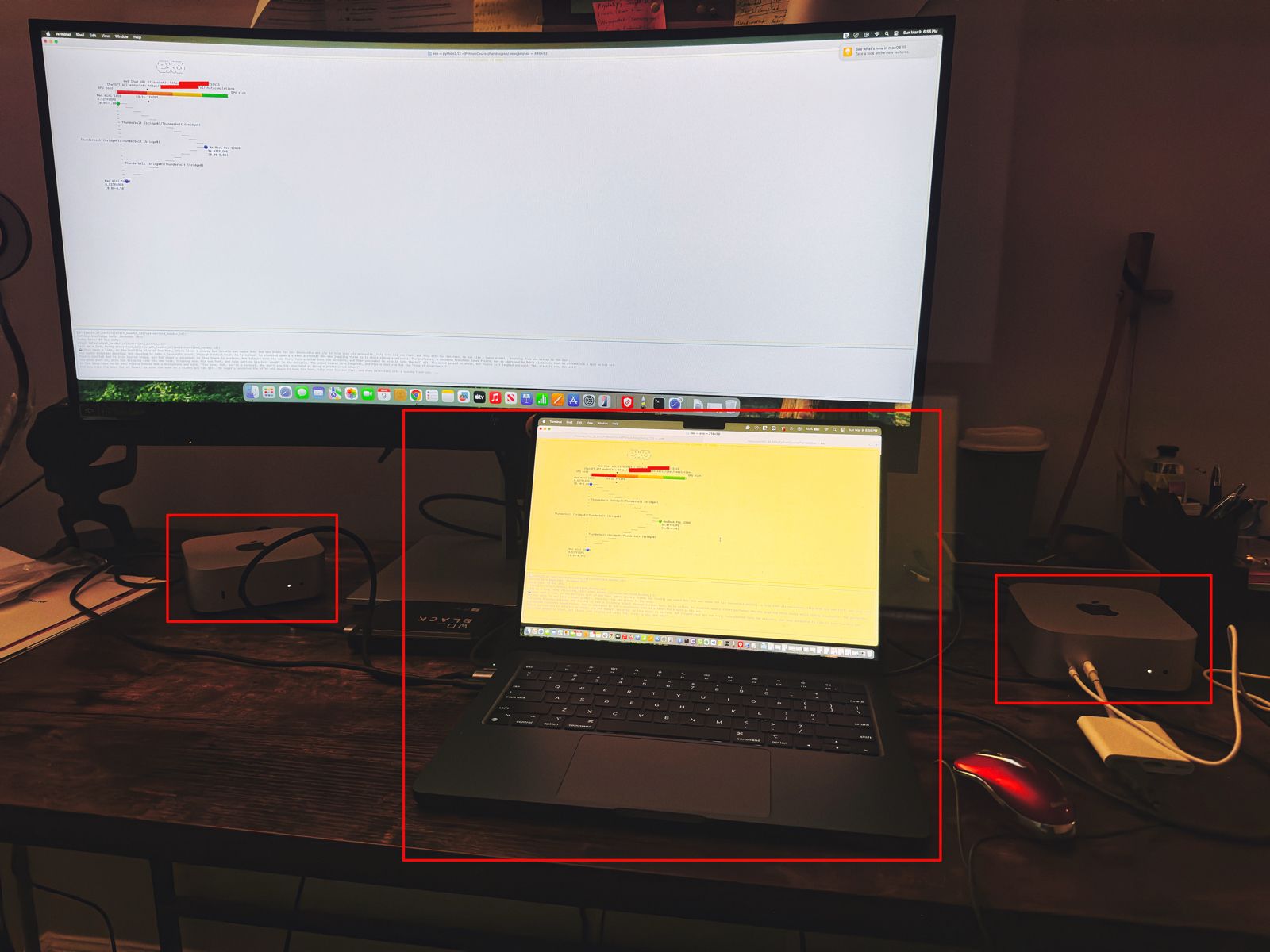
      Let us understand the scenario. I’ve one Mac Book Pro M4 & 2 Mac Mini Pro M4 (Base models). So, I want to add them & expose them as a cluster as follows –

      As you can see, I’ve connected my MacBook Pro with both the Mac Mini using high-speed thunderbolt cables for better data transmissions. And, I’ll be using an open-source framework called “Exo” to create it.

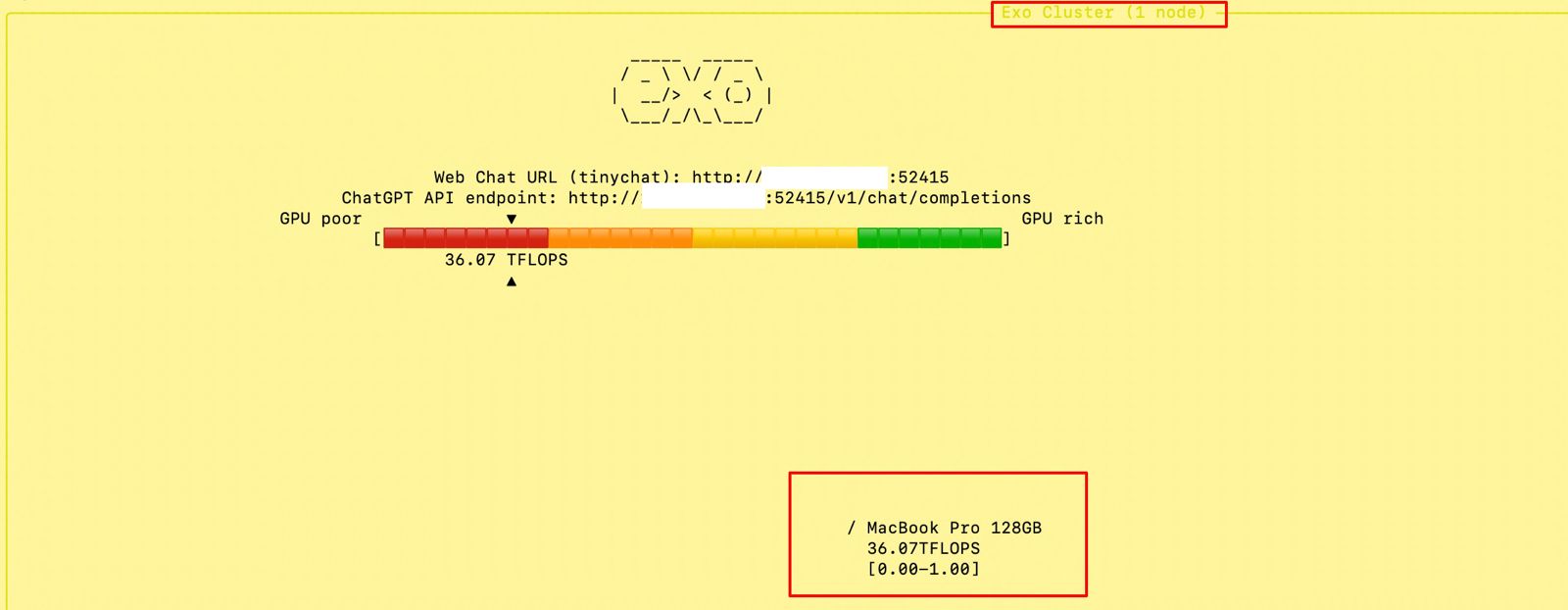
      Also, you can see that my total computing capacity is 53.11 TFlops, which is slightly more than the last category.

      “Exo” is an open-source framework that helps you merge all your available devices into a large cluster of available resources. This extracts all the computing juice needed to handle complex tasks, including the big LLMs, which require very expensive GPU-based servers.

      For more information on “Exo”, please refer to the following link.

      In our previous diagram, we can see that the framework also offers endpoints.

      • One option is a local ChatGPT interface, where any question you ask will receive a response from models by combining all available computing power.
      • The other endpoint offers users a choice of any standard LLM API endpoint, which helps them integrate it into their solutions.

      Let us see, how the devices are connected together –


      To proceed with this, you need to have at least Python 3.12, Anaconda or Miniconda & Xcode installed in all of your machines. Also, you need to install some Apple-specific MLX packages or libraries to get the best performance.

      Depending on your choice, you need to use the following link to download Anaconda or Miniconda.

      You can download the following link to download the Python 3.12. However, I’ve used Python 3.13 on some machines & some machines, I’ve used Python 3.12. And it worked without any problem.

      Sometimes, after installing Anaconda or Miniconda, the environment may not implicitly be activated after successful installation. In that case, you may need to use the following commands in the terminal -> source ~/.bash_profile

      To verify, whether the conda has been successfully installed & activated, you need to type the following command –

      (base) satyaki_de@Satyakis-MacBook-Pro-Max Pandas % conda --version
      conda 24.11.3
      (base) satyaki_de@Satyakis-MacBook-Pro-Max Pandas % 
      (base) satyaki_de@Satyakis-MacBook-Pro-Max Pandas % 

      Once you verify it. Now, we need to install the following supplemental packages in all the machines as –

      satyaki_de@Satyakis-MacBook-Pro-Max Pandas % 
      satyaki_de@Satyakis-MacBook-Pro-Max Pandas % 
      satyaki_de@Satyakis-MacBook-Pro-Max Pandas % conda install anaconda::m4
      Channels:
       - defaults
       - anaconda
      Platform: osx-arm64
      Collecting package metadata (repodata.json): done
      Solving environment: done
      
      ## Package Plan ##
      
        environment location: /opt/anaconda3
      
        added / updated specs:
          - anaconda::m4
      
      
      The following packages will be downloaded:
      
          package                    |            build
          ---------------------------|-----------------
          m4-1.4.18                  |       h1230e6a_1         202 KB  anaconda
          ------------------------------------------------------------
                                                 Total:         202 KB
      
      The following NEW packages will be INSTALLED:
      
        m4                 anaconda/osx-arm64::m4-1.4.18-h1230e6a_1 
      
      
      Proceed ([y]/n)? y
      
      
      Downloading and Extracting Packages:
                                                                                                                                                                                                                            
      Preparing transaction: done
      Verifying transaction: done
      Executing transaction: done

      Also, you can use this package to install in your machines –

      (base) satyakidemini2@Satyakis-Mac-mini-2 exo % 
      (base) satyakidemini2@Satyakis-Mac-mini-2 exo % pip install mlx
      Collecting mlx
        Downloading mlx-0.23.2-cp312-cp312-macosx_14_0_arm64.whl.metadata (5.3 kB)
      Downloading mlx-0.23.2-cp312-cp312-macosx_14_0_arm64.whl (27.6 MB)
         ━━━━━━━━━━━━━━━━━━━━━━━━━━━━━━━━━━━━━━━━ 27.6/27.6 MB 8.8 MB/s eta 0:00:00
      Installing collected packages: mlx
      Successfully installed mlx-0.23.2
      (base) satyakidemini2@Satyakis-Mac-mini-2 exo % 
      (base) satyakidemini2@Satyakis-Mac-mini-2 exo % 

      Till now, we’ve installed all the important packages. Now, we need to setup the final “eco” framework in all the machines like our previous steps.

      Now, we’ll first clone the “eco” framework by the following commands –

      (base) satyaki_de@Satyakis-MacBook-Pro-Max Pandas % 
      (base) satyaki_de@Satyakis-MacBook-Pro-Max Pandas % 
      (base) satyaki_de@Satyakis-MacBook-Pro-Max Pandas % git clone https://github.com/exo-explore/exo.git
      Cloning into 'exo'...
      remote: Enumerating objects: 9736, done.
      remote: Counting objects: 100% (411/411), done.
      remote: Compressing objects: 100% (148/148), done.
      remote: Total 9736 (delta 333), reused 263 (delta 263), pack-reused 9325 (from 3)
      Receiving objects: 100% (9736/9736), 12.18 MiB | 8.41 MiB/s, done.
      Resolving deltas: 100% (5917/5917), done.
      Updating files: 100% (178/178), done.
      Filtering content: 100% (9/9), 3.16 MiB | 2.45 MiB/s, done.
      (base) satyaki_de@Satyakis-MacBook-Pro-Max Pandas % 
      (base) satyaki_de@Satyakis-MacBook-Pro-Max Pandas % 

      And, the content of the “Exo” folder should look like this –

      total 28672
      drwx------  1 satyaki_de  staff  1048576 Mar  9 17:06 docs
      -rwx------  1 satyaki_de  staff     1337 Mar  9 17:06 configure_mlx.sh
      -rwx------  1 satyaki_de  staff    11107 Mar  9 17:06 README.md
      -rwx------  1 satyaki_de  staff    35150 Mar  9 17:06 LICENSE
      drwx------  1 satyaki_de  staff  1048576 Mar  9 17:06 examples
      drwx------  1 satyaki_de  staff  1048576 Mar  9 17:06 exo
      drwx------  1 satyaki_de  staff  1048576 Mar  9 17:06 extra
      drwx------  1 satyaki_de  staff  1048576 Mar  9 17:06 scripts
      -rwx------  1 satyaki_de  staff      390 Mar  9 17:06 install.sh
      -rwx------  1 satyaki_de  staff      792 Mar  9 17:06 format.py
      drwx------  1 satyaki_de  staff  1048576 Mar  9 17:06 test
      -rwx------  1 satyaki_de  staff     2476 Mar  9 17:06 setup.py
      drwx------  1 satyaki_de  staff  1048576 Mar  9 17:10 build
      drwx------  1 satyaki_de  staff  1048576 Mar  9 17:17 exo.egg-info

      Similar commands need to fire to other devices. Here, I’m showing one Mac-Mini examples –

      (base) satyakidemini2@Satyakis-Mac-mini-2 Pandas % 
      (base) satyakidemini2@Satyakis-Mac-mini-2 Pandas % git clone https://github.com/exo-explore/exo.git
      Cloning into 'exo'...
      remote: Enumerating objects: 9736, done.
      remote: Counting objects: 100% (424/424), done.
      remote: Compressing objects: 100% (146/146), done.
      remote: Total 9736 (delta 345), reused 278 (delta 278), pack-reused 9312 (from 4)
      Receiving objects: 100% (9736/9736), 12.18 MiB | 6.37 MiB/s, done.
      Resolving deltas: 100% (5920/5920), done.
      (base) satyakidemini2@Satyakis-Mac-mini-2 Pandas % 

      After that, I’ll execute the following sets of commands to install the framework –

      (base) satyaki_de@Satyakis-MacBook-Pro-Max Pandas % cd exo
      (base) satyaki_de@Satyakis-MacBook-Pro-Max exo % 
      (base) satyaki_de@Satyakis-MacBook-Pro-Max exo % 
      (base) satyaki_de@Satyakis-MacBook-Pro-Max exo % conda create --name exo1 python=3.13
      WARNING: A conda environment already exists at '/opt/anaconda3/envs/exo1'
      
      Remove existing environment?
      This will remove ALL directories contained within this specified prefix directory, including any other conda environments.
      
       (y/[n])? y
      
      Channels:
       - defaults
      Platform: osx-arm64
      Collecting package metadata (repodata.json): done
      Solving environment: done
      
      ## Package Plan ##
      
        environment location: /opt/anaconda3/envs/exo1
      
        added / updated specs:
          - python=3.13
      
      
      The following NEW packages will be INSTALLED:
      
        bzip2              pkgs/main/osx-arm64::bzip2-1.0.8-h80987f9_6 
        ca-certificates    pkgs/main/osx-arm64::ca-certificates-2025.2.25-hca03da5_0 
        expat              pkgs/main/osx-arm64::expat-2.6.4-h313beb8_0 
        libcxx             pkgs/main/osx-arm64::libcxx-14.0.6-h848a8c0_0 
        libffi             pkgs/main/osx-arm64::libffi-3.4.4-hca03da5_1 
        libmpdec           pkgs/main/osx-arm64::libmpdec-4.0.0-h80987f9_0 
        ncurses            pkgs/main/osx-arm64::ncurses-6.4-h313beb8_0 
        openssl            pkgs/main/osx-arm64::openssl-3.0.16-h02f6b3c_0 
        pip                pkgs/main/osx-arm64::pip-25.0-py313hca03da5_0 
        python             pkgs/main/osx-arm64::python-3.13.2-h4862095_100_cp313 
        python_abi         pkgs/main/osx-arm64::python_abi-3.13-0_cp313 
        readline           pkgs/main/osx-arm64::readline-8.2-h1a28f6b_0 
        setuptools         pkgs/main/osx-arm64::setuptools-75.8.0-py313hca03da5_0 
        sqlite             pkgs/main/osx-arm64::sqlite-3.45.3-h80987f9_0 
        tk                 pkgs/main/osx-arm64::tk-8.6.14-h6ba3021_0 
        tzdata             pkgs/main/noarch::tzdata-2025a-h04d1e81_0 
        wheel              pkgs/main/osx-arm64::wheel-0.45.1-py313hca03da5_0 
        xz                 pkgs/main/osx-arm64::xz-5.6.4-h80987f9_1 
        zlib               pkgs/main/osx-arm64::zlib-1.2.13-h18a0788_1 
      
      
      Proceed ([y]/n)? y
      
      
      Downloading and Extracting Packages:
      
      Preparing transaction: done
      Verifying transaction: done
      Executing transaction: done
      #
      # To activate this environment, use
      #
      #     $ conda activate exo1
      #
      # To deactivate an active environment, use
      #
      #     $ conda deactivate
      
      (base) satyaki_de@Satyakis-MacBook-Pro-Max exo % conda activate exo1
      (exo1) satyaki_de@Satyakis-MacBook-Pro-Max exo % 
      (exo1) satyaki_de@Satyakis-MacBook-Pro-Max exo % ls -lrt
      total 24576
      drwx------  1 satyaki_de  staff  1048576 Mar  9 17:06 docs
      -rwx------  1 satyaki_de  staff     1337 Mar  9 17:06 configure_mlx.sh
      -rwx------  1 satyaki_de  staff    11107 Mar  9 17:06 README.md
      -rwx------  1 satyaki_de  staff    35150 Mar  9 17:06 LICENSE
      drwx------  1 satyaki_de  staff  1048576 Mar  9 17:06 examples
      drwx------  1 satyaki_de  staff  1048576 Mar  9 17:06 exo
      drwx------  1 satyaki_de  staff  1048576 Mar  9 17:06 extra
      drwx------  1 satyaki_de  staff  1048576 Mar  9 17:06 scripts
      -rwx------  1 satyaki_de  staff      390 Mar  9 17:06 install.sh
      -rwx------  1 satyaki_de  staff      792 Mar  9 17:06 format.py
      drwx------  1 satyaki_de  staff  1048576 Mar  9 17:06 test
      -rwx------  1 satyaki_de  staff     2476 Mar  9 17:06 setup.py
      (exo1) satyaki_de@Satyakis-MacBook-Pro-Max exo % 
      (exo1) satyaki_de@Satyakis-MacBook-Pro-Max exo % 
      (exo1) satyaki_de@Satyakis-MacBook-Pro-Max exo % pip install .
      Processing /Volumes/WD_BLACK/PythonCourse/Pandas/exo
        Preparing metadata (setup.py) ... done
      Collecting tinygrad@ git+https://github.com/tinygrad/tinygrad.git@ec120ce6b9ce8e4ff4b5692566a683ef240e8bc8 (from exo==0.0.1)
        Cloning https://github.com/tinygrad/tinygrad.git (to revision ec120ce6b9ce8e4ff4b5692566a683ef240e8bc8) to /private/var/folders/26/dj11b57559b8r8rl6ztdpc840000gn/T/pip-install-q18fzk3r/tinygrad_7917114c483a4d9c83c795b69dbeb5c7
        Running command git clone --filter=blob:none --quiet https://github.com/tinygrad/tinygrad.git /private/var/folders/26/dj11b57559b8r8rl6ztdpc840000gn/T/pip-install-q18fzk3r/tinygrad_7917114c483a4d9c83c795b69dbeb5c7
        Running command git rev-parse -q --verify 'sha^ec120ce6b9ce8e4ff4b5692566a683ef240e8bc8'
        Running command git fetch -q https://github.com/tinygrad/tinygrad.git ec120ce6b9ce8e4ff4b5692566a683ef240e8bc8
        Running command git checkout -q ec120ce6b9ce8e4ff4b5692566a683ef240e8bc8
        Resolved https://github.com/tinygrad/tinygrad.git to commit ec120ce6b9ce8e4ff4b5692566a683ef240e8bc8
        Preparing metadata (setup.py) ... done
      Collecting aiohttp==3.10.11 (from exo==0.0.1)
      .
      .
      (Installed many more dependant packages)
      .
      .
      Downloading propcache-0.3.0-cp313-cp313-macosx_11_0_arm64.whl (44 kB)
      Building wheels for collected packages: exo, nuitka, numpy, uuid, tinygrad
        Building wheel for exo (setup.py) ... done
        Created wheel for exo: filename=exo-0.0.1-py3-none-any.whl size=901357 sha256=5665297f8ea09d06670c9dea91e40270acc4a3cf99a560bf8d268abb236050f7
        Stored in directory: /private/var/folders/26/dj118r8rl6ztdpc840000gn/T/pip-ephem-wheel-cache-0k8zloo3/wheels/b6/91/fb/c1c7d8ca90cf16b9cd8203c11bb512614bee7f6d34
        Building wheel for nuitka (pyproject.toml) ... done
        Created wheel for nuitka: filename=nuitka-2.5.1-cp313-cp313-macosx_11_0_arm64.whl size=3432720 sha256=ae5a280a1684fde98c334516ee8a99f9f0acb6fc2f625643b7f9c5c0887c2998
        Stored in directory: /Users/satyaki_de/Library/Caches/pip/wheels/f6/c9/53/9e37c6fb34c27e892e8357aaead46da610f82117ab2825
        Building wheel for numpy (pyproject.toml) ... done
        Created wheel for numpy: filename=numpy-2.0.0-cp313-cp313-macosx_15_0_arm64.whl size=4920701 sha256=f030b0aa51ec6628f708fab0af14ff765a46d210df89aa66dd8d9482e59b5
        Stored in directory: /Users/satyaki_de/Library/Caches/pip/wheels/e0/d3/66/30d07c18e56ac85e8d3ceaf22f093a09bae124a472b85d1
        Building wheel for uuid (setup.py) ... done
        Created wheel for uuid: filename=uuid-1.30-py3-none-any.whl size=6504 sha256=885103a90d1dc92d9a75707fc353f4154597d232f2599a636de1bc6d1c83d
        Stored in directory: /Users/satyaki_de/Library/Caches/pip/wheels/cc/9d/72/13ff6a181eacfdbd6d761a4ee7c5c9f92034a9dc8a1b3c
        Building wheel for tinygrad (setup.py) ... done
        Created wheel for tinygrad: filename=tinygrad-0.10.0-py3-none-any.whl size=1333964 sha256=1f08c5ce55aa3c87668675beb80810d609955a81b99d416459d2489b36a
        Stored in directory: /Users/satyaki_de/Library/Caches/pip/wheels/c7/bd/02/bd91c1303002619dad23f70f4c1f1c15d0c24c60b043e
      Successfully built exo nuitka numpy uuid tinygrad
      Installing collected packages: uuid, sentencepiece, nvidia-ml-py, zstandard, uvloop, urllib3, typing-extensions, tqdm, tinygrad, scapy, safetensors, regex, pyyaml, pygments, psutil, protobuf, propcache, prometheus-client, pillow, packaging, ordered-set, numpy, multidict, mlx, mdurl, MarkupSafe, idna, grpcio, fsspec, frozenlist, filelock, charset-normalizer, certifi, attrs, annotated-types, aiohappyeyeballs, aiofiles, yarl, requests, pydantic-core, opencv-python, nuitka, markdown-it-py, Jinja2, grpcio-tools, aiosignal, rich, pydantic, huggingface-hub, aiohttp, tokenizers, aiohttp_cors, transformers, mlx-lm, exo
      Successfully installed Jinja2-3.1.4 MarkupSafe-3.0.2 aiofiles-24.1.0 aiohappyeyeballs-2.5.0 aiohttp-3.10.11 aiohttp_cors-0.7.0 aiosignal-1.3.2 annotated-types-0.7.0 attrs-25.1.0 certifi-2025.1.31 charset-normalizer-3.4.1 exo-0.0.1 filelock-3.17.0 frozenlist-1.5.0 fsspec-2025.3.0 grpcio-1.67.0 grpcio-tools-1.67.0 huggingface-hub-0.29.2 idna-3.10 markdown-it-py-3.0.0 mdurl-0.1.2 mlx-0.22.0 mlx-lm-0.21.1 multidict-6.1.0 nuitka-2.5.1 numpy-2.0.0 nvidia-ml-py-12.560.30 opencv-python-4.10.0.84 ordered-set-4.1.0 packaging-24.2 pillow-10.4.0 prometheus-client-0.20.0 propcache-0.3.0 protobuf-5.28.1 psutil-6.0.0 pydantic-2.9.2 pydantic-core-2.23.4 pygments-2.19.1 pyyaml-6.0.2 regex-2024.11.6 requests-2.32.3 rich-13.7.1 safetensors-0.5.3 scapy-2.6.1 sentencepiece-0.2.0 tinygrad-0.10.0 tokenizers-0.20.3 tqdm-4.66.4 transformers-4.46.3 typing-extensions-4.12.2 urllib3-2.3.0 uuid-1.30 uvloop-0.21.0 yarl-1.18.3 zstandard-0.23.0
      (exo1) satyaki_de@Satyakis-MacBook-Pro-Max exo % 
      

      And, you need to perform the same process in other available devices as well.

      Now, we’re ready to proceed with the final command –

      (.venv) (exo1) satyaki_de@Satyakis-MacBook-Pro-Max exo % exo
      /opt/anaconda3/envs/exo1/lib/python3.13/site-packages/google/protobuf/runtime_version.py:112: UserWarning: Protobuf gencode version 5.27.2 is older than the runtime version 5.28.1 at node_service.proto. Please avoid checked-in Protobuf gencode that can be obsolete.
        warnings.warn(
      None of PyTorch, TensorFlow >= 2.0, or Flax have been found. Models won't be available and only tokenizers, configuration and file/data utilities can be used.
      None of PyTorch, TensorFlow >= 2.0, or Flax have been found. Models won't be available and only tokenizers, configuration and file/data utilities can be used.
      Selected inference engine: None
      
        _____  _____  
       / _ \ \/ / _ \ 
      |  __/>  < (_) |
       \___/_/\_\___/ 
          
      Detected system: Apple Silicon Mac
      Inference engine name after selection: mlx
      Using inference engine: MLXDynamicShardInferenceEngine with shard downloader: SingletonShardDownloader
      [60771, 54631, 54661]
      Chat interface started:
       - http://127.0.0.1:52415
       - http://XXX.XXX.XX.XX:52415
       - http://XXX.XXX.XXX.XX:52415
       - http://XXX.XXX.XXX.XXX:52415
      ChatGPT API endpoint served at:
       - http://127.0.0.1:52415/v1/chat/completions
       - http://XXX.XXX.X.XX:52415/v1/chat/completions
       - http://XXX.XXX.XXX.XX:52415/v1/chat/completions
       - http://XXX.XXX.XXX.XXX:52415/v1/chat/completions
      has_read=True, has_write=True
      ╭────────────────────────────────────────────────────────────────────────────────────────────── Exo Cluster (2 nodes) ───────────────────────────────────────────────────────────────────────────────────────────────╮
      Received exit signal SIGTERM...
      Thank you for using exo.
      
        _____  _____  
       / _ \ \/ / _ \ 
      |  __/>  < (_) |
       \___/_/\_\___/ 


      Note that I’ve masked the IP addresses for security reasons.


      At the beginning, if we trigger the main MacBook Pro Max, the “Exo” screen should looks like this –

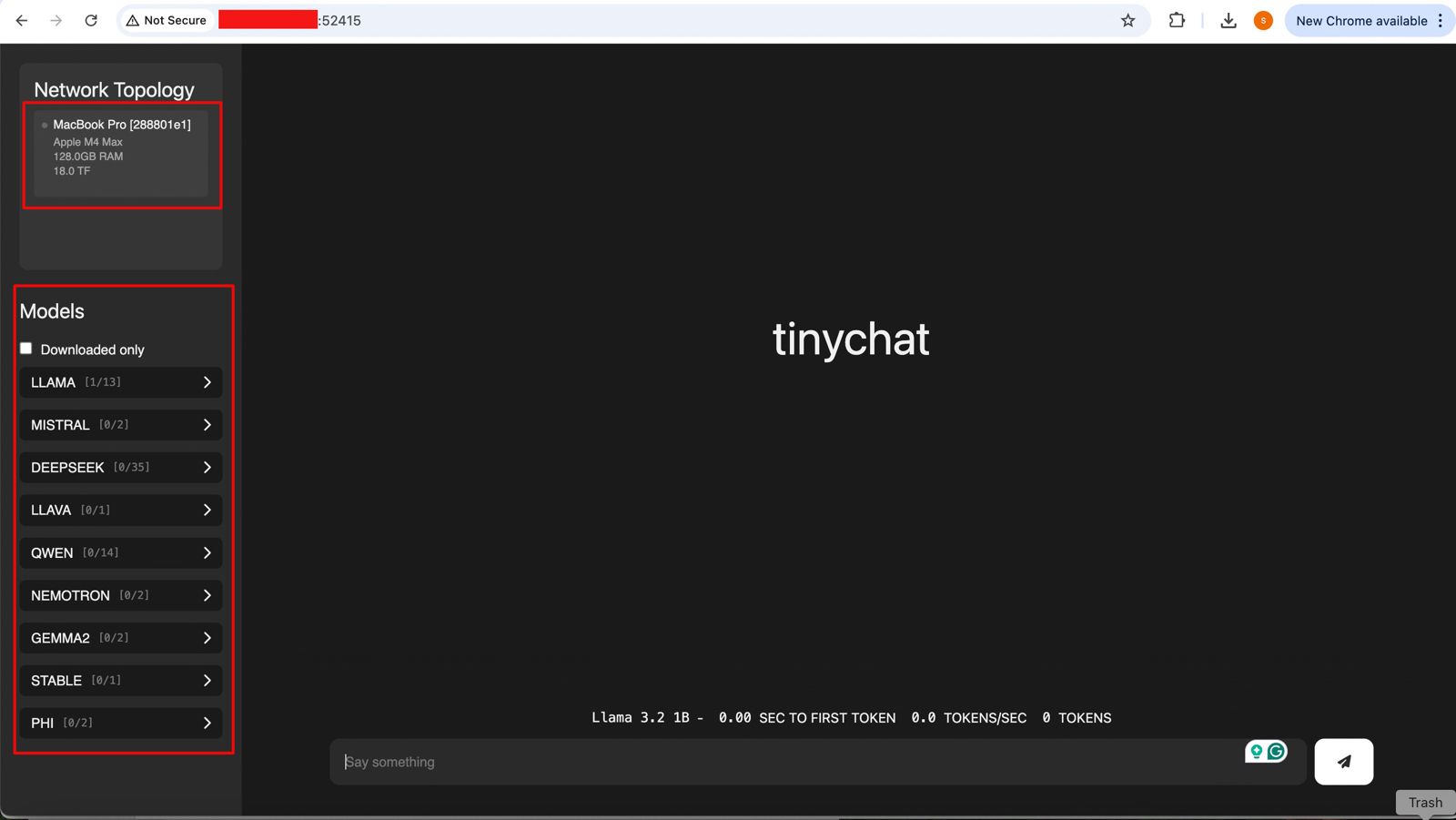
      And if you open the URL, you will see the following ChatGPT-like interface –

      Connecting without the Thunderbolt bridge with the relevant port or a hub may cause performance degradation. Hence, how you connect will play a major role in the success of this intention. However, this is certainly a great idea to proceed with.


      So, we’ve done it.

      We’ll cover the detailed performance testing, Optimized configurations & many other useful details in our next post.

      Till then, Happy Avenging! 🙂

      Monitoring & evaluating the leading LLMs (both the established & new) by Python-based evaluator

      As we’re leaping more & more into the field of Generative AI, one of the frequent questions or challenges people are getting more & more is the performance & other evaluation factors. These factors will eventually bring the fruit of this technology; otherwise, you will end up in technical debt.

      This post will discuss the key snippets of the monitoring app based on the Python-based AI app. But before that, let us first view the demo.

      Isn’t it exciting?


      Let us deep dive into it. But, here is the flow this solution will follow.

      So, the current application will invoke the industry bigshots and some relatively unknown or new LLMs.

      In this case, we’ll evaluate Anthropic, Open AI, DeepSeek, and Bharat GPT’s various models. However, Bharat GPT is open source, so we’ll use the Huggingface library and execute it locally against my MacBook Pro M4 Max.

      The following are the KPIs we’re going to evaluate:

      Here are the lists of dependant python packages that is require to run this application –

      pip install certifi==2024.8.30
      pip install anthropic==0.42.0
      pip install huggingface-hub==0.27.0
      pip install nltk==3.9.1
      pip install numpy==2.2.1
      pip install moviepy==2.1.1
      pip install numpy==2.1.3
      pip install openai==1.59.3
      pip install pandas==2.2.3
      pip install pillow==11.1.0
      pip install pip==24.3.1
      pip install psutil==6.1.1
      pip install requests==2.32.3
      pip install rouge_score==0.1.2
      pip install scikit-learn==1.6.0
      pip install setuptools==70.2.0
      pip install tokenizers==0.21.0
      pip install torch==2.6.0.dev20250104
      pip install torchaudio==2.6.0.dev20250104
      pip install torchvision==0.22.0.dev20250104
      pip install tqdm==4.67.1
      pip install transformers==4.47.1
          @retry(stop=stop_after_attempt(3), wait=wait_exponential(multiplier=1, min=4, max=10))
          def get_claude_response(self, prompt: str) -> str:
              response = self.anthropic_client.messages.create(
                  model=anthropic_model,
                  max_tokens=maxToken,
                  messages=[{"role": "user", "content": prompt}]
              )
              return response.content[0].text
      1. The Retry Mechanism
        • The @retry line means this function will automatically try again if it fails.
        • It will stop retrying after 3 attempts (stop_after_attempt(3)).
        • It will wait longer between retries, starting at 4 seconds and increasing up to 10 seconds (wait_exponential(multiplier=1, min=4, max=10)).
      2. The Function Purpose
        • The function takes a message, called prompt, as input (a string of text).
        • It uses a service (likely an AI system like Claude) to generate a response to this prompt.
      3. Sending the Message
        • Inside the function, the code self.anthropic_client.messages.create is the part that actually sends the prompt to the AI.
        • It specifies:Which AI model to use (e.g., anthropic_model).
        • The maximum length of the response (controlled by maxToken).
        • The input message for the AI has a “role” (user), as well as the content of the prompt.
      4. Getting the Response
        • Once the AI generates a response, it’s saved as response.
        • The code retrieves the first part of the response (response.content[0].text) and sends it back to whoever called the function.

      Similarly, it will work for Open AI as well.

          @retry(stop=stop_after_attempt(3), wait=wait_exponential(multiplier=1, min=4, max=10))
          def get_deepseek_response(self, prompt: str) -> tuple:
              deepseek_api_key = self.deepseek_api_key
      
              headers = {
                  "Authorization": f"Bearer {deepseek_api_key}",
                  "Content-Type": "application/json"
                  }
              
              payload = {
                  "model": deepseek_model,  
                  "messages": [{"role": "user", "content": prompt}],
                  "max_tokens": maxToken
                  }
              
              response = requests.post(DEEPSEEK_API_URL, headers=headers, json=payload)
      
              if response.status_code == 200:
                  res = response.json()["choices"][0]["message"]["content"]
              else:
                  res = "API request failed with status code " + str(response.status_code) + ":" + str(response.text)
      
              return res
      1. Retry Mechanism:
        • The @retry line ensures the function will try again if it fails.
        • It will stop retrying after 3 attempts (stop_after_attempt(3)).
        • It waits between retries, starting at 4 seconds and increasing up to 10 seconds (wait_exponential(multiplier=1, min=4, max=10)).

      1. What the Function Does:
        • The function takes one input, prompt, which is the message or question you want to send to the AI.
        • It returns the AI’s response or an error message.

      1. Preparing to Communicate with the API:
        • API Key: It gets the API key for the DeepSeek service from self.deepseek_api_key.
        • Headers: These tell the API that the request will use the API key (for security) and that the data format is JSON (structured text).
        • Payload: This is the information sent to the AI. It includes:
          • Model: Specifies which version of the AI to use (deepseek_model).
          • Messages: The input message with the role “user” and your prompt.
          • Max Tokens: Defines the maximum size of the AI’s response (maxToken).

      1. Sending the Request:
        • It uses the requests.post() method to send the payload and headers to the DeepSeek API using the URL DEEPSEEK_API_URL.

      1. Processing the Response:
        • If the API responds successfully (status_code == 200):
          • It extracts the AI’s reply from the response data.
          • Specifically, it gets the first choice’s message content: response.json()["choices"][0]["message"]["content"].
        • If there’s an error:
          • It constructs an error message with the status code and detailed error text from the API.

      1. Returning the Result:
        • The function outputs either the AI’s response or the error message.
          @retry(stop=stop_after_attempt(3), wait=wait_exponential(multiplier=1, min=4, max=10))
          def get_bharatgpt_response(self, prompt: str) -> tuple:
              try:
                  messages = [[{"role": "user", "content": prompt}]]
                  
                  response = pipe(messages, max_new_tokens=maxToken,)
      
                  # Extract 'content' field safely
                  res = next((entry.get("content", "")
                              for entry in response[0][0].get("generated_text", [])
                              if isinstance(entry, dict) and entry.get("role") == "assistant"
                              ),
                              None,
                              )
                  
                  return res
              except Exception as e:
                  x = str(e)
                  print('Error: ', x)
      
                  return ""
      1. Retry Mechanism:The @retry ensures the function will try again if it fails.
        • It will stop retrying after 3 attempts (stop_after_attempt(3)).
        • The waiting time between retries starts at 4 seconds and increases exponentially up to 10 seconds (wait_exponential(multiplier=1, min=4, max=10)).
      2. What the Function Does:The function takes one input, prompt, which is the message or question you want to send to BharatGPT.
        • It returns the AI’s response or an empty string if something goes wrong.
      3. Sending the Prompt:Messages Structure: The function wraps the user’s prompt in a format that the BharatGPT AI understands:
        • messages = [[{"role": "user", "content": prompt}]]
        • This tells the AI that the prompt is coming from the “user.”
      4. Pipe Function: It uses a pipe() method to send the messages to the AI system.
        • max_new_tokens=maxToken: Limits how long the AI’s response can be.
      5. Extracting the Response:The response from the AI is in a structured format. The code looks for the first piece of text where:
        • The role is “assistant” (meaning it’s the AI’s reply).
        • The text is in the “content” field.
        • The next() function safely extracts this “content” field or returns None if it can’t find it.
      6. Error Handling:If something goes wrong (e.g., the AI doesn’t respond or there’s a technical issue), the code:
        • Captures the error message in e.
        • Prints the error message: print('Error: ', x).
        • Returns an empty string ("") instead of crashing.
      7. Returning the Result:If everything works, the function gives you the AI’s response as plain text.
        • If there’s an error, it gives you an empty string, indicating no response was received.

          def get_model_response(self, model_name: str, prompt: str) -> ModelResponse:
              """Get response from specified model with metrics"""
              start_time = time.time()
              start_memory = psutil.Process(os.getpid()).memory_info().rss / 1024 / 1024
      
              try:
                  if model_name == "claude-3":
                      response_content = self.get_claude_response(prompt)
                  elif model_name == "gpt4":
                      response_content = self.get_gpt4_response(prompt)
                  elif model_name == "deepseek-chat":
                      response_content = self.get_deepseek_response(prompt)
                  elif model_name == "bharat-gpt":
                      response_content = self.get_bharatgpt_response(prompt)
      
                  # Model-specific API calls 
                  token_count = len(self.bert_tokenizer.encode(response_content))
                  
                  end_memory = psutil.Process(os.getpid()).memory_info().rss / 1024 / 1024
                  memory_usage = end_memory - start_memory
                  
                  return ModelResponse(
                      content=response_content,
                      response_time=time.time() - start_time,
                      token_count=token_count,
                      memory_usage=memory_usage
                  )
              except Exception as e:
                  logging.error(f"Error getting response from {model_name}: {str(e)}")
                  return ModelResponse(
                      content="",
                      response_time=0,
                      token_count=0,
                      memory_usage=0,
                      error=str(e)
                  )

      Start Tracking Time and Memory:

        • The function starts a timer (start_time) to measure how long it takes to get a response.
        • It also checks how much memory is being used at the beginning (start_memory).

        Choose the AI Model:

        • Based on the model_name provided, the function selects the appropriate method to get a response:
          • "claude-3" → Calls get_claude_response(prompt).
          • "gpt4" → Calls get_gpt4_response(prompt).
          • "deepseek-chat" → Calls get_deepseek_response(prompt).
          • "bharat-gpt" → Calls get_bharatgpt_response(prompt).

        Process the Response:

        • Once the response is received, the function calculates:
          • Token Count: The number of tokens (small chunks of text) in the response using a tokenizer.
          • Memory Usage: The difference between memory usage after the response (end_memory) and before it (start_memory).

        Return the Results:

        • The function bundles all the information into a ModelResponse object:
          • The AI’s reply (content).
          • How long the response took (response_time).
          • The number of tokens in the reply (token_count).
          • How much memory was used (memory_usage).

        Handle Errors:

        • If something goes wrong (e.g., the AI doesn’t respond), the function:
          • Logs the error message.
          • Returns an empty response with default values and the error message.
            def evaluate_text_quality(self, generated: str, reference: str) -> Dict[str, float]:
                """Evaluate text quality metrics"""
                # BERTScore
                gen_embedding = self.sentence_model.encode([generated])
                ref_embedding = self.sentence_model.encode([reference])
                bert_score = cosine_similarity(gen_embedding, ref_embedding)[0][0]
        
                # BLEU Score
                generated_tokens = word_tokenize(generated.lower())
                reference_tokens = word_tokenize(reference.lower())
                bleu = sentence_bleu([reference_tokens], generated_tokens)
        
                # METEOR Score
                meteor = meteor_score([reference_tokens], generated_tokens)
        
                return {
                    'bert_score': bert_score,
                    'bleu_score': bleu,
                    'meteor_score': meteor
                }

        Inputs:

        • generated: The text produced by the AI.
        • reference: The correct or expected version of the text.

        Calculating BERTScore:

        • Converts the generated and reference texts into numerical embeddings (mathematical representations) using a pre-trained model (self.sentence_model.encode).
        • Measures the similarity between the two embeddings using cosine similarity. This gives the bert_score, which ranges from -1 (completely different) to 1 (very similar).

        Calculating BLEU Score:

        • Breaks the generated and reference texts into individual words (tokens) using word_tokenize.
        • Converts both texts to lowercase for consistent comparison.
        • Calculates the BLEU Score (sentence_bleu), which checks how many words or phrases in the generated text overlap with the reference. BLEU values range from 0 (no match) to 1 (perfect match).

        Calculating METEOR Score:

        • Also uses the tokenized versions of generated and reference texts.
        • Calculates the METEOR Score (meteor_score), which considers exact matches, synonyms, and word order. Scores range from 0 (no match) to 1 (perfect match).

        Returning the Results:

        • Combines the three scores into a dictionary with the keys 'bert_score''bleu_score', and 'meteor_score'.

        Similarly, other functions are developed.

            def run_comprehensive_evaluation(self, evaluation_data: List[Dict]) -> pd.DataFrame:
                """Run comprehensive evaluation on all metrics"""
                results = []
                
                for item in evaluation_data:
                    prompt = item['prompt']
                    reference = item['reference']
                    task_criteria = item.get('task_criteria', {})
                    
                    for model_name in self.model_configs.keys():
                        # Get multiple responses to evaluate reliability
                        responses = [
                            self.get_model_response(model_name, prompt)
                            for _ in range(3)  # Get 3 responses for reliability testing
                        ]
                        
                        # Use the best response for other evaluations
                        best_response = max(responses, key=lambda x: len(x.content) if not x.error else 0)
                        
                        if best_response.error:
                            logging.error(f"Error in model {model_name}: {best_response.error}")
                            continue
                        
                        # Gather all metrics
                        metrics = {
                            'model': model_name,
                            'prompt': prompt,
                            'response': best_response.content,
                            **self.evaluate_text_quality(best_response.content, reference),
                            **self.evaluate_factual_accuracy(best_response.content, reference),
                            **self.evaluate_task_performance(best_response.content, task_criteria),
                            **self.evaluate_technical_performance(best_response),
                            **self.evaluate_reliability(responses),
                            **self.evaluate_safety(best_response.content)
                        }
                        
                        # Add business impact metrics using task performance
                        metrics.update(self.evaluate_business_impact(
                            best_response,
                            metrics['task_completion']
                        ))
                        
                        results.append(metrics)
                
                return pd.DataFrame(results)
        • Input:
          • evaluation_data: A list of test cases, where each case is a dictionary containing:
            • prompt: The question or input to the AI model.
            • reference: The ideal or expected answer.
            • task_criteria (optional): Additional rules or requirements for the task.
        • Initialize Results:
          • An empty list results is created to store the evaluation metrics for each model and test case.
        • Iterate Through Test Cases:
          • For each item in the evaluation_data:
            • Extract the promptreference, and task_criteria.
        • Evaluate Each Model:
          • Loop through all available AI models (self.model_configs.keys()).
          • Generate three responses for each model to test reliability.
        • Select the Best Response:
          • Out of the three responses, pick the one with the most content (best_response), ignoring responses with errors.
        • Handle Errors:
          • If a response has an error, log the issue and skip further evaluation for that model.
        • Evaluate Metrics:
          • Using the best_response, calculate a variety of metrics, including:
            • Text Quality: How similar the response is to the reference.
            • Factual Accuracy: Whether the response is factually correct.
            • Task Performance: How well it meets task-specific criteria.
            • Technical Performance: Evaluate time, memory, or other system-related metrics.
            • Reliability: Check consistency across multiple responses.
            • Safety: Ensure the response is safe and appropriate.
        • Evaluate Business Impact:
          • Add metrics for business impact (e.g., how well the task was completed, using task_completion as a key factor).
        • Store Results:
          • Add the calculated metrics for this model and prompt to the results list.
        • Return Results as a DataFrame:
          • Convert the results list into a structured table (a pandas DataFrame) for easy analysis and visualization.

        Great! So, now, we’ve explained the code.

        Let us understand the final outcome of this run & what we can conclude from that.

        1. BERT Score (Semantic Understanding):
          • GPT4 leads slightly at 0.8322 (83.22%)
          • Bharat-GPT close second at 0.8118 (81.18%)
          • Claude-3 at 0.8019 (80.19%)
          • DeepSeek-Chat at 0.7819 (78.19%) Think of this like a “comprehension score” – how well the models understand the context. All models show strong understanding, with only a 5% difference between best and worst.
        2. BLEU Score (Word-for-Word Accuracy):
          • Bharat-GPT leads at 0.0567 (5.67%)
          • Claude-3 at 0.0344 (3.44%)
          • GPT4 at 0.0306 (3.06%)
          • DeepSeek-Chat lowest at 0.0189 (1.89%) These low scores suggest models use different wording than references, which isn’t necessarily bad.
        3. METEOR Score (Meaning Preservation):
          • Bharat-GPT leads at 0.4684 (46.84%)
          • Claude-3 close second at 0.4507 (45.07%)
          • GPT4 at 0.2960 (29.60%)
          • DeepSeek-Chat at 0.2652 (26.52%) This shows how well models maintain meaning while using different words.
        4. Response Time (Speed):
          • Claude-3 fastest: 4.40 seconds
          • Bharat-GPT: 6.35 seconds
          • GPT4: 6.43 seconds
          • DeepSeek-Chat slowest: 8.52 seconds
        5. Safety and Reliability:
          • Error Rate: Perfect 0.0 for all models
          • Toxicity: All very safe (below 0.15%) 
            • Claude-3 safest at 0.0007GPT4 at 0.0008Bharat-GPT at 0.0012
            • DeepSeek-Chat at 0.0014
        6. Cost Efficiency:
          • Claude-3 most economical: $0.0019 per response
          • Bharat-GPT close: $0.0021
          • GPT4: $0.0038
          • DeepSeek-Chat highest: $0.0050

        Key Takeaways by Model:

        1. Claude-3: ✓ Fastest responses ✓ Most cost-effective ✓ Excellent meaning preservation ✓ Lowest toxicity
        2. Bharat-GPT: ✓ Best BLEU and METEOR scores ✓ Strong semantic understanding ✓ Cost-effective ✗ Moderate response time
        3. GPT4: ✓ Best semantic understanding ✓ Good safety metrics ✗ Higher cost ✗ Moderate response time
        4. DeepSeek-Chat: ✗ Generally lower performance ✗ Slowest responses ✗ Highest cost ✗ Slightly higher toxicity

        Reliability of These Statistics:

        Strong Points:

        • Comprehensive metric coverage
        • Consistent patterns across evaluations
        • Zero error rates show reliability
        • Clear differentiation between models

        Limitations:

        • BLEU scores are quite low across all models
        • Doesn’t measure creative or innovative responses
        • May not reflect specific use case performance
        • Single snapshot rather than long-term performance

        Final Observation:

        1. Best Overall Value: Claude-3
          • Fast, cost-effective, safe, good performance
        2. Best for Accuracy: Bharat-GPT
          • Highest meaning preservation and precision
        3. Best for Understanding: GPT4
          • Strongest semantic comprehension
        4. Consider Your Priorities: 
          • Speed → Choose Claude-3
          • Cost → Choose Claude-3 or Bharat-GPT
          • Accuracy → Choose Bharat-GPT
          • Understanding → Choose GPT4

        These statistics provide reliable comparative data but should be part of a broader decision-making process that includes your specific needs, budget, and use cases.


        For the Bharat GPT model, we’ve tested this locally on my MacBook Pro 4 Max. And, the configuration is as follows –

        I’ve tried the API version locally, & it provided a similar performance against the stats that we received by running locally. Unfortunately, they haven’t made the API version public yet.

        So, apart from the Anthropic & Open AI, I’ll watch this new LLM (Bharat GPT) for overall stats in the coming days.


        So, we’ve done it.

        You can find the detailed code at the GitHub link.

        I’ll bring some more exciting topics in the coming days from the Python verse.

        Till then, Happy Avenging! 🙂

        Enabling & Exploring Stable Defussion – Part 3

        Before we dive into the details of this post, let us provide the previous two links that precede it.

        Enabling & Exploring Stable Defussion – Part 1

        Enabling & Exploring Stable Defussion – Part 2

        For, reference, we’ll share the demo before deep dive into the actual follow-up analysis in the below section –


        Now, let us continue our discussions from where we left.

        class clsText2Image:
            def __init__(self, pipe, output_path, filename):
        
                self.pipe = pipe
                
                # More aggressive attention slicing
                self.pipe.enable_attention_slicing(slice_size=1)
        
                self.output_path = f"{output_path}{filename}"
                
                # Warm up the pipeline
                self._warmup()
            
            def _warmup(self):
                """Warm up the pipeline to optimize memory allocation"""
                with torch.no_grad():
                    _ = self.pipe("warmup", num_inference_steps=1, height=512, width=512)
                torch.mps.empty_cache()
                gc.collect()
            
            def generate(self, prompt, num_inference_steps=12, guidance_scale=3.0):
                try:
                    torch.mps.empty_cache()
                    gc.collect()
                    
                    with torch.autocast(device_type="mps"):
                        with torch.no_grad():
                            image = self.pipe(
                                prompt,
                                num_inference_steps=num_inference_steps,
                                guidance_scale=guidance_scale,
                                height=1024,
                                width=1024,
                            ).images[0]
                    
                    image.save(self.output_path)
                    return 0
                except Exception as e:
                    print(f'Error: {str(e)}')
                    return 1
                finally:
                    torch.mps.empty_cache()
                    gc.collect()
        
            def genImage(self, prompt):
                try:
        
                    # Initialize generator
                    x = self.generate(prompt)
        
                    if x == 0:
                        print('Successfully processed first pass!')
                    else:
                        print('Failed complete first pass!')
                        raise 
        
                    return 0
        
                except Exception as e:
                    print(f"\nAn unexpected error occurred: {str(e)}")
        
                    return 1

        This is the initialization method for the clsText2Image class:

        • Takes a pre-configured pipe (text-to-image pipeline), an output_path, and a filename.
        • Enables more aggressive memory optimization by setting “attention slicing.”
        • Prepares the full file path for saving generated images.
        • Calls a _warmup method to pre-load the pipeline and optimize memory allocation.

        This private method warms up the pipeline:

        • Sends a dummy “warmup” request with basic parameters to allocate memory efficiently.
        • Clears any cached memory (torch.mps.empty_cache()) and performs garbage collection (gc.collect()).
        • Ensures smoother operation for future image generation tasks.

        This method generates an image from a text prompt:

        • Clears memory cache and performs garbage collection before starting.
        • Uses the text-to-image pipeline (pipe) to generate an image:
          • Takes the prompt, number of inference steps, and guidance scale as input.
          • Outputs an image at 1024×1024 resolution.
        • Saves the generated image to the specified output path.
        • Returns 0 on success or 1 on failure.
        • Ensures cleanup by clearing memory and collecting garbage, even in case of errors.

        This method simplifies image generation:

        • Calls the generate method with the given prompt.
        • Prints a success message if the image is generated (0 return value).
        • On failure, logs the error and raises an exception.
        • Returns 0 on success or 1 on failure.
        class clsImage2Video:
            def __init__(self, pipeline):
                
                # Optimize model loading
                torch.mps.empty_cache()
                self.pipeline = pipeline
        
            def generate_frames(self, pipeline, init_image, prompt, duration_seconds=10):
                try:
                    torch.mps.empty_cache()
                    gc.collect()
        
                    base_frames = []
                    img = Image.open(init_image).convert("RGB").resize((1024, 1024))
                    
                    for _ in range(10):
                        result = pipeline(
                            prompt=prompt,
                            image=img,
                            strength=0.45,
                            guidance_scale=7.5,
                            num_inference_steps=25
                        ).images[0]
        
                        base_frames.append(np.array(result))
                        img = result
                        torch.mps.empty_cache()
        
                    frames = []
                    for i in range(len(base_frames)-1):
                        frame1, frame2 = base_frames[i], base_frames[i+1]
                        for t in np.linspace(0, 1, int(duration_seconds*24/10)):
                            frame = (1-t)*frame1 + t*frame2
                            frames.append(frame.astype(np.uint8))
                    
                    return frames
                except Exception as e:
                    frames = []
                    print(f'Error: {str(e)}')
        
                    return frames
                finally:
                    torch.mps.empty_cache()
                    gc.collect()
        
            # Main method
            def genVideo(self, prompt, inputImage, targetVideo, fps):
                try:
                    print("Starting animation generation...")
                    
                    init_image_path = inputImage
                    output_path = targetVideo
                    fps = fps
                    
                    frames = self.generate_frames(
                        pipeline=self.pipeline,
                        init_image=init_image_path,
                        prompt=prompt,
                        duration_seconds=20
                    )
                    
                    imageio.mimsave(output_path, frames, fps=30)
        
                    print("Animation completed successfully!")
        
                    return 0
                except Exception as e:
                    x = str(e)
                    print('Error: ', x)
        
                    return 1

        This initializes the clsImage2Video class:

        • Clears the GPU cache to optimize memory before loading.
        • Sets up the pipeline for generating frames, which uses an image-to-video transformation model.

        This function generates frames for a video:

        • Starts by clearing GPU memory and running garbage collection.
        • Loads the init_image, resizes it to 1024×1024 pixels, and converts it to RGB format.
        • Iteratively applies the pipeline to transform the image:
          • Uses the prompt and specified parameters like strengthguidance_scale, and num_inference_steps.
          • Stores the resulting frames in a list.
        • Interpolates between consecutive frames to create smooth transitions:
          • Uses linear blending for smooth animation across a specified duration and frame rate (24 fps for 10 segments).
        • Returns the final list of generated frames or an empty list if an error occurs.
        • Always clears memory after execution.

        This is the main function for creating a video from an image and text prompt:

        • Logs the start of the animation generation process.
        • Calls generate_frames() with the given pipelineinputImage, and prompt to create frames.
        • Saves the generated frames as a video using the imageio library, setting the specified frame rate (fps).
        • Logs a success message and returns 0 if the process is successful.
        • On error, logs the issue and returns 1.

        Now, let us understand the performance. But, before that let us explore the device on which we’ve performed these stress test that involves GPU & CPUs as well.

        And, here is the performance stats –

        From the above snapshot, we can clearly communicate that the GPU is 100% utilized. However, the CPU has shown a significant % of availability.

        As you can see, the first pass converts the input prompt to intermediate images within 1 min 30 sec. However, the second pass constitutes multiple hops (11 hops) on an avg 22 seconds. Overall, the application will finish in 5 minutes 36 seconds for a 10-second video clip.


        So, we’ve done it.

        You can find the detailed code at the GitHub link.

        I’ll bring some more exciting topics in the coming days from the Python verse.

        Till then, Happy Avenging! 🙂

        Building a real-time Gen AI Improvement Matrices (GAIIM) using Python, UpTrain, Open AI & React

        How does the RAG work better for various enterprise-level Gen AI use cases? What needs to be there to make the LLM model work more efficiently & able to check the response & validate their response, including the bias, hallucination & many more?

        This is my post (after a slight GAP), which will capture and discuss some of the burning issues that many AI architects are trying to explore. In this post, I’ve considered a newly formed AI start-up from India, which developed an open-source framework that can easily evaluate all the challenges that one is facing with their LLMs & easily integrate with your existing models for better understanding including its limitations. You will get plenty of insights about it.

        But, before we dig deep, why not see the demo first –

        Isn’t it exciting? Let’s deep dive into the flow of events.


        Let’s explore the broad-level architecture/flow –

        Let us understand the steps of the above architecture. First, our Python application needs to trigger and enable the API, which will interact with the Open AI and UpTrain AI to fetch all the LLM KPIs based on the input from the React app named “Evaluation.”

        Once the response is received from UpTrain AI, the Python application then organizes the results in a better readable manner without changing the core details coming out from their APIs & then shares that back with the react interface.

        Let’s examine the react app’s sample inputs to better understand the input that will be passed to the Python-based API solution, which is wrapper capability to call multiple APIs from the UpTrain & then accumulate them under one response by parsing the data & reorganizing the data with the help of Open AI & sharing that back.

        Highlighted in RED are some of the critical inputs you need to provide to get most of the KPIs. And, here are the sample text inputs for your reference –

        Q. Enter input question.
        A. What are the four largest moons of Jupiter?
        Q. Enter the context document.
        A. Jupiter, the largest planet in our solar system, boasts a fascinating array of moons. Among these, the four largest are collectively known as the Galilean moons, named after the renowned astronomer Galileo Galilei, who first observed them in 1610. These four moons, Io, Europa, Ganymede, and Callisto, hold significant scientific interest due to their unique characteristics and diverse geological features.
        Q. Enter LLM response.
        A. The four largest moons of Jupiter, known as the Galilean moons, are Io, Europa, Ganymede, and Marshmello.
        Q. Enter the persona response.
        A. strict and methodical teacher
        Q. Enter the guideline.
        A. Response shouldn’t contain any specific numbers
        Q. Enter the ground truth.
        A. The Jupiter is the largest & gaseous planet in the solar system.
        Q. Choose the evaluation method.
        A. llm

        Once you fill in the App should look like this –

        Once you fill in, the app should look like the below screenshot –


        Let us understand the sample packages that are required for this task.

        pip install Flask==3.0.3
        pip install Flask-Cors==4.0.0
        pip install numpy==1.26.4
        pip install openai==1.17.0
        pip install pandas==2.2.2
        pip install uptrain==0.6.13

        Note that, we’re not going to discuss the entire script here. Only those parts are relevant. However, you can get the complete scripts in the GitHub repository.

        def askFeluda(context, question):
            try:
                # Combine the context and the question into a single prompt.
                prompt_text = f"{context}\n\n Question: {question}\n Answer:"
        
                # Retrieve conversation history from the session or database
                conversation_history = []
        
                # Add the new message to the conversation history
                conversation_history.append(prompt_text)
        
                # Call OpenAI API with the updated conversation
                response = client.with_options(max_retries=0).chat.completions.create(
                    messages=[
                        {
                            "role": "user",
                            "content": prompt_text,
                        }
                    ],
                    model=cf.conf['MODEL_NAME'],
                    max_tokens=150,  # You can adjust this based on how long you expect the response to be
                    temperature=0.3,  # Adjust for creativity. Lower values make responses more focused and deterministic
                    top_p=1,
                    frequency_penalty=0,
                    presence_penalty=0
                )
        
                # Extract the content from the first choice's message
                chat_response = response.choices[0].message.content
        
                # Print the generated response text
                return chat_response.strip()
            except Exception as e:
                return f"An error occurred: {str(e)}"

        This function will ask the supplied questions with contexts or it will supply the UpTrain results to summarize the JSON into more easily readable plain texts. For our test, we’ve used “gpt-3.5-turbo”.

        def evalContextRelevance(question, context, resFeluda, personaResponse):
            try:
                data = [{
                    'question': question,
                    'context': context,
                    'response': resFeluda
                }]
        
                results = eval_llm.evaluate(
                    data=data,
                    checks=[Evals.CONTEXT_RELEVANCE, Evals.FACTUAL_ACCURACY, Evals.RESPONSE_COMPLETENESS, Evals.RESPONSE_RELEVANCE, CritiqueTone(llm_persona=personaResponse), Evals.CRITIQUE_LANGUAGE, Evals.VALID_RESPONSE, Evals.RESPONSE_CONCISENESS]
                )
        
                return results
            except Exception as e:
                x = str(e)
        
                return x

        The above methods initiate the model from UpTrain to get all the stats, which will be helpful for your LLM response. In this post, we’ve captured the following KPIs –

        - Context Relevance Explanation
        - Factual Accuracy Explanation
        - Guideline Adherence Explanation
        - Response Completeness Explanation
        - Response Fluency Explanation
        - Response Relevance Explanation
        - Response Tonality Explanation
        # Function to extract and print all the keys and their values
        def extractPrintedData(data):
            for entry in data:
                print("Parsed Data:")
                for key, value in entry.items():
        
        
                    if key == 'score_context_relevance':
                        s_1_key_val = value
                    elif key == 'explanation_context_relevance':
                        cleaned_value = preprocessParseData(value)
                        print(f"{key}: {cleaned_value}\n")
                        s_1_val = cleaned_value
                    elif key == 'score_factual_accuracy':
                        s_2_key_val = value
                    elif key == 'explanation_factual_accuracy':
                        cleaned_value = preprocessParseData(value)
                        print(f"{key}: {cleaned_value}\n")
                        s_2_val = cleaned_value
                    elif key == 'score_response_completeness':
                        s_3_key_val = value
                    elif key == 'explanation_response_completeness':
                        cleaned_value = preprocessParseData(value)
                        print(f"{key}: {cleaned_value}\n")
                        s_3_val = cleaned_value
                    elif key == 'score_response_relevance':
                        s_4_key_val = value
                    elif key == 'explanation_response_relevance':
                        cleaned_value = preprocessParseData(value)
                        print(f"{key}: {cleaned_value}\n")
                        s_4_val = cleaned_value
                    elif key == 'score_critique_tone':
                        s_5_key_val = value
                    elif key == 'explanation_critique_tone':
                        cleaned_value = preprocessParseData(value)
                        print(f"{key}: {cleaned_value}\n")
                        s_5_val = cleaned_value
                    elif key == 'score_fluency':
                        s_6_key_val = value
                    elif key == 'explanation_fluency':
                        cleaned_value = preprocessParseData(value)
                        print(f"{key}: {cleaned_value}\n")
                        s_6_val = cleaned_value
                    elif key == 'score_valid_response':
                        s_7_key_val = value
                    elif key == 'score_response_conciseness':
                        s_8_key_val = value
                    elif key == 'explanation_response_conciseness':
                        print('Raw Value: ', value)
                        cleaned_value = preprocessParseData(value)
                        print(f"{key}: {cleaned_value}\n")
                        s_8_val = cleaned_value
        
            print('$'*200)
        
            results = {
                "Factual_Accuracy_Score": s_2_key_val,
                "Factual_Accuracy_Explanation": s_2_val,
                "Context_Relevance_Score": s_1_key_val,
                "Context_Relevance_Explanation": s_1_val,
                "Response_Completeness_Score": s_3_key_val,
                "Response_Completeness_Explanation": s_3_val,
                "Response_Relevance_Score": s_4_key_val,
                "Response_Relevance_Explanation": s_4_val,
                "Response_Fluency_Score": s_6_key_val,
                "Response_Fluency_Explanation": s_6_val,
                "Response_Tonality_Score": s_5_key_val,
                "Response_Tonality_Explanation": s_5_val,
                "Guideline_Adherence_Score": s_8_key_val,
                "Guideline_Adherence_Explanation": s_8_val,
                "Response_Match_Score": s_7_key_val
                # Add other evaluations similarly
            }
        
            return results

        The above method parsed the initial data from UpTrain before sending it to OpenAI for a better summary without changing any text returned by it.

        @app.route('/evaluate', methods=['POST'])
        def evaluate():
            data = request.json
        
            if not data:
                return {jsonify({'error': 'No data provided'}), 400}
        
            # Extracting input data for processing (just an example of logging received data)
            question = data.get('question', '')
            context = data.get('context', '')
            llmResponse = ''
            personaResponse = data.get('personaResponse', '')
            guideline = data.get('guideline', '')
            groundTruth = data.get('groundTruth', '')
            evaluationMethod = data.get('evaluationMethod', '')
        
            print('question:')
            print(question)
        
            llmResponse = askFeluda(context, question)
            print('='*200)
            print('Response from Feluda::')
            print(llmResponse)
            print('='*200)
        
            # Getting Context LLM
            cLLM = evalContextRelevance(question, context, llmResponse, personaResponse)
        
            print('&'*200)
            print('cLLM:')
            print(cLLM)
            print(type(cLLM))
            print('&'*200)
        
            results = extractPrintedData(cLLM)
        
            print('JSON::')
            print(results)
        
            resJson = jsonify(results)
        
            return resJson

        The above function is the main method, which first receives all the input parameters from the react app & then invokes one-by-one functions to get the LLM response, and LLM performance & finally summarizes them before sending it to react-app.

        For any other scripts, please refer to the above-mentioned GitHub link.


        Let us see some of the screenshots of the test run –


        So, we’ve done it.

        I’ll bring some more exciting topics in the coming days from the Python verse.

        Till then, Happy Avenging! 🙂

        Enabling & Exploring Stable Defussion – Part 1

        This new solution will evaluate the power of Stable Defussion, which is created solutions as we progress & refine our prompt from scratch by using Stable Defussion & Python. This post opens new opportunities for IT companies & business start-ups looking to deliver solutions & have better performance compared to the paid version of Stable Defussion AI’s API performance. This project is for the advanced Python, Stable Defussion for data Science Newbies & AI evangelists.

        In a series of posts, I’ll explain and focus on the Stable Defussion API and custom solution using the Python-based SDK of Stable Defussion.

        But, before that, let us view the video that it generates from the prompt by using the third-party API:

        Prompt to Video

        And, let us understand the prompt that we supplied to create the above video –

        Isn’t it exciting?

        However, I want to stress this point: the video generated by the Stable Defusion (Stability AI) API was able to partially apply the animation effect. Even though the animation applies to the cloud, It doesn’t apply the animation to the wave. But, I must admit, the quality of the video is quite good.


        Let us understand the code and how we run the solution, and then we can try to understand its performance along with the other solutions later in the subsequent series.

        As you know, we’re exploring the code base of the third-party API, which will actually execute a series of API calls that create a video out of the prompt.

        Let us understand some of the important snippet –

        class clsStabilityAIAPI:
            def __init__(self, STABLE_DIFF_API_KEY, OUT_DIR_PATH, FILE_NM, VID_FILE_NM):
                self.STABLE_DIFF_API_KEY = STABLE_DIFF_API_KEY
                self.OUT_DIR_PATH = OUT_DIR_PATH
                self.FILE_NM = FILE_NM
                self.VID_FILE_NM = VID_FILE_NM
        
            def delFile(self, fileName):
                try:
                    # Deleting the intermediate image
                    os.remove(fileName)
        
                    return 0 
                except Exception as e:
                    x = str(e)
                    print('Error: ', x)
        
                    return 1
        
            def generateText2Image(self, inputDescription):
                try:
                    STABLE_DIFF_API_KEY = self.STABLE_DIFF_API_KEY
                    fullFileName = self.OUT_DIR_PATH + self.FILE_NM
                    
                    if STABLE_DIFF_API_KEY is None:
                        raise Exception("Missing Stability API key.")
                    
                    response = requests.post(f"{api_host}/v1/generation/{engine_id}/text-to-image",
                                            headers={
                                                "Content-Type": "application/json",
                                                "Accept": "application/json",
                                                "Authorization": f"Bearer {STABLE_DIFF_API_KEY}"
                                                },
                                                json={
                                                    "text_prompts": [{"text": inputDescription}],
                                                    "cfg_scale": 7,
                                                    "height": 1024,
                                                    "width": 576,
                                                    "samples": 1,
                                                    "steps": 30,
                                                    },)
                    
                    if response.status_code != 200:
                        raise Exception("Non-200 response: " + str(response.text))
                    
                    data = response.json()
        
                    for i, image in enumerate(data["artifacts"]):
                        with open(fullFileName, "wb") as f:
                            f.write(base64.b64decode(image["base64"]))      
                    
                    return fullFileName
        
                except Exception as e:
                    x = str(e)
                    print('Error: ', x)
        
                    return 'N/A'
        
            def image2VideoPassOne(self, imgNameWithPath):
                try:
                    STABLE_DIFF_API_KEY = self.STABLE_DIFF_API_KEY
        
                    response = requests.post(f"https://api.stability.ai/v2beta/image-to-video",
                                            headers={"authorization": f"Bearer {STABLE_DIFF_API_KEY}"},
                                            files={"image": open(imgNameWithPath, "rb")},
                                            data={"seed": 0,"cfg_scale": 1.8,"motion_bucket_id": 127},
                                            )
                    
                    print('First Pass Response:')
                    print(str(response.text))
                    
                    genID = response.json().get('id')
        
                    return genID 
                except Exception as e:
                    x = str(e)
                    print('Error: ', x)
        
                    return 'N/A'
        
            def image2VideoPassTwo(self, genId):
                try:
                    generation_id = genId
                    STABLE_DIFF_API_KEY = self.STABLE_DIFF_API_KEY
                    fullVideoFileName = self.OUT_DIR_PATH + self.VID_FILE_NM
        
                    response = requests.request("GET", f"https://api.stability.ai/v2beta/image-to-video/result/{generation_id}",
                                                headers={
                                                    'accept': "video/*",  # Use 'application/json' to receive base64 encoded JSON
                                                    'authorization': f"Bearer {STABLE_DIFF_API_KEY}"
                                                    },) 
                    
                    print('Retrieve Status Code: ', str(response.status_code))
                    
                    if response.status_code == 202:
                        print("Generation in-progress, try again in 10 seconds.")
        
                        return 5
                    elif response.status_code == 200:
                        print("Generation complete!")
                        with open(fullVideoFileName, 'wb') as file:
                            file.write(response.content)
        
                        print("Successfully Retrieved the video file!")
        
                        return 0
                    else:
                        raise Exception(str(response.json()))
                    
                except Exception as e:
                    x = str(e)
                    print('Error: ', x)
        
                    return 1

        Now, let us understand the code –

        This function is called when an object of the class is created. It initializes four properties:

        • STABLE_DIFF_API_KEY: the API key for Stability AI services.
        • OUT_DIR_PATH: the folder path to save files.
        • FILE_NM: the name of the generated image file.
        • VID_FILE_NM: the name of the generated video file.

        This function deletes a file specified by fileName.

        • If successful, it returns 0.
        • If an error occurs, it logs the error and returns 1.

        This function generates an image based on a text description:

        • Sends a request to the Stability AI text-to-image endpoint using the API key.
        • Saves the resulting image to a file.
        • Returns the file’s path on success or 'N/A' if an error occurs.

        This function uploads an image to create a video in its first phase:

        • Sends the image to Stability AI’s image-to-video endpoint.
        • Logs the response and extracts the id (generation ID) for the next phase.
        • Returns the id if successful or 'N/A' on failure.

        This function retrieves the video created in the second phase using the genId:

        • Checks the video generation status from the Stability AI endpoint.
        • If complete, saves the video file and returns 0.
        • If still processing, returns 5.
        • Logs and returns 1 for any errors.

        As you can see, the code is pretty simple to understand & we’ve taken all the necessary actions in case of any unforeseen network issues or even if the video is not ready after our job submission in the following lines of the main calling script (generateText2VideoAPI.py) –

        waitTime = 10
        time.sleep(waitTime)
        
        # Failed case retry
        retries = 1
        success = False
        
        try:
            while not success:
                try:
                    z = r1.image2VideoPassTwo(gID)
                except Exception as e:
                    success = False
        
                if z == 0:
                    success = True
                else:
                    wait = retries * 2 * 15
                    str_R1 = "retries Fail! Waiting " + str(wait) + " seconds and retrying!"
        
                    print(str_R1)
        
                    time.sleep(wait)
                    retries += 1
        
                # Checking maximum retries
                if retries >= maxRetryNo:
                    success = True
                    raise  Exception
        except:
            print()

        And, let us see how the run looks like –

        Let us understand the CPU utilization –

        As you can see, CPU utilization is minimal since most tasks are at the API end.


        So, we’ve done it. 🙂

        Please find the next series on this topic below:

        Enabling & Exploring Stable Defussion – Part 2

        Enabling & Exploring Stable Defussion – Part 3

        Please let me know your feedback after reviewing all the posts! 🙂

        Building a real-time streamlit app by consuming events from Ably channels

        I’ll bring an exciting streamlit app that will reflect the real-time dashboard by consuming all the events from the Ably channel.

        One more time, I’ll be utilizing my IoT emulator that will feed the real-time events based on the user inputs to the Ably channel, which will be subscribed to by the Streamlit-based app.

        However, I would like to share the run before we dig deep into this.


        Demo

        Isn’t this exciting? How we can use our custom-built IoT emulator & capture real-time events to Ably Queue, then transform those raw events into more meaningful KPIs? Let’s deep dive then.

        Let’s explore the broad-level architecture/flow –

        As you can see, the green box is a demo IoT application that generates events & pushes them into the Ably Queue. At the same time, the streamlit-based Dashboard app consumes the events & transforms them into more meaningful metrics.

        Let us understand the sample packages that are required for this task.

        pip install ably==2.0.3
        pip install numpy==1.26.3
        pip install pandas==2.2.0
        pip install plotly==5.19.0
        pip install requests==2.31.0
        pip install streamlit==1.30.0
        pip install streamlit-autorefresh==1.0.1
        pip install streamlit-echarts==0.4.0

        Since this is an extension to our previous post, we’re not going to discuss other scripts, which we’ve already discussed over there. Instead, we will talk about the enhanced scripts & the new scripts that are required for this use case.

        1. app.py (This script will consume real-time streaming data coming out from a hosted API source using another popular third-party service named Ably. Ably mimics the pub sub-streaming concept, which might be extremely useful for any start-up. This will then translate into many meaningful KPIs in a streamlit-based dashboard app.)

        Note that, we’re not going to discuss the entire script here. Only those parts are relevant. However, you can get the complete scripts in the GitHub repository.

        def createHumidityGauge(humidity_value):
            fig = go.Figure(go.Indicator(
                mode = "gauge+number",
                value = humidity_value,
                domain = {'x': [0, 1], 'y': [0, 1]},
                title = {'text': "Humidity", 'font': {'size': 24}},
                gauge = {
                    'axis': {'range': [None, 100], 'tickwidth': 1, 'tickcolor': "darkblue"},
                    'bar': {'color': "darkblue"},
                    'bgcolor': "white",
                    'borderwidth': 2,
                    'bordercolor': "gray",
                    'steps': [
                        {'range': [0, 50], 'color': 'cyan'},
                        {'range': [50, 100], 'color': 'royalblue'}],
                    'threshold': {
                        'line': {'color': "red", 'width': 4},
                        'thickness': 0.75,
                        'value': humidity_value}
                }
            ))
        
            fig.update_layout(height=220, paper_bgcolor = "white", font = {'color': "darkblue", 'family': "Arial"}, margin=dict(t=0, l=5, r=5, b=0))
        
            return fig

        The above function creates a customized humidity gauge that visually represents a given humidity value, making it easy to read and understand at a glance.

        This code defines a function createHumidityGauge that creates a visual gauge (like a meter) to display a humidity value. Here’s a simple breakdown of what it does:

        1. Function Definition: It starts by defining a function named createHumidityGauge that takes one parameter, humidity_value, which is the humidity level you want to display on the gauge.
        2. Creating the Gauge: Inside the function, it creates a figure using Plotly (a plotting library) with a specific type of chart called an Indicator. This Indicator is set to display in “gauge+number” mode, meaning it shows both a gauge visual and the numeric value of the humidity.
        3. Setting Gauge Properties:
          • The value is set to the humidity_value parameter, so the gauge shows this humidity level.
          • The domain sets the position of the gauge on the plot, which is set to fill the available space ([0, 1] for both x and y axes).
          • The title is set to “Humidity” with a font size of 24, labeling the gauge.
          • The gauge section defines the appearance and behavior of the gauge, including:
            • An axis that goes from 0 to 100 (assuming humidity is measured as a percentage from 0% to 100%).
            • The color and style of the gauge’s bar and background.
            • Colored steps indicating different ranges of humidity (cyan for 0-50% and royal blue for 50-100%).
            • A threshold line that appears at the value of the humidity, marked in red to stand out.
        4. Finalizing the Gauge Appearance: The function then updates the layout of the figure to set its height, background color, font style, and margins to make sure the gauge looks nice and is visible.
        5. Returning the Figure: Finally, the function returns the fig object, which is the fully configured gauge, ready to be displayed.

        Other similar functions will repeat the same steps.

        def createTemperatureLineChart(data):
            # Assuming 'data' is a DataFrame with a 'Timestamp' index and a 'Temperature' column
            fig = px.line(data, x=data.index, y='Temperature', title='Temperature Vs Time')
            fig.update_layout(height=270)  # Specify the desired height here
            return fig

        The above function takes a set of temperature data indexed by timestamp and creates a line chart that visually represents how the temperature changes over time.

        This code defines a function “createTemperatureLineChart” that creates a line chart to display temperature data over time. Here’s a simple summary of what it does:

        1. Function Definition: It starts with defining a function named createTemperatureLineChart that takes one parameter, data, which is expected to be a DataFrame (a type of data structure used in pandas, a Python data analysis library). This data frame should have a ‘Timestamp’ as its index (meaning each row represents a different point in time) and a ‘Temperature’ column containing temperature values.
        2. Creating the Line Chart: The function uses Plotly Express (a plotting library) to create a line chart with the following characteristics:
          • The x-axis represents time, taken from the DataFrame’s index (‘Timestamp’).
          • The y-axis represents temperature, taken from the ‘Temperature’ column in the DataFrame.
          • The chart is titled ‘Temperature Vs Time’, clearly indicating what the chart represents.
        3. Customizing the Chart: It then updates the layout of the chart to set a specific height (270 pixels) for the chart, making it easier to view.
        4. Returning the Chart: Finally, the function returns the fig object, which is the fully prepared line chart, ready to be displayed.

        Similar functions will repeat for other KPIs.

            st.sidebar.header("KPIs")
            selected_kpis = st.sidebar.multiselect(
                "Select KPIs", options=["Temperature", "Humidity", "Pressure"], default=["Temperature"]
            )

        The above code will create a sidebar with drop-down lists, which will show the KPIs (“Temperature”, “Humidity”, “Pressure”).

        # Split the layout into columns for KPIs and graphs
            gauge_col, kpi_col, graph_col = st.columns(3)
        
            # Auto-refresh setup
            st_autorefresh(interval=7000, key='data_refresh')
        
            # Fetching real-time data
            data = getData(var1, DInd)
        
            st.markdown(
                """
                <style>
                .stEcharts { margin-bottom: -50px; }  /* Class might differ, inspect the HTML to find the correct class name */
                </style>
                """,
                unsafe_allow_html=True
            )
        
            # Display gauges at the top of the page
            gauges = st.container()
        
            with gauges:
                col1, col2, col3 = st.columns(3)
                with col1:
                    humidity_value = round(data['Humidity'].iloc[-1], 2)
                    humidity_gauge_fig = createHumidityGauge(humidity_value)
                    st.plotly_chart(humidity_gauge_fig, use_container_width=True)
        
                with col2:
                    temp_value = round(data['Temperature'].iloc[-1], 2)
                    temp_gauge_fig = createTempGauge(temp_value)
                    st.plotly_chart(temp_gauge_fig, use_container_width=True)
        
                with col3:
                    pressure_value = round(data['Pressure'].iloc[-1], 2)
                    pressure_gauge_fig = createPressureGauge(pressure_value)
                    st.plotly_chart(pressure_gauge_fig, use_container_width=True)
        
        
            # Next row for actual readings and charts side-by-side
            readings_charts = st.container()
        
        
            # Display KPIs and their trends
            with readings_charts:
                readings_col, graph_col = st.columns([1, 2])
        
                with readings_col:
                    st.subheader("Latest Readings")
                    if "Temperature" in selected_kpis:
                        st.metric("Temperature", f"{temp_value:.2f}%")
        
                    if "Humidity" in selected_kpis:
                        st.metric("Humidity", f"{humidity_value:.2f}%")
        
                    if "Pressure" in selected_kpis:
                        st.metric("Pressure", f"{pressure_value:.2f}%")
        
        
                # Graph placeholders for each KPI
                with graph_col:
                    if "Temperature" in selected_kpis:
                        temperature_fig = createTemperatureLineChart(data.set_index("Timestamp"))
        
                        # Display the Plotly chart in Streamlit with specified dimensions
                        st.plotly_chart(temperature_fig, use_container_width=True)
        
                    if "Humidity" in selected_kpis:
                        humidity_fig = createHumidityLineChart(data.set_index("Timestamp"))
        
                        # Display the Plotly chart in Streamlit with specified dimensions
                        st.plotly_chart(humidity_fig, use_container_width=True)
        
                    if "Pressure" in selected_kpis:
                        pressure_fig = createPressureLineChart(data.set_index("Timestamp"))
        
                        # Display the Plotly chart in Streamlit with specified dimensions
                        st.plotly_chart(pressure_fig, use_container_width=True)
        1. The code begins by splitting the Streamlit web page layout into three columns to separately display Key Performance Indicators (KPIs), gauges, and graphs.
        2. It sets up an auto-refresh feature with a 7-second interval, ensuring the data displayed is regularly updated without manual refreshes.
        3. Real-time data is fetched using a function called getData, which takes unspecified parameters var1 and DInd.
        4. A CSS style is injected into the Streamlit page to adjust the margin of Echarts elements, which may be used to improve the visual layout of the page.
        5. A container for gauges is created at the top of the page, with three columns inside it dedicated to displaying humidity, temperature, and pressure gauges.
        6. Each gauge (humidity, temperature, and pressure) is created by rounding the last value from the fetched data to two decimal places and then visualized using respective functions that create Plotly gauge charts.
        7. Below the gauges, another container is set up for displaying the latest readings and their corresponding graphs in a side-by-side layout, using two columns.
        8. The left column under “Latest Readings” displays the latest values for selected KPIs (temperature, humidity, pressure) as metrics.
        9. In the right column, for each selected KPI, a line chart is created using data with timestamps as indices and displayed using Plotly charts, allowing for a visual trend analysis.
        10. This structured approach enables a dynamic and interactive dashboard within Streamlit, offering real-time insights into temperature, humidity, and pressure with both numeric metrics and graphical trends, optimized for regular data refreshes and user interactivity.

        Let us understand some of the important screenshots of this application –


        So, we’ve done it.

        I’ll bring some more exciting topics in the coming days from the Python verse.

        Till then, Happy Avenging! 🙂

        Navigating the Future of Work: Insights from the Argyle AI Summit

        At the recent Argyle AI Summit, a prestigious event in the AI industry, I had the honor of participating as a speaker alongside esteemed professionals like Misha Leybovich from Google Labs. The summit, coordinated by Sylvia Das Chagas, a former senior AI conversation designer at CVS Health, provided an enlightening platform to discuss the evolving role of AI in talent management. Our session focused on the theme “Driving Talent with AI,” addressing some of the most pressing questions in the field. Frequently, relevant use cases were shared in detail to support these threads.

        To view the actual page, please click the following link.

        One of the critical topics we explored was AI’s impact on talent management in the upcoming year. AI’s influence in hiring and retention is becoming increasingly significant. For example, AI-powered tools can now analyze vast amounts of data to identify the best candidates for a role, going beyond traditional resume screening. In retention, AI is instrumental in identifying patterns that indicate an employee’s likelihood to leave, enabling proactive measures.

        A burning question in AI is how leaders address fears that AI might replace manual jobs. We discussed the importance of leaders framing AI as a complement to human skills rather than a replacement. AI enhances employee capabilities by automating mundane tasks, allowing employees to focus on more creative and strategic work.

        Regarding new AI tools that organizations should watch out for, the conversation highlighted tools that enhance remote collaboration and workplace inclusivity. Tools like virtual meeting assistants that can transcribe, translate, and summarize meetings in real time are becoming invaluable in today’s global work environment.

        AI’s role in boosting employee motivation and productivity was another focal point. We discussed how AI-driven career development programs can offer personalized learning paths, helping employees grow and stay motivated.

        Incorporating multiple languages in tools like ChatGPT was highlighted as a critical step towards inclusivity. This expansion allows a broader range of employees to interact with AI tools in their native language, fostering a more inclusive workplace environment.

        Lastly, we tackled the challenge of addressing employees’ reluctance to change. Emphasizing the importance of transparent communication and education about AI’s benefits was identified as key. Organizations can alleviate fears and encourage a more accepting attitude towards AI by involving employees in the AI implementation process and providing training.

        The Argyle AI Summit offered a compelling glimpse into the future of AI in talent management. The session provided valuable insights for leaders looking to harness AI’s potential to enhance talent management strategies by discussing real-world examples and strategies. To gain more in-depth knowledge and perspectives shared during this summit, I encourage interested parties to visit the recorded session link for a more comprehensive understanding.

        Or, you can directly view it from here –


        I would greatly appreciate your feedback on the insights shared during the summit. Your thoughts and perspectives are invaluable as we continue to explore and navigate the evolving landscape of AI in the workplace.

        Text2SQL Data Extractor (T2SDE) using Python & Open AI LLM

        Today, I will share a new post that will contextualize the source files & then read the data into the pandas data frame, and then dynamically create the SQL & execute it. Then, fetch the data from the sources based on the query generated dynamically. This project is for the advanced Python developer and data Science Newbie.

        In this post, I’ve directly subscribed to OpenAI & I’m not using OpenAI from Azure. However, I’ll explore that in the future as well.

        Before I explain the process to invoke this new library, why not view the demo first & then discuss it?

        Demo

        Let us look at the flow diagram as it captures the sequence of events that unfold as part of the process.


        The application will take the metadata captured from source data dynamically. It blends the metadata and enhances the prompt to pass to the Flask server. The Flask server has all the limits of contexts.

        Once the application receives the correct generated SQL, it will then apply the SQL using the SQLAlchemy package to get the desired results.

        The following are the important packages that are essential to this project –

        pip install openai==1.6.1
        pip install pandas==2.1.4
        pip install Flask==3.0.0
        pip install SQLAlchemy==2.0.23

        We’ll have both the server and the main application. Today, we’ll be going in reverse mode. We first discuss the main script & then explain all the other class scripts.

        • 1_invokeSQLServer.py (This is the main calling Python script to invoke the OpenAI-Server.)

        Please find some of the key snippet from this discussion –

        @app.route('/message', methods=['POST'])
        def message():
            input_text = request.json.get('input_text', None)
            session_id = request.json.get('session_id', None)
        
            print('*' * 240)
            print('User Input:')
            print(str(input_text))
            print('*' * 240)
        
            # Retrieve conversation history from the session or database
            conversation_history = session.get(session_id, [])
        
            # Add the new message to the conversation history
            conversation_history.append(input_text)
        
            # Call OpenAI API with the updated conversation
            response = client.with_options(max_retries=0).chat.completions.create(
                messages=[
                    {
                        "role": "user",
                        "content": input_text,
                    }
                ],
                model=cf.conf['MODEL_NAME'],
            )
        
            # Extract the content from the first choice's message
            chat_response = response.choices[0].message.content
            print('*' * 240)
            print('Resposne::')
            print(chat_response)
            print('*' * 240)
        
            conversation_history.append(chat_response)
        
            # Store the updated conversation history in the session or database
            session[session_id] = conversation_history
        
            return chat_response

        This code defines a web application route that handles POST requests sent to the /message endpoint:

        1. Route Declaration: The @app.route('/message', methods=['POST']) part specifies that the function message() is executed when the server receives a POST request at the /message URL.
        2. Function Definition: Inside the message() function:
          • It retrieves two pieces of data from the request’s JSON body: input_text (the user’s input message) and session_id (a unique identifier for the user’s session).
          • It prints the user’s input message, surrounded by lines of asterisks for emphasis.
        3. Conversation History Management:
          • The code retrieves the conversation history associated with the given session_id. This history is a list of messages.
          • It then adds the new user message (input_text) to this conversation history.
        4. OpenAI API Call:
          • The function makes a call to the OpenAI API, passing the user’s message. It specifies not to retry the request if it fails (max_retries=0).
          • The model used for the OpenAI API call is taken from some configurations (cf.conf['MODEL_NAME']).
        5. Processing API Response:
          • The response from the OpenAI API is processed to extract the content of the chat response.
          • This chat response is printed.
        6. Updating Conversation History:
          • The chat response is added to the conversation history.
          • The updated conversation history is then stored back in the session or database, associated with the session_id.
        7. Returning the Response: Finally, the function returns the chat response.

        • clsDynamicSQLProcess.py (This Python class generates the SQL & then executes the flask server to invoke the OpenAI-Server.)

        Now, let us understand the few important piece of snippet –

        def text2SQLBegin(self, DBFileNameList, fileDBPath, srcQueryPrompt, joinCond, debugInd='N'):
        
                question = srcQueryPrompt
                create_table_statement = ''
                jStr = ''
        
                print('DBFileNameList::', DBFileNameList)
                print('prevSessionDBFileNameList::', self.prevSessionDBFileNameList)
        
                if set(self.prevSessionDBFileNameList) == set(DBFileNameList):
                    self.flag = 'Y'
                else:
                    self.flag = 'N'
        
                if self.flag == 'N':
        
                    for i in DBFileNameList:
                        DBFileName = i
        
                        FullDBname = fileDBPath + DBFileName
                        print('File: ', str(FullDBname))
        
                        tabName, _ = DBFileName.split('.')
        
                        # Reading the source data
                        df = pd.read_csv(FullDBname)
        
                        # Convert all string columns to lowercase
                        df = df.apply(lambda x: x.str.lower() if x.dtype == "object" else x)
        
                        # Convert DataFrame to SQL table
                        df.to_sql(tabName, con=engine, index=False)
        
                        # Create a MetaData object and reflect the existing database
                        metadata = MetaData()
                        metadata.reflect(bind=engine)
        
                        # Access the 'users' table from the reflected metadata
                        table = metadata.tables[tabName]
        
                        # Generate the CREATE TABLE statement
                        create_table_statement = create_table_statement + str(CreateTable(table)) + '; \n'
        
                        tabName = ''
        
                    for joinS in joinCond:
                        jStr = jStr + joinS + '\n'
        
                    self.prevSessionDBFileNameList = DBFileNameList
                    self.prev_create_table_statement = create_table_statement
        
                    masterSessionDBFileNameList = self.prevSessionDBFileNameList
                    mast_create_table_statement = self.prev_create_table_statement
        
                else:
                    masterSessionDBFileNameList = self.prevSessionDBFileNameList
                    mast_create_table_statement = self.prev_create_table_statement
        
                inputPrompt = (templateVal_1 + mast_create_table_statement + jStr + templateVal_2).format(question=question)
        
                if debugInd == 'Y':
                    print('INPUT PROMPT::')
                    print(inputPrompt)
        
                print('*' * 240)
                print('Find the Generated SQL:')
                print()
        
                DBFileNameList = []
                create_table_statement = ''
        
                return inputPrompt
        1. Function Overview: The text2SQLBegin function processes a list of database file names (DBFileNameList), a file path (fileDBPath), a query prompt (srcQueryPrompt), join conditions (joinCond), and a debug indicator (debugInd) to generate SQL commands.
        2. Initial Setup: It starts by initializing variables for the question, the SQL table creation statement, and a string for join conditions.
        3. Debug Prints: The function prints the current and previous session database file names for debugging purposes.
        4. Flag Setting: A flag is set to ‘Y’ if the current session’s database file names match the previous session’s; otherwise, it’s set to ‘N’.
        5. Processing New Session Data: If the flag is ‘N’, indicating new session data:
          • For each database file, it reads the data, converts string columns to lowercase, and creates a corresponding SQL table in a database using the pandas library.
          • Metadata is generated for each table and a CREATE TABLE SQL statement is created.
        6. Join Conditions and Statement Aggregation: Join conditions are concatenated, and previous session information is updated with the current session’s data.
        7. Handling Repeated Sessions: If the session data is repeated (flag is ‘Y’), it uses the previous session’s SQL table creation statements and database file names.
        8. Final Input Prompt Creation: It constructs the final input prompt by combining template values with the create table statement, join conditions, and the original question.
        9. Debug Printing: If debug mode is enabled, it prints the final input prompt.
        10. Conclusion: The function clears the DBFileNameList and create_table_statement variables, and returns the constructed input prompt.
          def text2SQLEnd(self, srcContext, debugInd='N'):
              url = self.url
        
              payload = json.dumps({"input_text": srcContext,"session_id": ""})
              headers = {'Content-Type': 'application/json', 'Cookie': cf.conf['HEADER_TOKEN']}
        
              response = requests.request("POST", url, headers=headers, data=payload)
        
              return response.text

        The text2SQLEnd function sends an HTTP POST request to a specified URL and returns the response. It takes two parameters: srcContext which contains the input text, and an optional debugInd for debugging purposes. The function constructs the request payload by converting the input text and an empty session ID to JSON format. It sets the request headers, including a content type of ‘application/json’ and a token from the configuration file. The function then sends the POST request using the requests library and returns the text content of the response.

          def sql2Data(self, srcSQL):
              # Executing the query on top of your data
              resultSQL = pd.read_sql_query(srcSQL, con=engine)
        
              return resultSQL

        The sql2Data function is designed to execute a SQL query on a database and return the result. It takes a single parameter, srcSQL, which contains the SQL query to be executed. The function uses the pandas library to run the provided SQL query (srcSQL) against a database connection (engine). It then returns the result of this query, which is typically a DataFrame object containing the data retrieved from the database.

        def genData(self, srcQueryPrompt, fileDBPath, DBFileNameList, joinCond, debugInd='N'):
            try:
                authorName = self.authorName
                website = self.website
                var = datetime.now().strftime("%Y-%m-%d_%H-%M-%S")
        
                print('*' * 240)
                print('SQL Start Time: ' + str(var))
                print('*' * 240)
        
                print('*' * 240)
                print()
        
                if debugInd == 'Y':
                    print('Author Name: ', authorName)
                    print('For more information, please visit the following Website: ', website)
                    print()
        
                    print('*' * 240)
                print('Your Data for Retrieval:')
                print('*' * 240)
        
                if debugInd == 'Y':
        
                    print()
                    print('Converted File to Dataframe Sample:')
                    print()
        
                else:
                    print()
        
                context = self.text2SQLBegin(DBFileNameList, fileDBPath, srcQueryPrompt, joinCond, debugInd)
                srcSQL = self.text2SQLEnd(context, debugInd)
        
                print(srcSQL)
                print('*' * 240)
                print()
                resDF = self.sql2Data(srcSQL)
        
                print('*' * 240)
                print('SQL End Time: ' + str(var))
                print('*' * 240)
        
                return resDF
        
            except Exception as e:
                x = str(e)
                print('Error: ', x)
        
                df = pd.DataFrame()
        
                return df
        1. Initialization and Debug Information: The function begins by initializing variables like authorName, website, and a timestamp (var). It then prints the start time of the SQL process. If the debug indicator (debugInd) is ‘Y’, it prints additional information like the author’s name and website.
        2. Generating SQL Context and Query: The function calls text2SQLBegin with various parameters (file paths, database file names, query prompt, join conditions, and the debug indicator) to generate an SQL context. Then it calls text2SQLEnd with this context and the debug indicator to generate the actual SQL query.
        3. Executing the SQL Query: It prints the generated SQL query for visibility, especially in debug mode. The query is then executed by calling sql2Data, which returns the result as a data frame (resDF).
        4. Finalization and Error Handling: After executing the query, it prints the SQL end time. In case of any exceptions during the process, it catches the error, prints it, and returns an empty DataFrame.
        5. Return Value: The function returns the DataFrame (resDF) containing the results of the executed SQL query. If an error occurs, it returns an empty DataFrame instead.

        Let us explore the directory structure starting from the parent to some of the important child folder should look like this –

        Let us understand the important screenshots of this entire process –


        So, finally, we’ve done it.

        You will get the complete codebase in the following GitHub link.

        I’ll bring some more exciting topics in the coming days from the Python verse. Please share & subscribe to my post & let me know your feedback.

        Till then, Happy Avenging! 🙂