This site mainly deals with various use cases demonstrated using Python, Data Science, Cloud basics, SQL Server, Oracle, Teradata along with SQL & their implementation. Expecting yours active participation & time. This blog can be access from your TP, Tablet & mobile also. Please provide your feedback.
This is a continuation of my previous post, which can be found here.
Let us recap the key takaways from our previous post –
Agentic AI refers to autonomous systems that pursue goals with minimal supervision by planning, reasoning about next steps, utilizing tools, and maintaining context across sessions. Core capabilities include goal-directed autonomy, interaction with tools and environments (e.g., APIs, databases, devices), multi-step planning and reasoning under uncertainty, persistence, and choiceful decision-making.
Architecturally, three modules coordinate intelligent behavior: Sensing (perception pipelines that acquire multimodal data, extract salient patterns, and recognize entities/events); Observation/Deliberation (objective setting, strategy formation, and option evaluation relative to resources and constraints); and Action (execution via software interfaces, communications, or physical actuation to deliver outcomes). These functions are enabled by machine learning, deep learning, computer vision, natural language processing, planning/decision-making, uncertainty reasoning, and simulation/modeling.
At enterprise scale, open standards align autonomy with governance: the Model Context Protocol (MCP) grants an agent secure, principled access to enterprise tools and data (vertical integration), while Agent-to-Agent (A2A) enables specialized agents to coordinate, delegate, and exchange information (horizontal collaboration). Together, MCP and A2A help organizations transition from isolated pilots to scalable programs, delivering end-to-end automation, faster integration, enhanced security and auditability, vendor-neutral interoperability, and adaptive problem-solving that responds to real-time context.
Great! Let’s dive into this topic now.
Enterprise AI with MCP refers to the application of the Model Context Protocol (MCP), an open standard, to enable AI systems to securely and consistently access external enterprise data and applications.
The problem MCP solves in enterprise AI:
Before MCP, enterprise AI integration was characterized by a “many-to-many” or “N x M” problem. Companies had to build custom, fragile, and costly integrations between each AI model and every proprietary data source, which was not scalable. These limitations left AI agents with limited, outdated, or siloed information, restricting their potential impact. MCP addresses this by offering a standardized architecture for AI and data systems to communicate with each other.
How does MCP work?
The MCP framework uses a client-server architecture to enable communication between AI models and external tools and data sources.
MCP Host: The AI-powered application or environment, such as an AI-enhanced IDE or a generative AI chatbot like Anthropic’s Claude or OpenAI’s ChatGPT, where the user interacts.
MCP Client: A component within the host application that manages the connection to MCP servers.
MCP Server: A lightweight service that wraps around an external system (e.g., a CRM, database, or API) and exposes its capabilities to the AI client in a standardized format, typically using JSON-RPC 2.0.
An MCP server provides AI clients with three key resources:
Resources: Structured or unstructured data that an AI can access, such as files, documents, or database records.
Tools: The functionality to perform specific actions within an external system, like running a database query or sending an email.
Prompts: Pre-defined text templates or workflows to help guide the AI’s actions.
Benefits of MCP for enterprise AI:
Standardized integration: Developers can build integrations against a single, open standard, which dramatically reduces the complexity and time required to deploy and scale AI initiatives.
Enhanced security and governance: MCP incorporates native support for security and compliance measures. It provides permission models, access control, and auditing capabilities to ensure AI systems only access data and tools within specified boundaries.
Real-time contextual awareness: By connecting AI agents to live enterprise data sources, MCP ensures they have access to the most current and relevant information, which reduces hallucinations and improves the accuracy of AI outputs.
Greater interoperability: MCP is model-agnostic & can be used with a variety of AI models (e.g., Anthropic’s Claude or OpenAI’s models) and across different cloud environments. This approach helps enterprises avoid vendor lock-in.
Accelerated development: The “build once, integrate everywhere” approach enables internal teams to focus on innovation instead of writing custom connectors for every system.
Flow of activities:
Let us understand one sample case & the flow of activities.
A customer support agent uses an AI assistant to get information about a customer’s recent orders. The AI assistant utilizes an MCP-compliant client to communicate with an MCP server, which is connected to the company’s PostgreSQL database.
The interaction flow:
1. User request: The support agent asks the AI assistant, “What was the most recent order placed by Priyanka Chopra Jonas?”
2. AI model processes intent: The AI assistant, running on an MCP host, analyzes the natural language query. It recognizes that to answer this question, it needs to perform a database query. It then identifies the appropriate tool from the MCP server’s capabilities.
3. Client initiates tool call: The AI assistant’s MCP client sends a JSON-RPC request to the MCP server connected to the PostgreSQL database. The request specifies the tool to be used, such as get_customer_orders, and includes the necessary parameters:
5. Database returns data: The PostgreSQL database executes the query and returns the requested data to the MCP server.
6. Server formats the response: The MCP server receives the raw database output and formats it into a standardized JSON response that the MCP client can understand.
7. Client returns data to the model: The MCP client receives the JSON response and passes it back to the AI assistant’s language model.
8. AI model generates final response: The language model incorporates this real-time data into its response and presents it to the user in a natural, conversational format.
“Priyanka Chopra Jonas’s most recent order was placed on August 25, 2025, with an order ID of 98765, for a total of $11025.50.”
What are the performance implications of using MCP for database access?
Using the Model Context Protocol (MCP) for database access introduces a layer of abstraction that affects performance in several ways. While it adds some latency and processing overhead, strategic implementation can mitigate these effects. For AI applications, the benefits often outweigh the costs, particularly in terms of improved accuracy, security, and scalability.
Sources of performance implications::
Added latency and processing overhead:
The MCP architecture introduces extra communication steps between the AI agent and the database, each adding a small amount of latency.
RPC overhead: The JSON-RPC call from the AI’s client to the MCP server adds a small processing and network delay. This is an out-of-process request, as opposed to a simple local function call.
JSON serialization: Request and response data must be serialized and deserialized into JSON format, which requires processing time.
Network transit: For remote MCP servers, the data must travel over the network, adding latency. However, for a local or on-premise setup, this is minimal. The physical location of the MCP server relative to the AI model and the database is a significant factor.
Scalability and resource consumption:
The performance impact scales with the complexity and volume of the AI agent’s interactions.
High request volume: A single AI agent working on a complex task might issue dozens of parallel database queries. In high-traffic scenarios, managing numerous simultaneous connections can strain system resources and require robust infrastructure.
Excessive data retrieval: A significant performance risk is an AI agent retrieving a massive dataset in a single query. This process can consume a large number of tokens, fill the AI’s context window, and cause bottlenecks at the database and client levels.
Context window usage: Tool definitions and the results of tool calls consume space in the AI’s context window. If a large number of tools are in use, this can limit the AI’s “working memory,” resulting in slower and less effective reasoning.
Optimizations for high performance::
Caching:
Caching is a crucial strategy for mitigating the performance overhead of MCP.
In-memory caching: The MCP server can cache results from frequent or expensive database queries in memory (e.g., using Redis or Memcached). This approach enables repeat requests to be served almost instantly without requiring a database hit.
Semantic caching: Advanced techniques can cache the results of previous queries and serve them for semantically similar future requests, reducing token consumption and improving speed for conversational applications.
Efficient queries and resource management:
Designing the MCP server and its database interactions for efficiency is critical.
Optimized SQL: The MCP server should generate optimized SQL queries. Database indexes should be utilized effectively to expedite lookups and minimize load.
Pagination and filtering: To prevent a single query from overwhelming the system, the MCP server should implement pagination. The AI agent can be prompted to use filtering parameters to retrieve only the necessary data.
Connection pooling: This technique reuses existing database connections instead of opening a new one for each request, thereby reducing latency and database load.
Load balancing and scaling:
For large-scale enterprise deployments, scaling is essential for maintaining performance.
Multiple servers: The workload can be distributed across various MCP servers. One server could handle read requests, and another could handle writes.
Load balancing: A reverse proxy or other load-balancing solution can distribute incoming traffic across MCP server instances. Autoscaling can dynamically add or remove servers in response to demand.
The performance trade-off in perspective:
For AI-driven tasks, a slight increase in latency for database access is often a worthwhile trade-off for significant gains.
Improved accuracy: Accessing real-time, high-quality data through MCP leads to more accurate and relevant AI responses, reducing “hallucinations”.
Scalable ecosystem: The standardization of MCP reduces development overhead and allows for a more modular, scalable ecosystem, which saves significant engineering resources compared to building custom integrations.
Decoupled architecture: The MCP server decouples the AI model from the database, allowing each to be optimized and scaled independently.
We’ll go ahead and conclude this post here & continue discussing on a further deep dive in the next post.
Till then, Happy Avenging! 🙂
Note: All the data & scenarios posted here are representational data & scenarios & available over the internet & for educational purposes only. There is always room for improvement in this kind of model & the solution associated with it. I’ve shown the basic ways to achieve the same for educational purposes only.
As a continuation of the previous post, I would like to continue my discussion about the implementation of MCP protocols among agents. But before that, I want to add the quick demo one more time to recap our objectives.
Let us recap the process flow –
Also, understand the groupings of scripts by each group as posted in the previous post –
Great! Now, we’ll continue with the main discussion.
CODE:
clsYouTubeVideoProcessor.py (This class processes the transcripts from YouTube. It may also translate them into English for non-native speakers.)
defextract_youtube_id(youtube_url):"""Extract YouTube video ID from URL""" youtube_id_match = re.search(r'(?:v=|\/)([0-9A-Za-z_-]{11}).*', youtube_url)if youtube_id_match:return youtube_id_match.group(1)returnNonedefget_youtube_transcript(youtube_url):"""Get transcript from YouTube video""" video_id =extract_youtube_id(youtube_url)ifnot video_id:return{"error":"Invalid YouTube URL or ID"}try: transcript_list = YouTubeTranscriptApi.list_transcripts(video_id)# First try to get manual transcriptstry: transcript = transcript_list.find_manually_created_transcript(["en"]) transcript_data = transcript.fetch()print(f"Debug - Manual transcript format: {type(transcript_data)}")if transcript_data andlen(transcript_data)>0:print(f"Debug - First item type: {type(transcript_data[0])}")print(f"Debug - First item sample: {transcript_data[0]}")return{"text": transcript_data,"language":"en","auto_generated":False}exceptExceptionas e:print(f"Debug - No manual transcript: {str(e)}")# If no manual English transcript, try any available transcripttry: available_transcripts =list(transcript_list)if available_transcripts: transcript = available_transcripts[0]print(f"Debug - Using transcript in language: {transcript.language_code}") transcript_data = transcript.fetch()print(f"Debug - Auto transcript format: {type(transcript_data)}")if transcript_data andlen(transcript_data)>0:print(f"Debug - First item type: {type(transcript_data[0])}")print(f"Debug - First item sample: {transcript_data[0]}")return{"text": transcript_data,"language": transcript.language_code,"auto_generated": transcript.is_generated}else:return{"error":"No transcripts available for this video"}exceptExceptionas e:return{"error":f"Error getting transcript: {str(e)}"}exceptExceptionas e:return{"error":f"Error getting transcript list: {str(e)}"}# ----------------------------------------------------------------------------------# YouTube Video Processor# ----------------------------------------------------------------------------------classclsYouTubeVideoProcessor:"""Process YouTube videos using the agent system"""def__init__(self,documentation_agent,translation_agent,research_agent):self.documentation_agent = documentation_agentself.translation_agent = translation_agentself.research_agent = research_agentdefprocess_youtube_video(self,youtube_url):"""Process a YouTube video"""print(f"Processing YouTube video: {youtube_url}")# Extract transcript transcript_result =get_youtube_transcript(youtube_url)if"error"in transcript_result:return{"error": transcript_result["error"]}# Start a new conversation conversation_id =self.documentation_agent.start_processing()# Process transcript segments transcript_data = transcript_result["text"] transcript_language = transcript_result["language"]print(f"Debug - Type of transcript_data: {type(transcript_data)}")# For each segment, detect language and translate if needed processed_segments =[]try:# Make sure transcript_data is a list of dictionaries with text and start fieldsifisinstance(transcript_data,list):for idx, segment inenumerate(transcript_data):print(f"Debug - Processing segment {idx}, type: {type(segment)}")# Extract text properly based on the typeifisinstance(segment,dict)and"text"in segment: text = segment["text"] start = segment.get("start",0)else:# Try to access attributes for non-dict typestry: text = segment.text start =getattr(segment,"start",0)exceptAttributeError:# If all else fails, convert to string text =str(segment) start = idx *5# Arbitrary timestampprint(f"Debug - Extracted text: {text[:30]}...")# Create a standardized segment std_segment ={"text": text,"start": start}# Process through translation agent translation_result =self.translation_agent.process_text(text, conversation_id)# Update segment with translation information segment_with_translation ={**std_segment,"translation_info": translation_result}# Use translated text for documentationif"final_text"in translation_result and translation_result["final_text"]!= text: std_segment["processed_text"]= translation_result["final_text"]else: std_segment["processed_text"]= text processed_segments.append(segment_with_translation)else:# If transcript_data is not a list, treat it as a single text blockprint(f"Debug - Transcript is not a list, treating as single text") text =str(transcript_data) std_segment ={"text": text,"start":0} translation_result =self.translation_agent.process_text(text, conversation_id) segment_with_translation ={**std_segment,"translation_info": translation_result}if"final_text"in translation_result and translation_result["final_text"]!= text: std_segment["processed_text"]= translation_result["final_text"]else: std_segment["processed_text"]= text processed_segments.append(segment_with_translation)exceptExceptionas e:print(f"Debug - Error processing transcript: {str(e)}")return{"error":f"Error processing transcript: {str(e)}"}# Process the transcript with the documentation agent documentation_result =self.documentation_agent.process_transcript( processed_segments, conversation_id)return{"youtube_url": youtube_url,"transcript_language": transcript_language,"processed_segments": processed_segments,"documentation": documentation_result,"conversation_id": conversation_id}
Let us understand this step-by-step:
Part 1: Getting the YouTube Transcript
defextract_youtube_id(youtube_url): ...
This extracts the unique video ID from any YouTube link.
defget_youtube_transcript(youtube_url): ...
This gets the actual spoken content of the video.
It tries to get a manual transcript first (created by humans).
If not available, it falls back to an auto-generated version (created by YouTube’s AI).
If nothing is found, it gives back an error message like: “Transcript not available.”
Part 2: Processing the Video with Agents
classclsYouTubeVideoProcessor: ...
This is like the control center that tells each intelligent agent what to do with the transcript. Here are the detailed steps:
1. Start the Process
defprocess_youtube_video(self,youtube_url): ...
The system starts with a YouTube video link.
It prints a message like: “Processing YouTube video: [link]”
2. Extract the Transcript
The system runs the get_youtube_transcript() function.
If it fails, it returns an error (e.g., invalid link or no subtitles available).
3. Start a “Conversation”
The documentation agent begins a new session, tracked by a unique conversation ID.
Think of this like opening a new folder in a shared team workspace to store everything related to this video.
4. Go Through Each Segment of the Transcript
The spoken text is often broken into small parts (segments), like subtitles.
For each part:
It checks the text.
It finds out the time that part was spoken.
It sends it to the translation agent to clean up or translate the text.
5. Translate (if needed)
If the translation agent finds a better or translated version, it replaces the original.
Otherwise, it keeps the original.
6. Prepare for Documentation
After translation, the segment is passed to the documentation agent.
This agent might:
Summarize the content,
Highlight important terms,
Structure it into a readable format.
7. Return the Final Result
The system gives back a structured package with:
The video link
The original language
The transcript in parts (processed and translated)
A documentation summary
The conversation ID (for tracking or further updates)
clsDocumentationAgent.py (This is the main class that will be part of the document agents.)
classclsDocumentationAgent:"""Documentation Agent built with LangChain"""def__init__(self,agent_id:str,broker: clsMCPBroker):self.agent_id = agent_idself.broker = brokerself.broker.register_agent(agent_id)# Initialize LangChain componentsself.llm =ChatOpenAI(model="gpt-4-0125-preview",temperature=0.1,api_key=OPENAI_API_KEY)# Create toolsself.tools =[clsSendMessageTool(sender_id=self.agent_id,broker=self.broker)]# Set up LLM with toolsself.llm_with_tools =self.llm.bind(tools=[tool.tool_config for tool inself.tools])# Setup memoryself.memory =ConversationBufferMemory(memory_key="chat_history",return_messages=True)# Create promptself.prompt = ChatPromptTemplate.from_messages([("system","""You are a Documentation Agent for YouTube video transcripts. Your responsibilities include: 1. Process YouTube video transcripts 2. Identify key points, topics, and main ideas 3. Organize content into a coherent and structured format 4. Create concise summaries 5. Request research information when necessary When you need additional context or research, send a request to the Research Agent. Always maintain a professional tone and ensure your documentation is clear and organized."""),MessagesPlaceholder(variable_name="chat_history"),("human","{input}"),MessagesPlaceholder(variable_name="agent_scratchpad"),])# Create agentself.agent =({"input":lambdax: x["input"],"chat_history":lambdax:self.memory.load_memory_variables({})["chat_history"],"agent_scratchpad":lambdax:format_to_openai_tool_messages(x["intermediate_steps"]),}|self.prompt|self.llm_with_tools|OpenAIToolsAgentOutputParser())# Create agent executorself.agent_executor =AgentExecutor(agent=self.agent,tools=self.tools,verbose=True,memory=self.memory)# Video dataself.current_conversation_id =Noneself.video_notes ={}self.key_points =[]self.transcript_segments =[]defstart_processing(self)->str:"""Start processing a new video"""self.current_conversation_id =str(uuid.uuid4())self.video_notes ={}self.key_points =[]self.transcript_segments =[]returnself.current_conversation_iddefprocess_transcript(self,transcript_segments,conversation_id=None):"""Process a YouTube transcript"""ifnot conversation_id: conversation_id =self.start_processing()self.current_conversation_id = conversation_id# Store transcript segmentsself.transcript_segments = transcript_segments# Process segments processed_segments =[]for segment in transcript_segments: processed_result =self.process_segment(segment) processed_segments.append(processed_result)# Generate summary summary =self.generate_summary()return{"processed_segments": processed_segments,"summary": summary,"conversation_id": conversation_id}defprocess_segment(self,segment):"""Process individual transcript segment""" text = segment.get("text","") start = segment.get("start",0)# Use LangChain agent to process the segment result =self.agent_executor.invoke({"input":f"Process this video transcript segment at timestamp {start}s: {text}. If research is needed, send a request to the research_agent."})# Update video notes timestamp = startself.video_notes[timestamp]={"text": text,"analysis": result["output"]}return{"timestamp": timestamp,"text": text,"analysis": result["output"]}defhandle_mcp_message(self,message: clsMCPMessage)-> Optional[clsMCPMessage]:"""Handle an incoming MCP message"""if message.message_type =="research_response":# Process research information received from Research Agent research_info = message.content.get("text","") result =self.agent_executor.invoke({"input":f"Incorporate this research information into video analysis: {research_info}"})# Send acknowledgment back to Research Agent response =clsMCPMessage(sender=self.agent_id,receiver=message.sender,message_type="acknowledgment",content={"text":"Research information incorporated into video analysis."},reply_to=message.id,conversation_id=message.conversation_id)self.broker.publish(response)return responseelif message.message_type =="translation_response":# Process translation response from Translation Agent translation_result = message.content# Process the translated textif"final_text"in translation_result: text = translation_result["final_text"] original_text = translation_result.get("original_text","") language_info = translation_result.get("language",{}) result =self.agent_executor.invoke({"input":f"Process this translated text: {text}\nOriginal language: {language_info.get('language','unknown')}\nOriginal text: {original_text}"})# Update notes with translation informationfor timestamp, note inself.video_notes.items():if note["text"]== original_text: note["translated_text"]= text note["language"]= language_infobreakreturnNonereturnNonedefrun(self):"""Run the agent to listen for MCP messages"""print(f"Documentation Agent {self.agent_id} is running...")whileTrue: message =self.broker.get_message(self.agent_id,timeout=1)if message:self.handle_mcp_message(message) time.sleep(0.1)defgenerate_summary(self)->str:"""Generate a summary of the video"""ifnotself.video_notes:return"No video data available to summarize." all_notes ="\n".join([f"{ts}: {note['text']}"for ts, note inself.video_notes.items()]) result =self.agent_executor.invoke({"input":f"Generate a concise summary of this YouTube video, including key points and topics:\n{all_notes}"})return result["output"]
Let us understand the key methods in a step-by-step manner:
The Documentation Agent is like a smart assistant that watches a YouTube video, takes notes, pulls out important ideas, and creates a summary — almost like a professional note-taker trained to help educators, researchers, and content creators. It works with a team of other assistants, like a Translator Agent and a Research Agent, and they all talk to each other through a messaging system.
1. Starting to Work on a New Video
defstart_processing(self)->str
When a new video is being processed:
A new project ID is created.
Old notes and transcripts are cleared to start fresh.
2. Processing the Whole Transcript
defprocess_transcript(...)
This is where the assistant:
Takes in the full transcript (what was said in the video).
Breaks it into small parts (like subtitles).
Sends each part to the smart brain for analysis.
Collects the results.
Finally, a summary of all the main ideas is created.
3. Processing One Transcript Segment at a Time
defprocess_segment(self,segment)
For each chunk of the video:
The assistant reads the text and timestamp.
It asks GPT-4 to analyze it and suggest important insights.
It saves that insight along with the original text and timestamp.
4. Handling Incoming Messages from Other Agents
defhandle_mcp_message(self,message)
The assistant can also receive messages from teammates (other agents):
If the message is from the Research Agent:
It reads new information and adds it to its notes.
It replies with a thank-you message to say it got the research.
If the message is from the Translation Agent:
It takes the translated version of a transcript.
Updates its notes to reflect the translated text and its language.
This is like a team of assistants emailing back and forth to make sure the notes are complete and accurate.
5. Summarizing the Whole Video
defgenerate_summary(self)
After going through all the transcript parts, the agent asks GPT-4 to create a short, clean summary — identifying:
Main ideas
Key talking points
Structure of the content
The final result is clear, professional, and usable in learning materials or documentation.
clsResearchAgent.py (This is the main class that implements the research agent.)
classclsResearchAgent:"""Research Agent built with AutoGen"""def__init__(self,agent_id:str,broker: clsMCPBroker):self.agent_id = agent_idself.broker = brokerself.broker.register_agent(agent_id)# Configure AutoGen directly with API keyifnot OPENAI_API_KEY:print("Warning: OPENAI_API_KEY not set for ResearchAgent")# Create config list directly instead of loading from file config_list =[{"model":"gpt-4-0125-preview","api_key": OPENAI_API_KEY}]# Create AutoGen assistant for researchself.assistant =AssistantAgent(name="research_assistant",system_message="""You are a Research Agent for YouTube videos. Your responsibilities include: 1. Research topics mentioned in the video 2. Find relevant information, facts, references, or context 3. Provide concise, accurate information to support the documentation 4. Focus on delivering high-quality, relevant information Respond directly to research requests with clear, factual information.""",llm_config={"config_list": config_list,"temperature":0.1})# Create user proxy to handle message passingself.user_proxy =UserProxyAgent(name="research_manager",human_input_mode="NEVER",code_execution_config={"work_dir":"coding","use_docker":False},default_auto_reply="Working on the research request...")# Current conversation trackingself.current_requests ={}defhandle_mcp_message(self,message: clsMCPMessage)-> Optional[clsMCPMessage]:"""Handle an incoming MCP message"""if message.message_type =="request":# Process research request from Documentation Agent request_text = message.content.get("text","")# Use AutoGen to process the research requestdefresearch_task():self.user_proxy.initiate_chat(self.assistant,message=f"Research request for YouTube video content: {request_text}. Provide concise, factual information.")# Return last assistant messagereturnself.assistant.chat_messages[self.user_proxy.name][-1]["content"]# Execute research task research_result =research_task()# Send research results back to Documentation Agent response =clsMCPMessage(sender=self.agent_id,receiver=message.sender,message_type="research_response",content={"text": research_result},reply_to=message.id,conversation_id=message.conversation_id)self.broker.publish(response)return responsereturnNonedefrun(self):"""Run the agent to listen for MCP messages"""print(f"Research Agent {self.agent_id} is running...")whileTrue: message =self.broker.get_message(self.agent_id,timeout=1)if message:self.handle_mcp_message(message) time.sleep(0.1)
Let us understand the key methods in detail.
1. Receiving and Responding to Research Requests
defhandle_mcp_message(self,message)
When the Research Agent gets a message (like a question or request for info), it:
Reads the message to see what needs to be researched.
Asks GPT-4 to find helpful, accurate info about that topic.
Sends the answer back to whoever asked the question (usually the Documentation Agent).
clsTranslationAgent.py (This is the main class that represents the translation agent)
classclsTranslationAgent:"""Agent for language detection and translation"""def__init__(self,agent_id:str,broker: clsMCPBroker):self.agent_id = agent_idself.broker = brokerself.broker.register_agent(agent_id)# Initialize language detectorself.language_detector =clsLanguageDetector()# Initialize translation serviceself.translation_service =clsTranslationService()defprocess_text(self,text,conversation_id=None):"""Process text: detect language and translate if needed, handling mixed language content"""ifnot conversation_id: conversation_id =str(uuid.uuid4())# Detect language with support for mixed language content language_info =self.language_detector.detect(text)# Decide if translation is needed needs_translation =True# Pure English content doesn't need translationif language_info["language_code"]=="en-IN"or language_info["language_code"]=="unknown": needs_translation =False# For mixed language, check if it's primarily Englishif language_info.get("is_mixed",False)and language_info.get("languages",[]): english_langs =[ lang for lang in language_info.get("languages",[])if lang["language_code"]=="en-IN"or lang["language_code"].startswith("en-")]# If the highest confidence language is English and > 60% confident, don't translateif english_langs and english_langs[0].get("confidence",0)>0.6: needs_translation =Falseif needs_translation:# Translate using the appropriate service based on language detection translation_result =self.translation_service.translate(text, language_info)return{"original_text": text,"language": language_info,"translation": translation_result,"final_text": translation_result.get("translated_text", text),"conversation_id": conversation_id}else:# Already English or unknown language, return as isreturn{"original_text": text,"language": language_info,"translation":{"provider":"none"},"final_text": text,"conversation_id": conversation_id}defhandle_mcp_message(self,message: clsMCPMessage)-> Optional[clsMCPMessage]:"""Handle an incoming MCP message"""if message.message_type =="translation_request":# Process translation request from Documentation Agent text = message.content.get("text","")# Process the text result =self.process_text(text, message.conversation_id)# Send translation results back to requester response =clsMCPMessage(sender=self.agent_id,receiver=message.sender,message_type="translation_response",content=result,reply_to=message.id,conversation_id=message.conversation_id)self.broker.publish(response)return responsereturnNonedefrun(self):"""Run the agent to listen for MCP messages"""print(f"Translation Agent {self.agent_id} is running...")whileTrue: message =self.broker.get_message(self.agent_id,timeout=1)if message:self.handle_mcp_message(message) time.sleep(0.1)
Let us understand the key methods in step-by-step manner:
1. Understanding and Translating Text:
defprocess_text(...)
This is the core job of the agent. Here’s what it does with any piece of text:
Step 1: Detect the Language
It tries to figure out the language of the input text.
It can handle cases where more than one language is mixed together, which is common in casual speech or subtitles.
Step 2: Decide Whether to Translate
If the text is clearly in English, or it’s unclear what the language is, it decides not to translate.
If the text is mostly in another language or has less than 60% confidence in being English, it will translate it into English.
Step 3: Translate (if needed)
If translation is required, it uses the translation service to do the job.
Then it packages all the information: the original text, detected language, the translated version, and a unique conversation ID.
Step 4: Return the Results
If no translation is needed, it returns the original text and a note saying “no translation was applied.”
2. Receiving Messages and Responding
defhandle_mcp_message(...)
The agent listens for messages from other agents. When someone asks it to translate something:
It takes the text from the message.
Runs it through the process_text function (as explained above).
Sends the translated (or original) result to the person who asked.
clsTranslationService.py (This is the actual work process of translation by the agent)
classclsTranslationService:"""Translation service using multiple providers with support for mixed languages"""def__init__(self):# Initialize Sarvam AI clientself.sarvam_api_key = SARVAM_API_KEYself.sarvam_url ="https://api.sarvam.ai/translate"# Initialize Google Cloud Translation client using simple HTTP requestsself.google_api_key = GOOGLE_API_KEYself.google_translate_url ="https://translation.googleapis.com/language/translate/v2"deftranslate_with_sarvam(self,text,source_lang,target_lang="en-IN"):"""Translate text using Sarvam AI (for Indian languages)"""ifnotself.sarvam_api_key:return{"error":"Sarvam API key not set"} headers ={"Content-Type":"application/json","api-subscription-key":self.sarvam_api_key} payload ={"input": text,"source_language_code": source_lang,"target_language_code": target_lang,"speaker_gender":"Female","mode":"formal","model":"mayura:v1"}try: response = requests.post(self.sarvam_url,headers=headers,json=payload)if response.status_code ==200:return{"translated_text": response.json().get("translated_text",""),"provider":"sarvam"}else:return{"error":f"Sarvam API error: {response.text}","provider":"sarvam"}exceptExceptionas e:return{"error":f"Error calling Sarvam API: {str(e)}","provider":"sarvam"}deftranslate_with_google(self,text,target_lang="en"):"""Translate text using Google Cloud Translation API with direct HTTP request"""ifnotself.google_api_key:return{"error":"Google API key not set"}try:# Using the translation API v2 with API key params ={"key":self.google_api_key,"q": text,"target": target_lang} response = requests.post(self.google_translate_url,params=params)if response.status_code ==200: data = response.json() translation = data.get("data",{}).get("translations",[{}])[0]return{"translated_text": translation.get("translatedText",""),"detected_source_language": translation.get("detectedSourceLanguage",""),"provider":"google"}else:return{"error":f"Google API error: {response.text}","provider":"google"}exceptExceptionas e:return{"error":f"Error calling Google Translation API: {str(e)}","provider":"google"}deftranslate(self,text,language_info):"""Translate text to English based on language detection info"""# If already English or unknown language, return as isif language_info["language_code"]=="en-IN"or language_info["language_code"]=="unknown":return{"translated_text": text,"provider":"none"}# Handle mixed language contentif language_info.get("is_mixed",False)and language_info.get("languages",[]):# Strategy for mixed language: # 1. If one of the languages is English, don't translate the entire text, as it might distort English portions# 2. If no English but contains Indian languages, use Sarvam as it handles code-mixing better# 3. Otherwise, use Google Translate for the primary detected language has_english =False has_indian =Falsefor lang in language_info.get("languages",[]):if lang["language_code"]=="en-IN"or lang["language_code"].startswith("en-"): has_english =Trueif lang.get("is_indian",False): has_indian =Trueif has_english:# Contains English - use Google for full text as it handles code-mixing wellreturnself.translate_with_google(text)elif has_indian:# Contains Indian languages - use Sarvam# Use the highest confidence Indian language as source indian_langs =[lang for lang in language_info.get("languages",[])if lang.get("is_indian",False)]if indian_langs:# Sort by confidence indian_langs.sort(key=lambdax: x.get("confidence",0),reverse=True) source_lang = indian_langs[0]["language_code"]returnself.translate_with_sarvam(text, source_lang)else:# Fallback to primary languageif language_info["is_indian"]:returnself.translate_with_sarvam(text, language_info["language_code"])else:returnself.translate_with_google(text)else:# No English, no Indian languages - use Google for primary languagereturnself.translate_with_google(text)else:# Not mixed language - use standard approachif language_info["is_indian"]:# Use Sarvam AI for Indian languagesreturnself.translate_with_sarvam(text, language_info["language_code"])else:# Use Google for other languagesreturnself.translate_with_google(text)
This Translation Service is like a smart translator that knows how to:
Detect what language the text is written in,
Choose the best translation provider depending on the language (especially for Indian languages),
And then translate the text into English.
It supports mixed-language content (such as Hindi-English in one sentence) and uses either Google Translate or Sarvam AI, a translation service designed for Indian languages.
Now, let us understand the key methods in a step-by-step manner:
1. Translating Using Google Translate
deftranslate_with_google(...)
This function uses Google Translate:
It sends the text, asks for English as the target language, and gets a translation back.
It also detects the source language automatically.
If successful, it returns the translated text and the detected original language.
If there’s an error, it returns a message saying what went wrong.
Best For: Non-Indian languages (like Spanish, French, Chinese) and content that is not mixed with English.
2. Main Translation Logic
deftranslate(self,text,language_info)
This is the decision-maker. Here’s how it works:
Case 1: No Translation Needed
If the text is already in English or the language is unknown, it simply returns the original text.
Case 2: Mixed Language (e.g., Hindi + English)
If the text contains more than one language:
✅ If one part is English → use Google Translate (it’s good with mixed languages).
✅ If it includes Indian languages only → use Sarvam AI (better at handling Indian content).
✅ If it’s neither English nor Indian → use Google Translate.
The service checks how confident it is about each language in the mix and chooses the most likely one to translate from.
Case 3: Single Language
If the text is only in one language:
✅ If it’s an Indian language (like Bengali, Tamil, or Marathi), use Sarvam AI.
✅ If it’s any other language, use Google Translate.
So, we’ve done it.
I’ve included the complete working solutions for you in the GitHub Link.
We’ll cover the detailed performance testing, Optimized configurations & many other useful details in our next post.
Till then, Happy Avenging! 🙂
Note: All the data & scenarios posted here are representational data & scenarios & available over the internet & for educational purposes only. There is always room for improvement in this kind of model & the solution associated with it. I’ve shown the basic ways to achieve the same for educational purposes only.
Today, we’ll discuss another topic in our two-part series. We will understand the importance of the MCP protocol for communicating between agents.
This will be an in-depth highly technical as well as depicting using easy-to-understand visuals.
But, before that, let us understand the demo first.
Isn’t it exciting?
MCP Protocol:
Let us first understand in easy language about the MCP protocol.
MCP (Multi-Agent Communication Protocol) is a custom message exchange system that facilitates structured and scalable communication among multiple AI agents operating within an application. These agents collaborate asynchronously or in real-time to complete complex tasks by sharing results, context, and commands through a common messaging layer.
How MCP Protocol Helps:
Feature
Benefit
Agent-Oriented Architecture
Each agent handles a focused task, improving modularity and scalability.
Event-Driven Message Passing
Agents communicate based on triggers, not polling—leading to faster and efficient responses.
Structured Communication Format
All messages follow a standard format (e.g., JSON) with metadata for sender, recipient, type, and payload.
State Preservation
Agents maintain context across messages using memory (e.g., ConversationBufferMemory) to ensure coherence.
How It Works (Step-by-Step):
📥 User uploads or streams a video.
🧑💻 MCP Protocol triggers the Transcription Agent to start converting audio into text.
🌐 Translation Agent receives this text (if a different language is needed).
🧾 Summarization Agent receives the translated or original transcript and generates a concise summary.
📚 Research Agent checks for references or terminology used in the video.
📄 Documentation Agent compiles the output into a structured report.
🔁 All communication between agents flows through MCP, ensuring consistent message delivery and coordination.
Now, let us understand the solution that we intend to implement for our solutions:
This app provides live summarization and contextual insights from videos such as webinars, interviews, or YouTube recordings using multiple cooperating AI agents. These agents may include:
Transcription Agent: Converts spoken words to text.
Translation Agent: Translates text to different languages (if needed).
Summarization Agent: Generates concise summaries.
Research Agent: Finds background or supplementary data related to the discussion.
Documentation Agent: Converts outputs into structured reports or learning materials.
We need to understand one more thing before deep diving into the code. Part of your conversation may be mixed, like part Hindi & part English. So, in that case, it will break the sentences into chunks & then convert all of them into the same language. Hence, the following rules are applied while translating the sentences –
Now, we will go through the basic frame of the system & try to understand how it fits all the principles that we discussed above for this particular solution mapped against the specific technology –
Documentation Agent built with the LangChain framework
Research Agent built with the AutoGen framework
MCP Broker for seamless communication between agents
Process Flow:
Let us understand from the given picture the flow of the process that our app is trying to implement –
Great! So, now, we’ll focus on some of the key Python scripts & go through their key features.
But, before that, we share the group of scripts that belong to specific tasks.
Message-Chaining Protocol (MCP) Implementation:
clsMCPMessage.py
clsMCPBroker.py
YouTube Transcript Extraction:
clsYouTubeVideoProcessor.py
Language Detection:
clsLanguageDetector.py
Translation Services & Agents:
clsTranslationAgent.py
clsTranslationService.py
Documentation Agent:
clsDocumentationAgent.py
Research Agent:
clsResearchAgent.py
Now, we’ll review some of the script in this post, along with the next post, as a continuation from this post.
CODE:
clsMCPMessage.py (This is one of the main or key scripts that will help enable implementation of the MCP protocols)
classclsMCPMessage(BaseModel):"""Message format for MCP protocol"""id:str=Field(default_factory=lambda:str(uuid.uuid4())) timestamp:float=Field(default_factory=time.time) sender:str receiver:str message_type:str# "request", "response", "notification" content: Dict[str, Any] reply_to: Optional[str]=None conversation_id:str metadata: Dict[str, Any]={}classclsMCPBroker:"""Message broker for MCP protocol communication between agents"""def__init__(self):self.message_queues: Dict[str, queue.Queue]={}self.subscribers: Dict[str, List[str]]={}self.conversation_history: Dict[str, List[clsMCPMessage]]={}defregister_agent(self,agent_id:str)->None:"""Register an agent with the broker"""if agent_id notinself.message_queues:self.message_queues[agent_id]= queue.Queue()self.subscribers[agent_id]=[]defsubscribe(self,subscriber_id:str,publisher_id:str)->None:"""Subscribe an agent to messages from another agent"""if publisher_id inself.subscribers:if subscriber_id notinself.subscribers[publisher_id]:self.subscribers[publisher_id].append(subscriber_id)defpublish(self,message: clsMCPMessage)->None:"""Publish a message to its intended receiver"""# Store in conversation historyif message.conversation_id notinself.conversation_history:self.conversation_history[message.conversation_id]=[]self.conversation_history[message.conversation_id].append(message)# Deliver to direct receiverif message.receiver inself.message_queues:self.message_queues[message.receiver].put(message)# Deliver to subscribers of the senderfor subscriber inself.subscribers.get(message.sender,[]):if subscriber != message.receiver:# Avoid duplicatesself.message_queues[subscriber].put(message)defget_message(self,agent_id:str,timeout: Optional[float]=None)-> Optional[clsMCPMessage]:"""Get a message for the specified agent"""try:returnself.message_queues[agent_id].get(timeout=timeout)except(queue.Empty,KeyError):returnNonedefget_conversation_history(self,conversation_id:str)-> List[clsMCPMessage]:"""Get the history of a conversation"""returnself.conversation_history.get(conversation_id,[])
Imagine a system where different virtual agents (like robots or apps) need to talk to each other. To do that, they send messages back and forth—kind of like emails or text messages. This code is responsible for:
Making sure those messages are properly written (like filling out all parts of a form).
Making sure messages are delivered to the right people.
Keeping a record of conversations so you can go back and review what was said.
This part (clsMCPMessage) is like a template or a form that every message needs to follow. Each message has:
ID: A unique number so every message is different (like a serial number).
Time Sent: When the message was created.
Sender & Receiver: Who sent the message and who is supposed to receive it.
Type of Message: Is it a request, a response, or just a notification?
Content: The actual information or question the message is about.
Reply To: If this message is answering another one, this tells which one.
Conversation ID: So we know which group of messages belongs to the same conversation.
Extra Info (Metadata): Any other small details that might help explain the message.
This (clsMCPBroker) is the system (or “post office”) that makes sure messages get to where they’re supposed to go. Here’s what it does:
1. Registering an Agent
Think of this like signing up a new user in the system.
Each agent gets their own personal mailbox (called a “message queue”) so others can send them messages.
2. Subscribing to Another Agent
If Agent A wants to receive copies of messages from Agent B, they can “subscribe” to B.
This is like signing up for B’s newsletter—whenever B sends something, A gets a copy.
3. Sending a Message
When someone sends a message:
It is saved into a conversation history (like keeping emails in your inbox).
It is delivered to the main person it was meant for.
And, if anyone subscribed to the sender, they get a copy too—unless they’re already the main receiver (to avoid sending duplicates).
4. Receiving Messages
Each agent can check their personal mailbox to see if they got any new messages.
If there are no messages, they’ll either wait for some time or move on.
5. Viewing Past Conversations
You can look up all messages that were part of a specific conversation.
This is helpful for remembering what was said earlier.
In systems where many different smart tools or services need to work together and communicate, this kind of communication system makes sure everything is:
Organized
Delivered correctly
Easy to trace back when needed
So, in this post, we’ll finish it here. We’ll cover the rest of the post in the next post.
I’ll bring some more exciting topics in the coming days from the Python verse.
Till then, Happy Avenging! 🙂
Note: All the data & scenarios posted here are representational data & scenarios & available over the internet & for educational purposes only. There is always room for improvement in this kind of model & the solution associated with it. I’ve shown the basic ways to achieve the same for educational purposes only.
Today, we’re going to discuss creating a local LLM server and then utilizing it to execute various popular LLM models. We will club the local Apple GPUs together via a new framework that binds all the available Apple Silicon devices into one big LLM server. This enables people to run many large models, which was otherwise not possible due to the lack of GPUs.
This is certainly a new way; One can create virtual computation layers by adding nodes to the resource pool, increasing the computation capacity.
Why not witness a small demo to energize ourselves –
Let us understand the scenario. I’ve one Mac Book Pro M4 & 2 Mac Mini Pro M4 (Base models). So, I want to add them & expose them as a cluster as follows –
As you can see, I’ve connected my MacBook Pro with both the Mac Mini using high-speed thunderbolt cables for better data transmissions. And, I’ll be using an open-source framework called “Exo” to create it.
Also, you can see that my total computing capacity is 53.11 TFlops, which is slightly more than the last category.
What is Exo?
“Exo” is an open-source framework that helps you merge all your available devices into a large cluster of available resources. This extracts all the computing juice needed to handle complex tasks, including the big LLMs, which require very expensive GPU-based servers.
For more information on “Exo”, please refer to the following link.
In our previous diagram, we can see that the framework also offers endpoints.
One option is a local ChatGPT interface, where any question you ask will receive a response from models by combining all available computing power.
The other endpoint offers users a choice of any standard LLM API endpoint, which helps them integrate it into their solutions.
Let us see, how the devices are connected together –
How to establish the Cluster?
To proceed with this, you need to have at least Python 3.12, Anaconda or Miniconda & Xcode installed in all of your machines. Also, you need to install some Apple-specific MLX packages or libraries to get the best performance.
Depending on your choice, you need to use the following link to download Anaconda or Miniconda.
You can download the following link to download the Python 3.12. However, I’ve used Python 3.13 on some machines & some machines, I’ve used Python 3.12. And it worked without any problem.
Sometimes, after installing Anaconda or Miniconda, the environment may not implicitly be activated after successful installation. In that case, you may need to use the following commands in the terminal -> source ~/.bash_profile
To verify, whether the conda has been successfully installed & activated, you need to type the following command –
And, you need to perform the same process in other available devices as well.
Now, we’re ready to proceed with the final command –
(.venv) (exo1) satyaki_de@Satyakis-MacBook-Pro-Maxexo%exo/opt/anaconda3/envs/exo1/lib/python3.13/site-packages/google/protobuf/runtime_version.py:112: UserWarning:Protobufgencodeversion5.27.2isolderthantheruntimeversion5.28.1atnode_service.proto.Pleaseavoidchecked-inProtobufgencodethatcanbeobsolete.warnings.warn(NoneofPyTorch,TensorFlow>=2.0,orFlaxhavebeenfound.Modelswon't be available and only tokenizers, configuration and file/data utilities can be used.NoneofPyTorch,TensorFlow>=2.0,orFlaxhavebeenfound.Modelswon't be available and only tokenizers, configuration and file/data utilities can be used.Selectedinferenceengine: None__________/_ \ \//_ \ |__/>< (_) | \___/_/\_\___/Detectedsystem: AppleSiliconMacInferenceenginenameafterselection: mlxUsinginferenceengine: MLXDynamicShardInferenceEnginewithsharddownloader: SingletonShardDownloader[60771,54631,54661]Chatinterfacestarted:-http://127.0.0.1:52415-http://XXX.XXX.XX.XX:52415-http://XXX.XXX.XXX.XX:52415-http://XXX.XXX.XXX.XXX:52415ChatGPTAPIendpointservedat:-http://127.0.0.1:52415/v1/chat/completions-http://XXX.XXX.X.XX:52415/v1/chat/completions-http://XXX.XXX.XXX.XX:52415/v1/chat/completions-http://XXX.XXX.XXX.XXX:52415/v1/chat/completionshas_read=True,has_write=True╭────────────────────────────────────────────────────────────────────────────────────────────── ExoCluster (2nodes) ───────────────────────────────────────────────────────────────────────────────────────────────╮ReceivedexitsignalSIGTERM...Thankyouforusingexo.__________/_ \ \//_ \ |__/>< (_) | \___/_/\_\___/
Note that I’ve masked the IP addresses for security reasons.
Run Time:
At the beginning, if we trigger the main MacBook Pro Max, the “Exo” screen should looks like this –
And if you open the URL, you will see the following ChatGPT-like interface –
Connecting without the Thunderbolt bridge with the relevant port or a hub may cause performance degradation. Hence, how you connect will play a major role in the success of this intention. However, this is certainly a great idea to proceed with.
So, we’ve done it.
We’ll cover the detailed performance testing, Optimized configurations & many other useful details in our next post.
Till then, Happy Avenging! 🙂
Note: All the data & scenarios posted here are representational data & scenarios & available over the internet & for educational purposes only. There is always room for improvement in this kind of model & the solution associated with it. I’ve shown the basic ways to achieve the same for educational purposes only.
As we’re leaping more & more into the field of Generative AI, one of the frequent questions or challenges people are getting more & more is the performance & other evaluation factors. These factors will eventually bring the fruit of this technology; otherwise, you will end up in technical debt.
This post will discuss the key snippets of the monitoring app based on the Python-based AI app. But before that, let us first view the demo.
Isn’t it exciting?
Let us deep dive into it. But, here is the flow this solution will follow.
So, the current application will invoke the industry bigshots and some relatively unknown or new LLMs.
In this case, we’ll evaluate Anthropic, Open AI, DeepSeek, and Bharat GPT’s various models. However, Bharat GPT is open source, so we’ll use the Huggingface library and execute it locally against my MacBook Pro M4 Max.
The following are the KPIs we’re going to evaluate:
Package Installation:
Here are the lists of dependant python packages that is require to run this application –
clsComprehensiveLLMEvaluator.py (This is the main Python class that will apply all the logic to collect stats involving important KPIs. Note that we’re only going to discuss a few important functions here.)
reference: The correct or expected version of the text.
Calculating BERTScore:
Converts the generated and reference texts into numerical embeddings (mathematical representations) using a pre-trained model (self.sentence_model.encode).
Measures the similarity between the two embeddings using cosine similarity. This gives the bert_score, which ranges from -1 (completely different) to 1 (very similar).
Calculating BLEU Score:
Breaks the generated and reference texts into individual words (tokens) using word_tokenize.
Converts both texts to lowercase for consistent comparison.
Calculates the BLEU Score (sentence_bleu), which checks how many words or phrases in the generated text overlap with the reference. BLEU values range from 0 (no match) to 1 (perfect match).
Calculating METEOR Score:
Also uses the tokenized versions of generated and reference texts.
Calculates the METEOR Score (meteor_score), which considers exact matches, synonyms, and word order. Scores range from 0 (no match) to 1 (perfect match).
Returning the Results:
Combines the three scores into a dictionary with the keys 'bert_score', 'bleu_score', and 'meteor_score'.
Similarly, other functions are developed.
defrun_comprehensive_evaluation(self,evaluation_data: List[Dict]) ->pd.DataFrame:"""Run comprehensive evaluation on all metrics"""results= []foritemin evaluation_data:prompt=item['prompt']reference=item['reference']task_criteria=item.get('task_criteria',{})formodel_nameinself.model_configs.keys(): # Getmultipleresponsestoevaluatereliabilityresponses= [self.get_model_response(model_name,prompt)for_inrange(3) # Get3responsesforreliabilitytesting ] # Usethebestresponseforotherevaluationsbest_response=max(responses,key=lambdax: len(x.content) ifnotx.errorelse0)ifbest_response.error:logging.error(f"Error in model {model_name}: {best_response.error}")continue # Gatherallmetricsmetrics={'model':model_name,'prompt':prompt,'response':best_response.content, **self.evaluate_text_quality(best_response.content, reference), **self.evaluate_factual_accuracy(best_response.content, reference), **self.evaluate_task_performance(best_response.content, task_criteria), **self.evaluate_technical_performance(best_response), **self.evaluate_reliability(responses), **self.evaluate_safety(best_response.content)} # Addbusinessimpactmetricsusingtask performancemetrics.update(self.evaluate_business_impact(best_response,metrics['task_completion'] ))results.append(metrics)returnpd.DataFrame(results)
Input:
evaluation_data: A list of test cases, where each case is a dictionary containing:
prompt: The question or input to the AI model.
reference: The ideal or expected answer.
task_criteria (optional): Additional rules or requirements for the task.
Initialize Results:
An empty list results is created to store the evaluation metrics for each model and test case.
Iterate Through Test Cases:
For each item in the evaluation_data:
Extract the prompt, reference, and task_criteria.
Evaluate Each Model:
Loop through all available AI models (self.model_configs.keys()).
Generate three responses for each model to test reliability.
Select the Best Response:
Out of the three responses, pick the one with the most content (best_response), ignoring responses with errors.
Handle Errors:
If a response has an error, log the issue and skip further evaluation for that model.
Evaluate Metrics:
Using the best_response, calculate a variety of metrics, including:
Text Quality: How similar the response is to the reference.
Factual Accuracy: Whether the response is factually correct.
Task Performance: How well it meets task-specific criteria.
Technical Performance: Evaluate time, memory, or other system-related metrics.
Reliability: Check consistency across multiple responses.
Safety: Ensure the response is safe and appropriate.
Evaluate Business Impact:
Add metrics for business impact (e.g., how well the task was completed, using task_completion as a key factor).
Store Results:
Add the calculated metrics for this model and prompt to the results list.
Return Results as a DataFrame:
Convert the results list into a structured table (a pandas DataFrame) for easy analysis and visualization.
Great! So, now, we’ve explained the code.
Observation from the result:
Let us understand the final outcome of this run & what we can conclude from that.
BERT Score (Semantic Understanding):
GPT4 leads slightly at 0.8322 (83.22%)
Bharat-GPT close second at 0.8118 (81.18%)
Claude-3 at 0.8019 (80.19%)
DeepSeek-Chat at 0.7819 (78.19%) Think of this like a “comprehension score” – how well the models understand the context. All models show strong understanding, with only a 5% difference between best and worst.
BLEU Score (Word-for-Word Accuracy):
Bharat-GPT leads at 0.0567 (5.67%)
Claude-3 at 0.0344 (3.44%)
GPT4 at 0.0306 (3.06%)
DeepSeek-Chat lowest at 0.0189 (1.89%) These low scores suggest models use different wording than references, which isn’t necessarily bad.
METEOR Score (Meaning Preservation):
Bharat-GPT leads at 0.4684 (46.84%)
Claude-3 close second at 0.4507 (45.07%)
GPT4 at 0.2960 (29.60%)
DeepSeek-Chat at 0.2652 (26.52%) This shows how well models maintain meaning while using different words.
Response Time (Speed):
Claude-3 fastest: 4.40 seconds
Bharat-GPT: 6.35 seconds
GPT4: 6.43 seconds
DeepSeek-Chat slowest: 8.52 seconds
Safety and Reliability:
Error Rate: Perfect 0.0 for all models
Toxicity: All very safe (below 0.15%)
Claude-3 safest at 0.0007GPT4 at 0.0008Bharat-GPT at 0.0012
DeepSeek-Chat at 0.0014
Cost Efficiency:
Claude-3 most economical: $0.0019 per response
Bharat-GPT close: $0.0021
GPT4: $0.0038
DeepSeek-Chat highest: $0.0050
Key Takeaways by Model:
Claude-3: ✓ Fastest responses ✓ Most cost-effective ✓ Excellent meaning preservation ✓ Lowest toxicity
Bharat-GPT: ✓ Best BLEU and METEOR scores ✓ Strong semantic understanding ✓ Cost-effective ✗ Moderate response time
GPT4: ✓ Best semantic understanding ✓ Good safety metrics ✗ Higher cost ✗ Moderate response time
These statistics provide reliable comparative data but should be part of a broader decision-making process that includes your specific needs, budget, and use cases.
For the Bharat GPT model, we’ve tested this locally on my MacBook Pro 4 Max. And, the configuration is as follows –
I’ve tried the API version locally, & it provided a similar performance against the stats that we received by running locally. Unfortunately, they haven’t made the API version public yet.
So, apart from the Anthropic & Open AI, I’ll watch this new LLM (Bharat GPT) for overall stats in the coming days.
So, we’ve done it.
You can find the detailed code at the GitHub link.
I’ll bring some more exciting topics in the coming days from the Python verse.
Till then, Happy Avenging! 🙂
Note: All the data & scenarios posted here are representational data & scenarios & available over the internet & for educational purposes only. There is always room for improvement in this kind of model & the solution associated with it. I’ve shown the basic ways to achieve the same for educational purposes only.
Starts by clearing GPU memory and running garbage collection.
Loads the init_image, resizes it to 1024×1024 pixels, and converts it to RGB format.
Iteratively applies the pipeline to transform the image:
Uses the prompt and specified parameters like strength, guidance_scale, and num_inference_steps.
Stores the resulting frames in a list.
Interpolates between consecutive frames to create smooth transitions:
Uses linear blending for smooth animation across a specified duration and frame rate (24 fps for 10 segments).
Returns the final list of generated frames or an empty list if an error occurs.
Always clears memory after execution.
3. genVideo(prompt, inputImage, targetVideo, fps)
This is the main function for creating a video from an image and text prompt:
Logs the start of the animation generation process.
Calls generate_frames() with the given pipeline, inputImage, and prompt to create frames.
Saves the generated frames as a video using the imageio library, setting the specified frame rate (fps).
Logs a success message and returns 0 if the process is successful.
On error, logs the issue and returns 1.
Now, let us understand the performance. But, before that let us explore the device on which we’ve performed these stress test that involves GPU & CPUs as well.
And, here is the performance stats –
From the above snapshot, we can clearly communicate that the GPU is 100% utilized. However, the CPU has shown a significant % of availability.
As you can see, the first pass converts the input prompt to intermediate images within 1 min 30 sec. However, the second pass constitutes multiple hops (11 hops) on an avg 22 seconds. Overall, the application will finish in 5 minutes 36 seconds for a 10-second video clip.
So, we’ve done it.
You can find the detailed code at the GitHub link.
I’ll bring some more exciting topics in the coming days from the Python verse.
Till then, Happy Avenging! 🙂
Note: All the data & scenarios posted here are representational data & scenarios & available over the internet & for educational purposes only. There is always room for improvement in this kind of model & the solution associated with it. I’ve shown the basic ways to achieve the same for educational purposes only.
In today’s post, we’ll discuss another approach, where we built the custom Python-based SDK solution that consumes HuggingFace Library, which generates video out of the supplied prompt.
But, before that, let us view the demo generated from a custom solution.
Isn’t it exciting? Let us dive deep into the details.
FLOW:
Let us understand basic flow of events for the custom solution –
So, the application will interact with the python-sdk like “stable-diffusion-3.5-large” & “dreamshaper-xl-1-0”, which is available in HuggingFace. As part of the process, these libraries will load all the large models inside the local laptop that require some time depend upon the bandwidth of your internet.
Before we even deep dive into the code, let us understand the flow of Python scripts as shown below:
From the above diagram, we can understand that the main application will be triggered by “generateText2Video.py”. As you can see that “clsConfigClient.py” has all the necessary parameter information that will be supplied to all the scripts.
“generateText2Video.py” will trigger the main class named “clsText2Video.py”, which then calls all the subsequent classes.
Great! Since we now have better visibility of the script flow, let’s examine the key snippets individually.
CODE:
clsText2Video.py (The main class that initiates the fellow classes to convert from prompt to video):
Note: All the data & scenarios posted here are representational data & scenarios & available over the internet & for educational purposes only. There is always room for improvement in this kind of model & the solution associated with it. I’ve shown the basic ways to achieve the same for educational purposes only.
For, reference, we’ll share the demo before deep dive into the actual follow-up analysis in the below section –
In this post, we will understand the initial code generated & then the revised code to compare them for a better understanding of the impact of revised prompts.
But, before that let us broadly understand the communication types between the agents.
Direct Communication:
Agents Involved: Agent1, Agent2
Flow:
Agent1 sends a request directly to Agent2.
Agent2 processes the request and sends the response back to Agent1.
Use Case: Simple query-response interactions without intermediaries.
Use Case: Systems that need to respond to asynchronous events or changes in the environment.
Since, we now understand the basic communication types. Let us understand the AutoGen generated first code & the last code (That satisfies our need) –
# filename: simple_snake.py (Generated by AutoGen)import pygameimport timeimport randomsnake_speed =15# Window colorwhite = pygame.Color(255,255,255)# Snake colorgreen = pygame.Color(0,255,0)snake_position =[100,50]# defining first 4 blocks # of snake bodysnake_body =[[100,50],[90,50],[80,50],[70,50]]# fruit positionfruit_position =[random.randrange(1,(1000//10))*10, random.randrange(1,(600//10))*10]fruit_spawn =Truedirection ='RIGHT'change_to = directionscore =0# Initialising pygamepygame.init()# Initialise game windowwin = pygame.display.set_mode((1000,600))pygame.display.set_caption("Snake game for kids")# FPS (frames per second) controllerfps_controller = pygame.time.Clock()whileTrue:# handling key eventsfor event in pygame.event.get():if event.type == pygame.KEYDOWN:if event.key == pygame.K_UP: change_to ='UP'if event.key == pygame.K_DOWN: change_to ='DOWN'if event.key == pygame.K_LEFT: change_to ='LEFT'if event.key == pygame.K_RIGHT: change_to ='RIGHT'# If two keys pressed simultaneously# we don't want snake to move into two# directions simultaneouslyif change_to =='UP'and direction !='DOWN': direction ='UP'if change_to =='DOWN'and direction !='UP': direction ='DOWN'if change_to =='LEFT'and direction !='RIGHT': direction ='LEFT'if change_to =='RIGHT'and direction !='LEFT': direction ='RIGHT'# Moving the snakeif direction =='UP': snake_position[1]-=10if direction =='DOWN': snake_position[1]+=10if direction =='LEFT': snake_position[0]-=10if direction =='RIGHT': snake_position[0]+=10# Snake body growing mechanism# if fruits and snakes collide then scores# will increase by 10 snake_body.insert(0,list(snake_position))if snake_position[0]== fruit_position[0]and snake_position[1]== fruit_position[1]: score +=10 fruit_spawn =Falseelse: snake_body.pop()ifnot fruit_spawn: fruit_position =[random.randrange(1,(1000//10))*10, random.randrange(1,(600//10))*10] fruit_spawn =True win.fill(white)for pos in snake_body: pygame.draw.rect(win, green, pygame.Rect(pos[0], pos[1],10,10)) pygame.draw.rect(win, white, pygame.Rect( fruit_position[0], fruit_position[1],10,10))# Game Over conditionsif snake_position[0]<0or snake_position[0]>1000-10:breakif snake_position[1]<0or snake_position[1]>600-10:break# Touching the snake bodyfor block in snake_body[1:]:if snake_position[0]== block[0]and snake_position[1]== block[1]:break# refresh game screen pygame.display.update()# Frame Per Second /Refresh rate fps_controller.tick(snake_speed)# displaying final score after game overprint(f"You scored {score} in the game.")
Now, let us remember the prompt refinement that we’ve done (We’ve already posted that in our last post as well) –
I want to place the snake within the boundary of the visual wall & it should bounce each wall & then hit the target. And, it should increase the size. And, every time when it hits the target it will increase the score by 10. And, the application will run for 2 minutes, which will be displayed on the screen. This will exit once 2 minute is over.
# filename: simple_snake.py (Generated by AutoGen)import pygameimport timeimport randomimport mathpygame.init()white =(255,255,255)yellow =(255,255,102)green =(0,255,0)red =(255,0,0)black =(0,0,0)blue =(0,0,255)dis_width =800dis_height =600dis = pygame.display.set_mode((dis_width, dis_height))pygame.display.set_caption('Snake Game')clock = pygame.time.Clock()snake_block =10snake_speed =30font_style = pygame.font.SysFont(None,50)score_font = pygame.font.SysFont(None,35)defour_snake(snake_block,snake_List):for x in snake_List: pygame.draw.rect(dis, green,[x[0], x[1], snake_block, snake_block])defmessage(msg,color): mesg = font_style.render(msg,True, color) dis.blit(mesg,[dis_width /3, dis_height /3])defgameLoop():# creating a function game_over =False game_close =False# snake starting coordinates x1 = dis_width /2 y1 = dis_height /2# snake initial movement direction x1_change =0 y1_change =0# initialize snake length and list of coordinates snake_List =[] Length_of_snake =1# random starting point for the food foodx =round(random.randrange(0, dis_width - snake_block)/10.0)*10.0 foody =round(random.randrange(0, dis_height - snake_block)/10.0)*10.0# initialize score score =0# store starting time start_time = time.time()whilenot game_over:# Remaining time elapsed_time = time.time()- start_time remaining_time =120- elapsed_time # 2 minutes gameif remaining_time <=0: game_over =True# event handling loopfor event in pygame.event.get():if event.type == pygame.QUIT: game_over =True# when closing windowif event.type == pygame.MOUSEBUTTONUP:# get mouse click coordinates pos = pygame.mouse.get_pos()# calculate new direction vector from snake to click position x1_change = pos[0]- x1 y1_change = pos[1]- y1# normalize direction vector norm = math.sqrt(x1_change **2+ y1_change **2)if norm !=0: x1_change /= norm y1_change /= norm# multiply direction vector by step size x1_change *= snake_block y1_change *= snake_block x1 += x1_change y1 += y1_change dis.fill(white) pygame.draw.rect(dis, red,[foodx, foody, snake_block, snake_block]) pygame.draw.rect(dis, green,[x1, y1, snake_block, snake_block]) snake_Head =[] snake_Head.append(x1) snake_Head.append(y1) snake_List.append(snake_Head)iflen(snake_List)> Length_of_snake:del snake_List[0]our_snake(snake_block, snake_List)# Bounces the snake back if it hits the edgeif x1 <0or x1 > dis_width: x1_change *=-1if y1 <0or y1 > dis_height: y1_change *=-1# Display score value = score_font.render("Your Score: "+str(score),True, black) dis.blit(value,[0,0])# Display remaining time time_value = score_font.render("Remaining Time: "+str(int(remaining_time)),True, blue) dis.blit(time_value,[0,30]) pygame.display.update()# Increase score and length of snake when snake gets the foodifabs(x1 - foodx)< snake_block andabs(y1 - foody)< snake_block: foodx =round(random.randrange(0, dis_width - snake_block)/10.0)*10.0 foody =round(random.randrange(0, dis_height - snake_block)/10.0)*10.0 Length_of_snake +=1 score +=10# Snake movement speed clock.tick(snake_speed) pygame.quit()quit()gameLoop()
Now, let us understand the difference here –
The first program is a snake game controlled by arrow keys that end if the Snake hits a wall or itself. The second game uses mouse clicks for control, bounces off walls instead of ending, includes a 2-minute timer, and displays the remaining time.
So, we’ve done it. 🙂
You can find the detailed code in the following Github link.
I’ll bring some more exciting topics in the coming days from the Python verse.
Till then, Happy Avenging! 🙂
Note: All the data & scenarios posted here are representational data & scenarios & available over the internet & for educational purposes only. There is always room for improvement in this kind of model & the solution associated with it. I’ve shown the basic ways to achieve the same for educational purposes only.
As we discover in our previous post about the Sarvam AI basic capabilities & a glimpse of code review. Today, we’ll finish the rest of the part & some of the matrices comparing against other popular LLMs.
Before that, you can refer to the previous post for a recap, which is available here.
Also, we’re providing the demo here –
Now, let us jump into the rest of the code –
Code:
clsSarvamAI.py (This script will capture the audio input in Indic languages & then provide an LLM response in the form of audio in Indic languages. In this post, we’ll discuss part of the code. In the next part, we’ll be discussing the next important methods. Note that we’re only going to discuss a few important functions here.)
This method saves recorded audio data into a WAV file format.
What it Does:
Takes raw audio data and converts it into bytes.
Gets the original sample rate of the audio.
Opens a new WAV file in write mode.
Sets the parameters for the audio file (like the number of channels, sample width, and frame rate).
Writes the audio data into the file in small chunks to manage memory usage.
Logs the current time to keep track of when the audio was saved.
Returns 0 on success or 1 if there was an error.
The “createWavFile” method takes the recorded audio and saves it as a WAV file on your computer. It converts the audio into bytes and writes them into small file parts. If something goes wrong, it prints an error message.
This method breaks down a large piece of text (in Bengali) into smaller, manageable chunks.
What it Does:
Initializes an empty list to store the chunks of text.
It uses a regular expression to split the text based on punctuation marks like full stops (।), question marks (?), and exclamation points (!).
Iterates through the split sentences to form chunks that do not exceed a specified maximum length (max_length).
Adds each chunk to the list until the entire text is processed.
Returns the list of chunks or an empty string if an error occurs.
The chunkBengaliResponse method takes a long Bengali text and splits it into smaller, easier-to-handle parts. It uses punctuation marks to determine where to split. If there’s a problem while splitting, it prints an error message.
This method plays audio data stored in a WAV file format.
What it Does:
Reads the audio data from a WAV file object.
Extracts parameters like the number of channels, sample width, and frame rate.
Converts the audio data into a format that the sound device can process.
If the audio is stereo (two channels), it reshapes the data for playback.
Plays the audio through the speakers.
Returns 0 on success or 1 if there was an error.
The playWav method takes audio data from a WAV file and plays it through your computer’s speakers. It reads the data and converts it into a format your speakers can understand. If there’s an issue playing the audio, it prints an error message.
This method continuously plays audio from a queue until there is no more audio to play.
What it Does:
It enters an infinite loop to keep checking for audio data in the queue.
Retrieves audio data from the queue and plays it using the “playWav”-method.
Logs the current time each time an audio response is played.
It breaks the loop if it encounters a None value, indicating no more audio to play.
Returns 0 on success or 1 if there was an error.
The audioPlayerWorker method keeps checking a queue for new audio to play. It plays each piece of audio as it comes in and stops when there’s no more audio. If there’s an error during playback, it prints an error message.
This asynchronous method processes a chunk of text to generate audio using an external API.
What it Does:
Cleans up the text chunk by removing unwanted characters.
Prepares a payload with the cleaned text and other parameters required for text-to-speech conversion.
Sends a POST request to an external API to generate audio from the text.
Decodes the audio data received from the API (in base64 format) into raw audio bytes.
Returns the audio bytes or an empty byte string if there is an error.
The processChunk method takes a text, sends it to an external service to be converted into speech, and returns the audio data. If something goes wrong, it prints an error message.
This asynchronous method handles the complete audio processing workflow, including speech recognition, translation, and audio playback.
What it Does:
Initializes various configurations and headers required for processing.
Sends the recorded audio to an API to get the transcript and detected language.
Translates the transcript into another language using another API.
Splits the translated text into smaller chunks using the chunkBengaliResponse method.
Starts an audio playback thread to play each processed audio chunk.
Sends each text chunk to the processChunk method to convert to speech and adds the audio data to the queue for playback.
Waits for all audio chunks to be processed and played before finishing.
Logs the current time when the process is complete.
Returns 0 on success or 1 if there was an error.
The “processAudio”-method takes recorded audio, recognizes what was said, translates it into another language, splits the translated text into parts, converts each part into speech, and plays it back. It uses different services to do this; if there’s a problem at any step, it prints an error message.
And, here is the performance stats (Captured from Sarvam AI website) –
So, finally, we’ve done it. You can view the complete code in this GitHub link.
I’ll bring some more exciting topics in the coming days from the Python verse.
Till then, Happy Avenging! 🙂
Note: All the data & scenarios posted here are representational data & scenarios & available over the internet & for educational purposes only. There is always room for improvement in this kind of model & the solution associated with it. I’ve shown the basic ways to achieve the same for educational purposes only.
I’ve been looking for a solution that can help deploy any RAG solution involving Python faster. It would be more effective if an available UI helped deliver the solution faster. And, here comes the solution that does exactly what I needed – “LangFlow.”
Before delving into the details, I strongly recommend taking a look at the demo. It’s a great way to get a comprehensive understanding of LangFlow and its capabilities in deploying RAG architecture rapidly.
Demo
This describes the entire architecture; hence, I’ll share the architecture components I used to build the solution.
To know more about RAG-Architecture, please refer to the following link.
As we all know, we can parse the data from the source website URL (in this case, I’m referring to my photography website to extract the text of one of my blogs) and then embed it into the newly created Astra DB & new collection, where I will be storing the vector embeddings.
As you can see from the above diagram, the flow that I configured within 5 minutes and the full functionality of writing a complete solution (underlying Python application) within no time that extracts chunks, converts them into embeddings, and finally stores them inside the Astra DB.
Now, let us understand the next phase, where, based on the ask from a chatbot, I need to convert that question into Vector DB & then find the similarity search to bring the relevant vectors as shown below –
You need to configure this entire flow by dragging the necessary widgets from the left-side panel as marked in the Blue-Box shown below –
For this specific use case, we’ve created an instance of Astra DB & then created an empty vector collection. Also, we need to ensure that we generate the API-Key & and provide the right roles assigned with the token. After successfully creating the token, you need to copy the endpoint, token & collection details & paste them into the desired fields of the Astra-DB components inside the LangFlow. Think of it as a framework where one needs to provide all the necessary information to build & run the entire flow successfully.
Following are some of the important snapshots from the Astra-DB –
Step – 1
Step – 2
Once you run the vector DB population, this will insert extracted text & then convert it into vectors, which will show in the following screenshot –
You can see the sample vectors along with the text chunks inside the Astra DB data explorer as shown below –
Some of the critical components are highlighted in the Blue-box which is important for us to monitor the vector embeddings.
Now, here is how you can modify the current Python code of any available widgets or build your own widget by using the custom widget.
The first step is to click the code button highlighted in the Red-box as shown below –
The next step is when you click that button, which will open the detailed Python code representing the entire widget build & its functionality. This button is the place where you can add, modify, or keep it as it is depending upon your need, which will shown below –
Once one builds the entire solution, you must click the final compile button (shown in the red box), which will eventually compile all the individual widgets. However, you can build the compile button for the individual widgets as soon as you make the solution. So you can pinpoint any potential problems at that very step.
Let us understand one sample code of a widget. In this case, we will take vector embedding insertion into the Astra DB. Let us see the code –
This method defines the configuration options for the component.
Each configuration option includes a display_name and info, which provides details about the option.
Some options are marked as advanced, indicating they are optional and more complex.
Method: build:
This method is used to create an instance of the Astra DB Vector Store.
It takes several parameters, including embedding, token, api_endpoint, collection_name, and various optional parameters.
It converts the setup_mode string to an enum value.
If inputs are provided, they are converted to a format suitable for storing in the vector store.
Depending on whether inputs are provided, a new vector store from documents can be created, or an empty vector store can be initialized with the given configurations.
Finally, it returns the created vector store instance.
And, here is the the screenshot of your run –
And, this is the last steps to run the Integrated Chatbot as shown below –
Step – 1
Step – 2
As one can see the left side highlighted shows the reference text & chunks & the right side actual response.
So, we’ve done it. And, you know the fun fact. I did this entire workflow within 35 minutes alone. 😛
I’ll bring some more exciting topics in the coming days from the Python verse.
To learn about Astra DB, you need to click the following link.
To learn about my blog & photography, you can click the following url.
Till then, Happy Avenging! 🙂
Note: All the data & scenarios posted here are representational data & scenarios & available over the internet & for educational purposes only. There is always room for improvement in this kind of model & the solution associated with it. I’ve shown the basic ways to achieve the same for educational purposes only.


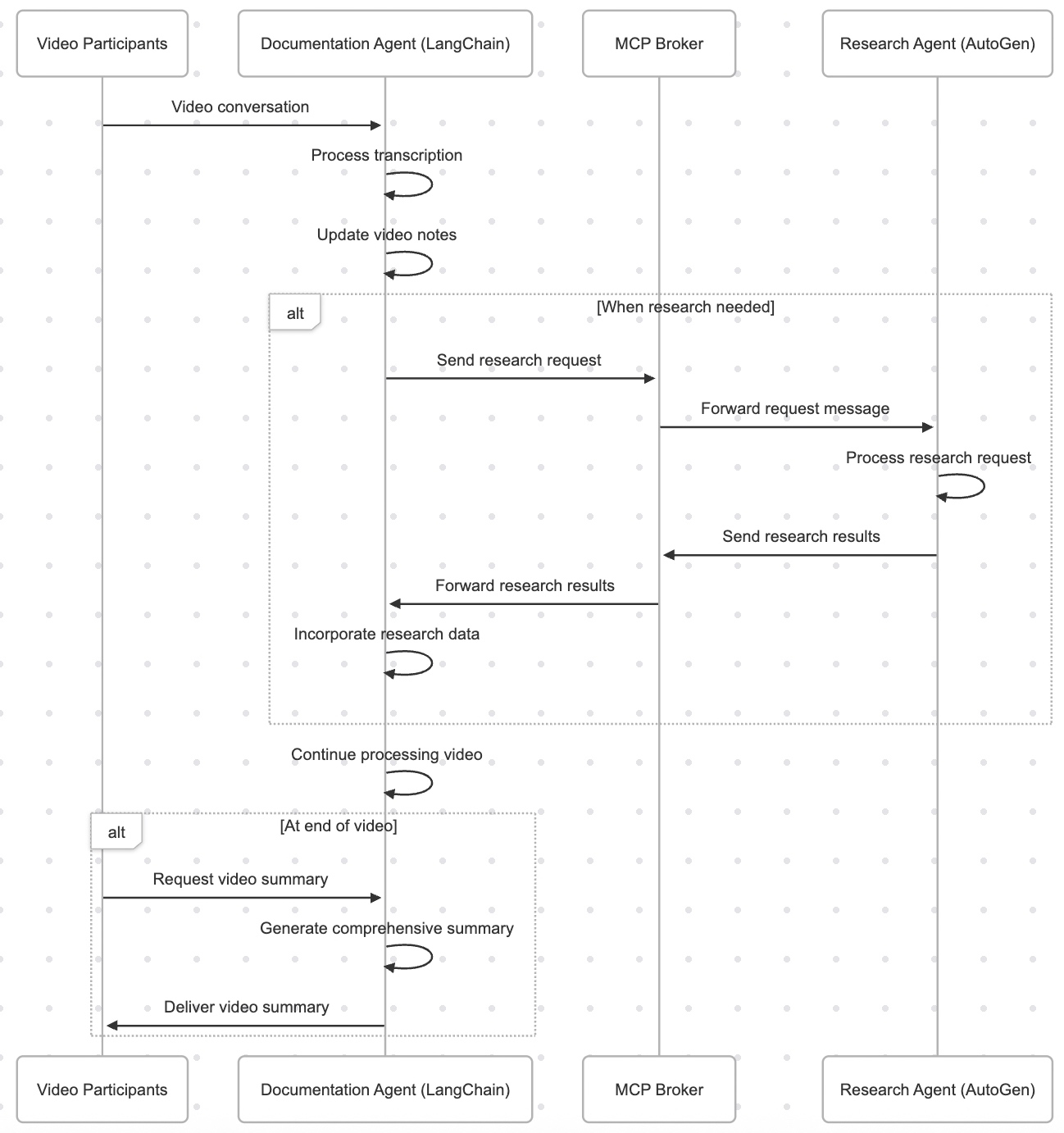


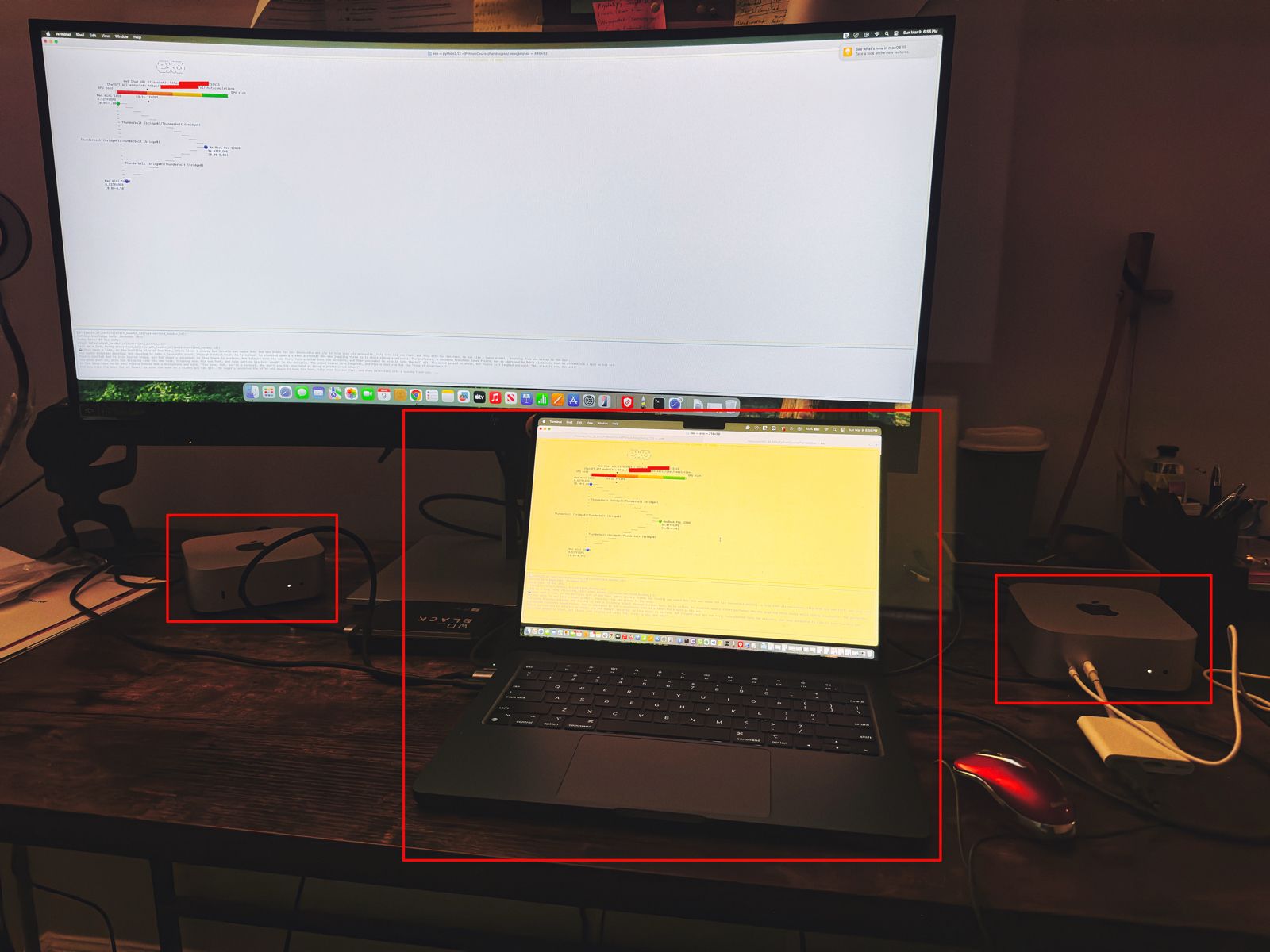
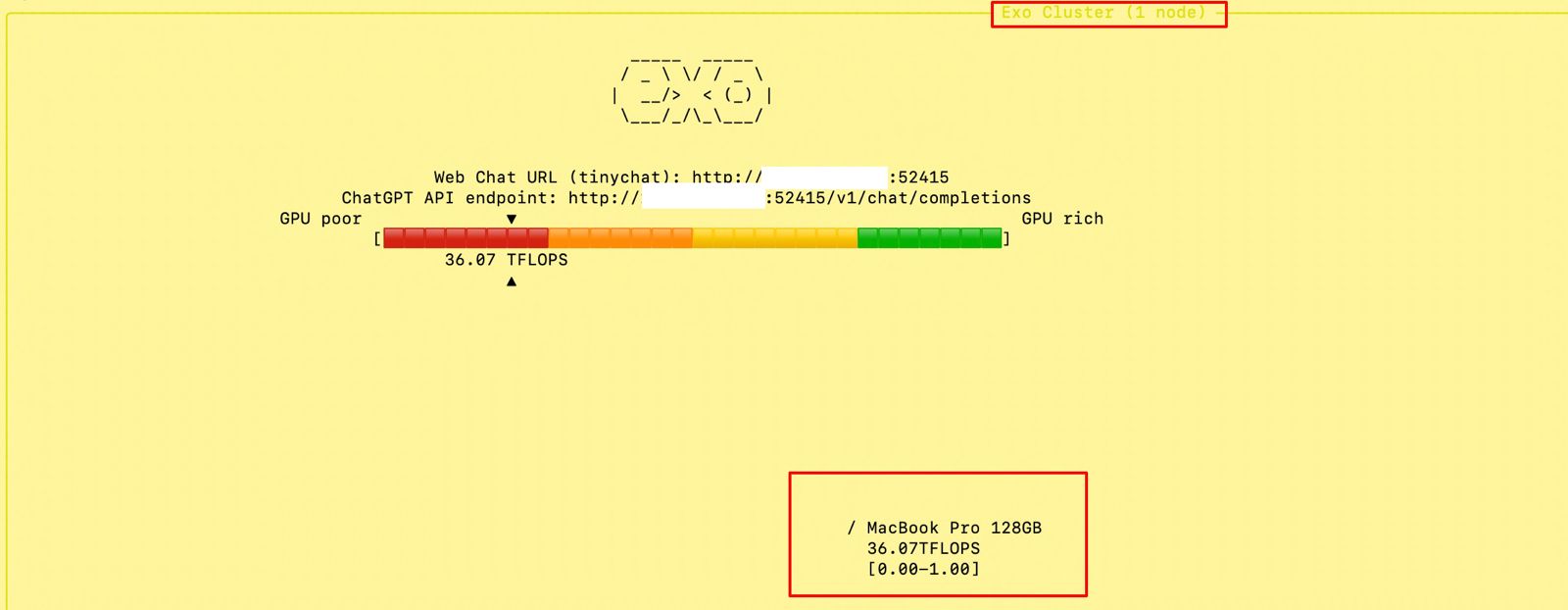
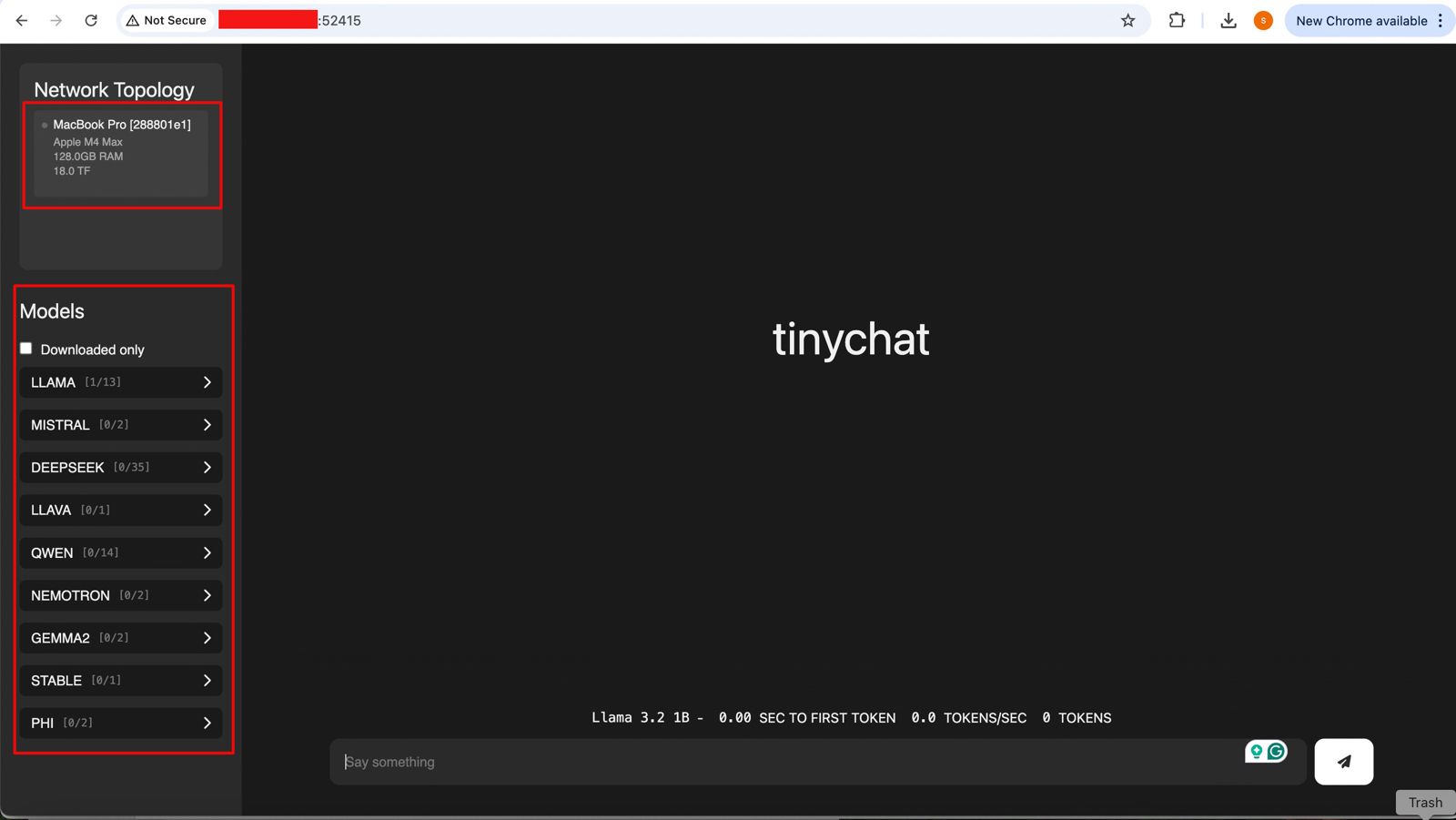





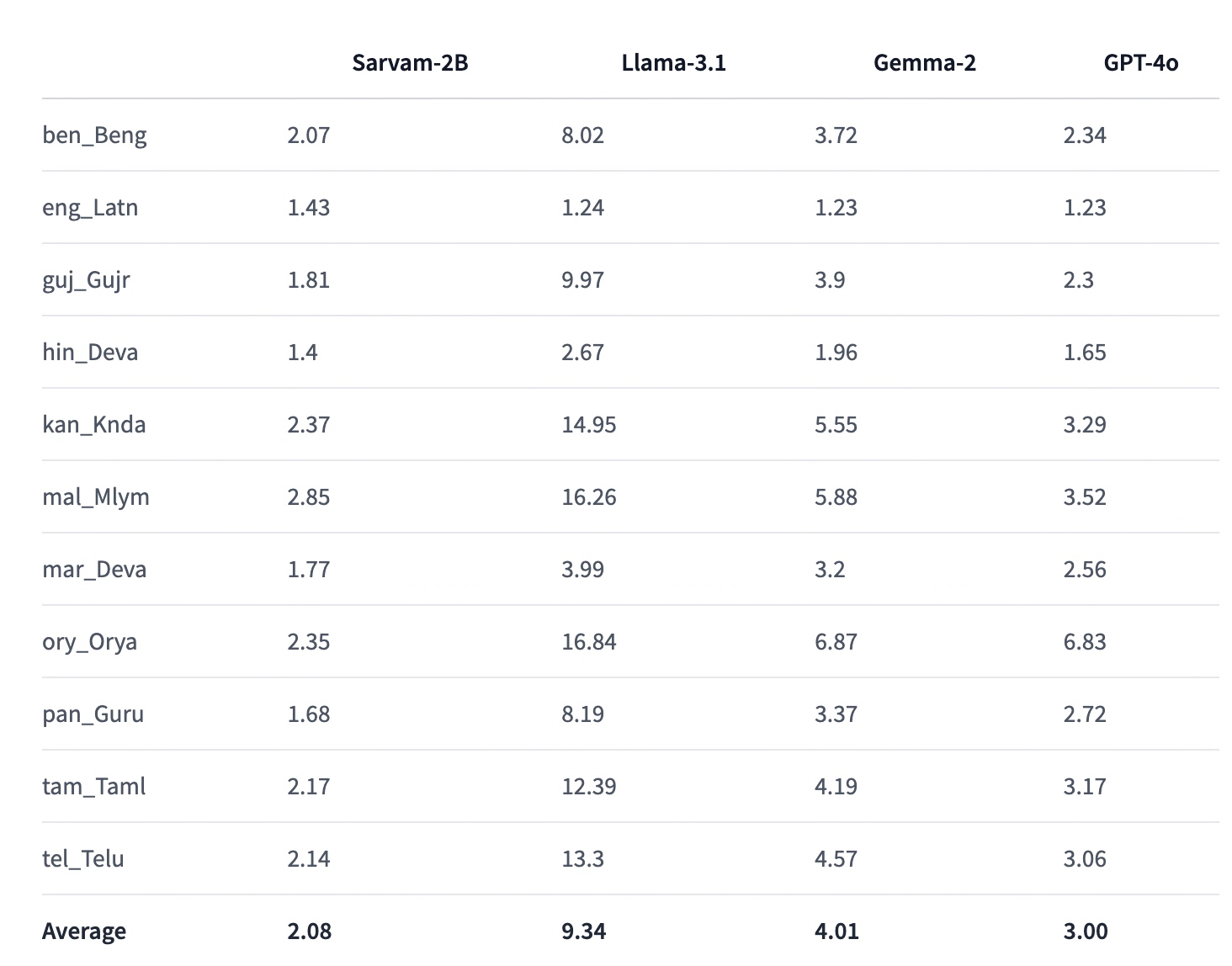


You must be logged in to post a comment.