Building solutions using LLM AutoGen in Python – Part 3

Before we dive into the details of this post, let us provide the previous two links that precede it.

Building solutions using LLM AutoGen in Python – Part 1

Building solutions using LLM AutoGen in Python – Part 2

For, reference, we’ll share the demo before deep dive into the actual follow-up analysis in the below section –


In this post, we will understand the initial code generated & then the revised code to compare them for a better understanding of the impact of revised prompts.

But, before that let us broadly understand the communication types between the agents.

  • Agents InvolvedAgent1Agent2
  • Flow:
    • Agent1 sends a request directly to Agent2.
    • Agent2 processes the request and sends the response back to Agent1.
  • Use Case: Simple query-response interactions without intermediaries.
  • Agents InvolvedUserAgentMediatorSpecialistAgent1SpecialistAgent2
  • Flow:
    • UserAgent sends input to Mediator.
    • Mediator delegates tasks to SpecialistAgent1 and SpecialistAgent2.
    • Specialists process tasks and return results to Mediator.
    • Mediator consolidates results and sends them back to UserAgent.
  • Agents InvolvedBroadcasterAgentAAgentBAgentC
  • Flow:
    • Broadcaster sends a message to multiple agents simultaneously.
    • Agents that find the message relevant (AgentAAgentC) acknowledge or respond.
  • Use Case: System-wide notifications or alerts.
  • Agents InvolvedSupervisorWorker1Worker2
  • Flow:
    • Supervisor assigns tasks to Worker1 and Worker2.
    • Workers execute tasks and report progress back to Supervisor.
  • Use Case: Task delegation in structured organizations.
  • Agents InvolvedPublisherSubscriber1Topic
  • Flow:
    • Publisher publishes an event or message to a Topic.
    • Subscriber1, who is subscribed to the Topic, receives the event.
  • Use Case: Decoupled systems where publishers and subscribers do not need direct knowledge of each other.
  • Agents InvolvedTriggerEventReactiveAgentNextStep
  • Flow:
    • An event occurs (TriggerEvent).
    • ReactiveAgent detects the event and acts.
    • The action leads to the NextStep in the process.
  • Use Case: Systems that need to respond to asynchronous events or changes in the environment.

Since, we now understand the basic communication types. Let us understand the AutoGen generated first code & the last code (That satisfies our need) –

# filename: simple_snake.py (Generated by AutoGen)

import pygame
import time
import random
 
snake_speed = 15
 
# Window color
white = pygame.Color(255, 255, 255)
 
# Snake color
green = pygame.Color(0, 255, 0)
 
snake_position = [100, 50]
 
# defining first 4 blocks 
# of snake body
snake_body = [ [100, 50], 
               [90, 50],
               [80, 50],
               [70, 50]
            ]
# fruit position
fruit_position = [random.randrange(1, (1000//10)) * 10, 
                  random.randrange(1, (600//10)) * 10]
fruit_spawn = True
 
direction = 'RIGHT'
change_to = direction
 
score = 0
 
# Initialising pygame
pygame.init()
 
# Initialise game window
win = pygame.display.set_mode((1000, 600))
pygame.display.set_caption("Snake game for kids")
 
# FPS (frames per second) controller
fps_controller = pygame.time.Clock()
 
  
while True:
    # handling key events
    for event in pygame.event.get():
        if event.type == pygame.KEYDOWN:
            if event.key == pygame.K_UP:
                change_to = 'UP'
            if event.key == pygame.K_DOWN:
                change_to = 'DOWN'
            if event.key == pygame.K_LEFT:
                change_to = 'LEFT'
            if event.key == pygame.K_RIGHT:
                change_to = 'RIGHT'

    # If two keys pressed simultaneously
    # we don't want snake to move into two
    # directions simultaneously
    if change_to == 'UP' and direction != 'DOWN':
        direction = 'UP'
    if change_to == 'DOWN' and direction != 'UP':
        direction = 'DOWN'
    if change_to == 'LEFT' and direction != 'RIGHT':
        direction = 'LEFT'
    if change_to == 'RIGHT' and direction != 'LEFT':
        direction = 'RIGHT'
 
    # Moving the snake
    if direction == 'UP':
        snake_position[1] -= 10
    if direction == 'DOWN':
        snake_position[1] += 10
    if direction == 'LEFT':
        snake_position[0] -= 10
    if direction == 'RIGHT':
        snake_position[0] += 10
 
    # Snake body growing mechanism
    # if fruits and snakes collide then scores
    # will increase by 10
    snake_body.insert(0, list(snake_position))
    if snake_position[0] == fruit_position[0] and snake_position[1] == fruit_position[1]:
        score += 10
        fruit_spawn = False
    else:
        snake_body.pop()
         
    if not fruit_spawn:
        fruit_position = [random.randrange(1, (1000//10)) * 10, 
                          random.randrange(1, (600//10)) * 10]
         
    fruit_spawn = True
    win.fill(white)
    
    for pos in snake_body:
        pygame.draw.rect(win, green, pygame.Rect(pos[0], pos[1], 10, 10))
    pygame.draw.rect(win, white, pygame.Rect(
    fruit_position[0], fruit_position[1], 10, 10))
 
    # Game Over conditions
    if snake_position[0] < 0 or snake_position[0] > 1000-10:
        break
    if snake_position[1] < 0 or snake_position[1] > 600-10:
        break
 
    # Touching the snake body
    for block in snake_body[1:]:
        if snake_position[0] == block[0] and snake_position[1] == block[1]:
            break
    
    # refresh game screen
    pygame.display.update()

    # Frame Per Second /Refresh rate
    fps_controller.tick(snake_speed)

# displaying final score after game over
print(f"You scored {score} in the game.")

Now, let us remember the prompt refinement that we’ve done (We’ve already posted that in our last post as well) –

I want to place the snake within the boundary of the visual wall & it should bounce each wall & then hit the target. And, it should increase the size. And, every time when it hits the target it will increase the score by 10. And, the application will run for 2 minutes, which will be displayed on the screen. This will exit once 2 minute is over.
# filename: simple_snake.py (Generated by AutoGen)

import pygame
import time
import random
import math

pygame.init()

white = (255, 255, 255)
yellow = (255, 255, 102)
green = (0, 255, 0)
red = (255, 0, 0)
black = (0, 0, 0)
blue = (0, 0, 255)

dis_width = 800
dis_height = 600

dis = pygame.display.set_mode((dis_width, dis_height))
pygame.display.set_caption('Snake Game')

clock = pygame.time.Clock()
snake_block = 10
snake_speed = 30
font_style = pygame.font.SysFont(None, 50)
score_font = pygame.font.SysFont(None, 35)

def our_snake(snake_block, snake_List):
    for x in snake_List:
        pygame.draw.rect(dis, green, [x[0], x[1], snake_block, snake_block])

def message(msg,color):
    mesg = font_style.render(msg, True, color)
    dis.blit(mesg, [dis_width / 3, dis_height / 3])

def gameLoop():  # creating a function
    game_over = False
    game_close = False

    # snake starting coordinates
    x1 = dis_width / 2
    y1 = dis_height / 2

    # snake initial movement direction
    x1_change = 0
    y1_change = 0

    # initialize snake length and list of coordinates
    snake_List = []
    Length_of_snake = 1

    # random starting point for the food
    foodx = round(random.randrange(0, dis_width - snake_block) / 10.0) * 10.0
    foody = round(random.randrange(0, dis_height - snake_block) / 10.0) * 10.0

    # initialize score
    score = 0

    # store starting time
    start_time = time.time()

    while not game_over:

        # Remaining time
        elapsed_time = time.time() - start_time
        remaining_time = 120 - elapsed_time  # 2 minutes game
        if remaining_time <= 0:
            game_over = True

        # event handling loop
        for event in pygame.event.get():
            if event.type == pygame.QUIT:
                game_over = True  # when closing window
            if event.type == pygame.MOUSEBUTTONUP:
                # get mouse click coordinates
                pos = pygame.mouse.get_pos()

                # calculate new direction vector from snake to click position
                x1_change = pos[0] - x1
                y1_change = pos[1] - y1

                # normalize direction vector
                norm = math.sqrt(x1_change ** 2 + y1_change ** 2)
                if norm != 0:
                    x1_change /= norm
                    y1_change /= norm

                # multiply direction vector by step size
                x1_change *= snake_block
                y1_change *= snake_block

        x1 += x1_change
        y1 += y1_change
        dis.fill(white)
        pygame.draw.rect(dis, red, [foodx, foody, snake_block, snake_block])
        pygame.draw.rect(dis, green, [x1, y1, snake_block, snake_block])
        snake_Head = []
        snake_Head.append(x1)
        snake_Head.append(y1)
        snake_List.append(snake_Head)
        if len(snake_List) > Length_of_snake:
            del snake_List[0]

        our_snake(snake_block, snake_List)

        # Bounces the snake back if it hits the edge
        if x1 < 0 or x1 > dis_width:
            x1_change *= -1
        if y1 < 0 or y1 > dis_height:
            y1_change *= -1

        # Display score
        value = score_font.render("Your Score: " + str(score), True, black)
        dis.blit(value, [0, 0])

        # Display remaining time
        time_value = score_font.render("Remaining Time: " + str(int(remaining_time)), True, blue)
        dis.blit(time_value, [0, 30])

        pygame.display.update()

        # Increase score and length of snake when snake gets the food
        if abs(x1 - foodx) < snake_block and abs(y1 - foody) < snake_block:
            foodx = round(random.randrange(0, dis_width - snake_block) / 10.0) * 10.0
            foody = round(random.randrange(0, dis_height - snake_block) / 10.0) * 10.0
            Length_of_snake += 1
            score += 10

        # Snake movement speed
        clock.tick(snake_speed)

    pygame.quit()
    quit()

gameLoop()

Now, let us understand the difference here –

The first program is a snake game controlled by arrow keys that end if the Snake hits a wall or itself. The second game uses mouse clicks for control, bounces off walls instead of ending, includes a 2-minute timer, and displays the remaining time.

So, we’ve done it. 🙂

You can find the detailed code in the following Github link.


I’ll bring some more exciting topics in the coming days from the Python verse.

Till then, Happy Avenging! 🙂

Building & deploying a RAG architecture rapidly using Langflow & Python

I’ve been looking for a solution that can help deploy any RAG solution involving Python faster. It would be more effective if an available UI helped deliver the solution faster. And, here comes the solution that does exactly what I needed – “LangFlow.”

Before delving into the details, I strongly recommend taking a look at the demo. It’s a great way to get a comprehensive understanding of LangFlow and its capabilities in deploying RAG architecture rapidly.

Demo

This describes the entire architecture; hence, I’ll share the architecture components I used to build the solution.

To know more about RAG-Architecture, please refer to the following link.

As we all know, we can parse the data from the source website URL (in this case, I’m referring to my photography website to extract the text of one of my blogs) and then embed it into the newly created Astra DB & new collection, where I will be storing the vector embeddings.

As you can see from the above diagram, the flow that I configured within 5 minutes and the full functionality of writing a complete solution (underlying Python application) within no time that extracts chunks, converts them into embeddings, and finally stores them inside the Astra DB.

Now, let us understand the next phase, where, based on the ask from a chatbot, I need to convert that question into Vector DB & then find the similarity search to bring the relevant vectors as shown below –

You need to configure this entire flow by dragging the necessary widgets from the left-side panel as marked in the Blue-Box shown below –

For this specific use case, we’ve created an instance of Astra DB & then created an empty vector collection. Also, we need to ensure that we generate the API-Key & and provide the right roles assigned with the token. After successfully creating the token, you need to copy the endpoint, token & collection details & paste them into the desired fields of the Astra-DB components inside the LangFlow. Think of it as a framework where one needs to provide all the necessary information to build & run the entire flow successfully.

Following are some of the important snapshots from the Astra-DB –

Step – 1

Step – 2

Once you run the vector DB population, this will insert extracted text & then convert it into vectors, which will show in the following screenshot –

You can see the sample vectors along with the text chunks inside the Astra DB data explorer as shown below –

Some of the critical components are highlighted in the Blue-box which is important for us to monitor the vector embeddings.

Now, here is how you can modify the current Python code of any available widgets or build your own widget by using the custom widget.

The first step is to click the code button highlighted in the Red-box as shown below –

The next step is when you click that button, which will open the detailed Python code representing the entire widget build & its functionality. This button is the place where you can add, modify, or keep it as it is depending upon your need, which will shown below –

Once one builds the entire solution, you must click the final compile button (shown in the red box), which will eventually compile all the individual widgets. However, you can build the compile button for the individual widgets as soon as you make the solution. So you can pinpoint any potential problems at that very step.

Let us understand one sample code of a widget. In this case, we will take vector embedding insertion into the Astra DB. Let us see the code –

from typing import List, Optional, Union
from langchain_astradb import AstraDBVectorStore
from langchain_astradb.utils.astradb import SetupMode

from langflow.custom import CustomComponent
from langflow.field_typing import Embeddings, VectorStore
from langflow.schema import Record
from langchain_core.retrievers import BaseRetriever


class AstraDBVectorStoreComponent(CustomComponent):
    display_name = "Astra DB"
    description = "Builds or loads an Astra DB Vector Store."
    icon = "AstraDB"
    field_order = ["token", "api_endpoint", "collection_name", "inputs", "embedding"]

    def build_config(self):
        return {
            "inputs": {
                "display_name": "Inputs",
                "info": "Optional list of records to be processed and stored in the vector store.",
            },
            "embedding": {"display_name": "Embedding", "info": "Embedding to use"},
            "collection_name": {
                "display_name": "Collection Name",
                "info": "The name of the collection within Astra DB where the vectors will be stored.",
            },
            "token": {
                "display_name": "Token",
                "info": "Authentication token for accessing Astra DB.",
                "password": True,
            },
            "api_endpoint": {
                "display_name": "API Endpoint",
                "info": "API endpoint URL for the Astra DB service.",
            },
            "namespace": {
                "display_name": "Namespace",
                "info": "Optional namespace within Astra DB to use for the collection.",
                "advanced": True,
            },
            "metric": {
                "display_name": "Metric",
                "info": "Optional distance metric for vector comparisons in the vector store.",
                "advanced": True,
            },
            "batch_size": {
                "display_name": "Batch Size",
                "info": "Optional number of records to process in a single batch.",
                "advanced": True,
            },
            "bulk_insert_batch_concurrency": {
                "display_name": "Bulk Insert Batch Concurrency",
                "info": "Optional concurrency level for bulk insert operations.",
                "advanced": True,
            },
            "bulk_insert_overwrite_concurrency": {
                "display_name": "Bulk Insert Overwrite Concurrency",
                "info": "Optional concurrency level for bulk insert operations that overwrite existing records.",
                "advanced": True,
            },
            "bulk_delete_concurrency": {
                "display_name": "Bulk Delete Concurrency",
                "info": "Optional concurrency level for bulk delete operations.",
                "advanced": True,
            },
            "setup_mode": {
                "display_name": "Setup Mode",
                "info": "Configuration mode for setting up the vector store, with options likeSync,Async, orOff”.",
                "options": ["Sync", "Async", "Off"],
                "advanced": True,
            },
            "pre_delete_collection": {
                "display_name": "Pre Delete Collection",
                "info": "Boolean flag to determine whether to delete the collection before creating a new one.",
                "advanced": True,
            },
            "metadata_indexing_include": {
                "display_name": "Metadata Indexing Include",
                "info": "Optional list of metadata fields to include in the indexing.",
                "advanced": True,
            },
            "metadata_indexing_exclude": {
                "display_name": "Metadata Indexing Exclude",
                "info": "Optional list of metadata fields to exclude from the indexing.",
                "advanced": True,
            },
            "collection_indexing_policy": {
                "display_name": "Collection Indexing Policy",
                "info": "Optional dictionary defining the indexing policy for the collection.",
                "advanced": True,
            },
        }

    def build(
        self,
        embedding: Embeddings,
        token: str,
        api_endpoint: str,
        collection_name: str,
        inputs: Optional[List[Record]] = None,
        namespace: Optional[str] = None,
        metric: Optional[str] = None,
        batch_size: Optional[int] = None,
        bulk_insert_batch_concurrency: Optional[int] = None,
        bulk_insert_overwrite_concurrency: Optional[int] = None,
        bulk_delete_concurrency: Optional[int] = None,
        setup_mode: str = "Sync",
        pre_delete_collection: bool = False,
        metadata_indexing_include: Optional[List[str]] = None,
        metadata_indexing_exclude: Optional[List[str]] = None,
        collection_indexing_policy: Optional[dict] = None,
    ) -> Union[VectorStore, BaseRetriever]:
        try:
            setup_mode_value = SetupMode[setup_mode.upper()]
        except KeyError:
            raise ValueError(f"Invalid setup mode: {setup_mode}")
        if inputs:
            documents = [_input.to_lc_document() for _input in inputs]

            vector_store = AstraDBVectorStore.from_documents(
                documents=documents,
                embedding=embedding,
                collection_name=collection_name,
                token=token,
                api_endpoint=api_endpoint,
                namespace=namespace,
                metric=metric,
                batch_size=batch_size,
                bulk_insert_batch_concurrency=bulk_insert_batch_concurrency,
                bulk_insert_overwrite_concurrency=bulk_insert_overwrite_concurrency,
                bulk_delete_concurrency=bulk_delete_concurrency,
                setup_mode=setup_mode_value,
                pre_delete_collection=pre_delete_collection,
                metadata_indexing_include=metadata_indexing_include,
                metadata_indexing_exclude=metadata_indexing_exclude,
                collection_indexing_policy=collection_indexing_policy,
            )
        else:
            vector_store = AstraDBVectorStore(
                embedding=embedding,
                collection_name=collection_name,
                token=token,
                api_endpoint=api_endpoint,
                namespace=namespace,
                metric=metric,
                batch_size=batch_size,
                bulk_insert_batch_concurrency=bulk_insert_batch_concurrency,
                bulk_insert_overwrite_concurrency=bulk_insert_overwrite_concurrency,
                bulk_delete_concurrency=bulk_delete_concurrency,
                setup_mode=setup_mode_value,
                pre_delete_collection=pre_delete_collection,
                metadata_indexing_include=metadata_indexing_include,
                metadata_indexing_exclude=metadata_indexing_exclude,
                collection_indexing_policy=collection_indexing_policy,
            )

        return vector_store

Method: build_config:

  • This method defines the configuration options for the component.
  • Each configuration option includes a display_name and info, which provides details about the option.
  • Some options are marked as advanced, indicating they are optional and more complex.

Method: build:

  • This method is used to create an instance of the Astra DB Vector Store.
  • It takes several parameters, including embedding, token, api_endpoint, collection_name, and various optional parameters.
  • It converts the setup_mode string to an enum value.
  • If inputs are provided, they are converted to a format suitable for storing in the vector store.
  • Depending on whether inputs are provided, a new vector store from documents can be created, or an empty vector store can be initialized with the given configurations.
  • Finally, it returns the created vector store instance.

And, here is the the screenshot of your run –

And, this is the last steps to run the Integrated Chatbot as shown below –

As one can see the left side highlighted shows the reference text & chunks & the right side actual response.


So, we’ve done it. And, you know the fun fact. I did this entire workflow within 35 minutes alone. 😛

I’ll bring some more exciting topics in the coming days from the Python verse.

To learn more about LangFlow, please click here.

To learn about Astra DB, you need to click the following link.

To learn about my blog & photography, you can click the following url.

Till then, Happy Avenging!  🙂

Building a real-time Gen AI Improvement Matrices (GAIIM) using Python, UpTrain, Open AI & React

How does the RAG work better for various enterprise-level Gen AI use cases? What needs to be there to make the LLM model work more efficiently & able to check the response & validate their response, including the bias, hallucination & many more?

This is my post (after a slight GAP), which will capture and discuss some of the burning issues that many AI architects are trying to explore. In this post, I’ve considered a newly formed AI start-up from India, which developed an open-source framework that can easily evaluate all the challenges that one is facing with their LLMs & easily integrate with your existing models for better understanding including its limitations. You will get plenty of insights about it.

But, before we dig deep, why not see the demo first –

Isn’t it exciting? Let’s deep dive into the flow of events.


Let’s explore the broad-level architecture/flow –

Let us understand the steps of the above architecture. First, our Python application needs to trigger and enable the API, which will interact with the Open AI and UpTrain AI to fetch all the LLM KPIs based on the input from the React app named “Evaluation.”

Once the response is received from UpTrain AI, the Python application then organizes the results in a better readable manner without changing the core details coming out from their APIs & then shares that back with the react interface.

Let’s examine the react app’s sample inputs to better understand the input that will be passed to the Python-based API solution, which is wrapper capability to call multiple APIs from the UpTrain & then accumulate them under one response by parsing the data & reorganizing the data with the help of Open AI & sharing that back.

Highlighted in RED are some of the critical inputs you need to provide to get most of the KPIs. And, here are the sample text inputs for your reference –

Q. Enter input question.
A. What are the four largest moons of Jupiter?
Q. Enter the context document.
A. Jupiter, the largest planet in our solar system, boasts a fascinating array of moons. Among these, the four largest are collectively known as the Galilean moons, named after the renowned astronomer Galileo Galilei, who first observed them in 1610. These four moons, Io, Europa, Ganymede, and Callisto, hold significant scientific interest due to their unique characteristics and diverse geological features.
Q. Enter LLM response.
A. The four largest moons of Jupiter, known as the Galilean moons, are Io, Europa, Ganymede, and Marshmello.
Q. Enter the persona response.
A. strict and methodical teacher
Q. Enter the guideline.
A. Response shouldn’t contain any specific numbers
Q. Enter the ground truth.
A. The Jupiter is the largest & gaseous planet in the solar system.
Q. Choose the evaluation method.
A. llm

Once you fill in the App should look like this –

Once you fill in, the app should look like the below screenshot –


Let us understand the sample packages that are required for this task.

pip install Flask==3.0.3
pip install Flask-Cors==4.0.0
pip install numpy==1.26.4
pip install openai==1.17.0
pip install pandas==2.2.2
pip install uptrain==0.6.13

Note that, we’re not going to discuss the entire script here. Only those parts are relevant. However, you can get the complete scripts in the GitHub repository.

def askFeluda(context, question):
    try:
        # Combine the context and the question into a single prompt.
        prompt_text = f"{context}\n\n Question: {question}\n Answer:"

        # Retrieve conversation history from the session or database
        conversation_history = []

        # Add the new message to the conversation history
        conversation_history.append(prompt_text)

        # Call OpenAI API with the updated conversation
        response = client.with_options(max_retries=0).chat.completions.create(
            messages=[
                {
                    "role": "user",
                    "content": prompt_text,
                }
            ],
            model=cf.conf['MODEL_NAME'],
            max_tokens=150,  # You can adjust this based on how long you expect the response to be
            temperature=0.3,  # Adjust for creativity. Lower values make responses more focused and deterministic
            top_p=1,
            frequency_penalty=0,
            presence_penalty=0
        )

        # Extract the content from the first choice's message
        chat_response = response.choices[0].message.content

        # Print the generated response text
        return chat_response.strip()
    except Exception as e:
        return f"An error occurred: {str(e)}"

This function will ask the supplied questions with contexts or it will supply the UpTrain results to summarize the JSON into more easily readable plain texts. For our test, we’ve used “gpt-3.5-turbo”.

def evalContextRelevance(question, context, resFeluda, personaResponse):
    try:
        data = [{
            'question': question,
            'context': context,
            'response': resFeluda
        }]

        results = eval_llm.evaluate(
            data=data,
            checks=[Evals.CONTEXT_RELEVANCE, Evals.FACTUAL_ACCURACY, Evals.RESPONSE_COMPLETENESS, Evals.RESPONSE_RELEVANCE, CritiqueTone(llm_persona=personaResponse), Evals.CRITIQUE_LANGUAGE, Evals.VALID_RESPONSE, Evals.RESPONSE_CONCISENESS]
        )

        return results
    except Exception as e:
        x = str(e)

        return x

The above methods initiate the model from UpTrain to get all the stats, which will be helpful for your LLM response. In this post, we’ve captured the following KPIs –

- Context Relevance Explanation
- Factual Accuracy Explanation
- Guideline Adherence Explanation
- Response Completeness Explanation
- Response Fluency Explanation
- Response Relevance Explanation
- Response Tonality Explanation
# Function to extract and print all the keys and their values
def extractPrintedData(data):
    for entry in data:
        print("Parsed Data:")
        for key, value in entry.items():


            if key == 'score_context_relevance':
                s_1_key_val = value
            elif key == 'explanation_context_relevance':
                cleaned_value = preprocessParseData(value)
                print(f"{key}: {cleaned_value}\n")
                s_1_val = cleaned_value
            elif key == 'score_factual_accuracy':
                s_2_key_val = value
            elif key == 'explanation_factual_accuracy':
                cleaned_value = preprocessParseData(value)
                print(f"{key}: {cleaned_value}\n")
                s_2_val = cleaned_value
            elif key == 'score_response_completeness':
                s_3_key_val = value
            elif key == 'explanation_response_completeness':
                cleaned_value = preprocessParseData(value)
                print(f"{key}: {cleaned_value}\n")
                s_3_val = cleaned_value
            elif key == 'score_response_relevance':
                s_4_key_val = value
            elif key == 'explanation_response_relevance':
                cleaned_value = preprocessParseData(value)
                print(f"{key}: {cleaned_value}\n")
                s_4_val = cleaned_value
            elif key == 'score_critique_tone':
                s_5_key_val = value
            elif key == 'explanation_critique_tone':
                cleaned_value = preprocessParseData(value)
                print(f"{key}: {cleaned_value}\n")
                s_5_val = cleaned_value
            elif key == 'score_fluency':
                s_6_key_val = value
            elif key == 'explanation_fluency':
                cleaned_value = preprocessParseData(value)
                print(f"{key}: {cleaned_value}\n")
                s_6_val = cleaned_value
            elif key == 'score_valid_response':
                s_7_key_val = value
            elif key == 'score_response_conciseness':
                s_8_key_val = value
            elif key == 'explanation_response_conciseness':
                print('Raw Value: ', value)
                cleaned_value = preprocessParseData(value)
                print(f"{key}: {cleaned_value}\n")
                s_8_val = cleaned_value

    print('$'*200)

    results = {
        "Factual_Accuracy_Score": s_2_key_val,
        "Factual_Accuracy_Explanation": s_2_val,
        "Context_Relevance_Score": s_1_key_val,
        "Context_Relevance_Explanation": s_1_val,
        "Response_Completeness_Score": s_3_key_val,
        "Response_Completeness_Explanation": s_3_val,
        "Response_Relevance_Score": s_4_key_val,
        "Response_Relevance_Explanation": s_4_val,
        "Response_Fluency_Score": s_6_key_val,
        "Response_Fluency_Explanation": s_6_val,
        "Response_Tonality_Score": s_5_key_val,
        "Response_Tonality_Explanation": s_5_val,
        "Guideline_Adherence_Score": s_8_key_val,
        "Guideline_Adherence_Explanation": s_8_val,
        "Response_Match_Score": s_7_key_val
        # Add other evaluations similarly
    }

    return results

The above method parsed the initial data from UpTrain before sending it to OpenAI for a better summary without changing any text returned by it.

@app.route('/evaluate', methods=['POST'])
def evaluate():
    data = request.json

    if not data:
        return {jsonify({'error': 'No data provided'}), 400}

    # Extracting input data for processing (just an example of logging received data)
    question = data.get('question', '')
    context = data.get('context', '')
    llmResponse = ''
    personaResponse = data.get('personaResponse', '')
    guideline = data.get('guideline', '')
    groundTruth = data.get('groundTruth', '')
    evaluationMethod = data.get('evaluationMethod', '')

    print('question:')
    print(question)

    llmResponse = askFeluda(context, question)
    print('='*200)
    print('Response from Feluda::')
    print(llmResponse)
    print('='*200)

    # Getting Context LLM
    cLLM = evalContextRelevance(question, context, llmResponse, personaResponse)

    print('&'*200)
    print('cLLM:')
    print(cLLM)
    print(type(cLLM))
    print('&'*200)

    results = extractPrintedData(cLLM)

    print('JSON::')
    print(results)

    resJson = jsonify(results)

    return resJson

The above function is the main method, which first receives all the input parameters from the react app & then invokes one-by-one functions to get the LLM response, and LLM performance & finally summarizes them before sending it to react-app.

For any other scripts, please refer to the above-mentioned GitHub link.


Let us see some of the screenshots of the test run –


So, we’ve done it.

I’ll bring some more exciting topics in the coming days from the Python verse.

Till then, Happy Avenging! 🙂

Enabling & Exploring Stable Defussion – Part 1

This new solution will evaluate the power of Stable Defussion, which is created solutions as we progress & refine our prompt from scratch by using Stable Defussion & Python. This post opens new opportunities for IT companies & business start-ups looking to deliver solutions & have better performance compared to the paid version of Stable Defussion AI’s API performance. This project is for the advanced Python, Stable Defussion for data Science Newbies & AI evangelists.

In a series of posts, I’ll explain and focus on the Stable Defussion API and custom solution using the Python-based SDK of Stable Defussion.

But, before that, let us view the video that it generates from the prompt by using the third-party API:

Prompt to Video

And, let us understand the prompt that we supplied to create the above video –

Isn’t it exciting?

However, I want to stress this point: the video generated by the Stable Defusion (Stability AI) API was able to partially apply the animation effect. Even though the animation applies to the cloud, It doesn’t apply the animation to the wave. But, I must admit, the quality of the video is quite good.


Let us understand the code and how we run the solution, and then we can try to understand its performance along with the other solutions later in the subsequent series.

As you know, we’re exploring the code base of the third-party API, which will actually execute a series of API calls that create a video out of the prompt.

Let us understand some of the important snippet –

class clsStabilityAIAPI:
    def __init__(self, STABLE_DIFF_API_KEY, OUT_DIR_PATH, FILE_NM, VID_FILE_NM):
        self.STABLE_DIFF_API_KEY = STABLE_DIFF_API_KEY
        self.OUT_DIR_PATH = OUT_DIR_PATH
        self.FILE_NM = FILE_NM
        self.VID_FILE_NM = VID_FILE_NM

    def delFile(self, fileName):
        try:
            # Deleting the intermediate image
            os.remove(fileName)

            return 0 
        except Exception as e:
            x = str(e)
            print('Error: ', x)

            return 1

    def generateText2Image(self, inputDescription):
        try:
            STABLE_DIFF_API_KEY = self.STABLE_DIFF_API_KEY
            fullFileName = self.OUT_DIR_PATH + self.FILE_NM
            
            if STABLE_DIFF_API_KEY is None:
                raise Exception("Missing Stability API key.")
            
            response = requests.post(f"{api_host}/v1/generation/{engine_id}/text-to-image",
                                    headers={
                                        "Content-Type": "application/json",
                                        "Accept": "application/json",
                                        "Authorization": f"Bearer {STABLE_DIFF_API_KEY}"
                                        },
                                        json={
                                            "text_prompts": [{"text": inputDescription}],
                                            "cfg_scale": 7,
                                            "height": 1024,
                                            "width": 576,
                                            "samples": 1,
                                            "steps": 30,
                                            },)
            
            if response.status_code != 200:
                raise Exception("Non-200 response: " + str(response.text))
            
            data = response.json()

            for i, image in enumerate(data["artifacts"]):
                with open(fullFileName, "wb") as f:
                    f.write(base64.b64decode(image["base64"]))      
            
            return fullFileName

        except Exception as e:
            x = str(e)
            print('Error: ', x)

            return 'N/A'

    def image2VideoPassOne(self, imgNameWithPath):
        try:
            STABLE_DIFF_API_KEY = self.STABLE_DIFF_API_KEY

            response = requests.post(f"https://api.stability.ai/v2beta/image-to-video",
                                    headers={"authorization": f"Bearer {STABLE_DIFF_API_KEY}"},
                                    files={"image": open(imgNameWithPath, "rb")},
                                    data={"seed": 0,"cfg_scale": 1.8,"motion_bucket_id": 127},
                                    )
            
            print('First Pass Response:')
            print(str(response.text))
            
            genID = response.json().get('id')

            return genID 
        except Exception as e:
            x = str(e)
            print('Error: ', x)

            return 'N/A'

    def image2VideoPassTwo(self, genId):
        try:
            generation_id = genId
            STABLE_DIFF_API_KEY = self.STABLE_DIFF_API_KEY
            fullVideoFileName = self.OUT_DIR_PATH + self.VID_FILE_NM

            response = requests.request("GET", f"https://api.stability.ai/v2beta/image-to-video/result/{generation_id}",
                                        headers={
                                            'accept': "video/*",  # Use 'application/json' to receive base64 encoded JSON
                                            'authorization': f"Bearer {STABLE_DIFF_API_KEY}"
                                            },) 
            
            print('Retrieve Status Code: ', str(response.status_code))
            
            if response.status_code == 202:
                print("Generation in-progress, try again in 10 seconds.")

                return 5
            elif response.status_code == 200:
                print("Generation complete!")
                with open(fullVideoFileName, 'wb') as file:
                    file.write(response.content)

                print("Successfully Retrieved the video file!")

                return 0
            else:
                raise Exception(str(response.json()))
            
        except Exception as e:
            x = str(e)
            print('Error: ', x)

            return 1

Now, let us understand the code –

This function is called when an object of the class is created. It initializes four properties:

  • STABLE_DIFF_API_KEY: the API key for Stability AI services.
  • OUT_DIR_PATH: the folder path to save files.
  • FILE_NM: the name of the generated image file.
  • VID_FILE_NM: the name of the generated video file.

This function deletes a file specified by fileName.

  • If successful, it returns 0.
  • If an error occurs, it logs the error and returns 1.

This function generates an image based on a text description:

  • Sends a request to the Stability AI text-to-image endpoint using the API key.
  • Saves the resulting image to a file.
  • Returns the file’s path on success or 'N/A' if an error occurs.

This function uploads an image to create a video in its first phase:

  • Sends the image to Stability AI’s image-to-video endpoint.
  • Logs the response and extracts the id (generation ID) for the next phase.
  • Returns the id if successful or 'N/A' on failure.

This function retrieves the video created in the second phase using the genId:

  • Checks the video generation status from the Stability AI endpoint.
  • If complete, saves the video file and returns 0.
  • If still processing, returns 5.
  • Logs and returns 1 for any errors.

As you can see, the code is pretty simple to understand & we’ve taken all the necessary actions in case of any unforeseen network issues or even if the video is not ready after our job submission in the following lines of the main calling script (generateText2VideoAPI.py) –

waitTime = 10
time.sleep(waitTime)

# Failed case retry
retries = 1
success = False

try:
    while not success:
        try:
            z = r1.image2VideoPassTwo(gID)
        except Exception as e:
            success = False

        if z == 0:
            success = True
        else:
            wait = retries * 2 * 15
            str_R1 = "retries Fail! Waiting " + str(wait) + " seconds and retrying!"

            print(str_R1)

            time.sleep(wait)
            retries += 1

        # Checking maximum retries
        if retries >= maxRetryNo:
            success = True
            raise  Exception
except:
    print()

And, let us see how the run looks like –

Let us understand the CPU utilization –

As you can see, CPU utilization is minimal since most tasks are at the API end.


So, we’ve done it. 🙂

Please find the next series on this topic below:

Enabling & Exploring Stable Defussion – Part 2

Enabling & Exploring Stable Defussion – Part 3

Please let me know your feedback after reviewing all the posts! 🙂

Building solutions using LLM AutoGen in Python – Part 1

Today, I’ll be publishing a series of posts on LLM agents and how they can help you improve your delivery capabilities for various tasks.

Also, we’re providing the demo here –

Isn’t it exciting?


The application will interact with the AutoGen agents, use underlying Open AI APIs to follow the instructions, generate the steps, and then follow that path to generate the desired code. Finally, it will execute the generated scripts if the first outcome of the demo satisfies users.


Let us understand some of the key snippets –

# Create the assistant agent
assistant = autogen.AssistantAgent(
    name="AI_Assistant",
    llm_config={
        "config_list": config_list,
    }
)

Purpose: This line creates an AI assistant agent named “AI_Assistant”.

Function: It uses a language model configuration provided in config_list to define how the assistant behaves.

Role: The assistant serves as the primary agent who will coordinate with other agents to solve problems.

user_proxy = autogen.UserProxyAgent(
    name="Admin",
    system_message=templateVal_1,
    human_input_mode="TERMINATE",
    max_consecutive_auto_reply=10,
    is_termination_msg=lambda x: x.get("content", "").rstrip().endswith("TERMINATE"),
    code_execution_config={
        "work_dir": WORK_DIR,
        "use_docker": False,
    },
)

Purpose: This code creates a user proxy agent named “Admin”.

Function:

  • System Message: Uses templateVal_1 as its initial message to set the context.
  • Human Input Mode: Set to "TERMINATE", meaning it will keep interacting until a termination condition is met.
  • Auto-Reply Limit: Can automatically reply up to 10 times without human intervention.
  • Termination Condition: A message is considered a termination message if it ends with the word “TERMINATE”.
  • Code Execution: Configured to execute code in the directory specified by WORK_DIR without using Docker.

Role: Acts as an intermediary between the user and the assistant, handling interactions and managing the conversation flow.

engineer = autogen.AssistantAgent(
    name="Engineer",
    llm_config={
        "config_list": config_list,
    },
    system_message=templateVal_2,
)

Purpose: Creates an assistant agent named “Engineer”.

Function: Uses templateVal_2 as its system message to define its expertise in engineering matters.

Role: Specializes in technical and engineering aspects of the problem.

game_designer = autogen.AssistantAgent(
    name="GameDesigner",
    llm_config={
        "config_list": config_list,
    },
    system_message=templateVal_3,
)

Purpose: Creates an assistant agent named “GameDesigner”.

Function: Uses templateVal_3 to set its focus on game design.

Role: Provides insights and solutions related to game design aspects.

planner = autogen.AssistantAgent(
    name="Planer",
    llm_config={
        "config_list": config_list,
    },
    system_message=templateVal_4,
)

Purpose: Creates an assistant agent named “Planer” (likely intended to be “Planner”).

Function: Uses templateVal_4 to define its role in planning.

Role: Responsible for organizing and planning tasks to solve the problem.

critic = autogen.AssistantAgent(
    name="Critic",
    llm_config={
        "config_list": config_list,
    },
    system_message=templateVal_5,
)

Purpose: Creates an assistant agent named “Critic”.

Function: Uses templateVal_5 to set its function as a critic.

Role: Provide feedback, critique solutions, and help improve the overall response.

logging.basicConfig(level=logging.ERROR)
logger = logging.getLogger(__name__)

Purpose: Configures the logging system.

Function: Sets the logging level to only capture error messages to avoid cluttering the output.

Role: Helps in debugging by capturing and displaying error messages.

def buildAndPlay(self, inputPrompt):
    try:
        user_proxy.initiate_chat(
            assistant,
            message=f"We need to solve the following problem: {inputPrompt}. "
                    "Please coordinate with the admin, engineer, game_designer, planner and critic to provide a comprehensive solution. "
        )

        return 0
    except Exception as e:
        x = str(e)
        print('Error: <<Real-time Translation>>: ', x)

        return 1

Purpose: Defines a method to initiate the problem-solving process.

Function:

  • Parameters: Takes inputPrompt, which is the problem to be solved.
  • Action:
    • Calls user_proxy.initiate_chat() to start a conversation between the user proxy agent and the assistant agent.
    • Sends a message requesting coordination among all agents to provide a comprehensive solution to the problem.
  • Error Handling: If an exception occurs, it prints an error message and returns 1.

Role: Initiates collaboration among all agents to solve the provided problem.

Agents Setup: Multiple agents with specialized roles are created.
Initiating Conversation: The buildAndPlay method starts a conversation, asking agents to collaborate.
Problem Solving: Agents communicate and coordinate to provide a comprehensive solution to the input problem.
Error Handling: The system captures and logs any errors that occur during execution.


We’ll continue to discuss this topic in the upcoming post.

I’ll bring some more exciting topics in the coming days from the Python verse.

Till then, Happy Avenging! 🙂

Demystifying Modern Data Technologies: Insights from the Global PowerBI Summit

In an engaging session at the Global PowerBI Summit, we and our co-host delved into the evolving landscape of data technologies. Our discussion aimed to illuminate the distinctions and applications of several pivotal technologies in the data sphere, ranging from Lakehouse vs. Storage Account to the nuanced differences between Fabric Pipeline and Data Pipeline and the critical comparisons of Notebooks vs. Databricks, including their performance metrics. Furthermore, we explored the realm of model experimentation and Azure ML, shedding light on their performance benchmarks.

  • Enhanced File Previews and Transformations: The Lakehouse paradigm revolutionizes how we preview and transform files into SQL tables, offering a seamless data manipulation experience.
  • Robust Data Governance: It introduces native indexing for data lineage, PII scans, and discovery, thus laying a solid foundation for data governance.
  • Optimized Performance for Reporting: With direct lake mode, Lakehouse significantly improves performance for Power BI Reporting, catering to the needs of data analysts and business intelligence professionals.
  • Functional Restrictions: Despite its strengths, Lakehouse falls short in providing a native file download feature, demands manual refresh for new file visibility, and has limited support for file formats outside of Delta and Parquet.
  • Lakehouse distinguishes itself by being user-friendly and efficient in data uploading, albeit with slower previews. Its distinction from a Storage Account lies in these unique functionalities and user experience.
  • Ease of Data Transformation: It introduces a low-code, no-code approach with the Power Query Editor, enriching the data transformation process.
  • Advanced Monitoring Capabilities: The ability to monitor pipelines and trace lineage enhances the management and integration of fabric artifacts.
  • Artifact and Trigger Limitations: A notable drawback is the isolated nature of each pipeline artifact and the limitation to a single scheduled trigger type per pipeline.
  • Our analysis reveals that while both platforms share a user-friendly interface reminiscent of Azure’s, navigating between pipelines in Fabric requires additional steps. However, both platforms demonstrate rapid execution capabilities, with Azure slightly leading due to its unified pipeline management.
  • Comprehensive Support and Integration: Notably, Notebooks excel in providing native support for various programming and visualization packages, coupled with a direct connection to Lakehouse.
  • Collaborative Features and Efficiency: The platform encourages collaboration through real-time co-editing and optimizes resource usage by stopping clusters when not in use.
  • Cluster and Resource Management: External management of clusters and the absence of a shared folder or user notebooks present challenges in collaborative environments.
  • Our discussion highlighted that Notebooks offers a superior user interface and connectivity options despite Databricks’ having certain advantages in data processing speeds.

Our performance analysis underscored Fabric Notebooks’ superiority in handling large datasets and running machine learning models more efficiently than Databricks, especially highlighting Lakehouse’s faster cluster initiation times and data storage efficiencies.

  • Seamless Integration and Configuration: Fabric’s integration with Lakehouse and direct pipeline connections streamline the data science workflow.
  • Graphical Interface and Focus: Fabric’s lack of a graphical interface contrasts with Azure ML’s user-friendly studio, indicating Fabric’s analytics and BI focus against Azure ML’s comprehensive experiment capabilities.
  • Our comparative performance review revealed that Fabric excels in dataset loading and model execution speeds, offering significant advantages over Azure ML.

Our Global PowerBI Summit session aimed to demystify the complexities of modern data technologies, providing attendees with clear, actionable insights. Our collaborative presentation underscored the importance of understanding each technology’s strengths and limitations, empowering data professionals to make informed decisions in their projects. The dynamic interplay between these technologies illustrates the vibrant and evolving nature of the data landscape, promising exciting possibilities for innovation and efficiency in data management and analysis.

These stats were taken during the early release of the product. However, there is a continuous improvement of this product. Hence, we need to revisit this after a period of some time.

Building a real-time streamlit app by consuming events from Ably channels

I’ll bring an exciting streamlit app that will reflect the real-time dashboard by consuming all the events from the Ably channel.

One more time, I’ll be utilizing my IoT emulator that will feed the real-time events based on the user inputs to the Ably channel, which will be subscribed to by the Streamlit-based app.

However, I would like to share the run before we dig deep into this.


Demo

Isn’t this exciting? How we can use our custom-built IoT emulator & capture real-time events to Ably Queue, then transform those raw events into more meaningful KPIs? Let’s deep dive then.

Let’s explore the broad-level architecture/flow –

As you can see, the green box is a demo IoT application that generates events & pushes them into the Ably Queue. At the same time, the streamlit-based Dashboard app consumes the events & transforms them into more meaningful metrics.

Let us understand the sample packages that are required for this task.

pip install ably==2.0.3
pip install numpy==1.26.3
pip install pandas==2.2.0
pip install plotly==5.19.0
pip install requests==2.31.0
pip install streamlit==1.30.0
pip install streamlit-autorefresh==1.0.1
pip install streamlit-echarts==0.4.0

Since this is an extension to our previous post, we’re not going to discuss other scripts, which we’ve already discussed over there. Instead, we will talk about the enhanced scripts & the new scripts that are required for this use case.

1. app.py (This script will consume real-time streaming data coming out from a hosted API source using another popular third-party service named Ably. Ably mimics the pub sub-streaming concept, which might be extremely useful for any start-up. This will then translate into many meaningful KPIs in a streamlit-based dashboard app.)

Note that, we’re not going to discuss the entire script here. Only those parts are relevant. However, you can get the complete scripts in the GitHub repository.

def createHumidityGauge(humidity_value):
    fig = go.Figure(go.Indicator(
        mode = "gauge+number",
        value = humidity_value,
        domain = {'x': [0, 1], 'y': [0, 1]},
        title = {'text': "Humidity", 'font': {'size': 24}},
        gauge = {
            'axis': {'range': [None, 100], 'tickwidth': 1, 'tickcolor': "darkblue"},
            'bar': {'color': "darkblue"},
            'bgcolor': "white",
            'borderwidth': 2,
            'bordercolor': "gray",
            'steps': [
                {'range': [0, 50], 'color': 'cyan'},
                {'range': [50, 100], 'color': 'royalblue'}],
            'threshold': {
                'line': {'color': "red", 'width': 4},
                'thickness': 0.75,
                'value': humidity_value}
        }
    ))

    fig.update_layout(height=220, paper_bgcolor = "white", font = {'color': "darkblue", 'family': "Arial"}, margin=dict(t=0, l=5, r=5, b=0))

    return fig

The above function creates a customized humidity gauge that visually represents a given humidity value, making it easy to read and understand at a glance.

This code defines a function createHumidityGauge that creates a visual gauge (like a meter) to display a humidity value. Here’s a simple breakdown of what it does:

  1. Function Definition: It starts by defining a function named createHumidityGauge that takes one parameter, humidity_value, which is the humidity level you want to display on the gauge.
  2. Creating the Gauge: Inside the function, it creates a figure using Plotly (a plotting library) with a specific type of chart called an Indicator. This Indicator is set to display in “gauge+number” mode, meaning it shows both a gauge visual and the numeric value of the humidity.
  3. Setting Gauge Properties:
    • The value is set to the humidity_value parameter, so the gauge shows this humidity level.
    • The domain sets the position of the gauge on the plot, which is set to fill the available space ([0, 1] for both x and y axes).
    • The title is set to “Humidity” with a font size of 24, labeling the gauge.
    • The gauge section defines the appearance and behavior of the gauge, including:
      • An axis that goes from 0 to 100 (assuming humidity is measured as a percentage from 0% to 100%).
      • The color and style of the gauge’s bar and background.
      • Colored steps indicating different ranges of humidity (cyan for 0-50% and royal blue for 50-100%).
      • A threshold line that appears at the value of the humidity, marked in red to stand out.
  4. Finalizing the Gauge Appearance: The function then updates the layout of the figure to set its height, background color, font style, and margins to make sure the gauge looks nice and is visible.
  5. Returning the Figure: Finally, the function returns the fig object, which is the fully configured gauge, ready to be displayed.

Other similar functions will repeat the same steps.

def createTemperatureLineChart(data):
    # Assuming 'data' is a DataFrame with a 'Timestamp' index and a 'Temperature' column
    fig = px.line(data, x=data.index, y='Temperature', title='Temperature Vs Time')
    fig.update_layout(height=270)  # Specify the desired height here
    return fig

The above function takes a set of temperature data indexed by timestamp and creates a line chart that visually represents how the temperature changes over time.

This code defines a function “createTemperatureLineChart” that creates a line chart to display temperature data over time. Here’s a simple summary of what it does:

  1. Function Definition: It starts with defining a function named createTemperatureLineChart that takes one parameter, data, which is expected to be a DataFrame (a type of data structure used in pandas, a Python data analysis library). This data frame should have a ‘Timestamp’ as its index (meaning each row represents a different point in time) and a ‘Temperature’ column containing temperature values.
  2. Creating the Line Chart: The function uses Plotly Express (a plotting library) to create a line chart with the following characteristics:
    • The x-axis represents time, taken from the DataFrame’s index (‘Timestamp’).
    • The y-axis represents temperature, taken from the ‘Temperature’ column in the DataFrame.
    • The chart is titled ‘Temperature Vs Time’, clearly indicating what the chart represents.
  3. Customizing the Chart: It then updates the layout of the chart to set a specific height (270 pixels) for the chart, making it easier to view.
  4. Returning the Chart: Finally, the function returns the fig object, which is the fully prepared line chart, ready to be displayed.

Similar functions will repeat for other KPIs.

    st.sidebar.header("KPIs")
    selected_kpis = st.sidebar.multiselect(
        "Select KPIs", options=["Temperature", "Humidity", "Pressure"], default=["Temperature"]
    )

The above code will create a sidebar with drop-down lists, which will show the KPIs (“Temperature”, “Humidity”, “Pressure”).

# Split the layout into columns for KPIs and graphs
    gauge_col, kpi_col, graph_col = st.columns(3)

    # Auto-refresh setup
    st_autorefresh(interval=7000, key='data_refresh')

    # Fetching real-time data
    data = getData(var1, DInd)

    st.markdown(
        """
        <style>
        .stEcharts { margin-bottom: -50px; }  /* Class might differ, inspect the HTML to find the correct class name */
        </style>
        """,
        unsafe_allow_html=True
    )

    # Display gauges at the top of the page
    gauges = st.container()

    with gauges:
        col1, col2, col3 = st.columns(3)
        with col1:
            humidity_value = round(data['Humidity'].iloc[-1], 2)
            humidity_gauge_fig = createHumidityGauge(humidity_value)
            st.plotly_chart(humidity_gauge_fig, use_container_width=True)

        with col2:
            temp_value = round(data['Temperature'].iloc[-1], 2)
            temp_gauge_fig = createTempGauge(temp_value)
            st.plotly_chart(temp_gauge_fig, use_container_width=True)

        with col3:
            pressure_value = round(data['Pressure'].iloc[-1], 2)
            pressure_gauge_fig = createPressureGauge(pressure_value)
            st.plotly_chart(pressure_gauge_fig, use_container_width=True)


    # Next row for actual readings and charts side-by-side
    readings_charts = st.container()


    # Display KPIs and their trends
    with readings_charts:
        readings_col, graph_col = st.columns([1, 2])

        with readings_col:
            st.subheader("Latest Readings")
            if "Temperature" in selected_kpis:
                st.metric("Temperature", f"{temp_value:.2f}%")

            if "Humidity" in selected_kpis:
                st.metric("Humidity", f"{humidity_value:.2f}%")

            if "Pressure" in selected_kpis:
                st.metric("Pressure", f"{pressure_value:.2f}%")


        # Graph placeholders for each KPI
        with graph_col:
            if "Temperature" in selected_kpis:
                temperature_fig = createTemperatureLineChart(data.set_index("Timestamp"))

                # Display the Plotly chart in Streamlit with specified dimensions
                st.plotly_chart(temperature_fig, use_container_width=True)

            if "Humidity" in selected_kpis:
                humidity_fig = createHumidityLineChart(data.set_index("Timestamp"))

                # Display the Plotly chart in Streamlit with specified dimensions
                st.plotly_chart(humidity_fig, use_container_width=True)

            if "Pressure" in selected_kpis:
                pressure_fig = createPressureLineChart(data.set_index("Timestamp"))

                # Display the Plotly chart in Streamlit with specified dimensions
                st.plotly_chart(pressure_fig, use_container_width=True)
  1. The code begins by splitting the Streamlit web page layout into three columns to separately display Key Performance Indicators (KPIs), gauges, and graphs.
  2. It sets up an auto-refresh feature with a 7-second interval, ensuring the data displayed is regularly updated without manual refreshes.
  3. Real-time data is fetched using a function called getData, which takes unspecified parameters var1 and DInd.
  4. A CSS style is injected into the Streamlit page to adjust the margin of Echarts elements, which may be used to improve the visual layout of the page.
  5. A container for gauges is created at the top of the page, with three columns inside it dedicated to displaying humidity, temperature, and pressure gauges.
  6. Each gauge (humidity, temperature, and pressure) is created by rounding the last value from the fetched data to two decimal places and then visualized using respective functions that create Plotly gauge charts.
  7. Below the gauges, another container is set up for displaying the latest readings and their corresponding graphs in a side-by-side layout, using two columns.
  8. The left column under “Latest Readings” displays the latest values for selected KPIs (temperature, humidity, pressure) as metrics.
  9. In the right column, for each selected KPI, a line chart is created using data with timestamps as indices and displayed using Plotly charts, allowing for a visual trend analysis.
  10. This structured approach enables a dynamic and interactive dashboard within Streamlit, offering real-time insights into temperature, humidity, and pressure with both numeric metrics and graphical trends, optimized for regular data refreshes and user interactivity.

Let us understand some of the important screenshots of this application –


So, we’ve done it.

I’ll bring some more exciting topics in the coming days from the Python verse.

Till then, Happy Avenging! 🙂

Navigating the Future of Work: Insights from the Argyle AI Summit

At the recent Argyle AI Summit, a prestigious event in the AI industry, I had the honor of participating as a speaker alongside esteemed professionals like Misha Leybovich from Google Labs. The summit, coordinated by Sylvia Das Chagas, a former senior AI conversation designer at CVS Health, provided an enlightening platform to discuss the evolving role of AI in talent management. Our session focused on the theme “Driving Talent with AI,” addressing some of the most pressing questions in the field. Frequently, relevant use cases were shared in detail to support these threads.

To view the actual page, please click the following link.

One of the critical topics we explored was AI’s impact on talent management in the upcoming year. AI’s influence in hiring and retention is becoming increasingly significant. For example, AI-powered tools can now analyze vast amounts of data to identify the best candidates for a role, going beyond traditional resume screening. In retention, AI is instrumental in identifying patterns that indicate an employee’s likelihood to leave, enabling proactive measures.

A burning question in AI is how leaders address fears that AI might replace manual jobs. We discussed the importance of leaders framing AI as a complement to human skills rather than a replacement. AI enhances employee capabilities by automating mundane tasks, allowing employees to focus on more creative and strategic work.

Regarding new AI tools that organizations should watch out for, the conversation highlighted tools that enhance remote collaboration and workplace inclusivity. Tools like virtual meeting assistants that can transcribe, translate, and summarize meetings in real time are becoming invaluable in today’s global work environment.

AI’s role in boosting employee motivation and productivity was another focal point. We discussed how AI-driven career development programs can offer personalized learning paths, helping employees grow and stay motivated.

Incorporating multiple languages in tools like ChatGPT was highlighted as a critical step towards inclusivity. This expansion allows a broader range of employees to interact with AI tools in their native language, fostering a more inclusive workplace environment.

Lastly, we tackled the challenge of addressing employees’ reluctance to change. Emphasizing the importance of transparent communication and education about AI’s benefits was identified as key. Organizations can alleviate fears and encourage a more accepting attitude towards AI by involving employees in the AI implementation process and providing training.

The Argyle AI Summit offered a compelling glimpse into the future of AI in talent management. The session provided valuable insights for leaders looking to harness AI’s potential to enhance talent management strategies by discussing real-world examples and strategies. To gain more in-depth knowledge and perspectives shared during this summit, I encourage interested parties to visit the recorded session link for a more comprehensive understanding.

Or, you can directly view it from here –


I would greatly appreciate your feedback on the insights shared during the summit. Your thoughts and perspectives are invaluable as we continue to explore and navigate the evolving landscape of AI in the workplace.

Text2SQL Data Extractor (T2SDE) using Python & Open AI LLM

Today, I will share a new post that will contextualize the source files & then read the data into the pandas data frame, and then dynamically create the SQL & execute it. Then, fetch the data from the sources based on the query generated dynamically. This project is for the advanced Python developer and data Science Newbie.

In this post, I’ve directly subscribed to OpenAI & I’m not using OpenAI from Azure. However, I’ll explore that in the future as well.

Before I explain the process to invoke this new library, why not view the demo first & then discuss it?

Demo

Let us look at the flow diagram as it captures the sequence of events that unfold as part of the process.


The application will take the metadata captured from source data dynamically. It blends the metadata and enhances the prompt to pass to the Flask server. The Flask server has all the limits of contexts.

Once the application receives the correct generated SQL, it will then apply the SQL using the SQLAlchemy package to get the desired results.

The following are the important packages that are essential to this project –

pip install openai==1.6.1
pip install pandas==2.1.4
pip install Flask==3.0.0
pip install SQLAlchemy==2.0.23

We’ll have both the server and the main application. Today, we’ll be going in reverse mode. We first discuss the main script & then explain all the other class scripts.

  • 1_invokeSQLServer.py (This is the main calling Python script to invoke the OpenAI-Server.)

Please find some of the key snippet from this discussion –

@app.route('/message', methods=['POST'])
def message():
    input_text = request.json.get('input_text', None)
    session_id = request.json.get('session_id', None)

    print('*' * 240)
    print('User Input:')
    print(str(input_text))
    print('*' * 240)

    # Retrieve conversation history from the session or database
    conversation_history = session.get(session_id, [])

    # Add the new message to the conversation history
    conversation_history.append(input_text)

    # Call OpenAI API with the updated conversation
    response = client.with_options(max_retries=0).chat.completions.create(
        messages=[
            {
                "role": "user",
                "content": input_text,
            }
        ],
        model=cf.conf['MODEL_NAME'],
    )

    # Extract the content from the first choice's message
    chat_response = response.choices[0].message.content
    print('*' * 240)
    print('Resposne::')
    print(chat_response)
    print('*' * 240)

    conversation_history.append(chat_response)

    # Store the updated conversation history in the session or database
    session[session_id] = conversation_history

    return chat_response

This code defines a web application route that handles POST requests sent to the /message endpoint:

  1. Route Declaration: The @app.route('/message', methods=['POST']) part specifies that the function message() is executed when the server receives a POST request at the /message URL.
  2. Function Definition: Inside the message() function:
    • It retrieves two pieces of data from the request’s JSON body: input_text (the user’s input message) and session_id (a unique identifier for the user’s session).
    • It prints the user’s input message, surrounded by lines of asterisks for emphasis.
  3. Conversation History Management:
    • The code retrieves the conversation history associated with the given session_id. This history is a list of messages.
    • It then adds the new user message (input_text) to this conversation history.
  4. OpenAI API Call:
    • The function makes a call to the OpenAI API, passing the user’s message. It specifies not to retry the request if it fails (max_retries=0).
    • The model used for the OpenAI API call is taken from some configurations (cf.conf['MODEL_NAME']).
  5. Processing API Response:
    • The response from the OpenAI API is processed to extract the content of the chat response.
    • This chat response is printed.
  6. Updating Conversation History:
    • The chat response is added to the conversation history.
    • The updated conversation history is then stored back in the session or database, associated with the session_id.
  7. Returning the Response: Finally, the function returns the chat response.

  • clsDynamicSQLProcess.py (This Python class generates the SQL & then executes the flask server to invoke the OpenAI-Server.)

Now, let us understand the few important piece of snippet –

def text2SQLBegin(self, DBFileNameList, fileDBPath, srcQueryPrompt, joinCond, debugInd='N'):

        question = srcQueryPrompt
        create_table_statement = ''
        jStr = ''

        print('DBFileNameList::', DBFileNameList)
        print('prevSessionDBFileNameList::', self.prevSessionDBFileNameList)

        if set(self.prevSessionDBFileNameList) == set(DBFileNameList):
            self.flag = 'Y'
        else:
            self.flag = 'N'

        if self.flag == 'N':

            for i in DBFileNameList:
                DBFileName = i

                FullDBname = fileDBPath + DBFileName
                print('File: ', str(FullDBname))

                tabName, _ = DBFileName.split('.')

                # Reading the source data
                df = pd.read_csv(FullDBname)

                # Convert all string columns to lowercase
                df = df.apply(lambda x: x.str.lower() if x.dtype == "object" else x)

                # Convert DataFrame to SQL table
                df.to_sql(tabName, con=engine, index=False)

                # Create a MetaData object and reflect the existing database
                metadata = MetaData()
                metadata.reflect(bind=engine)

                # Access the 'users' table from the reflected metadata
                table = metadata.tables[tabName]

                # Generate the CREATE TABLE statement
                create_table_statement = create_table_statement + str(CreateTable(table)) + '; \n'

                tabName = ''

            for joinS in joinCond:
                jStr = jStr + joinS + '\n'

            self.prevSessionDBFileNameList = DBFileNameList
            self.prev_create_table_statement = create_table_statement

            masterSessionDBFileNameList = self.prevSessionDBFileNameList
            mast_create_table_statement = self.prev_create_table_statement

        else:
            masterSessionDBFileNameList = self.prevSessionDBFileNameList
            mast_create_table_statement = self.prev_create_table_statement

        inputPrompt = (templateVal_1 + mast_create_table_statement + jStr + templateVal_2).format(question=question)

        if debugInd == 'Y':
            print('INPUT PROMPT::')
            print(inputPrompt)

        print('*' * 240)
        print('Find the Generated SQL:')
        print()

        DBFileNameList = []
        create_table_statement = ''

        return inputPrompt
  1. Function Overview: The text2SQLBegin function processes a list of database file names (DBFileNameList), a file path (fileDBPath), a query prompt (srcQueryPrompt), join conditions (joinCond), and a debug indicator (debugInd) to generate SQL commands.
  2. Initial Setup: It starts by initializing variables for the question, the SQL table creation statement, and a string for join conditions.
  3. Debug Prints: The function prints the current and previous session database file names for debugging purposes.
  4. Flag Setting: A flag is set to ‘Y’ if the current session’s database file names match the previous session’s; otherwise, it’s set to ‘N’.
  5. Processing New Session Data: If the flag is ‘N’, indicating new session data:
    • For each database file, it reads the data, converts string columns to lowercase, and creates a corresponding SQL table in a database using the pandas library.
    • Metadata is generated for each table and a CREATE TABLE SQL statement is created.
  6. Join Conditions and Statement Aggregation: Join conditions are concatenated, and previous session information is updated with the current session’s data.
  7. Handling Repeated Sessions: If the session data is repeated (flag is ‘Y’), it uses the previous session’s SQL table creation statements and database file names.
  8. Final Input Prompt Creation: It constructs the final input prompt by combining template values with the create table statement, join conditions, and the original question.
  9. Debug Printing: If debug mode is enabled, it prints the final input prompt.
  10. Conclusion: The function clears the DBFileNameList and create_table_statement variables, and returns the constructed input prompt.
  def text2SQLEnd(self, srcContext, debugInd='N'):
      url = self.url

      payload = json.dumps({"input_text": srcContext,"session_id": ""})
      headers = {'Content-Type': 'application/json', 'Cookie': cf.conf['HEADER_TOKEN']}

      response = requests.request("POST", url, headers=headers, data=payload)

      return response.text

The text2SQLEnd function sends an HTTP POST request to a specified URL and returns the response. It takes two parameters: srcContext which contains the input text, and an optional debugInd for debugging purposes. The function constructs the request payload by converting the input text and an empty session ID to JSON format. It sets the request headers, including a content type of ‘application/json’ and a token from the configuration file. The function then sends the POST request using the requests library and returns the text content of the response.

  def sql2Data(self, srcSQL):
      # Executing the query on top of your data
      resultSQL = pd.read_sql_query(srcSQL, con=engine)

      return resultSQL

The sql2Data function is designed to execute a SQL query on a database and return the result. It takes a single parameter, srcSQL, which contains the SQL query to be executed. The function uses the pandas library to run the provided SQL query (srcSQL) against a database connection (engine). It then returns the result of this query, which is typically a DataFrame object containing the data retrieved from the database.

def genData(self, srcQueryPrompt, fileDBPath, DBFileNameList, joinCond, debugInd='N'):
    try:
        authorName = self.authorName
        website = self.website
        var = datetime.now().strftime("%Y-%m-%d_%H-%M-%S")

        print('*' * 240)
        print('SQL Start Time: ' + str(var))
        print('*' * 240)

        print('*' * 240)
        print()

        if debugInd == 'Y':
            print('Author Name: ', authorName)
            print('For more information, please visit the following Website: ', website)
            print()

            print('*' * 240)
        print('Your Data for Retrieval:')
        print('*' * 240)

        if debugInd == 'Y':

            print()
            print('Converted File to Dataframe Sample:')
            print()

        else:
            print()

        context = self.text2SQLBegin(DBFileNameList, fileDBPath, srcQueryPrompt, joinCond, debugInd)
        srcSQL = self.text2SQLEnd(context, debugInd)

        print(srcSQL)
        print('*' * 240)
        print()
        resDF = self.sql2Data(srcSQL)

        print('*' * 240)
        print('SQL End Time: ' + str(var))
        print('*' * 240)

        return resDF

    except Exception as e:
        x = str(e)
        print('Error: ', x)

        df = pd.DataFrame()

        return df
  1. Initialization and Debug Information: The function begins by initializing variables like authorName, website, and a timestamp (var). It then prints the start time of the SQL process. If the debug indicator (debugInd) is ‘Y’, it prints additional information like the author’s name and website.
  2. Generating SQL Context and Query: The function calls text2SQLBegin with various parameters (file paths, database file names, query prompt, join conditions, and the debug indicator) to generate an SQL context. Then it calls text2SQLEnd with this context and the debug indicator to generate the actual SQL query.
  3. Executing the SQL Query: It prints the generated SQL query for visibility, especially in debug mode. The query is then executed by calling sql2Data, which returns the result as a data frame (resDF).
  4. Finalization and Error Handling: After executing the query, it prints the SQL end time. In case of any exceptions during the process, it catches the error, prints it, and returns an empty DataFrame.
  5. Return Value: The function returns the DataFrame (resDF) containing the results of the executed SQL query. If an error occurs, it returns an empty DataFrame instead.

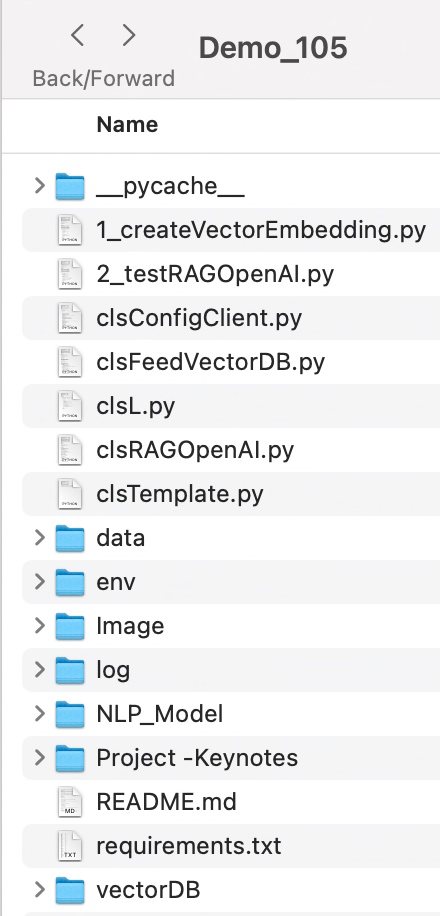
Let us explore the directory structure starting from the parent to some of the important child folder should look like this –

Let us understand the important screenshots of this entire process –


So, finally, we’ve done it.

You will get the complete codebase in the following GitHub link.

I’ll bring some more exciting topics in the coming days from the Python verse. Please share & subscribe to my post & let me know your feedback.

Till then, Happy Avenging! 🙂

Validating source data against RAG-response using Open AI, GloVe, FAISS using Python

Today, I’ll be presenting another exciting capability of architecture in the world of LLMs, where you need to answer one crucial point & that is how valid the response generated by these LLMs is against your data. This response is critical when discussing business growth & need to take the right action at the right time.

Why not view the demo before going through it?

Demo

Isn’t it exciting? Great! Let us understand this in detail.

The first dotted box (extreme-left) represents the area that talks about the data ingestion from different sources, including third-party PDFs. It is expected that organizations should have ready-to-digest data sources. Examples: Data Lake, Data Mart, One Lake, or any other equivalent platforms. Those PDFs will provide additional insights beyond the conventional advanced analytics.

You need to have some kind of OCR solution that will extract all the relevant information in the form of text from the documents. 

The next important part is how you define the chunking & embedding of data chunks into Vector DB. Chunking & indexing strategies, along with the overlapping chain, play a crucial importance in tying that segregated piece of context into a single context that will be fed into the source for your preferred LLMs.

This system employs a vector similarity search to browse through unstructured information and concurrently accesses the database to retrieve the context, ensuring that the responses are not only comprehensive but also anchored in validated knowledge.

This approach is particularly vital for addressing multi-hop questions, where a single query can be broken down into multiple sub-questions and may require information from numerous documents to generate an accurate answer.


pip install openai==0.27.8
pip install pandas==2.0.3
pip install tensorflow==2.11.1
pip install faiss-cpu==1.7.4
pip install gensim==4.3.2

Let us understand the key class & snippets.

  • clsFeedVectorDB.py (This is the main class that will invoke the Faiss framework to contextualize the docs inside the vector DB with the source file name to validate the answer from Gen AI using Globe.6B embedding models.)

Let us understand some of the key snippets from the above script (Full scripts will be available in the GitHub Repo) –

# Sample function to convert text to a vector
def text2Vector(self, text):
    # Encode the text using the tokenizer
    words = [word for word in text.lower().split() if word in self.model]

    # If no words in the model, return a zero vector
    if not words:
        return np.zeros(self.model.vector_size)

    # Compute the average of the word vectors
    vector = np.mean([self.model[word] for word in words], axis=0)
    return vector.reshape(1, -1)

This code is for a function called “text2Vector” that takes some text as input and converts it into a numerical vector. Let me break it down step by step:

  • It starts by taking some text as input, and this text is expected to be a sentence or a piece of text.
  • The text is then split into individual words, and each word is converted to lowercase.
  • It checks if each word is present in a pre-trained language model (probably a word embedding model like Word2Vec or GloVe). If a word is not in the model, it’s ignored.
  • If none of the words from the input text are found in the model, the function returns a vector filled with zeros. This vector has the same size as the word vectors in the model.
  • If there are words from the input text in the model, the function calculates the average vector of these words. It does this by taking the word vectors for each word found in the model and computing their mean (average). This results in a single vector that represents the input text.
  • Finally, the function reshapes this vector into a 2D array with one row and as many columns as there are elements in the vector. The reason for this reshaping is often related to compatibility with other parts of the code or libraries used in the project.

So, in simple terms, this function takes a piece of text, looks up the word vectors for the words in that text, and calculates the average of those vectors to create a single numerical representation of the text. If none of the words are found in the model, it returns a vector of zeros.

    def genData(self):
        try:
            basePath = self.basePath
            modelFileName = self.modelFileName
            vectorDBPath = self.vectorDBPath
            vectorDBFileName = self.vectorDBFileName

            # Create a FAISS index
            dimension = int(cf.conf['NO_OF_MODEL_DIM'])  # Assuming 100-dimensional vectors 
            index = faiss.IndexFlatL2(dimension)

            print('*' * 240)
            print('Vector Index Your Data for Retrieval:')
            print('*' * 240)

            FullVectorDBname = vectorDBPath + vectorDBFileName
            indexFile = str(vectorDBPath) + str(vectorDBFileName) + '.index'

            print('File: ', str(indexFile))

            data = {}
            # List all files in the specified directory
            files = os.listdir(basePath)

            # Filter out files that are not text files
            text_files = [file for file in files if file.endswith('.txt')]

            # Read each text file
            for file in text_files:
                file_path = os.path.join(basePath, file)
                print('*' * 240)
                print('Processing File:')
                print(str(file_path))
                try:
                    # Attempt to open with utf-8 encoding
                    with open(file_path, 'r', encoding='utf-8') as file:
                        for line_number, line in enumerate(file, start=1):
                            # Assume each line is a separate document
                            vector = self.text2Vector(line)
                            vector = vector.reshape(-1)
                            index_id = index.ntotal

                            index.add(np.array([vector]))  # Adding the vector to the index
                            data[index_id] = {'text': line, 'line_number': line_number, 'file_name': file_path}  # Storing the line and file name
                except UnicodeDecodeError:
                    # If utf-8 fails, try a different encoding
                    try:
                        with open(file_path, 'r', encoding='ISO-8859-1') as file:
                            for line_number, line in enumerate(file, start=1):
                                # Assume each line is a separate document
                                vector = self.text2Vector(line)
                                vector = vector.reshape(-1)
                                index_id = index.ntotal
                                index.add(np.array([vector]))  # Adding the vector to the index
                                data[index_id] = {'text': line, 'line_number': line_number, 'file_name': file_path}  # Storing the line and file name
                    except Exception as e:
                        print(f"Could not read file {file}: {e}")
                        continue

                print('*' * 240)

            # Save the data dictionary using pickle
            dataCache = vectorDBPath + modelFileName
            with open(dataCache, 'wb') as f:
                pickle.dump(data, f)

            # Save the index and data for later use
            faiss.write_index(index, indexFile)

            print('*' * 240)

            return 0

        except Exception as e:
            x = str(e)
            print('Error: ', x)

            return 1
  • This code defines a function called genData, and its purpose is to prepare and store data for later retrieval using a FAISS index. Let’s break down what it does step by step:
  • It starts by assigning several variables, such as basePath, modelFileName, vectorDBPath, and vectorDBFileName. These variables likely contain file paths and configuration settings.
  • It creates a FAISS index with a specified dimension (assuming 100-dimensional vectors in this case) using faiss.IndexFlatL2. FAISS is a library for efficient similarity search and clustering of high-dimensional data.
  • It prints the file name and lines where the index will be stored. It initializes an empty dictionary called data to store information about the processed text data.
  • It lists all the files in a directory specified by basePath. It filters out only the files that have a “.txt” extension as text files.
  • It then reads each of these text files one by one. For each file:
  1. It attempts to open the file with UTF-8 encoding.
    • It reads the file line by line.
    • For each line, it calls a function text2Vector to convert the text into a numerical vector representation. This vector is added to the FAISS index.
    • It also stores some information about the line, such as the line number and the file name, in the data dictionary.
    • If there is an issue with UTF-8 encoding, it tries to open the file with a different encoding, “ISO-8859-1”. The same process of reading and storing data continues.
  • If there are any exceptions (errors) during this process, it prints an error message but continues processing other files.
  • Once all the files are processed, it saves the data dictionary using the pickle library to a file specified by dataCache.
  • It also saves the FAISS index to a file specified by indexFile.
  • Finally, it returns 0 if the process completes successfully or 1 if there was an error during execution.

In summary, this function reads text files, converts their contents into numerical vectors, and builds a FAISS index for efficient similarity search. It also saves the processed data and the index for later use. If there are any issues during the process, it prints error messages but continues processing other files.

  • clsRAGOpenAI.py (This is the main class that will invoke the RAG class, which will get the contexts with references including source files, line numbers, and source texts. This will help the customer to validate the source against the OpenAI response to understand & control the data bias & other potential critical issues.)

Let us understand some of the key snippets from the above script (Full scripts will be available in the GitHub Repo) –

def ragAnswerWithHaystackAndGPT3(self, queryVector, k, question):
    modelName = self.modelName
    maxToken = self.maxToken
    temp = self.temp

    # Assuming getTopKContexts is a method that returns the top K contexts
    contexts = self.getTopKContexts(queryVector, k)
    messages = []

    # Add contexts as system messages
    for file_name, line_number, text in contexts:
        messages.append({"role": "system", "content": f"Document: {file_name} \nLine Number: {line_number} \nContent: {text}"})

    prompt = self.generateOpenaiPrompt(queryVector, k)
    prompt = prompt + "Question: " + str(question) + ". \n Answer based on the above documents."

    # Add user question
    messages.append({"role": "user", "content": prompt})

    # Create chat completion
    completion = client.chat.completions.create(
    model=modelName,
    messages=messages,
    temperature = temp,
    max_tokens = maxToken
    )

    # Assuming the last message in the response is the answer
    last_response = completion.choices[0].message.content
    source_refernces = ['FileName: ' + str(context[0]) + ' - Line Numbers: ' + str(context[1]) + ' - Source Text (Reference): ' + str(context[2]) for context in contexts]

    return last_response, source_refernces
  • This code defines a function called ragAnswerWithHaystackAndGPT3. Its purpose is to use a combination of the Haystack search method and OpenAI’s GPT-3 model to generate an answer to a user’s question. Let’s break down what it does step by step:
  • It starts by assigning several variables, such as modelName, maxToken, and temp. These variables likely contain model-specific information and settings for GPT-3.
  • It calls a method getTopKContexts to retrieve the top K contexts (which are likely documents or pieces of text) related to the user’s query. These contexts are stored in the contexts variable.
  • It initializes an empty list called messages to store messages that will be used in the conversation with the GPT-3 model.
  • It iterates through each context and adds them as system messages to the messages list. These system messages provide information about the documents or sources being used in the conversation.
  • It creates a prompt that combines the query, retrieved contexts, and the user’s question. This prompt is then added as a user message to the messages list. It effectively sets up the conversation for GPT-3, where the user’s question is followed by context.
  • It makes a request to the GPT-3 model using the client.chat.completions.create method, passing in the model name, the constructed messages, and other settings such as temperature and maximum tokens.
  • After receiving a response from GPT-3, it assumes that the last message in the response contains the answer generated by the model.
  • It also constructs source_references, which is a list of references to the documents or sources used in generating the answer. This information includes the file name, line numbers, and source text for each context.
  • Finally, it returns the generated answer (last_response) and the source references to the caller.

In summary, this function takes a user’s query, retrieves relevant contexts or documents, sets up a conversation with GPT-3 that includes the query and contexts, and then uses GPT-3 to generate an answer. It also provides references to the sources used in generating the answer.

    def getTopKContexts(self, queryVector, k):
        try:
            distances, indices = index.search(queryVector, k)
            resDict = [(data[i]['file_name'], data[i]['line_number'], data[i]['text']) for i in indices[0]]
            return resDict
        except Exception as e:
            x = str(e)
            print('Error: ', x)

            return x

This code defines a function called getTopKContexts. Its purpose is to retrieve the top K relevant contexts or pieces of information from a pre-built index based on a query vector. Here’s a breakdown of what it does:

  1. It takes two parameters as input: queryVector, which is a numerical vector representing a query, and k, which specifies how many relevant contexts to retrieve.
  2. Inside a try-except block, it attempts the following steps:
    • It uses the index.search method to find the top K closest contexts to the given queryVector. This method returns two arrays: distances (measuring how similar the contexts are to the query) and indices (indicating the positions of the closest contexts in the data).
    • It creates a list called “resDict", which contains tuples for each of the top K contexts. Each tuple contains three pieces of information: the file name (file_name), the line number (line_number), and the text content (text) of the context. These details are extracted from a data dictionary.
  3. If the process completes successfully, it returns the list of top K contexts (resDict) to the caller.
  4. If there’s an exception (an error) during this process, it captures the error message as a string (x), prints the error message, and then returns the error message itself.

In summary, this function takes a query vector and finds the K most relevant contexts or pieces of information based on their similarity to the query. It returns these contexts as a list of tuples containing file names, line numbers, and text content. If there’s an error, it prints an error message and returns the error message string.

def generateOpenaiPrompt(self, queryVector, k):
    contexts = self.getTopKContexts(queryVector, k)
    template = ct.templateVal_1
    prompt = template
    for file_name, line_number, text in contexts:
        prompt += f"Document: {file_name}\n Line Number: {line_number} \n Content: {text}\n\n"
    return prompt

This code defines a function called generateOpenaiPrompt. Its purpose is to create a prompt or a piece of text that combines a template with information from the top K relevant contexts retrieved earlier. Let’s break down what it does:

  1. It starts by calling the getTopKContexts function to obtain the top K relevant contexts based on a given queryVector.
  2. It initializes a variable called template with a predefined template value (likely defined elsewhere in the code).
  3. It sets the prompt variable to the initial template.
  4. Then, it enters a loop where it iterates through each of the relevant contexts retrieved earlier (contexts are typically documents or text snippets).
  5. For each context, it appends information to the prompt. Specifically, it adds lines to the prompt that include:
    • The document’s file name (Document: [file_name]).
    • The line number within the document (Line Number: [line_number]).
    • The content of the context itself (Content: [text]).
  6. It adds some extra spacing (newlines) between each context to ensure readability.
  7. Finally, it returns the complete – prompt, which is a combination of the template and information from the relevant contexts.

In summary, this function takes a query vector, retrieves relevant contexts, and creates a prompt by combining a template with information from these contexts. This prompt can then be used as input for an AI model or system, likely for generating responses or answers based on the provided context.

Let us understand the directory structure of this entire application –


To learn more about this package, please visit the following GitHub link.

So, finally, we’ve done it. I know that this post is relatively smaller than my earlier post. But, I think, you can get a good hack to improve some of your long-running jobs by applying this trick.

I’ll bring some more exciting topics in the coming days from the Python verse. Please share & subscribe to my post & let me know your feedback.

Till then, Happy Avenging! 🙂