This site mainly deals with various use cases demonstrated using Python, Data Science, Cloud basics, SQL Server, Oracle, Teradata along with SQL & their implementation. Expecting yours active participation & time. This blog can be access from your TP, Tablet & mobile also. Please provide your feedback.
Today, I’ll be publishing a series of posts on LLM agents and how they can help you improve your delivery capabilities for various tasks.
Also, we’re providing the demo here –
Isn’t it exciting?
Process Flow:
The application will interact with the AutoGen agents, use underlying Open AI APIs to follow the instructions, generate the steps, and then follow that path to generate the desired code. Finally, it will execute the generated scripts if the first outcome of the demo satisfies users.
Function: Sets the logging level to only capture error messages to avoid cluttering the output.
Role: Helps in debugging by capturing and displaying error messages.
Defining the buildAndPlay Method:
defbuildAndPlay(self,inputPrompt):try: user_proxy.initiate_chat( assistant,message=f"We need to solve the following problem: {inputPrompt}. ""Please coordinate with the admin, engineer, game_designer, planner and critic to provide a comprehensive solution. ")return0exceptExceptionas e: x =str(e)print('Error: <<Real-time Translation>>: ', x)return1
Purpose: Defines a method to initiate the problem-solving process.
Function:
Parameters: Takes inputPrompt, which is the problem to be solved.
Action:
Calls user_proxy.initiate_chat() to start a conversation between the user proxy agent and the assistant agent.
Sends a message requesting coordination among all agents to provide a comprehensive solution to the problem.
Error Handling: If an exception occurs, it prints an error message and returns 1.
Role: Initiates collaboration among all agents to solve the provided problem.
Summary of the Workflow:
Agents Setup: Multiple agents with specialized roles are created. Initiating Conversation: The buildAndPlay method starts a conversation, asking agents to collaborate. Problem Solving: Agents communicate and coordinate to provide a comprehensive solution to the input problem. Error Handling: The system captures and logs any errors that occur during execution.
We’ll continue to discuss this topic in the upcoming post.
I’ll bring some more exciting topics in the coming days from the Python verse.
Till then, Happy Avenging! 🙂
Note: All the data & scenarios posted here are representational data & scenarios & available over the internet & for educational purposes only. There is always room for improvement in this kind of model & the solution associated with it. I’ve shown the basic ways to achieve the same for educational purposes only.
I’ll bring an exciting streamlit app that will reflect the real-time dashboard by consuming all the events from the Ably channel.
One more time, I’ll be utilizing my IoT emulator that will feed the real-time events based on the user inputs to the Ably channel, which will be subscribed to by the Streamlit-based app.
However, I would like to share the run before we dig deep into this.
Demo
Isn’t this exciting? How we can use our custom-built IoT emulator & capture real-time events to Ably Queue, then transform those raw events into more meaningful KPIs? Let’s deep dive then.
Architecture:
Let’s explore the broad-level architecture/flow –
As you can see, the green box is a demo IoT application that generates events & pushes them into the Ably Queue. At the same time, the streamlit-based Dashboard app consumes the events & transforms them into more meaningful metrics.
Package Installation:
Let us understand the sample packages that are required for this task.
Since this is an extension to our previous post, we’re not going to discuss other scripts, which we’ve already discussed over there. Instead, we will talk about the enhanced scripts & the new scripts that are required for this use case.
1. app.py (This script will consume real-time streaming data coming out from a hosted API source using another popular third-party service named Ably. Ably mimics the pub sub-streaming concept, which might be extremely useful for any start-up. This will then translate into many meaningful KPIs in a streamlit-based dashboard app.)
Note that, we’re not going to discuss the entire script here. Only those parts are relevant. However, you can get the complete scripts in the GitHub repository.
The above function creates a customized humidity gauge that visually represents a given humidity value, making it easy to read and understand at a glance.
This code defines a function “createHumidityGauge“ that creates a visual gauge (like a meter) to display a humidity value. Here’s a simple breakdown of what it does:
Function Definition: It starts by defining a function named createHumidityGauge that takes one parameter, humidity_value, which is the humidity level you want to display on the gauge.
Creating the Gauge: Inside the function, it creates a figure using Plotly (a plotting library) with a specific type of chart called an Indicator. This Indicator is set to display in “gauge+number” mode, meaning it shows both a gauge visual and the numeric value of the humidity.
Setting Gauge Properties:
The value is set to the humidity_value parameter, so the gauge shows this humidity level.
The domain sets the position of the gauge on the plot, which is set to fill the available space ([0, 1] for both x and y axes).
The title is set to “Humidity” with a font size of 24, labeling the gauge.
The gauge section defines the appearance and behavior of the gauge, including:
An axis that goes from 0 to 100 (assuming humidity is measured as a percentage from 0% to 100%).
The color and style of the gauge’s bar and background.
Colored steps indicating different ranges of humidity (cyan for 0-50% and royal blue for 50-100%).
A threshold line that appears at the value of the humidity, marked in red to stand out.
Finalizing the Gauge Appearance: The function then updates the layout of the figure to set its height, background color, font style, and margins to make sure the gauge looks nice and is visible.
Returning the Figure: Finally, the function returns the fig object, which is the fully configured gauge, ready to be displayed.
Other similar functions will repeat the same steps.
defcreateTemperatureLineChart(data): # Assuming'data'isaDataFramewitha'Timestamp'indexanda'Temperature'columnfig=px.line(data,x=data.index,y='Temperature',title='Temperature Vs Time')fig.update_layout(height=270) # Specifythedesiredheightherereturnfig
The above function takes a set of temperature data indexed by timestamp and creates a line chart that visually represents how the temperature changes over time.
This code defines a function “createTemperatureLineChart” that creates a line chart to display temperature data over time. Here’s a simple summary of what it does:
Function Definition: It starts with defining a function named “createTemperatureLineChart“ that takes one parameter, data, which is expected to be a DataFrame (a type of data structure used in pandas, a Python data analysis library). This data frame should have a ‘Timestamp’ as its index (meaning each row represents a different point in time) and a ‘Temperature’ column containing temperature values.
Creating the Line Chart: The function uses Plotly Express (a plotting library) to create a line chart with the following characteristics:
The x-axis represents time, taken from the DataFrame’s index (‘Timestamp’).
The y-axis represents temperature, taken from the ‘Temperature’ column in the DataFrame.
The chart is titled ‘Temperature Vs Time’, clearly indicating what the chart represents.
Customizing the Chart: It then updates the layout of the chart to set a specific height (270 pixels) for the chart, making it easier to view.
Returning the Chart: Finally, the function returns the fig object, which is the fully prepared line chart, ready to be displayed.
The above code will create a sidebar with drop-down lists, which will show the KPIs (“Temperature”, “Humidity”, “Pressure”).
# SplitthelayoutintocolumnsforKPIsandgraphsgauge_col,kpi_col,graph_col=st.columns(3) # Auto-refreshsetupst_autorefresh(interval=7000,key='data_refresh') # Fetchingreal-timedatadata=getData(var1,DInd)st.markdown(""" <style>.stEcharts{ margin-bottom:-50px; }/* Class might differ, inspect the HTML to find the correct class name */</style>""",unsafe_allow_html=True ) # Displaygaugesatthetopofthepagegauges=st.container()with gauges:col1,col2,col3=st.columns(3)with col1:humidity_value=round(data['Humidity'].iloc[-1],2)humidity_gauge_fig=createHumidityGauge(humidity_value)st.plotly_chart(humidity_gauge_fig,use_container_width=True)with col2:temp_value=round(data['Temperature'].iloc[-1],2)temp_gauge_fig=createTempGauge(temp_value)st.plotly_chart(temp_gauge_fig,use_container_width=True)with col3:pressure_value=round(data['Pressure'].iloc[-1],2)pressure_gauge_fig=createPressureGauge(pressure_value)st.plotly_chart(pressure_gauge_fig,use_container_width=True) # Nextrowforactualreadingsandchartsside-by-sidereadings_charts=st.container() # DisplayKPIsandtheirtrendswith readings_charts:readings_col,graph_col=st.columns([1,2])with readings_col:st.subheader("Latest Readings")if"Temperature"in selected_kpis:st.metric("Temperature",f"{temp_value:.2f}%")if"Humidity"in selected_kpis:st.metric("Humidity",f"{humidity_value:.2f}%")if"Pressure"in selected_kpis:st.metric("Pressure",f"{pressure_value:.2f}%") # GraphplaceholdersforeachKPIwith graph_col:if"Temperature"in selected_kpis:temperature_fig=createTemperatureLineChart(data.set_index("Timestamp")) # DisplaythePlotlychartinStreamlitwithspecifieddimensionsst.plotly_chart(temperature_fig,use_container_width=True)if"Humidity"in selected_kpis:humidity_fig=createHumidityLineChart(data.set_index("Timestamp")) # DisplaythePlotlychartinStreamlitwithspecifieddimensionsst.plotly_chart(humidity_fig,use_container_width=True)if"Pressure"in selected_kpis:pressure_fig=createPressureLineChart(data.set_index("Timestamp")) # DisplaythePlotlychartinStreamlitwithspecifieddimensionsst.plotly_chart(pressure_fig,use_container_width=True)
The code begins by splitting the Streamlit web page layout into three columns to separately display Key Performance Indicators (KPIs), gauges, and graphs.
It sets up an auto-refresh feature with a 7-second interval, ensuring the data displayed is regularly updated without manual refreshes.
Real-time data is fetched using a function called getData, which takes unspecified parameters var1 and DInd.
A CSS style is injected into the Streamlit page to adjust the margin of Echarts elements, which may be used to improve the visual layout of the page.
A container for gauges is created at the top of the page, with three columns inside it dedicated to displaying humidity, temperature, and pressure gauges.
Each gauge (humidity, temperature, and pressure) is created by rounding the last value from the fetched data to two decimal places and then visualized using respective functions that create Plotly gauge charts.
Below the gauges, another container is set up for displaying the latest readings and their corresponding graphs in a side-by-side layout, using two columns.
The left column under “Latest Readings” displays the latest values for selected KPIs (temperature, humidity, pressure) as metrics.
In the right column, for each selected KPI, a line chart is created using data with timestamps as indices and displayed using Plotly charts, allowing for a visual trend analysis.
This structured approach enables a dynamic and interactive dashboard within Streamlit, offering real-time insights into temperature, humidity, and pressure with both numeric metrics and graphical trends, optimized for regular data refreshes and user interactivity.
Run:
Let us understand some of the important screenshots of this application –
So, we’ve done it.
I’ll bring some more exciting topics in the coming days from the Python verse.
Till then, Happy Avenging! 🙂
Note: All the data & scenarios posted here are representational data & scenarios & available over the internet & for educational purposes only.
There is always room for improvement in this kind of model & the solution associated with it. I’ve shown the basic ways to achieve the same for educational purposes only.
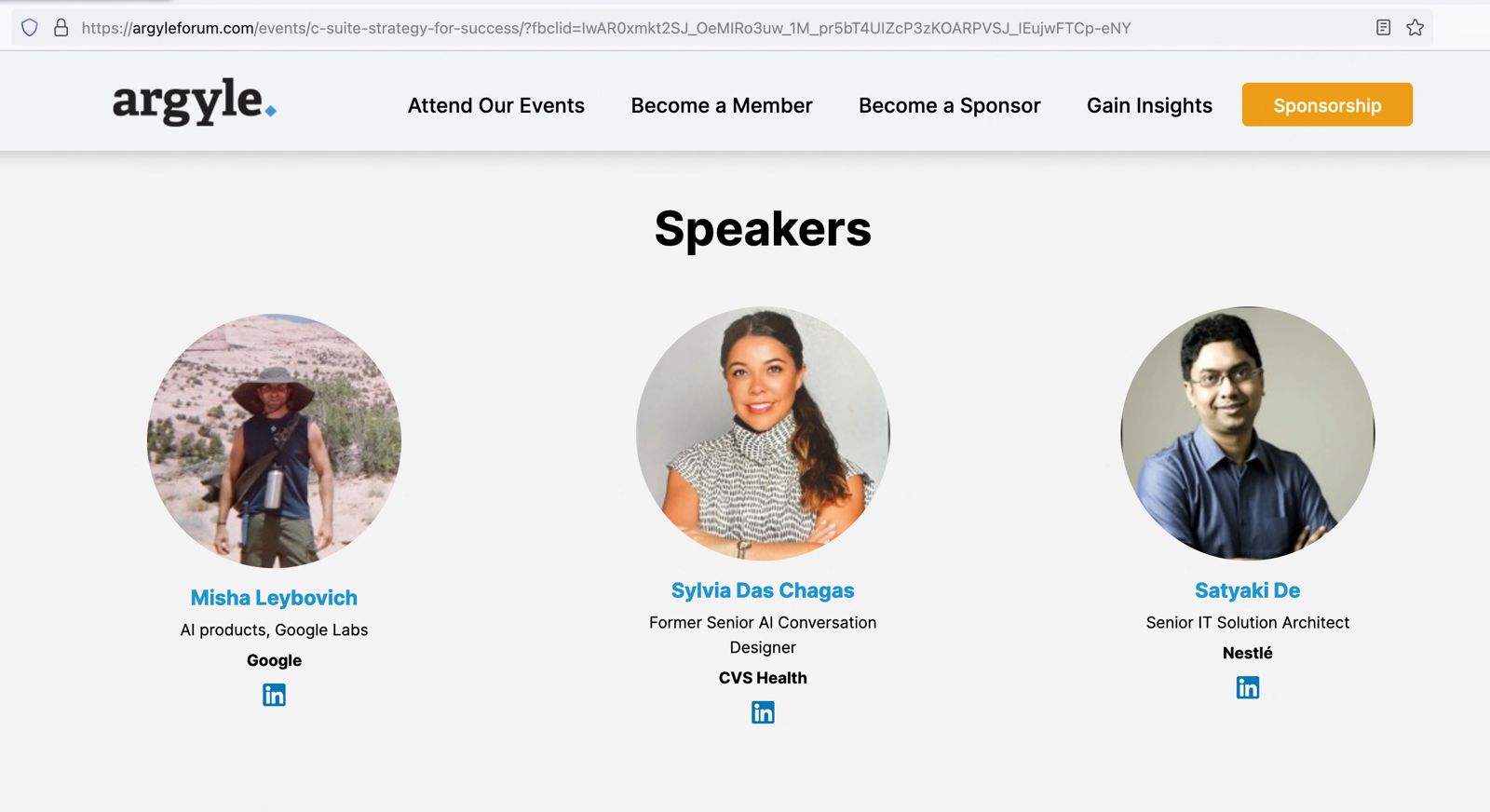
At the recent Argyle AI Summit, a prestigious event in the AI industry, I had the honor of participating as a speaker alongside esteemed professionals like Misha Leybovich from Google Labs. The summit, coordinated by Sylvia Das Chagas, a former senior AI conversation designer at CVS Health, provided an enlightening platform to discuss the evolving role of AI in talent management. Our session focused on the theme “Driving Talent with AI,” addressing some of the most pressing questions in the field. Frequently, relevant use cases were shared in detail to support these threads.
To view the actual page, please click the following link.
Impact of AI on Talent Management
One of the critical topics we explored was AI’s impact on talent management in the upcoming year. AI’s influence in hiring and retention is becoming increasingly significant. For example, AI-powered tools can now analyze vast amounts of data to identify the best candidates for a role, going beyond traditional resume screening. In retention, AI is instrumental in identifying patterns that indicate an employee’s likelihood to leave, enabling proactive measures.
Dispelling Fears Around AI Replacing Jobs
A burning question in AI is how leaders address fears that AI might replace manual jobs. We discussed the importance of leaders framing AI as a complement to human skills rather than a replacement. AI enhances employee capabilities by automating mundane tasks, allowing employees to focus on more creative and strategic work.
Innovative AI Tools for Organizations
Regarding new AI tools that organizations should watch out for, the conversation highlighted tools that enhance remote collaboration and workplace inclusivity. Tools like virtual meeting assistants that can transcribe, translate, and summarize meetings in real time are becoming invaluable in today’s global work environment.
AI in Boosting Employee Motivation and Productivity
AI’s role in boosting employee motivation and productivity was another focal point. We discussed how AI-driven career development programs can offer personalized learning paths, helping employees grow and stay motivated.
Incorporating Multilingual Capabilities in AI Tools
Incorporating multiple languages in tools like ChatGPT was highlighted as a critical step towards inclusivity. This expansion allows a broader range of employees to interact with AI tools in their native language, fostering a more inclusive workplace environment.
Addressing Reluctance to Change
Lastly, we tackled the challenge of addressing employees’ reluctance to change. Emphasizing the importance of transparent communication and education about AI’s benefits was identified as key. Organizations can alleviate fears and encourage a more accepting attitude towards AI by involving employees in the AI implementation process and providing training.
Conclusion
The Argyle AI Summit offered a compelling glimpse into the future of AI in talent management. The session provided valuable insights for leaders looking to harness AI’s potential to enhance talent management strategies by discussing real-world examples and strategies. To gain more in-depth knowledge and perspectives shared during this summit, I encourage interested parties to visit the recorded session link for a more comprehensive understanding.
Or, you can directly view it from here –
Feedback Request
I would greatly appreciate your feedback on the insights shared during the summit. Your thoughts and perspectives are invaluable as we continue to explore and navigate the evolving landscape of AI in the workplace.
Note: Video content hosted at a third-party site by the summit organizer & not by me.
Today, I will share a new post that will contextualize the source files & then read the data into the pandas data frame, and then dynamically create the SQL & execute it. Then, fetch the data from the sources based on the query generated dynamically. This project is for the advanced Python developer and data Science Newbie.
In this post, I’ve directly subscribed to OpenAI & I’m not using OpenAI from Azure. However, I’ll explore that in the future as well.
Before I explain the process to invoke this new library, why not view the demo first & then discuss it?
Demo
FLOW OF EVENTS:
Let us look at the flow diagram as it captures the sequence of events that unfold as part of the process.
The application will take the metadata captured from source data dynamically. It blends the metadata and enhances the prompt to pass to the Flask server. The Flask server has all the limits of contexts.
Once the application receives the correct generated SQL, it will then apply the SQL using the SQLAlchemy package to get the desired results.
IMPORTANT PACKAGES:
The following are the important packages that are essential to this project –
We’ll have both the server and the main application. Today, we’ll be going in reverse mode. We first discuss the main script & then explain all the other class scripts.
1_invokeSQLServer.py (This is the main calling Python script to invoke the OpenAI-Server.)
Please find some of the key snippet from this discussion –
This code defines a web application route that handles POST requests sent to the /message endpoint:
Route Declaration: The @app.route('/message', methods=['POST']) part specifies that the function message() is executed when the server receives a POST request at the /message URL.
Function Definition: Inside the message() function:
It retrieves two pieces of data from the request’s JSON body: input_text (the user’s input message) and session_id (a unique identifier for the user’s session).
It prints the user’s input message, surrounded by lines of asterisks for emphasis.
Conversation History Management:
The code retrieves the conversation history associated with the given session_id. This history is a list of messages.
It then adds the new user message (input_text) to this conversation history.
OpenAI API Call:
The function makes a call to the OpenAI API, passing the user’s message. It specifies not to retry the request if it fails (max_retries=0).
The model used for the OpenAI API call is taken from some configurations (cf.conf['MODEL_NAME']).
Processing API Response:
The response from the OpenAI API is processed to extract the content of the chat response.
This chat response is printed.
Updating Conversation History:
The chat response is added to the conversation history.
The updated conversation history is then stored back in the session or database, associated with the session_id.
Returning the Response: Finally, the function returns the chat response.
clsDynamicSQLProcess.py (This Python class generates the SQL & then executes the flask server to invoke the OpenAI-Server.)
Now, let us understand the few important piece of snippet –
Function Overview: The text2SQLBegin function processes a list of database file names (DBFileNameList), a file path (fileDBPath), a query prompt (srcQueryPrompt), join conditions (joinCond), and a debug indicator (debugInd) to generate SQL commands.
Initial Setup: It starts by initializing variables for the question, the SQL table creation statement, and a string for join conditions.
Debug Prints: The function prints the current and previous session database file names for debugging purposes.
Flag Setting: A flag is set to ‘Y’ if the current session’s database file names match the previous session’s; otherwise, it’s set to ‘N’.
Processing New Session Data: If the flag is ‘N’, indicating new session data:
For each database file, it reads the data, converts string columns to lowercase, and creates a corresponding SQL table in a database using the pandas library.
Metadata is generated for each table and a CREATE TABLE SQL statement is created.
Join Conditions and Statement Aggregation: Join conditions are concatenated, and previous session information is updated with the current session’s data.
Handling Repeated Sessions: If the session data is repeated (flag is ‘Y’), it uses the previous session’s SQL table creation statements and database file names.
Final Input Prompt Creation: It constructs the final input prompt by combining template values with the create table statement, join conditions, and the original question.
Debug Printing: If debug mode is enabled, it prints the final input prompt.
Conclusion: The function clears the DBFileNameList and create_table_statement variables, and returns the constructed input prompt.
The text2SQLEnd function sends an HTTP POST request to a specified URL and returns the response. It takes two parameters: srcContext which contains the input text, and an optional debugInd for debugging purposes. The function constructs the request payload by converting the input text and an empty session ID to JSON format. It sets the request headers, including a content type of ‘application/json’ and a token from the configuration file. The function then sends the POST request using the requests library and returns the text content of the response.
The sql2Data function is designed to execute a SQL query on a database and return the result. It takes a single parameter, srcSQL, which contains the SQL query to be executed. The function uses the pandas library to run the provided SQL query (srcSQL) against a database connection (engine). It then returns the result of this query, which is typically a DataFrame object containing the data retrieved from the database.
defgenData(self,srcQueryPrompt,fileDBPath,DBFileNameList,joinCond,debugInd='N'):try:authorName=self.authorNamewebsite=self.websitevar=datetime.now().strftime("%Y-%m-%d_%H-%M-%S")print('*'*240)print('SQL Start Time: '+str(var))print('*'*240)print('*'*240)print()ifdebugInd=='Y':print('Author Name: ',authorName)print('For more information, please visit the following Website: ',website)print()print('*'*240)print('Your Data for Retrieval:')print('*'*240)ifdebugInd=='Y':print()print('Converted File to Dataframe Sample:')print()else:print()context=self.text2SQLBegin(DBFileNameList,fileDBPath,srcQueryPrompt,joinCond,debugInd)srcSQL=self.text2SQLEnd(context,debugInd)print(srcSQL)print('*'*240)print()resDF=self.sql2Data(srcSQL)print('*'*240)print('SQL End Time: '+str(var))print('*'*240)returnresDFexceptExceptionas e:x=str(e)print('Error: ',x)df=pd.DataFrame()returndf
Initialization and Debug Information: The function begins by initializing variables like authorName, website, and a timestamp (var). It then prints the start time of the SQL process. If the debug indicator (debugInd) is ‘Y’, it prints additional information like the author’s name and website.
Generating SQL Context and Query: The function calls text2SQLBegin with various parameters (file paths, database file names, query prompt, join conditions, and the debug indicator) to generate an SQL context. Then it calls text2SQLEnd with this context and the debug indicator to generate the actual SQL query.
Executing the SQL Query: It prints the generated SQL query for visibility, especially in debug mode. The query is then executed by calling sql2Data, which returns the result as a data frame (resDF).
Finalization and Error Handling: After executing the query, it prints the SQL end time. In case of any exceptions during the process, it catches the error, prints it, and returns an empty DataFrame.
Return Value: The function returns the DataFrame (resDF) containing the results of the executed SQL query. If an error occurs, it returns an empty DataFrame instead.
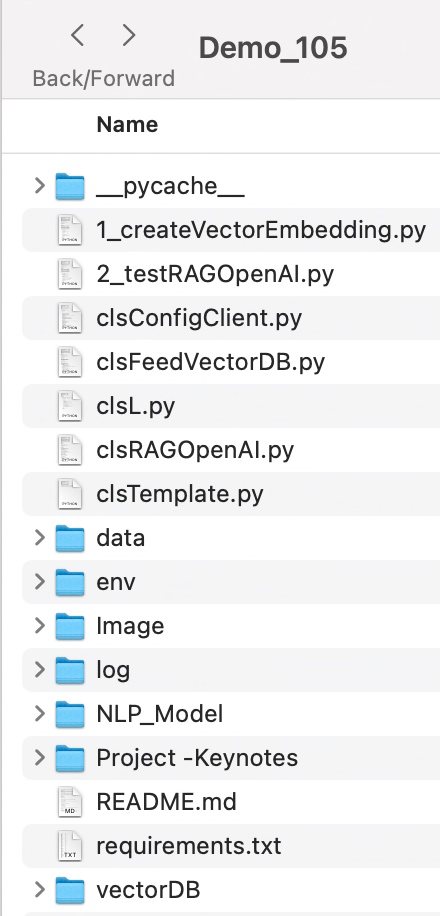
DIRECTORY STRUCTURES:
Let us explore the directory structure starting from the parent to some of the important child folder should look like this –
Let us understand the important screenshots of this entire process –
So, finally, we’ve done it.
You will get the complete codebase in the following GitHub link.
I’ll bring some more exciting topics in the coming days from the Python verse. Please share & subscribe to my post & let me know your feedback.
Till then, Happy Avenging! 🙂
Note: All the data & scenarios posted here are representational data & scenarios & available over the internet & for educational purposes only. Some of the images (except my photo) we’ve used are available over the net. We don’t claim ownership of these images. There is always room for improvement & especially in the prediction quality.
Today, I’ll be presenting another exciting capability of architecture in the world of LLMs, where you need to answer one crucial point & that is how valid the response generated by these LLMs is against your data. This response is critical when discussing business growth & need to take the right action at the right time.
Why not view the demo before going through it?
Demo
Isn’t it exciting? Great! Let us understand this in detail.
Flow of Architecture:
The first dotted box (extreme-left) represents the area that talks about the data ingestion from different sources, including third-party PDFs. It is expected that organizations should have ready-to-digest data sources. Examples: Data Lake, Data Mart, One Lake, or any other equivalent platforms. Those PDFs will provide additional insights beyond the conventional advanced analytics.
You need to have some kind of OCR solution that will extract all the relevant information in the form of text from the documents.
The next important part is how you define the chunking & embedding of data chunks into Vector DB. Chunking & indexing strategies, along with the overlapping chain, play a crucial importance in tying that segregated piece of context into a single context that will be fed into the source for your preferred LLMs.
This system employs a vector similarity search to browse through unstructured information and concurrently accesses the database to retrieve the context, ensuring that the responses are not only comprehensive but also anchored in validated knowledge.
This approach is particularly vital for addressing multi-hop questions, where a single query can be broken down into multiple sub-questions and may require information from numerous documents to generate an accurate answer.
clsFeedVectorDB.py (This is the main class that will invoke the Faiss framework to contextualize the docs inside the vector DB with the source file name to validate the answer from Gen AI using Globe.6B embedding models.)
Let us understand some of the key snippets from the above script (Full scripts will be available in the GitHub Repo) –
# Samplefunctiontoconverttexttoavectordeftext2Vector(self,text): # Encode the text using the tokenizerwords = [wordforwordintext.lower().split()ifwordinself.model] # Ifnowordsinthemodel, returnazerovectorifnot words:returnnp.zeros(self.model.vector_size) # Computetheaverageofthewordvectorsvector=np.mean([self.model[word] forwordinwords],axis=0)returnvector.reshape(1,-1)
This code is for a function called “text2Vector” that takes some text as input and converts it into a numerical vector. Let me break it down step by step:
It starts by taking some text as input, and this text is expected to be a sentence or a piece of text.
The text is then split into individual words, and each word is converted to lowercase.
It checks if each word is present in a pre-trained language model (probably a word embedding model like Word2Vec or GloVe). If a word is not in the model, it’s ignored.
If none of the words from the input text are found in the model, the function returns a vector filled with zeros. This vector has the same size as the word vectors in the model.
If there are words from the input text in the model, the function calculates the average vector of these words. It does this by taking the word vectors for each word found in the model and computing their mean (average). This results in a single vector that represents the input text.
Finally, the function reshapes this vector into a 2D array with one row and as many columns as there are elements in the vector. The reason for this reshaping is often related to compatibility with other parts of the code or libraries used in the project.
So, in simple terms, this function takes a piece of text, looks up the word vectors for the words in that text, and calculates the average of those vectors to create a single numerical representation of the text. If none of the words are found in the model, it returns a vector of zeros.
defgenData(self):try:basePath=self.basePathmodelFileName=self.modelFileNamevectorDBPath=self.vectorDBPathvectorDBFileName=self.vectorDBFileName # CreateaFAISSindexdimension=int(cf.conf['NO_OF_MODEL_DIM']) # Assuming100-dimensionalvectorsindex=faiss.IndexFlatL2(dimension)print('*'*240)print('Vector Index Your Data for Retrieval:')print('*'*240)FullVectorDBname=vectorDBPath+vectorDBFileNameindexFile=str(vectorDBPath) +str(vectorDBFileName) +'.index'print('File: ',str(indexFile))data={} # Listallfilesinthespecifieddirectoryfiles=os.listdir(basePath) # Filteroutfilesthatarenottextfilestext_files= [fileforfileinfilesiffile.endswith('.txt')] # Readeachtextfileforfilein text_files:file_path=os.path.join(basePath,file)print('*'*240)print('Processing File:')print(str(file_path))try: # Attempttoopenwithutf-8encodingwithopen(file_path,'r',encoding='utf-8') as file:forline_number,lineinenumerate(file,start=1): # Assumeeachlineisaseparatedocumentvector=self.text2Vector(line)vector=vector.reshape(-1)index_id=index.ntotalindex.add(np.array([vector])) # Addingthevectortotheindexdata[index_id] ={'text':line,'line_number':line_number,'file_name':file_path} # Storingthelineandfilenameexcept UnicodeDecodeError: # Ifutf-8fails,tryadifferentencodingtry:withopen(file_path,'r',encoding='ISO-8859-1') as file:forline_number,lineinenumerate(file,start=1): # Assumeeachlineisaseparatedocumentvector=self.text2Vector(line)vector=vector.reshape(-1)index_id=index.ntotalindex.add(np.array([vector])) # Addingthevectortotheindexdata[index_id] ={'text':line,'line_number':line_number,'file_name':file_path} # StoringthelineandfilenameexceptExceptionas e:print(f"Could not read file {file}: {e}")continueprint('*'*240) # SavethedatadictionaryusingpickledataCache=vectorDBPath+modelFileNamewithopen(dataCache,'wb') as f:pickle.dump(data,f) # Savetheindexanddataforlaterusefaiss.write_index(index,indexFile)print('*'*240)return0exceptExceptionas e:x=str(e)print('Error: ',x)return1
This code defines a function called genData, and its purpose is to prepare and store data for later retrieval using a FAISS index. Let’s break down what it does step by step:
It starts by assigning several variables, such as basePath, modelFileName, vectorDBPath, and vectorDBFileName. These variables likely contain file paths and configuration settings.
It creates a FAISS index with a specified dimension (assuming 100-dimensional vectors in this case) using faiss.IndexFlatL2. FAISS is a library for efficient similarity search and clustering of high-dimensional data.
It prints the file name and lines where the index will be stored. It initializes an empty dictionary called data to store information about the processed text data.
It lists all the files in a directory specified by basePath. It filters out only the files that have a “.txt” extension as text files.
It then reads each of these text files one by one. For each file:
It attempts to open the file with UTF-8 encoding.
It reads the file line by line.
For each line, it calls a function text2Vector to convert the text into a numerical vector representation. This vector is added to the FAISS index.
It also stores some information about the line, such as the line number and the file name, in the data dictionary.
If there is an issue with UTF-8 encoding, it tries to open the file with a different encoding, “ISO-8859-1”. The same process of reading and storing data continues.
If there are any exceptions (errors) during this process, it prints an error message but continues processing other files.
Once all the files are processed, it saves the data dictionary using the pickle library to a file specified by dataCache.
It also saves the FAISS index to a file specified by indexFile.
Finally, it returns 0 if the process completes successfully or 1 if there was an error during execution.
In summary, this function reads text files, converts their contents into numerical vectors, and builds a FAISS index for efficient similarity search. It also saves the processed data and the index for later use. If there are any issues during the process, it prints error messages but continues processing other files.
clsRAGOpenAI.py (This is the main class that will invoke the RAG class, which will get the contexts with references including source files, line numbers, and source texts. This will help the customer to validate the source against the OpenAI response to understand & control the data bias & other potential critical issues.)
Let us understand some of the key snippets from the above script (Full scripts will be available in the GitHub Repo) –
defragAnswerWithHaystackAndGPT3(self,queryVector,k,question):modelName=self.modelNamemaxToken=self.maxTokentemp=self.temp # AssuminggetTopKContextsisamethodthatreturnsthetopKcontextscontexts=self.getTopKContexts(queryVector,k)messages= [] # Addcontextsas system messagesforfile_name,line_number,textin contexts:messages.append({"role":"system","content":f"Document: {file_name} \nLine Number: {line_number} \nContent: {text}"})prompt=self.generateOpenaiPrompt(queryVector,k)prompt=prompt+"Question: "+str(question) +". \n Answer based on the above documents." # Adduserquestionmessages.append({"role":"user","content":prompt}) # Createchatcompletioncompletion=client.chat.completions.create(model=modelName,messages=messages,temperature=temp,max_tokens=maxToken ) # Assumingthelastmessageintheresponseistheanswerlast_response=completion.choices[0].message.contentsource_refernces= ['FileName: '+str(context[0]) +' - Line Numbers: '+str(context[1]) +' - Source Text (Reference): '+str(context[2]) forcontextincontexts]returnlast_response,source_refernces
This code defines a function called ragAnswerWithHaystackAndGPT3. Its purpose is to use a combination of the Haystack search method and OpenAI’s GPT-3 model to generate an answer to a user’s question. Let’s break down what it does step by step:
It starts by assigning several variables, such as modelName, maxToken, and temp. These variables likely contain model-specific information and settings for GPT-3.
It calls a method getTopKContexts to retrieve the top K contexts (which are likely documents or pieces of text) related to the user’s query. These contexts are stored in the contexts variable.
It initializes an empty list called messages to store messages that will be used in the conversation with the GPT-3 model.
It iterates through each context and adds them as system messages to the messages list. These system messages provide information about the documents or sources being used in the conversation.
It creates a prompt that combines the query, retrieved contexts, and the user’s question. This prompt is then added as a user message to the messages list. It effectively sets up the conversation for GPT-3, where the user’s question is followed by context.
It makes a request to the GPT-3 model using the client.chat.completions.create method, passing in the model name, the constructed messages, and other settings such as temperature and maximum tokens.
After receiving a response from GPT-3, it assumes that the last message in the response contains the answer generated by the model.
It also constructs source_references, which is a list of references to the documents or sources used in generating the answer. This information includes the file name, line numbers, and source text for each context.
Finally, it returns the generated answer (last_response) and the source references to the caller.
In summary, this function takes a user’s query, retrieves relevant contexts or documents, sets up a conversation with GPT-3 that includes the query and contexts, and then uses GPT-3 to generate an answer. It also provides references to the sources used in generating the answer.
This code defines a function called getTopKContexts. Its purpose is to retrieve the top K relevant contexts or pieces of information from a pre-built index based on a query vector. Here’s a breakdown of what it does:
It takes two parameters as input: queryVector, which is a numerical vector representing a query, and k, which specifies how many relevant contexts to retrieve.
Inside a try-except block, it attempts the following steps:
It uses the index.search method to find the top K closest contexts to the given queryVector. This method returns two arrays: distances (measuring how similar the contexts are to the query) and indices (indicating the positions of the closest contexts in the data).
It creates a list called “resDict", which contains tuples for each of the top K contexts. Each tuple contains three pieces of information: the file name (file_name), the line number (line_number), and the text content (text) of the context. These details are extracted from a data dictionary.
If the process completes successfully, it returns the list of top K contexts (resDict) to the caller.
If there’s an exception (an error) during this process, it captures the error message as a string (x), prints the error message, and then returns the error message itself.
In summary, this function takes a query vector and finds the K most relevant contexts or pieces of information based on their similarity to the query. It returns these contexts as a list of tuples containing file names, line numbers, and text content. If there’s an error, it prints an error message and returns the error message string.
defgenerateOpenaiPrompt(self,queryVector,k):contexts=self.getTopKContexts(queryVector,k)template=ct.templateVal_1prompt=templateforfile_name,line_number,textin contexts:prompt+=f"Document: {file_name}\n Line Number: {line_number} \n Content: {text}\n\n"returnprompt
This code defines a function called generateOpenaiPrompt. Its purpose is to create a prompt or a piece of text that combines a template with information from the top K relevant contexts retrieved earlier. Let’s break down what it does:
It starts by calling the getTopKContexts function to obtain the top K relevant contexts based on a given queryVector.
It initializes a variable called template with a predefined template value (likely defined elsewhere in the code).
It sets the prompt variable to the initial template.
Then, it enters a loop where it iterates through each of the relevant contexts retrieved earlier (contexts are typically documents or text snippets).
For each context, it appends information to the prompt. Specifically, it adds lines to the prompt that include:
The document’s file name (Document: [file_name]).
The line number within the document (Line Number: [line_number]).
The content of the context itself (Content: [text]).
It adds some extra spacing (newlines) between each context to ensure readability.
Finally, it returns the complete – prompt, which is a combination of the template and information from the relevant contexts.
In summary, this function takes a query vector, retrieves relevant contexts, and creates a prompt by combining a template with information from these contexts. This prompt can then be used as input for an AI model or system, likely for generating responses or answers based on the provided context.
Let us understand the directory structure of this entire application –
To learn more about this package, please visit the following GitHub link.
So, finally, we’ve done it. I know that this post is relatively smaller than my earlier post. But, I think, you can get a good hack to improve some of your long-running jobs by applying this trick.
I’ll bring some more exciting topics in the coming days from the Python verse. Please share & subscribe to my post & let me know your feedback.
Till then, Happy Avenging! 🙂
Note: All the data & scenarios posted here are representational data & scenarios & available over the internet & for educational purposes only. Some of the images (except my photo) we’ve used are available over the net. We don’t claim ownership of these images. There is always room for improvement & especially in the prediction quality.
Today, I will present some valid Python packages where you can explore most of the complex SQLs by using this new package named “Polars,” which can be extremely handy on many occasions.
This post will be short posts where I’ll prepare something new on LLMs for the upcoming posts for the next month.
Why not view the demo before going through it?
Demo
Python Packages:
pipinstallpolarspipinstallpandas
Code:
Let us understand the key class & snippets.
clsConfigClient.py (Key entries that will be discussed later)
In the above section, one source is getting populated from the CSV file, whereas the other source is feeding from a pandas data frame populated in the previous step.
Now, let us understand the SQL supported by this package, which is impressive –
As this is extremely easy to understand & self-explanatory.
To learn more about this package, please visit the following link.
So, finally, we’ve done it. I know that this post is relatively smaller than my earlier post. But, I think, you can get a good hack to improve some of your long-running jobs by applying this trick.
I’ll bring some more exciting topics in the coming days from the Python verse. Please share & subscribe to my post & let me know your feedback.
Till then, Happy Avenging! 🙂
Note: All the data & scenarios posted here are representational data & scenarios & available over the internet & for educational purposes only. Some of the images (except my photo) we’ve used are available over the net. We don’t claim ownership of these images. There is always room for improvement & especially in the prediction quality.
Today, we’ll share the second installment of the RAG implementation. If you are new here, please visit the previous post for full context.
In this post, we’ll be discussing the Haystack framework more. Again, before discussing the main context, I want to present the demo here.
Demo
FLOW OF EVENTS:
Let us look at the flow diagram as it captures the sequence of events that unfold as part of the process, where today, we’ll pay our primary attention.
As you can see today, we’ll discuss the red dotted line, which contextualizes the source data into the Vector DBs.
Let us understand the flow of events here –
The main Python application will consume the nested JSON by invoking the museum API in multiple threads.
The application will clean the nested data & extract the relevant attributes after flattening the JSON.
It will create the unstructured text-based context, which is later fed to the Vector DB framework.
We’re using the Metropolitan Museum API to feed the data to our Vector DB. For more information, please visit the following link. And this is free to use & moreover, we’re using it for education scenarios.
CODE:
We’ll discuss the tokenization part highlighted in a red dotted line from the above picture.
Python:
We’ll discuss the scripts in the diagram as part of the flow mentioned above.
clsExtractJSON.py (This is the main class that will extract the content from the museum API using parallel calls.)
The above code translates into the following steps –
The above method first calls the generateFirstDayOfLastTenYears() plan to populate records for every department after getting all the unique departments by calling another API.
Then, it will call the getDataThread() methods to fetch all the relevant APIs simultaneously to reduce the overall wait time & create individual smaller files.
Finally, the application will invoke the mergeCsvFilesInDirectory() method to merge all the chunk files into one extensive historical data.
The above method will merge all the small files into a single, more extensive historical data that contains over ten years of data (the first day of ten years of data, to be precise).
For the complete code, please visit the GitHub.
1_ReadMuseumJSON.py (This is the main class that will invoke the class, which will extract the content from the museum API using parallel calls.)
The above script calls the main class after instantiating the class.
clsCreateList.py (This is the main class that will extract the relevant attributes from the historical files & then create the right input text to create the documents for contextualize into the Vector DB framework.)
The above code will read the data from the extensive historical file created from the earlier steps & then it will clean the file by removing all the duplicate records (if any) & finally, it will create three unique URLs that constitute artist, object & wiki.
Also, this application will remove the hyperlink with a specific hash value, which will feed into the vector DB. Vector DB could be better with the URLs. Hence, we will store the URLs in a separate file by storing the associate hash value & later, we’ll fetch it in a lookup from the open AI response.
Then, this application will generate prompts dynamically & finally create the documents for later steps of vector DB consumption by invoking the addDocument() methods.
For more details, please visit the GitHub link.
1_1_testCreateRec.py (This is the main class that will call the above class.)
In the above script, the following essential steps took place –
First, the application calls the clsCreateList class to store all the documents inside a dictionary.
Then it stores the data inside the vector DB & creates & stores the model, which will be later reused (If you remember, we’ve used this as a model in our previous post).
Finally, test with some sample use cases by providing the proper context to OpenAI & confirm the response.
Here is a short clip of how the RAG models contextualize with the source data.
RAG-ModelContextualization
So, finally, we’ve done it.
I know that this post is relatively bigger than my earlier post. But, I think, you can get all the details once you go through it.
You will get the complete codebase in the following GitHub link.
I’ll bring some more exciting topics in the coming days from the Python verse. Please share & subscribe to my post & let me know your feedback.
Till then, Happy Avenging! 🙂
Note: All the data & scenarios posted here are representational data & scenarios & available over the internet & for educational purposes only. Some of the images (except my photo) we’ve used are available over the net. We don’t claim ownership of these images. There is always room for improvement & especially in the prediction quality.
Today, I will share a new post in a part series about creating end-end LLMs that feed source data with RAG implementation. I’ll also use OpenAI python-based SDK and Haystack embeddings in this case.
In this post, I’ve directly subscribed to OpenAI & I’m not using OpenAI from Azure. However, I’ll explore that in the future as well.
Before I explain the process to invoke this new library, why not view the demo first & then discuss it?
Demo
FLOW OF EVENTS:
Let us look at the flow diagram as it captures the sequence of events that unfold as part of the process.
As you can see, to enable this large & complex solution, we must first establish the capabilities to build applications powered by LLMs, Transformer models, vector search, and more. You can use state-of-the-art NLP models to perform question-answering, answer generation, semantic document search, or build tools capable of complex decision-making and query resolution. Hence, steps no. 1 & 2 showcased the data embedding & creating that informed repository. We’ll be discussing that in our second part.
Once you have the informed repository, the system can interact with the end-users. As part of the query (shown in step 3), the prompt & the question are shared with the process engine, which then turned to reduce the volume & get relevant context from our informed repository & get the tuned context as part of the response (Shown in steps 4, 5 & 6).
Then, this tuned context is shared with the OpenAI for better response & summary & concluding remarks that are very user-friendly & easier to understand for end-users (Shown in steps 8 & 9).
IMPORTANT PACKAGES:
The following are the important packages that are essential to this project –
Let us understand some of the important sections of the above script –
Function – login():
The login function retrieves a ‘username’ and ‘password’ from a JSON request and prints them. It checks if the provided credentials are missing from users or password lists, returning a failure JSON response if so. It creates and returns an access token in a JSON response if valid.
Function – get_chat():
The get_chat function retrieves the running session count and user input from a JSON request. Based on the session count, it extracts catalog data or processes the user’s message from the RAG framework that finally receives the refined response from the OpenAI, extracting hash values, image URLs, and wiki URLs. If an error arises, the function captures and returns the error as a JSON message.
Function – updateCounter():
The updateCounter function checks if a given CSV file exists and retrieves its counter value. It then increments the counter and writes it back to the CSV. If any errors occur, an error message is printed, and the function returns a value of 1.
Function – extractRemoveUrls():
The extractRemoveUrls function attempts to filter a data frame, resDf, based on a provided hash value to extract image and wiki URLs. If the data frame contains matching entries, it retrieves the corresponding URLs. Any errors encountered are printed, but the function always returns the image and wiki URLs, even if they are empty.
clsContentScrapper.py (This is the main class that brings the default options for the users if they agree with the initial prompt by the bot.)
Let us understand the the core part that require from this class.
Function – extractCatalog():
The extractCatalog function uses specific headers to make a GET request to a constructed URL. The URL is derived by appending ‘/departments’ to a base_url, and a header token is used in the request headers. If successful, it returns the text of the response; if there’s an exception, it prints the error and returns the error message.
clsRAGOpenAI.py (This is the main class that brings the RAG-enabled context that is fed to OpenAI for fine-tuned response with less cost.)
############################################################# Written By:SATYAKIDE ######## Written On:27-Jun-2023 ######## ModifiedOn28-Jun-2023 ######## ######## Objective:Thisisthemaincalling ######## pythonscriptthatwillinvokethe ######## shortcutapplicationcreatedinsideMAC ######## enviornmentincludingMacBook,IPadorIPhone. ######## #############################################################fromhaystack.document_stores.faissimportFAISSDocumentStorefromhaystack.nodesimportDensePassageRetrieverimportopenaifromclsConfigClientimportclsConfigClientascfimportclsLaslog# DisblingWarningdefwarn(*args,**kwargs):passimportwarningswarnings.warn = warnimportosimportre################################################## GlobalSection ##################################################Ind = cf.conf['DEBUG_IND']queryModel = cf.conf['QUERY_MODEL']passageModel = cf.conf['PASSAGE_MODEL']#InitiatingLoggingInstancesclog = log.clsL()os.environ["TOKENIZERS_PARALLELISM"] = "false"vectorDBFileName = cf.conf['VECTORDB_FILE_NM']indexFile = "vectorDB/" + str(vectorDBFileName) + '.faiss'indexConfig = "vectorDB/" + str(vectorDBFileName) + ".json"print('File: ',str(indexFile))print('Config: ',str(indexConfig))# Also,provide`config_path`parameterifyousetitwhencallingthe`save()`method:new_document_store = FAISSDocumentStore.load(index_path=indexFile,config_path=indexConfig)# InitializeRetrieverretriever = DensePassageRetriever(document_store=new_document_store,query_embedding_model=queryModel,passage_embedding_model=passageModel,use_gpu=False)################################################## EndofGlobalSection ##################################################classclsRAGOpenAI:def__init__(self):self.basePath = cf.conf['DATA_PATH']self.fileName = cf.conf['FILE_NAME']self.Ind = cf.conf['DEBUG_IND']self.subdir = str(cf.conf['OUT_DIR'])self.base_url = cf.conf['BASE_URL']self.outputPath = cf.conf['OUTPUT_PATH']self.vectorDBPath = cf.conf['VECTORDB_PATH']self.openAIKey = cf.conf['OPEN_AI_KEY']self.temp = cf.conf['TEMP_VAL']self.modelName = cf.conf['MODEL_NAME']self.maxToken = cf.conf['MAX_TOKEN']defextractHash(self,text):try: # Regularexpressionpatterntomatch'Ref: {'followedbyanumberandthen'}'pattern = r"Ref: \{'(\d+)'\}"match = re.search(pattern,text)ifmatch:returnmatch.group(1)else:returnNoneexceptExceptionase:x = str(e)print('Error: ',x)returnNonedefremoveSentencesWithNaN(self,text):try: # Splittextintosentencesusingregularexpressionsentences = re.split('(?<!\w\.\w.)(?<![A-Z][a-z]\.)(?<=\.|\?)\s',text) # Filteroutsentencescontaining'nan'filteredSentences = [sentenceforsentenceinsentencesif'nan'notinsentence] # Rejointhesentencesreturn''.join(filteredSentences)exceptExceptionase:x = str(e)print('Error: ',x)return''defretrieveDocumentsReader(self,question,top_k=9):returnretriever.retrieve(question,top_k=top_k)defgenerateAnswerWithGPT3(self,retrieved_docs,question):try:openai.api_key = self.openAIKeytemp = self.tempmodelName = self.modelNamemaxToken = self.maxTokendocumentsText = "".join([doc.contentfordocinretrieved_docs])filteredDocs = self.removeSentencesWithNaN(documentsText)hashValue = self.extractHash(filteredDocs)print('RAG Docs:: ')print(filteredDocs) #prompt = f"Given the following documents: {documentsText}, answer the question accurately based on the above data with the supplied http urls: {question}" # Setupachat-stylepromptwithyourdatamessages = [{"role": "system", "content": "Youareahelpfulassistant,answerthequestionaccuratelybasedontheabovedatawiththesuppliedhttpurls. Onlyrelevantcontentneedstopublish. Pleasedonotprovidethefactsorthetextsthatresultscrossingthemax_tokenlimits."},{"role": "user", "content": filteredDocs} ] # Chatstyleinvokingthelatestmodelresponse = openai.ChatCompletion.create(model=modelName,messages=messages,temperature = temp,max_tokens=maxToken )returnhashValue,response.choices[0].message['content'].strip().replace('\n','\\n')exceptExceptionase:x = str(e)print('failed to get from OpenAI: ',x)return'Not Available!'defragAnswerWithHaystackAndGPT3(self,question):retrievedDocs = self.retrieveDocumentsReader(question)returnself.generateAnswerWithGPT3(retrievedDocs,question)defgetData(self,strVal):try:print('*'*120)print('Index Your Data for Retrieval:')print('*'*120)print('Response from New Docs: ')print()hashValue,answer = self.ragAnswerWithHaystackAndGPT3(strVal)print('GPT3 Answer::')print(answer)print('Hash Value:')print(str(hashValue))print('*'*240)print('End Of Use RAG to Generate Answers:')print('*'*240)returnhashValue,answerexceptExceptionase:x = str(e)print('Error: ',x)answer = xhashValue = 1returnhashValue,answer
Let us understand some of the important block –
Function – ragAnswerWithHaystackAndGPT3():
The ragAnswerWithHaystackAndGPT3 function retrieves relevant documents for a given question using the retrieveDocumentsReader method. It then generates an answer for the query using GPT-3 with the retrieved documents via the generateAnswerWithGPT3 method. The final response is returned.
Function – generateAnswerWithGPT3():
The generateAnswerWithGPT3 function, given a list of retrieved documents and a question, communicates with OpenAI’s GPT-3 to generate an answer. It first processes the documents, filtering and extracting a hash value. Using a chat-style format, it prompts GPT-3 with the processed documents and captures its response. If an error occurs, an error message is printed, and “Not Available!” is returned.
Function – retrieveDocumentsReader():
The retrieveDocumentsReader function takes in a question and an optional parameter, top_k (defaulted to 9). It is called the retriever.retrieve method with the given parameters. The result of the retrieval will generate at max nine responses from the RAG engine, which will be fed to OpenAI.
React:
App.js (This is the main react script, that will create the interface & parse the data apart from the authentication)
// App.jsimportReact,{useState}from'react';importaxiosfrom'axios';import'./App.css';constApp=()=>{const[isLoggedIn,setIsLoggedIn]=useState(false);const[username,setUsername]=useState('');const[password,setPassword]=useState('');const[message,setMessage]=useState('');const[chatLog,setChatLog]=useState([{sender:'MuBot',message:'Welcome to MuBot! Please explore the world of History from our brilliant collections! Do you want to proceed to see the catalog?'}]);consthandleLogin=async(e)=>{e.preventDefault();try{constresponse=awaitaxios.post('http://localhost:5000/login',{username,password});if (response.status===200) {setIsLoggedIn(true);}}catch (error) {console.error('Login error:',error);}};constsendMessage=async(username)=>{if (message.trim() ==='') return;// Create a new chat entryconstnewChatEntry={sender:'user',message:message.trim(),};// Clear the input fieldsetMessage('');try{// Make API request to Python-based APIconstresponse=awaitaxios.post('http://localhost:5000/chat',{message:newChatEntry.message});// Replace with your API endpoint URLconstresponseData=response.data;// Print the response to the console for debuggingconsole.log('API Response:',responseData);// Parse the nested JSON from the 'message' attributeconstjsonData=JSON.parse(responseData.message);// Check if the data contains 'departments'if (jsonData.departments) {// Extract the 'departments' attribute from the parsed dataconstdepartments=jsonData.departments;// Extract the department names and create a single string with line breaksconstbotResponseText=departments.reduce((acc,department)=>{returnacc+department.departmentId+''+department.displayName+'\n';},'');// Update the chat log with the bot's responsesetChatLog((prevChatLog)=> [...prevChatLog,{sender:'user',message:message},{sender:'bot',message:botResponseText},]);}elseif (jsonData.records){// Data structure 2: Artwork informationconstrecords=jsonData.records;// Prepare chat entriesconstchatEntries= [];// Iterate through records and extract text, image, and wiki informationrecords.forEach((record)=>{consttextInfo=Object.entries(record).map(([key,value])=>{if (key!=='Image'&&key!=='Wiki') {return`${key}: ${value}`;}returnnull;}).filter((info)=>info!==null).join('\n');constimageLink=record.Image;//const wikiLinks = JSON.parse(record.Wiki.replace(/'/g, '"'));//const wikiLinks = record.Wiki;constwikiLinks=record.Wiki.split(',').map(link=>link.trim());console.log('Wiki:',wikiLinks);// Check if there is a valid image linkconsthasValidImage=imageLink&&imageLink!=='[]';constimageElement=hasValidImage? (<imgsrc={imageLink}alt="Artwork"style={{maxWidth:'100%'}}/> ) :null;// Create JSX elements for rendering the wiki links (if available)constwikiElements=wikiLinks.map((link,index)=> (<divkey={index}><ahref={link}target="_blank"rel="noopener noreferrer"> Wiki Link {index+1}</a></div> ));if (textInfo) {chatEntries.push({sender:'bot',message:textInfo});}if (imageElement) {chatEntries.push({sender:'bot',message:imageElement});}if (wikiElements.length >0) {chatEntries.push({sender:'bot',message:wikiElements});}});// Update the chat log with the bot's responsesetChatLog((prevChatLog)=> [...prevChatLog,{sender:'user',message},...chatEntries, ]);}}catch (error) {console.error('Error sending message:',error);}};if (!isLoggedIn) {return (<divclassName="login-container"><h2>Welcome to the MuBot</h2><formonSubmit={handleLogin}className="login-form"><inputtype="text"placeholder="Enter your name"value={username}onChange={(e)=>setUsername(e.target.value)}required/><inputtype="password"placeholder="Enter your password"value={password}onChange={(e)=>setPassword(e.target.value)}required/><buttontype="submit">Login</button></form></div> );}return (<divclassName="chat-container"><divclassName="chat-header"><h2>Hello, {username}</h2><h3>Chat with MuBot</h3></div><divclassName="chat-log">{chatLog.map((chatEntry,index)=> (<divkey={index}className={`chat-entry ${chatEntry.sender==='user'?'user':'bot'}`}><spanclassName="user-name">{chatEntry.sender==='user'?username:'MuBot'}</span><pclassName="chat-message">{chatEntry.message}</p></div> ))}</div><divclassName="chat-input"><inputtype="text"placeholder="Type your message..."value={message}onChange={(e)=>setMessage(e.target.value)}onKeyPress={(e)=>{if (e.key==='Enter') {sendMessage();}}}/><buttononClick={sendMessage}>Send</button></div></div> );};exportdefaultApp;
Please find some of the important logic –
Function – handleLogin():
The handleLogin asynchronous function responds to an event by preventing its default action. It attempts to post a login request with a username and password to a local server endpoint. If the response is successful with a status of 200, it updates a state variable to indicate a successful login; otherwise, it logs any encountered errors.
Function – sendMessage():
The sendMessage asynchronous function is designed to handle the user’s chat interaction:
If the message is empty (after trimming spaces), the function exits without further action.
A chat entry object is created with the sender set as ‘user’ and the trimmed message.
The input field’s message is cleared, and an API request is made to a local server endpoint with the chat message.
If the API responds with a ‘departments’ attribute in its JSON, a bot response is crafted by iterating over department details.
If the API responds with ‘records’ indicating artwork information, the bot crafts responses for each record, extracting text, images, and wiki links, and generating JSX elements for rendering them.
After processing the API response, the chat log state is updated with the user’s original message and the bot’s responses.
Errors, if encountered, are logged to the console.
This function enables interactive chat with bot responses that vary based on the nature of the data received from the API.
DIRECTORY STRUCTURES:
Let us explore the directory structure starting from the parent to some of the important child folder should look like this –
So, finally, we’ve done it.
I know that this post is relatively bigger than my earlier post. But, I think, you can get all the details once you go through it.
You will get the complete codebase in the following GitHub link.
I’ll bring some more exciting topics in the coming days from the Python verse. Please share & subscribe to my post & let me know your feedback.
Till then, Happy Avenging! 🙂
Note: All the data & scenarios posted here are representational data & scenarios & available over the internet & for educational purposes only. Some of the images (except my photo) we’ve used are available over the net. We don’t claim ownership of these images. There is always room for improvement & especially in the prediction quality.
Today, I’m very excited to demonstrate an effortless & new way to hack the performance of Python. This post will be a super short & yet crisp presentation of improving the overall performance.
Why not view the demo before going through it?
Demo
Isn’t it exciting? Let’s understand the steps to improve your code.
Python Packages:
pipinstallcython
Why this way?
Cython is a Python-to-C compiler. It can significantly improve performance for specific tasks, especially those with heavy computation and loops. Also, Cython’s syntax is very similar to Python, which makes it easy to learn.
Let’s consider an example where we calculate the sum of squares for a list of numbers. The code without optimization would look like this:
Now, let’s optimize it using Cython by installing the abovementioned packages. Then, you will have to create a .pyx file, say “compute.pyx”, with the following code:
############################################################### Written By:SATYAKIDE ######## Written On:31-Jul-2023 ######## ModifiedOn31-Jul-2023 ######## ######## Objective:Thisisthemaincalling ######## pythonscriptthatwillcreatethe ######## compiledlibraryafterexecutingthecompute.pyx. ######## ###############################################################fromsetuptoolsimportsetupfromCython.Buildimportcythonizesetup(ext_modules = cythonize("compute.pyx"))
Compile it using the command:
pythonsetup.pybuild_ext--inplace
This will look like the following –
Finally, you can import the function from the compiled “.pyx” file inside the improved code.
perfTest_2.py (First untuned Python class.)
############################################################# Written By:SATYAKIDE ######## Written On:31-Jul-2023 ######## ModifiedOn31-Jul-2023 ######## ######## Objective:Thisisthemaincalling ######## pythonscriptthatwillinvokethe ######## optimized&precompiledcustomlibrary,which ######## willsignificantlyimprovetheperformance. ######## #############################################################fromclsConfigClientimportclsConfigClientascffromcomputeimportcompute_sum_of_squaresimporttimestart = time.time()n_val = cf.conf['INPUT_VAL']n = n_valprint(compute_sum_of_squares(n))print(f"Test - 2: Execution time with multiprocessing: {time.time() - start} seconds")
By compiling to C, Cython can speed up loop and function calls, leading to significant speedup for CPU-bound tasks.
Please note that while Cython can dramatically improve performance, it can make the code more complex and harder to debug. Therefore, starting with regular Python and switching to Cython for the performance-critical parts of the code is recommended.
So, finally, we’ve done it. I know that this post is relatively smaller than my earlier post. But, I think, you can get a good hack to improve some of your long-running jobs by applying this trick.
I’ll bring some more exciting topics in the coming days from the Python verse. Please share & subscribe to my post & let me know your feedback.
Till then, Happy Avenging! 🙂
Note: All the data & scenarios posted here are representational data & scenarios & available over the internet & for educational purposes only. Some of the images (except my photo) we’ve used are available over the net. We don’t claim ownership of these images. There is always room for improvement & especially in the prediction quality.
Today, I’m very excited to demonstrate an effortless & new way to integrate SIRI with a controlled Open-AI exposed through a proxy API. So, why this is important; this will give you options to control your ChatGPT environment as per your principles & then you can use a load-balancer (if you want) & exposed that through proxy.
In this post, I’ve directly subscribed to OpenAI & I’m not using OpenAI from Azure. However, I’ll explore that in the future as well.
Before I explain the process to invoke this new library, why not view the demo first & then discuss it?
Demo
Isn’t it fascinating? This approach will lead to a whole new ballgame, where you can add SIRI with an entirely new world of knowledge as per your requirements & expose them in a controlled way.
FLOW OF EVENTS:
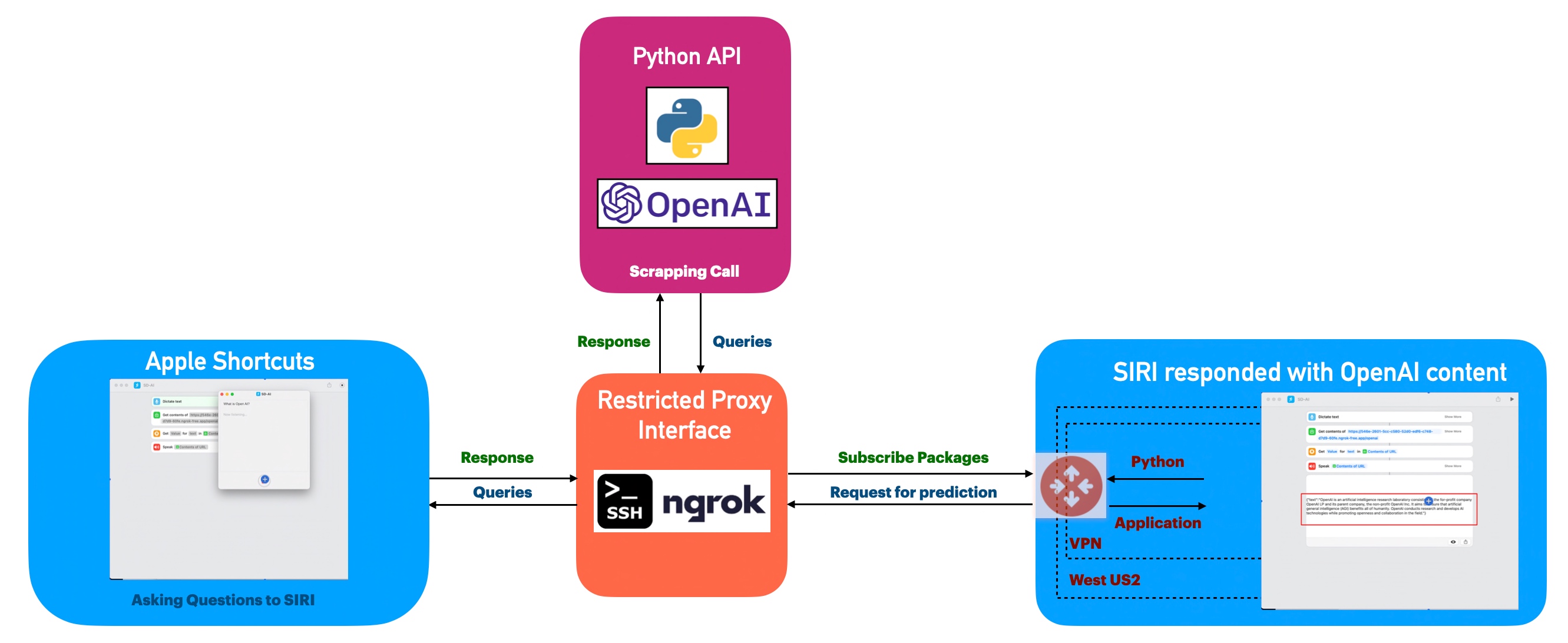
Let us look at the flow diagram as it captures the sequence of events that unfold as part of the process.
As you can see, Apple Shortcuts triggered the requests through its voice app, which then translates the question to text & then it will invoke the ngrok proxy API, which will eventually trigger the controlled custom API built using Flask & Python to start the Open AI API.
CODE:
Why don’t we go through the code made accessible due to this new library for this particular use case?
clsConfigClient.py (This is the main calling Python script for the input parameters.)
This file contains hidden or bidirectional Unicode text that may be interpreted or compiled differently than what appears below. To review, open the file in an editor that reveals hidden Unicode characters. Learn more about bidirectional Unicode characters
TEMP_VAL will help you to control the response in a more authentic manner. It varies between 0 to 1.
clsJarvis.py (This is the main calling Python script for the input parameters.)
This file contains hidden or bidirectional Unicode text that may be interpreted or compiled differently than what appears below. To review, open the file in an editor that reveals hidden Unicode characters. Learn more about bidirectional Unicode characters
The provided Python code snippet defines a method extractContentInText, which interacts with OpenAI’s API to generate a response from OpenAI’s chat model to a user’s query. Here’s a summary of what it does:
It fetches some predefined model configurations (model_name, max_token, temp_val). These are class attributes defined elsewhere.
It sets a system message template (initial instruction for the AI model) using ct.templateVal_1. The ct object isn’t defined within this snippet but is likely another predefined object or module in the more extensive program.
It then calls openai.ChatCompletion.create() to send messages to the AI model and generate a response. The statements include an initial system message and a user’s query.
The model’s response is extracted and formatted into a JSON object inputJson where the ‘text’ field holds the AI’s response.
The input JSON object returns a JSON response.
If an error occurs at any stage of this process (caught in the except block), it prints the error, sets a fallback message template using ct.templateVal_2, formats this into a JSON object, and returns it as a JSON response.
Note: The max_token variable is fetched but not used within the function; it might be a remnant of previous code or meant to be used in further development. The code also assumes a predefined ct object and a method called jsonify(), possibly from Flask, for formatting Python dictionaries into JSON format.
testJarvis.py (This is the main calling Python script.)
This file contains hidden or bidirectional Unicode text that may be interpreted or compiled differently than what appears below. To review, open the file in an editor that reveals hidden Unicode characters. Learn more about bidirectional Unicode characters
The provided Python code defines a route in a Flask web server that listens for POST requests at the ‘/openai’ endpoint. Here’s what it does in detail:
It records and prints the current time, marking the start of the request handling.
It retrieves the incoming data from the POST request as JSON with the request.get_json().
It then extracts the ‘prompt’ from the JSON data. The request defaults to an empty string if no ‘prompt’ is provided in the request.
The prompt is passed as an argument to the method extractContentInText() object cJarvis. This method is expected to use OpenAI’s API to generate a response from a model given the prompt (as discussed in your previous question). The result of this method call is stored in the variable res.
The res variable (the model’s response) returns the answer to the client requesting the POST.
It prints the current time again, marking the end of the request handling (However, this part of the code will never be executed as it places after a return statement).
If an error occurs during this process, it catches the exception, converts it to a string, and prints the error message.
The cJarvis object used in the cJarvis.extractContentInText(str(prompt)) call is not defined within this code snippet. It is a global object likely defined elsewhere in the more extensive program. The extractContentInText method is the one you shared in your previous question.
Apple Shortcuts:
Now, let us understand the steps in Apple Shortcuts.
You can now set up a Siri Shortcut to call the URL provided by ngrok:
Open the Shortcuts app on your iPhone.
Tap the ‘+’ to create a new Shortcut.
Add an action, search for “URL,” and select the URL action. Enter your ngrok URL here, with the /openai endpoint.
Add another action, search for “Get Contents of URL.” This step will send a POST request to the URL from the previous activity. Set the method to POST and add a request body with type ‘JSON,’ containing a key ‘prompt’ and a value being the input you want to send to your OpenAI model.
Optionally, you can add another action, “Show Result” or “Speak Text” to see/hear the result returned from your server.
Save your Shortcut and give it a name.
You should now be able to activate Siri and say the name of your Shortcut to have it send a request to your server, which will then send a prompt to the OpenAI API and return the response.
Let us understand the “Get contents of” with easy postman screenshots –
As you can see that the newly exposed proxy-API will receive an input named prompt, which will be passed from “Dictate Text.”
So, finally, we’ve done it.
I know that this post is relatively bigger than my earlier post. But, I think, you can get all the details once you go through it.
You will get the complete codebase in the following GitHub link.
I’ll bring some more exciting topics in the coming days from the Python verse. Please share & subscribe to my post & let me know your feedback.
Till then, Happy Avenging! 🙂
Note: All the data & scenarios posted here are representational data & scenarios & available over the internet & for educational purposes only. Some of the images (except my photo) we’ve used are available over the net. We don’t claim ownership of these images. There is always room for improvement & especially in the prediction quality.











You must be logged in to post a comment.