This site mainly deals with various use cases demonstrated using Python, Data Science, Cloud basics, SQL Server, Oracle, Teradata along with SQL & their implementation. Expecting yours active participation & time. This blog can be access from your TP, Tablet & mobile also. Please provide your feedback.
I’ve been looking for a solution that can help deploy any RAG solution involving Python faster. It would be more effective if an available UI helped deliver the solution faster. And, here comes the solution that does exactly what I needed – “LangFlow.”
Before delving into the details, I strongly recommend taking a look at the demo. It’s a great way to get a comprehensive understanding of LangFlow and its capabilities in deploying RAG architecture rapidly.
Demo
This describes the entire architecture; hence, I’ll share the architecture components I used to build the solution.
To know more about RAG-Architecture, please refer to the following link.
As we all know, we can parse the data from the source website URL (in this case, I’m referring to my photography website to extract the text of one of my blogs) and then embed it into the newly created Astra DB & new collection, where I will be storing the vector embeddings.
As you can see from the above diagram, the flow that I configured within 5 minutes and the full functionality of writing a complete solution (underlying Python application) within no time that extracts chunks, converts them into embeddings, and finally stores them inside the Astra DB.
Now, let us understand the next phase, where, based on the ask from a chatbot, I need to convert that question into Vector DB & then find the similarity search to bring the relevant vectors as shown below –
You need to configure this entire flow by dragging the necessary widgets from the left-side panel as marked in the Blue-Box shown below –
For this specific use case, we’ve created an instance of Astra DB & then created an empty vector collection. Also, we need to ensure that we generate the API-Key & and provide the right roles assigned with the token. After successfully creating the token, you need to copy the endpoint, token & collection details & paste them into the desired fields of the Astra-DB components inside the LangFlow. Think of it as a framework where one needs to provide all the necessary information to build & run the entire flow successfully.
Following are some of the important snapshots from the Astra-DB –
Step – 1
Step – 2
Once you run the vector DB population, this will insert extracted text & then convert it into vectors, which will show in the following screenshot –
You can see the sample vectors along with the text chunks inside the Astra DB data explorer as shown below –
Some of the critical components are highlighted in the Blue-box which is important for us to monitor the vector embeddings.
Now, here is how you can modify the current Python code of any available widgets or build your own widget by using the custom widget.
The first step is to click the code button highlighted in the Red-box as shown below –
The next step is when you click that button, which will open the detailed Python code representing the entire widget build & its functionality. This button is the place where you can add, modify, or keep it as it is depending upon your need, which will shown below –
Once one builds the entire solution, you must click the final compile button (shown in the red box), which will eventually compile all the individual widgets. However, you can build the compile button for the individual widgets as soon as you make the solution. So you can pinpoint any potential problems at that very step.
Let us understand one sample code of a widget. In this case, we will take vector embedding insertion into the Astra DB. Let us see the code –
This method defines the configuration options for the component.
Each configuration option includes a display_name and info, which provides details about the option.
Some options are marked as advanced, indicating they are optional and more complex.
Method: build:
This method is used to create an instance of the Astra DB Vector Store.
It takes several parameters, including embedding, token, api_endpoint, collection_name, and various optional parameters.
It converts the setup_mode string to an enum value.
If inputs are provided, they are converted to a format suitable for storing in the vector store.
Depending on whether inputs are provided, a new vector store from documents can be created, or an empty vector store can be initialized with the given configurations.
Finally, it returns the created vector store instance.
And, here is the the screenshot of your run –
And, this is the last steps to run the Integrated Chatbot as shown below –
Step – 1
Step – 2
As one can see the left side highlighted shows the reference text & chunks & the right side actual response.
So, we’ve done it. And, you know the fun fact. I did this entire workflow within 35 minutes alone. 😛
I’ll bring some more exciting topics in the coming days from the Python verse.
To learn about Astra DB, you need to click the following link.
To learn about my blog & photography, you can click the following url.
Till then, Happy Avenging! 🙂
Note: All the data & scenarios posted here are representational data & scenarios & available over the internet & for educational purposes only. There is always room for improvement in this kind of model & the solution associated with it. I’ve shown the basic ways to achieve the same for educational purposes only.
Today, I will share a new post that will contextualize the source files & then read the data into the pandas data frame, and then dynamically create the SQL & execute it. Then, fetch the data from the sources based on the query generated dynamically. This project is for the advanced Python developer and data Science Newbie.
In this post, I’ve directly subscribed to OpenAI & I’m not using OpenAI from Azure. However, I’ll explore that in the future as well.
Before I explain the process to invoke this new library, why not view the demo first & then discuss it?
Demo
FLOW OF EVENTS:
Let us look at the flow diagram as it captures the sequence of events that unfold as part of the process.
The application will take the metadata captured from source data dynamically. It blends the metadata and enhances the prompt to pass to the Flask server. The Flask server has all the limits of contexts.
Once the application receives the correct generated SQL, it will then apply the SQL using the SQLAlchemy package to get the desired results.
IMPORTANT PACKAGES:
The following are the important packages that are essential to this project –
We’ll have both the server and the main application. Today, we’ll be going in reverse mode. We first discuss the main script & then explain all the other class scripts.
1_invokeSQLServer.py (This is the main calling Python script to invoke the OpenAI-Server.)
Please find some of the key snippet from this discussion –
This code defines a web application route that handles POST requests sent to the /message endpoint:
Route Declaration: The @app.route('/message', methods=['POST']) part specifies that the function message() is executed when the server receives a POST request at the /message URL.
Function Definition: Inside the message() function:
It retrieves two pieces of data from the request’s JSON body: input_text (the user’s input message) and session_id (a unique identifier for the user’s session).
It prints the user’s input message, surrounded by lines of asterisks for emphasis.
Conversation History Management:
The code retrieves the conversation history associated with the given session_id. This history is a list of messages.
It then adds the new user message (input_text) to this conversation history.
OpenAI API Call:
The function makes a call to the OpenAI API, passing the user’s message. It specifies not to retry the request if it fails (max_retries=0).
The model used for the OpenAI API call is taken from some configurations (cf.conf['MODEL_NAME']).
Processing API Response:
The response from the OpenAI API is processed to extract the content of the chat response.
This chat response is printed.
Updating Conversation History:
The chat response is added to the conversation history.
The updated conversation history is then stored back in the session or database, associated with the session_id.
Returning the Response: Finally, the function returns the chat response.
clsDynamicSQLProcess.py (This Python class generates the SQL & then executes the flask server to invoke the OpenAI-Server.)
Now, let us understand the few important piece of snippet –
Function Overview: The text2SQLBegin function processes a list of database file names (DBFileNameList), a file path (fileDBPath), a query prompt (srcQueryPrompt), join conditions (joinCond), and a debug indicator (debugInd) to generate SQL commands.
Initial Setup: It starts by initializing variables for the question, the SQL table creation statement, and a string for join conditions.
Debug Prints: The function prints the current and previous session database file names for debugging purposes.
Flag Setting: A flag is set to ‘Y’ if the current session’s database file names match the previous session’s; otherwise, it’s set to ‘N’.
Processing New Session Data: If the flag is ‘N’, indicating new session data:
For each database file, it reads the data, converts string columns to lowercase, and creates a corresponding SQL table in a database using the pandas library.
Metadata is generated for each table and a CREATE TABLE SQL statement is created.
Join Conditions and Statement Aggregation: Join conditions are concatenated, and previous session information is updated with the current session’s data.
Handling Repeated Sessions: If the session data is repeated (flag is ‘Y’), it uses the previous session’s SQL table creation statements and database file names.
Final Input Prompt Creation: It constructs the final input prompt by combining template values with the create table statement, join conditions, and the original question.
Debug Printing: If debug mode is enabled, it prints the final input prompt.
Conclusion: The function clears the DBFileNameList and create_table_statement variables, and returns the constructed input prompt.
The text2SQLEnd function sends an HTTP POST request to a specified URL and returns the response. It takes two parameters: srcContext which contains the input text, and an optional debugInd for debugging purposes. The function constructs the request payload by converting the input text and an empty session ID to JSON format. It sets the request headers, including a content type of ‘application/json’ and a token from the configuration file. The function then sends the POST request using the requests library and returns the text content of the response.
The sql2Data function is designed to execute a SQL query on a database and return the result. It takes a single parameter, srcSQL, which contains the SQL query to be executed. The function uses the pandas library to run the provided SQL query (srcSQL) against a database connection (engine). It then returns the result of this query, which is typically a DataFrame object containing the data retrieved from the database.
defgenData(self,srcQueryPrompt,fileDBPath,DBFileNameList,joinCond,debugInd='N'):try:authorName=self.authorNamewebsite=self.websitevar=datetime.now().strftime("%Y-%m-%d_%H-%M-%S")print('*'*240)print('SQL Start Time: '+str(var))print('*'*240)print('*'*240)print()ifdebugInd=='Y':print('Author Name: ',authorName)print('For more information, please visit the following Website: ',website)print()print('*'*240)print('Your Data for Retrieval:')print('*'*240)ifdebugInd=='Y':print()print('Converted File to Dataframe Sample:')print()else:print()context=self.text2SQLBegin(DBFileNameList,fileDBPath,srcQueryPrompt,joinCond,debugInd)srcSQL=self.text2SQLEnd(context,debugInd)print(srcSQL)print('*'*240)print()resDF=self.sql2Data(srcSQL)print('*'*240)print('SQL End Time: '+str(var))print('*'*240)returnresDFexceptExceptionas e:x=str(e)print('Error: ',x)df=pd.DataFrame()returndf
Initialization and Debug Information: The function begins by initializing variables like authorName, website, and a timestamp (var). It then prints the start time of the SQL process. If the debug indicator (debugInd) is ‘Y’, it prints additional information like the author’s name and website.
Generating SQL Context and Query: The function calls text2SQLBegin with various parameters (file paths, database file names, query prompt, join conditions, and the debug indicator) to generate an SQL context. Then it calls text2SQLEnd with this context and the debug indicator to generate the actual SQL query.
Executing the SQL Query: It prints the generated SQL query for visibility, especially in debug mode. The query is then executed by calling sql2Data, which returns the result as a data frame (resDF).
Finalization and Error Handling: After executing the query, it prints the SQL end time. In case of any exceptions during the process, it catches the error, prints it, and returns an empty DataFrame.
Return Value: The function returns the DataFrame (resDF) containing the results of the executed SQL query. If an error occurs, it returns an empty DataFrame instead.
DIRECTORY STRUCTURES:
Let us explore the directory structure starting from the parent to some of the important child folder should look like this –
Let us understand the important screenshots of this entire process –
So, finally, we’ve done it.
You will get the complete codebase in the following GitHub link.
I’ll bring some more exciting topics in the coming days from the Python verse. Please share & subscribe to my post & let me know your feedback.
Till then, Happy Avenging! 🙂
Note: All the data & scenarios posted here are representational data & scenarios & available over the internet & for educational purposes only. Some of the images (except my photo) we’ve used are available over the net. We don’t claim ownership of these images. There is always room for improvement & especially in the prediction quality.
Today, I’ll be presenting another exciting capability of architecture in the world of LLMs, where you need to answer one crucial point & that is how valid the response generated by these LLMs is against your data. This response is critical when discussing business growth & need to take the right action at the right time.
Why not view the demo before going through it?
Demo
Isn’t it exciting? Great! Let us understand this in detail.
Flow of Architecture:
The first dotted box (extreme-left) represents the area that talks about the data ingestion from different sources, including third-party PDFs. It is expected that organizations should have ready-to-digest data sources. Examples: Data Lake, Data Mart, One Lake, or any other equivalent platforms. Those PDFs will provide additional insights beyond the conventional advanced analytics.
You need to have some kind of OCR solution that will extract all the relevant information in the form of text from the documents.
The next important part is how you define the chunking & embedding of data chunks into Vector DB. Chunking & indexing strategies, along with the overlapping chain, play a crucial importance in tying that segregated piece of context into a single context that will be fed into the source for your preferred LLMs.
This system employs a vector similarity search to browse through unstructured information and concurrently accesses the database to retrieve the context, ensuring that the responses are not only comprehensive but also anchored in validated knowledge.
This approach is particularly vital for addressing multi-hop questions, where a single query can be broken down into multiple sub-questions and may require information from numerous documents to generate an accurate answer.
clsFeedVectorDB.py (This is the main class that will invoke the Faiss framework to contextualize the docs inside the vector DB with the source file name to validate the answer from Gen AI using Globe.6B embedding models.)
Let us understand some of the key snippets from the above script (Full scripts will be available in the GitHub Repo) –
# Samplefunctiontoconverttexttoavectordeftext2Vector(self,text): # Encode the text using the tokenizerwords = [wordforwordintext.lower().split()ifwordinself.model] # Ifnowordsinthemodel, returnazerovectorifnot words:returnnp.zeros(self.model.vector_size) # Computetheaverageofthewordvectorsvector=np.mean([self.model[word] forwordinwords],axis=0)returnvector.reshape(1,-1)
This code is for a function called “text2Vector” that takes some text as input and converts it into a numerical vector. Let me break it down step by step:
It starts by taking some text as input, and this text is expected to be a sentence or a piece of text.
The text is then split into individual words, and each word is converted to lowercase.
It checks if each word is present in a pre-trained language model (probably a word embedding model like Word2Vec or GloVe). If a word is not in the model, it’s ignored.
If none of the words from the input text are found in the model, the function returns a vector filled with zeros. This vector has the same size as the word vectors in the model.
If there are words from the input text in the model, the function calculates the average vector of these words. It does this by taking the word vectors for each word found in the model and computing their mean (average). This results in a single vector that represents the input text.
Finally, the function reshapes this vector into a 2D array with one row and as many columns as there are elements in the vector. The reason for this reshaping is often related to compatibility with other parts of the code or libraries used in the project.
So, in simple terms, this function takes a piece of text, looks up the word vectors for the words in that text, and calculates the average of those vectors to create a single numerical representation of the text. If none of the words are found in the model, it returns a vector of zeros.
defgenData(self):try:basePath=self.basePathmodelFileName=self.modelFileNamevectorDBPath=self.vectorDBPathvectorDBFileName=self.vectorDBFileName # CreateaFAISSindexdimension=int(cf.conf['NO_OF_MODEL_DIM']) # Assuming100-dimensionalvectorsindex=faiss.IndexFlatL2(dimension)print('*'*240)print('Vector Index Your Data for Retrieval:')print('*'*240)FullVectorDBname=vectorDBPath+vectorDBFileNameindexFile=str(vectorDBPath) +str(vectorDBFileName) +'.index'print('File: ',str(indexFile))data={} # Listallfilesinthespecifieddirectoryfiles=os.listdir(basePath) # Filteroutfilesthatarenottextfilestext_files= [fileforfileinfilesiffile.endswith('.txt')] # Readeachtextfileforfilein text_files:file_path=os.path.join(basePath,file)print('*'*240)print('Processing File:')print(str(file_path))try: # Attempttoopenwithutf-8encodingwithopen(file_path,'r',encoding='utf-8') as file:forline_number,lineinenumerate(file,start=1): # Assumeeachlineisaseparatedocumentvector=self.text2Vector(line)vector=vector.reshape(-1)index_id=index.ntotalindex.add(np.array([vector])) # Addingthevectortotheindexdata[index_id] ={'text':line,'line_number':line_number,'file_name':file_path} # Storingthelineandfilenameexcept UnicodeDecodeError: # Ifutf-8fails,tryadifferentencodingtry:withopen(file_path,'r',encoding='ISO-8859-1') as file:forline_number,lineinenumerate(file,start=1): # Assumeeachlineisaseparatedocumentvector=self.text2Vector(line)vector=vector.reshape(-1)index_id=index.ntotalindex.add(np.array([vector])) # Addingthevectortotheindexdata[index_id] ={'text':line,'line_number':line_number,'file_name':file_path} # StoringthelineandfilenameexceptExceptionas e:print(f"Could not read file {file}: {e}")continueprint('*'*240) # SavethedatadictionaryusingpickledataCache=vectorDBPath+modelFileNamewithopen(dataCache,'wb') as f:pickle.dump(data,f) # Savetheindexanddataforlaterusefaiss.write_index(index,indexFile)print('*'*240)return0exceptExceptionas e:x=str(e)print('Error: ',x)return1
This code defines a function called genData, and its purpose is to prepare and store data for later retrieval using a FAISS index. Let’s break down what it does step by step:
It starts by assigning several variables, such as basePath, modelFileName, vectorDBPath, and vectorDBFileName. These variables likely contain file paths and configuration settings.
It creates a FAISS index with a specified dimension (assuming 100-dimensional vectors in this case) using faiss.IndexFlatL2. FAISS is a library for efficient similarity search and clustering of high-dimensional data.
It prints the file name and lines where the index will be stored. It initializes an empty dictionary called data to store information about the processed text data.
It lists all the files in a directory specified by basePath. It filters out only the files that have a “.txt” extension as text files.
It then reads each of these text files one by one. For each file:
It attempts to open the file with UTF-8 encoding.
It reads the file line by line.
For each line, it calls a function text2Vector to convert the text into a numerical vector representation. This vector is added to the FAISS index.
It also stores some information about the line, such as the line number and the file name, in the data dictionary.
If there is an issue with UTF-8 encoding, it tries to open the file with a different encoding, “ISO-8859-1”. The same process of reading and storing data continues.
If there are any exceptions (errors) during this process, it prints an error message but continues processing other files.
Once all the files are processed, it saves the data dictionary using the pickle library to a file specified by dataCache.
It also saves the FAISS index to a file specified by indexFile.
Finally, it returns 0 if the process completes successfully or 1 if there was an error during execution.
In summary, this function reads text files, converts their contents into numerical vectors, and builds a FAISS index for efficient similarity search. It also saves the processed data and the index for later use. If there are any issues during the process, it prints error messages but continues processing other files.
clsRAGOpenAI.py (This is the main class that will invoke the RAG class, which will get the contexts with references including source files, line numbers, and source texts. This will help the customer to validate the source against the OpenAI response to understand & control the data bias & other potential critical issues.)
Let us understand some of the key snippets from the above script (Full scripts will be available in the GitHub Repo) –
defragAnswerWithHaystackAndGPT3(self,queryVector,k,question):modelName=self.modelNamemaxToken=self.maxTokentemp=self.temp # AssuminggetTopKContextsisamethodthatreturnsthetopKcontextscontexts=self.getTopKContexts(queryVector,k)messages= [] # Addcontextsas system messagesforfile_name,line_number,textin contexts:messages.append({"role":"system","content":f"Document: {file_name} \nLine Number: {line_number} \nContent: {text}"})prompt=self.generateOpenaiPrompt(queryVector,k)prompt=prompt+"Question: "+str(question) +". \n Answer based on the above documents." # Adduserquestionmessages.append({"role":"user","content":prompt}) # Createchatcompletioncompletion=client.chat.completions.create(model=modelName,messages=messages,temperature=temp,max_tokens=maxToken ) # Assumingthelastmessageintheresponseistheanswerlast_response=completion.choices[0].message.contentsource_refernces= ['FileName: '+str(context[0]) +' - Line Numbers: '+str(context[1]) +' - Source Text (Reference): '+str(context[2]) forcontextincontexts]returnlast_response,source_refernces
This code defines a function called ragAnswerWithHaystackAndGPT3. Its purpose is to use a combination of the Haystack search method and OpenAI’s GPT-3 model to generate an answer to a user’s question. Let’s break down what it does step by step:
It starts by assigning several variables, such as modelName, maxToken, and temp. These variables likely contain model-specific information and settings for GPT-3.
It calls a method getTopKContexts to retrieve the top K contexts (which are likely documents or pieces of text) related to the user’s query. These contexts are stored in the contexts variable.
It initializes an empty list called messages to store messages that will be used in the conversation with the GPT-3 model.
It iterates through each context and adds them as system messages to the messages list. These system messages provide information about the documents or sources being used in the conversation.
It creates a prompt that combines the query, retrieved contexts, and the user’s question. This prompt is then added as a user message to the messages list. It effectively sets up the conversation for GPT-3, where the user’s question is followed by context.
It makes a request to the GPT-3 model using the client.chat.completions.create method, passing in the model name, the constructed messages, and other settings such as temperature and maximum tokens.
After receiving a response from GPT-3, it assumes that the last message in the response contains the answer generated by the model.
It also constructs source_references, which is a list of references to the documents or sources used in generating the answer. This information includes the file name, line numbers, and source text for each context.
Finally, it returns the generated answer (last_response) and the source references to the caller.
In summary, this function takes a user’s query, retrieves relevant contexts or documents, sets up a conversation with GPT-3 that includes the query and contexts, and then uses GPT-3 to generate an answer. It also provides references to the sources used in generating the answer.
This code defines a function called getTopKContexts. Its purpose is to retrieve the top K relevant contexts or pieces of information from a pre-built index based on a query vector. Here’s a breakdown of what it does:
It takes two parameters as input: queryVector, which is a numerical vector representing a query, and k, which specifies how many relevant contexts to retrieve.
Inside a try-except block, it attempts the following steps:
It uses the index.search method to find the top K closest contexts to the given queryVector. This method returns two arrays: distances (measuring how similar the contexts are to the query) and indices (indicating the positions of the closest contexts in the data).
It creates a list called “resDict", which contains tuples for each of the top K contexts. Each tuple contains three pieces of information: the file name (file_name), the line number (line_number), and the text content (text) of the context. These details are extracted from a data dictionary.
If the process completes successfully, it returns the list of top K contexts (resDict) to the caller.
If there’s an exception (an error) during this process, it captures the error message as a string (x), prints the error message, and then returns the error message itself.
In summary, this function takes a query vector and finds the K most relevant contexts or pieces of information based on their similarity to the query. It returns these contexts as a list of tuples containing file names, line numbers, and text content. If there’s an error, it prints an error message and returns the error message string.
defgenerateOpenaiPrompt(self,queryVector,k):contexts=self.getTopKContexts(queryVector,k)template=ct.templateVal_1prompt=templateforfile_name,line_number,textin contexts:prompt+=f"Document: {file_name}\n Line Number: {line_number} \n Content: {text}\n\n"returnprompt
This code defines a function called generateOpenaiPrompt. Its purpose is to create a prompt or a piece of text that combines a template with information from the top K relevant contexts retrieved earlier. Let’s break down what it does:
It starts by calling the getTopKContexts function to obtain the top K relevant contexts based on a given queryVector.
It initializes a variable called template with a predefined template value (likely defined elsewhere in the code).
It sets the prompt variable to the initial template.
Then, it enters a loop where it iterates through each of the relevant contexts retrieved earlier (contexts are typically documents or text snippets).
For each context, it appends information to the prompt. Specifically, it adds lines to the prompt that include:
The document’s file name (Document: [file_name]).
The line number within the document (Line Number: [line_number]).
The content of the context itself (Content: [text]).
It adds some extra spacing (newlines) between each context to ensure readability.
Finally, it returns the complete – prompt, which is a combination of the template and information from the relevant contexts.
In summary, this function takes a query vector, retrieves relevant contexts, and creates a prompt by combining a template with information from these contexts. This prompt can then be used as input for an AI model or system, likely for generating responses or answers based on the provided context.
Let us understand the directory structure of this entire application –
To learn more about this package, please visit the following GitHub link.
So, finally, we’ve done it. I know that this post is relatively smaller than my earlier post. But, I think, you can get a good hack to improve some of your long-running jobs by applying this trick.
I’ll bring some more exciting topics in the coming days from the Python verse. Please share & subscribe to my post & let me know your feedback.
Till then, Happy Avenging! 🙂
Note: All the data & scenarios posted here are representational data & scenarios & available over the internet & for educational purposes only. Some of the images (except my photo) we’ve used are available over the net. We don’t claim ownership of these images. There is always room for improvement & especially in the prediction quality.
Today, I will present some valid Python packages where you can explore most of the complex SQLs by using this new package named “Polars,” which can be extremely handy on many occasions.
This post will be short posts where I’ll prepare something new on LLMs for the upcoming posts for the next month.
Why not view the demo before going through it?
Demo
Python Packages:
pipinstallpolarspipinstallpandas
Code:
Let us understand the key class & snippets.
clsConfigClient.py (Key entries that will be discussed later)
In the above section, one source is getting populated from the CSV file, whereas the other source is feeding from a pandas data frame populated in the previous step.
Now, let us understand the SQL supported by this package, which is impressive –
As this is extremely easy to understand & self-explanatory.
To learn more about this package, please visit the following link.
So, finally, we’ve done it. I know that this post is relatively smaller than my earlier post. But, I think, you can get a good hack to improve some of your long-running jobs by applying this trick.
I’ll bring some more exciting topics in the coming days from the Python verse. Please share & subscribe to my post & let me know your feedback.
Till then, Happy Avenging! 🙂
Note: All the data & scenarios posted here are representational data & scenarios & available over the internet & for educational purposes only. Some of the images (except my photo) we’ve used are available over the net. We don’t claim ownership of these images. There is always room for improvement & especially in the prediction quality.
Today, I will share a new post in a part series about creating end-end LLMs that feed source data with RAG implementation. I’ll also use OpenAI python-based SDK and Haystack embeddings in this case.
In this post, I’ve directly subscribed to OpenAI & I’m not using OpenAI from Azure. However, I’ll explore that in the future as well.
Before I explain the process to invoke this new library, why not view the demo first & then discuss it?
Demo
FLOW OF EVENTS:
Let us look at the flow diagram as it captures the sequence of events that unfold as part of the process.
As you can see, to enable this large & complex solution, we must first establish the capabilities to build applications powered by LLMs, Transformer models, vector search, and more. You can use state-of-the-art NLP models to perform question-answering, answer generation, semantic document search, or build tools capable of complex decision-making and query resolution. Hence, steps no. 1 & 2 showcased the data embedding & creating that informed repository. We’ll be discussing that in our second part.
Once you have the informed repository, the system can interact with the end-users. As part of the query (shown in step 3), the prompt & the question are shared with the process engine, which then turned to reduce the volume & get relevant context from our informed repository & get the tuned context as part of the response (Shown in steps 4, 5 & 6).
Then, this tuned context is shared with the OpenAI for better response & summary & concluding remarks that are very user-friendly & easier to understand for end-users (Shown in steps 8 & 9).
IMPORTANT PACKAGES:
The following are the important packages that are essential to this project –
Let us understand some of the important sections of the above script –
Function – login():
The login function retrieves a ‘username’ and ‘password’ from a JSON request and prints them. It checks if the provided credentials are missing from users or password lists, returning a failure JSON response if so. It creates and returns an access token in a JSON response if valid.
Function – get_chat():
The get_chat function retrieves the running session count and user input from a JSON request. Based on the session count, it extracts catalog data or processes the user’s message from the RAG framework that finally receives the refined response from the OpenAI, extracting hash values, image URLs, and wiki URLs. If an error arises, the function captures and returns the error as a JSON message.
Function – updateCounter():
The updateCounter function checks if a given CSV file exists and retrieves its counter value. It then increments the counter and writes it back to the CSV. If any errors occur, an error message is printed, and the function returns a value of 1.
Function – extractRemoveUrls():
The extractRemoveUrls function attempts to filter a data frame, resDf, based on a provided hash value to extract image and wiki URLs. If the data frame contains matching entries, it retrieves the corresponding URLs. Any errors encountered are printed, but the function always returns the image and wiki URLs, even if they are empty.
clsContentScrapper.py (This is the main class that brings the default options for the users if they agree with the initial prompt by the bot.)
Let us understand the the core part that require from this class.
Function – extractCatalog():
The extractCatalog function uses specific headers to make a GET request to a constructed URL. The URL is derived by appending ‘/departments’ to a base_url, and a header token is used in the request headers. If successful, it returns the text of the response; if there’s an exception, it prints the error and returns the error message.
clsRAGOpenAI.py (This is the main class that brings the RAG-enabled context that is fed to OpenAI for fine-tuned response with less cost.)
############################################################# Written By:SATYAKIDE ######## Written On:27-Jun-2023 ######## ModifiedOn28-Jun-2023 ######## ######## Objective:Thisisthemaincalling ######## pythonscriptthatwillinvokethe ######## shortcutapplicationcreatedinsideMAC ######## enviornmentincludingMacBook,IPadorIPhone. ######## #############################################################fromhaystack.document_stores.faissimportFAISSDocumentStorefromhaystack.nodesimportDensePassageRetrieverimportopenaifromclsConfigClientimportclsConfigClientascfimportclsLaslog# DisblingWarningdefwarn(*args,**kwargs):passimportwarningswarnings.warn = warnimportosimportre################################################## GlobalSection ##################################################Ind = cf.conf['DEBUG_IND']queryModel = cf.conf['QUERY_MODEL']passageModel = cf.conf['PASSAGE_MODEL']#InitiatingLoggingInstancesclog = log.clsL()os.environ["TOKENIZERS_PARALLELISM"] = "false"vectorDBFileName = cf.conf['VECTORDB_FILE_NM']indexFile = "vectorDB/" + str(vectorDBFileName) + '.faiss'indexConfig = "vectorDB/" + str(vectorDBFileName) + ".json"print('File: ',str(indexFile))print('Config: ',str(indexConfig))# Also,provide`config_path`parameterifyousetitwhencallingthe`save()`method:new_document_store = FAISSDocumentStore.load(index_path=indexFile,config_path=indexConfig)# InitializeRetrieverretriever = DensePassageRetriever(document_store=new_document_store,query_embedding_model=queryModel,passage_embedding_model=passageModel,use_gpu=False)################################################## EndofGlobalSection ##################################################classclsRAGOpenAI:def__init__(self):self.basePath = cf.conf['DATA_PATH']self.fileName = cf.conf['FILE_NAME']self.Ind = cf.conf['DEBUG_IND']self.subdir = str(cf.conf['OUT_DIR'])self.base_url = cf.conf['BASE_URL']self.outputPath = cf.conf['OUTPUT_PATH']self.vectorDBPath = cf.conf['VECTORDB_PATH']self.openAIKey = cf.conf['OPEN_AI_KEY']self.temp = cf.conf['TEMP_VAL']self.modelName = cf.conf['MODEL_NAME']self.maxToken = cf.conf['MAX_TOKEN']defextractHash(self,text):try: # Regularexpressionpatterntomatch'Ref: {'followedbyanumberandthen'}'pattern = r"Ref: \{'(\d+)'\}"match = re.search(pattern,text)ifmatch:returnmatch.group(1)else:returnNoneexceptExceptionase:x = str(e)print('Error: ',x)returnNonedefremoveSentencesWithNaN(self,text):try: # Splittextintosentencesusingregularexpressionsentences = re.split('(?<!\w\.\w.)(?<![A-Z][a-z]\.)(?<=\.|\?)\s',text) # Filteroutsentencescontaining'nan'filteredSentences = [sentenceforsentenceinsentencesif'nan'notinsentence] # Rejointhesentencesreturn''.join(filteredSentences)exceptExceptionase:x = str(e)print('Error: ',x)return''defretrieveDocumentsReader(self,question,top_k=9):returnretriever.retrieve(question,top_k=top_k)defgenerateAnswerWithGPT3(self,retrieved_docs,question):try:openai.api_key = self.openAIKeytemp = self.tempmodelName = self.modelNamemaxToken = self.maxTokendocumentsText = "".join([doc.contentfordocinretrieved_docs])filteredDocs = self.removeSentencesWithNaN(documentsText)hashValue = self.extractHash(filteredDocs)print('RAG Docs:: ')print(filteredDocs) #prompt = f"Given the following documents: {documentsText}, answer the question accurately based on the above data with the supplied http urls: {question}" # Setupachat-stylepromptwithyourdatamessages = [{"role": "system", "content": "Youareahelpfulassistant,answerthequestionaccuratelybasedontheabovedatawiththesuppliedhttpurls. Onlyrelevantcontentneedstopublish. Pleasedonotprovidethefactsorthetextsthatresultscrossingthemax_tokenlimits."},{"role": "user", "content": filteredDocs} ] # Chatstyleinvokingthelatestmodelresponse = openai.ChatCompletion.create(model=modelName,messages=messages,temperature = temp,max_tokens=maxToken )returnhashValue,response.choices[0].message['content'].strip().replace('\n','\\n')exceptExceptionase:x = str(e)print('failed to get from OpenAI: ',x)return'Not Available!'defragAnswerWithHaystackAndGPT3(self,question):retrievedDocs = self.retrieveDocumentsReader(question)returnself.generateAnswerWithGPT3(retrievedDocs,question)defgetData(self,strVal):try:print('*'*120)print('Index Your Data for Retrieval:')print('*'*120)print('Response from New Docs: ')print()hashValue,answer = self.ragAnswerWithHaystackAndGPT3(strVal)print('GPT3 Answer::')print(answer)print('Hash Value:')print(str(hashValue))print('*'*240)print('End Of Use RAG to Generate Answers:')print('*'*240)returnhashValue,answerexceptExceptionase:x = str(e)print('Error: ',x)answer = xhashValue = 1returnhashValue,answer
Let us understand some of the important block –
Function – ragAnswerWithHaystackAndGPT3():
The ragAnswerWithHaystackAndGPT3 function retrieves relevant documents for a given question using the retrieveDocumentsReader method. It then generates an answer for the query using GPT-3 with the retrieved documents via the generateAnswerWithGPT3 method. The final response is returned.
Function – generateAnswerWithGPT3():
The generateAnswerWithGPT3 function, given a list of retrieved documents and a question, communicates with OpenAI’s GPT-3 to generate an answer. It first processes the documents, filtering and extracting a hash value. Using a chat-style format, it prompts GPT-3 with the processed documents and captures its response. If an error occurs, an error message is printed, and “Not Available!” is returned.
Function – retrieveDocumentsReader():
The retrieveDocumentsReader function takes in a question and an optional parameter, top_k (defaulted to 9). It is called the retriever.retrieve method with the given parameters. The result of the retrieval will generate at max nine responses from the RAG engine, which will be fed to OpenAI.
React:
App.js (This is the main react script, that will create the interface & parse the data apart from the authentication)
// App.jsimportReact,{useState}from'react';importaxiosfrom'axios';import'./App.css';constApp=()=>{const[isLoggedIn,setIsLoggedIn]=useState(false);const[username,setUsername]=useState('');const[password,setPassword]=useState('');const[message,setMessage]=useState('');const[chatLog,setChatLog]=useState([{sender:'MuBot',message:'Welcome to MuBot! Please explore the world of History from our brilliant collections! Do you want to proceed to see the catalog?'}]);consthandleLogin=async(e)=>{e.preventDefault();try{constresponse=awaitaxios.post('http://localhost:5000/login',{username,password});if (response.status===200) {setIsLoggedIn(true);}}catch (error) {console.error('Login error:',error);}};constsendMessage=async(username)=>{if (message.trim() ==='') return;// Create a new chat entryconstnewChatEntry={sender:'user',message:message.trim(),};// Clear the input fieldsetMessage('');try{// Make API request to Python-based APIconstresponse=awaitaxios.post('http://localhost:5000/chat',{message:newChatEntry.message});// Replace with your API endpoint URLconstresponseData=response.data;// Print the response to the console for debuggingconsole.log('API Response:',responseData);// Parse the nested JSON from the 'message' attributeconstjsonData=JSON.parse(responseData.message);// Check if the data contains 'departments'if (jsonData.departments) {// Extract the 'departments' attribute from the parsed dataconstdepartments=jsonData.departments;// Extract the department names and create a single string with line breaksconstbotResponseText=departments.reduce((acc,department)=>{returnacc+department.departmentId+''+department.displayName+'\n';},'');// Update the chat log with the bot's responsesetChatLog((prevChatLog)=> [...prevChatLog,{sender:'user',message:message},{sender:'bot',message:botResponseText},]);}elseif (jsonData.records){// Data structure 2: Artwork informationconstrecords=jsonData.records;// Prepare chat entriesconstchatEntries= [];// Iterate through records and extract text, image, and wiki informationrecords.forEach((record)=>{consttextInfo=Object.entries(record).map(([key,value])=>{if (key!=='Image'&&key!=='Wiki') {return`${key}: ${value}`;}returnnull;}).filter((info)=>info!==null).join('\n');constimageLink=record.Image;//const wikiLinks = JSON.parse(record.Wiki.replace(/'/g, '"'));//const wikiLinks = record.Wiki;constwikiLinks=record.Wiki.split(',').map(link=>link.trim());console.log('Wiki:',wikiLinks);// Check if there is a valid image linkconsthasValidImage=imageLink&&imageLink!=='[]';constimageElement=hasValidImage? (<imgsrc={imageLink}alt="Artwork"style={{maxWidth:'100%'}}/> ) :null;// Create JSX elements for rendering the wiki links (if available)constwikiElements=wikiLinks.map((link,index)=> (<divkey={index}><ahref={link}target="_blank"rel="noopener noreferrer"> Wiki Link {index+1}</a></div> ));if (textInfo) {chatEntries.push({sender:'bot',message:textInfo});}if (imageElement) {chatEntries.push({sender:'bot',message:imageElement});}if (wikiElements.length >0) {chatEntries.push({sender:'bot',message:wikiElements});}});// Update the chat log with the bot's responsesetChatLog((prevChatLog)=> [...prevChatLog,{sender:'user',message},...chatEntries, ]);}}catch (error) {console.error('Error sending message:',error);}};if (!isLoggedIn) {return (<divclassName="login-container"><h2>Welcome to the MuBot</h2><formonSubmit={handleLogin}className="login-form"><inputtype="text"placeholder="Enter your name"value={username}onChange={(e)=>setUsername(e.target.value)}required/><inputtype="password"placeholder="Enter your password"value={password}onChange={(e)=>setPassword(e.target.value)}required/><buttontype="submit">Login</button></form></div> );}return (<divclassName="chat-container"><divclassName="chat-header"><h2>Hello, {username}</h2><h3>Chat with MuBot</h3></div><divclassName="chat-log">{chatLog.map((chatEntry,index)=> (<divkey={index}className={`chat-entry ${chatEntry.sender==='user'?'user':'bot'}`}><spanclassName="user-name">{chatEntry.sender==='user'?username:'MuBot'}</span><pclassName="chat-message">{chatEntry.message}</p></div> ))}</div><divclassName="chat-input"><inputtype="text"placeholder="Type your message..."value={message}onChange={(e)=>setMessage(e.target.value)}onKeyPress={(e)=>{if (e.key==='Enter') {sendMessage();}}}/><buttononClick={sendMessage}>Send</button></div></div> );};exportdefaultApp;
Please find some of the important logic –
Function – handleLogin():
The handleLogin asynchronous function responds to an event by preventing its default action. It attempts to post a login request with a username and password to a local server endpoint. If the response is successful with a status of 200, it updates a state variable to indicate a successful login; otherwise, it logs any encountered errors.
Function – sendMessage():
The sendMessage asynchronous function is designed to handle the user’s chat interaction:
If the message is empty (after trimming spaces), the function exits without further action.
A chat entry object is created with the sender set as ‘user’ and the trimmed message.
The input field’s message is cleared, and an API request is made to a local server endpoint with the chat message.
If the API responds with a ‘departments’ attribute in its JSON, a bot response is crafted by iterating over department details.
If the API responds with ‘records’ indicating artwork information, the bot crafts responses for each record, extracting text, images, and wiki links, and generating JSX elements for rendering them.
After processing the API response, the chat log state is updated with the user’s original message and the bot’s responses.
Errors, if encountered, are logged to the console.
This function enables interactive chat with bot responses that vary based on the nature of the data received from the API.
DIRECTORY STRUCTURES:
Let us explore the directory structure starting from the parent to some of the important child folder should look like this –
So, finally, we’ve done it.
I know that this post is relatively bigger than my earlier post. But, I think, you can get all the details once you go through it.
You will get the complete codebase in the following GitHub link.
I’ll bring some more exciting topics in the coming days from the Python verse. Please share & subscribe to my post & let me know your feedback.
Till then, Happy Avenging! 🙂
Note: All the data & scenarios posted here are representational data & scenarios & available over the internet & for educational purposes only. Some of the images (except my photo) we’ve used are available over the net. We don’t claim ownership of these images. There is always room for improvement & especially in the prediction quality.
Today, I’m very excited to demonstrate an effortless & new way to integrate SIRI with a controlled Open-AI exposed through a proxy API. So, why this is important; this will give you options to control your ChatGPT environment as per your principles & then you can use a load-balancer (if you want) & exposed that through proxy.
In this post, I’ve directly subscribed to OpenAI & I’m not using OpenAI from Azure. However, I’ll explore that in the future as well.
Before I explain the process to invoke this new library, why not view the demo first & then discuss it?
Demo
Isn’t it fascinating? This approach will lead to a whole new ballgame, where you can add SIRI with an entirely new world of knowledge as per your requirements & expose them in a controlled way.
FLOW OF EVENTS:
Let us look at the flow diagram as it captures the sequence of events that unfold as part of the process.
As you can see, Apple Shortcuts triggered the requests through its voice app, which then translates the question to text & then it will invoke the ngrok proxy API, which will eventually trigger the controlled custom API built using Flask & Python to start the Open AI API.
CODE:
Why don’t we go through the code made accessible due to this new library for this particular use case?
clsConfigClient.py (This is the main calling Python script for the input parameters.)
This file contains hidden or bidirectional Unicode text that may be interpreted or compiled differently than what appears below. To review, open the file in an editor that reveals hidden Unicode characters. Learn more about bidirectional Unicode characters
TEMP_VAL will help you to control the response in a more authentic manner. It varies between 0 to 1.
clsJarvis.py (This is the main calling Python script for the input parameters.)
This file contains hidden or bidirectional Unicode text that may be interpreted or compiled differently than what appears below. To review, open the file in an editor that reveals hidden Unicode characters. Learn more about bidirectional Unicode characters
The provided Python code snippet defines a method extractContentInText, which interacts with OpenAI’s API to generate a response from OpenAI’s chat model to a user’s query. Here’s a summary of what it does:
It fetches some predefined model configurations (model_name, max_token, temp_val). These are class attributes defined elsewhere.
It sets a system message template (initial instruction for the AI model) using ct.templateVal_1. The ct object isn’t defined within this snippet but is likely another predefined object or module in the more extensive program.
It then calls openai.ChatCompletion.create() to send messages to the AI model and generate a response. The statements include an initial system message and a user’s query.
The model’s response is extracted and formatted into a JSON object inputJson where the ‘text’ field holds the AI’s response.
The input JSON object returns a JSON response.
If an error occurs at any stage of this process (caught in the except block), it prints the error, sets a fallback message template using ct.templateVal_2, formats this into a JSON object, and returns it as a JSON response.
Note: The max_token variable is fetched but not used within the function; it might be a remnant of previous code or meant to be used in further development. The code also assumes a predefined ct object and a method called jsonify(), possibly from Flask, for formatting Python dictionaries into JSON format.
testJarvis.py (This is the main calling Python script.)
This file contains hidden or bidirectional Unicode text that may be interpreted or compiled differently than what appears below. To review, open the file in an editor that reveals hidden Unicode characters. Learn more about bidirectional Unicode characters
The provided Python code defines a route in a Flask web server that listens for POST requests at the ‘/openai’ endpoint. Here’s what it does in detail:
It records and prints the current time, marking the start of the request handling.
It retrieves the incoming data from the POST request as JSON with the request.get_json().
It then extracts the ‘prompt’ from the JSON data. The request defaults to an empty string if no ‘prompt’ is provided in the request.
The prompt is passed as an argument to the method extractContentInText() object cJarvis. This method is expected to use OpenAI’s API to generate a response from a model given the prompt (as discussed in your previous question). The result of this method call is stored in the variable res.
The res variable (the model’s response) returns the answer to the client requesting the POST.
It prints the current time again, marking the end of the request handling (However, this part of the code will never be executed as it places after a return statement).
If an error occurs during this process, it catches the exception, converts it to a string, and prints the error message.
The cJarvis object used in the cJarvis.extractContentInText(str(prompt)) call is not defined within this code snippet. It is a global object likely defined elsewhere in the more extensive program. The extractContentInText method is the one you shared in your previous question.
Apple Shortcuts:
Now, let us understand the steps in Apple Shortcuts.
You can now set up a Siri Shortcut to call the URL provided by ngrok:
Open the Shortcuts app on your iPhone.
Tap the ‘+’ to create a new Shortcut.
Add an action, search for “URL,” and select the URL action. Enter your ngrok URL here, with the /openai endpoint.
Add another action, search for “Get Contents of URL.” This step will send a POST request to the URL from the previous activity. Set the method to POST and add a request body with type ‘JSON,’ containing a key ‘prompt’ and a value being the input you want to send to your OpenAI model.
Optionally, you can add another action, “Show Result” or “Speak Text” to see/hear the result returned from your server.
Save your Shortcut and give it a name.
You should now be able to activate Siri and say the name of your Shortcut to have it send a request to your server, which will then send a prompt to the OpenAI API and return the response.
Let us understand the “Get contents of” with easy postman screenshots –
As you can see that the newly exposed proxy-API will receive an input named prompt, which will be passed from “Dictate Text.”
So, finally, we’ve done it.
I know that this post is relatively bigger than my earlier post. But, I think, you can get all the details once you go through it.
You will get the complete codebase in the following GitHub link.
I’ll bring some more exciting topics in the coming days from the Python verse. Please share & subscribe to my post & let me know your feedback.
Till then, Happy Avenging! 🙂
Note: All the data & scenarios posted here are representational data & scenarios & available over the internet & for educational purposes only. Some of the images (except my photo) we’ve used are available over the net. We don’t claim ownership of these images. There is always room for improvement & especially in the prediction quality.
Today, I’m very excited to demonstrate an effortless & new way to fine-tune the GPT-3 model using Python with the help of my new build (unpublished) PyPi package. In this post, I plan to deal with the custom website link as a response from this website depending upon the user queries with the help of the OpenAI-based tuned model.
In this post, I’ve directly subscribed to OpenAI & I’m not using OpenAI from Azure. However, I’ll explore that in the future as well.
Before I explain the process to invoke this new library, why not view the demo first & then discuss it?
Demo
Isn’t it exciting? Finally, we can efficiently handle your custom website URL using OpenAI tuned model.
What is ChatGPT?
ChatGPT is an advanced artificial intelligence language model developed by OpenAI based on the GPT-4 architecture. As an AI model, it is designed to understand and generate human-like text-based on the input it receives. ChatGPT can engage in various tasks, such as answering questions, providing recommendations, creating content, and simulating conversation. While it is highly advanced and versatile, it’s important to note that ChatGPT’s knowledge is limited to the data it was trained on, with a cutoff date of September 2021.
When to tune GPT model?
Tuning a GPT or any AI model might be necessary for various reasons. Here are some common scenarios when you should consider adjusting or fine-tuning a GPT model:
Domain-specific knowledge: If you need your model to have a deeper understanding of a specific domain or industry, you can fine-tune it with domain-specific data to improve its performance.
New or updated data: If new or updated information is not part of the original training data, you should fine-tune the model to ensure it has the most accurate and up-to-date knowledge.
Customization: If you require the model to have a specific style, tone, or focus, you can fine-tune it with data that reflects those characteristics.
Ethical or safety considerations: To make the model safer and more aligned with human values, you should fine-tune it to reduce biased or harmful outputs.
Improve performance: If the base model’s performance is unsatisfactory for a particular task or application, you can fine-tune it on a dataset more relevant to the job, often leading to better results.
Remember that tuning or fine-tuning a GPT model requires access to appropriate data and computational resources and an understanding of the model’s architecture and training techniques. Additionally, monitoring and evaluating the model’s performance after fine-tuning is essential to ensure that the desired improvements have been achieved.
FLOW OF EVENTS:
Let us look at the flow diagram as it captures the sequence of events that unfold as part of the process.
The initial Python-based client interacts with the tuned OpenAI models. This process enables it to get a precise response with custom data in a very convenient way. So that anyone can understand.
SOURCE DATA:
Let us understand how to feed the source data as it will deal with your website URL link.
The first data that we are going to talk about is the one that contains the hyperlink. Let us explore the sample here.
From the above diagram, one can easily understand that the application will interpret a unique hash number associated with a specific URL. This data will be used to look up the URL after the OpenAI response from the tuned model as a result of any user query.
Now, let us understand the actual source data.
If we closely check, we’ll see the source file contains two columns – prompt & completion. And the website reference is put inside the curly braces as shown – “{Hash Code that represents your URL}.”
During the response, the newly created library replaces the hash value with the correct URL after the successful lookup & presents the complete answer.
CODE:
Why don’t we go through the code made accessible due to this new library for this particular use case?
clsConfigClient.py (This is the main calling Python script for the input parameters.)
This file contains hidden or bidirectional Unicode text that may be interpreted or compiled differently than what appears below. To review, open the file in an editor that reveals hidden Unicode characters. Learn more about bidirectional Unicode characters
trainChatGPTModel.py (This is the main calling Python script that will invoke the newly created fine-tune GPT-3 enabler.)
This file contains hidden or bidirectional Unicode text that may be interpreted or compiled differently than what appears below. To review, open the file in an editor that reveals hidden Unicode characters. Learn more about bidirectional Unicode characters
As one can see, the package needs only the source data file to fine-tune GPT-3 model.
checkFineTuneChatGPTModelStat.py (This is the main Python script that will check the status of the tuned process that will happen inside the OpenAI-cloud environment.)
This file contains hidden or bidirectional Unicode text that may be interpreted or compiled differently than what appears below. To review, open the file in an editor that reveals hidden Unicode characters. Learn more about bidirectional Unicode characters
To check the status of the fine-tuned job inside the OpenAI environment, one needs to provide the fine tune id, which generally starts with -> “ft-*.” One would get this value after the train script’s successful run.
input_text=str(input("Please provide the fine tune Id (Start with ft-*): "))url=url_part+input_textprint('URL: ',url)r1=tmodel.checkStat(url,open_api_key)
The above snippet is self-explanatory as one is passing the fine tune id along with the OpenAI API key.
testChatGPTModel.py (This is the main testing Python script that will invoke the newly created fine-tune GPT-3 enabler to get a response with custom data.)
This file contains hidden or bidirectional Unicode text that may be interpreted or compiled differently than what appears below. To review, open the file in an editor that reveals hidden Unicode characters. Learn more about bidirectional Unicode characters
In the above lines, the application gets the correct URL value from the look file we’ve prepared for this specific use case.
deleteChatGPTModel.py (This is the main Python script that will delete the old intended tuned model, which is no longer needed.)
This file contains hidden or bidirectional Unicode text that may be interpreted or compiled differently than what appears below. To review, open the file in an editor that reveals hidden Unicode characters. Learn more about bidirectional Unicode characters
We’ve demonstrated that using a straightforward method, one can delete any old tuned model from OpenAI that is no longer required.
KEY FEATURES TO CONSIDER DURING TUNING:
Data quality: Ensure that the data used for fine-tuning is clean, relevant, and representative of the domain you want the model to understand. Check for biases, inconsistencies, and errors in the dataset.
Overfitting: Be cautious of overfitting, which occurs when the model performs exceptionally well on the training data but poorly on unseen data. You can address overfitting by using regularization techniques, early stopping, or cross-validation.
Model size and resource requirements: GPT models can be resource-intensive. Be mindful of the hardware limitations and computational resources available when selecting the model size and the time and cost associated with training.
Hyperparameter tuning: Select appropriate hyperparameters for your fine-tuning processes, such as learning rate, batch size, and the number of epochs. Experiment with different combinations to achieve the best results without overfitting.
Evaluation metrics: Choose suitable evaluation metrics to assess the performance of your fine-tuned model. Consider using multiple metrics to understand your model’s performance comprehensively.
Ethical considerations: Be aware of potential biases in your dataset and how the model’s predictions might impact users. Address ethical concerns during the fine-tuning process and consider using techniques such as data augmentation or adversarial training to mitigate these biases.
Monitoring and maintenance: Continuously monitor the model’s performance after deployment, and be prepared to re-tune or update it as needed. Regular maintenance ensures that the model remains relevant and accurate.
Documentation: Document your tuning process, including the data used, model architecture, hyperparameters, and evaluation metrics. This factor will facilitate easier collaboration, replication, and model maintenance.
Cost: OpenAI fine-tuning can be extremely expensive, even for a small volume of data. Hence, organization-wise, one needs to be extremely careful while using this feature.
COST FACTOR:
Before we discuss the actual spending, let us understand the tested data volume to train & tune the model.
So, we’re talking about a total size of 500 KB (at max). And, we did 10 epochs during the training as you can see from the config file mentioned above.
So, it is pretty expensive. Use it wisely.
So, finally, we’ve done it.
I know that this post is relatively bigger than my earlier post. But, I think, you can get all the details once you go through it.
You will get the complete codebase in the following GitHub link.
I’ll bring some more exciting topics in the coming days from the Python verse. Please share & subscribe to my post & let me know your feedback.
Till then, Happy Avenging! 🙂
Note: All the data & scenarios posted here are representational data & scenarios & available over the internet & for educational purposes only. Some of the images (except my photo) we’ve used are available over the net. We don’t claim ownership of these images. There is always room for improvement & especially in the prediction quality.
Today, I will discuss our Virtual personal assistant (SJ) with a combination of AI-driven APIs, which is now operational in Python. We will use the three most potent APIs using OpenAI, Rev-AI & Pyttsx3. Why don’t we see the demo first?
Great! Let us understand we can leverage this by writing a tiny snippet using this new AI model.
Architecture:
Let us understand the flow of events –
The application first invokes the API to capture the audio spoken through the audio device & then translate that into text, which is later parsed & shared as input by the openai for the response of the posted queries. Once, OpenAI shares the response, the python-based engine will take the response & using pyttsx3 to convert them to voice.
Python Packages:
Following are the python packages that are necessary to develop this brilliant use case –
Let us now understand the code. For this use case, we will only discuss three python scripts. However, we need more than these three. However, we have already discussed them in some of the early posts. Hence, we will skip them here.
clsConfigClient.py (Main configuration file)
This file contains hidden or bidirectional Unicode text that may be interpreted or compiled differently than what appears below. To review, open the file in an editor that reveals hidden Unicode characters. Learn more about bidirectional Unicode characters
Note that, all the API-key are not real. You need to generate your own key.
clsText2Voice.py (The python script that will convert text to voice)
This file contains hidden or bidirectional Unicode text that may be interpreted or compiled differently than what appears below. To review, open the file in an editor that reveals hidden Unicode characters. Learn more about bidirectional Unicode characters
The code is a function that generates speech audio from a given string using the Pyttsx3 library in Python. The function sets the speech rate and pitch using the “speedSpeech” and “speedPitch” properties of the calling object, initializes the Pyttsx3 engine, sets the speech rate and pitch on the engine, speaks the given string, and waits for the speech to finish. The function returns 0 after the speech is finished.
clsChatEngine.py (This python script will invoke the ChatGPT OpenAI class to initiate the response of the queries in python.)
This file contains hidden or bidirectional Unicode text that may be interpreted or compiled differently than what appears below. To review, open the file in an editor that reveals hidden Unicode characters. Learn more about bidirectional Unicode characters
The code is a function that uses OpenAI’s ChatGPT model to generate text based on a given prompt text. The function takes the text to be completed as input and uses an API key stored in the OPENAI_API_KEY property of the calling object to request OpenAI’s API. If the request is successful, the function returns the top completion generated by the model, as stored in the text field of the first item in the choices list of the API response.
The function includes error handling for IOError and Exception. If an IOError occurs, the function checks if the error number is errno.EPIPE and, if it is, returns without doing anything. If an Exception occurs, the function converts the error message to a string and prints it, then returns the string.
clsVoice2Text.py (This python script will invoke the Rev-AI class to initiate the transformation of audio into the text.)
This file contains hidden or bidirectional Unicode text that may be interpreted or compiled differently than what appears below. To review, open the file in an editor that reveals hidden Unicode characters. Learn more about bidirectional Unicode characters
The code is a python function called processVoice() that processes a user’s voice input using the Rev.AI API. The function takes in one argument, “var,” which is not used in the code.
Let us understand the code –
First, the function sets several variables, including the Rev.AI API access token, the sample rate, and the chunk size for the audio input.
Then, it creates a media configuration object for raw microphone input.
A RevAiStreamingClient object is created using the access token and the media configuration.
The code opens the microphone input using a statement and the microphone stream class.
Within the statement, the code starts the server connection and a thread that sends microphone audio to the server.
The code then iterates through the responses from the server, normalizing the JSON response and storing the values in a pandas data-frame.
If the “confidence” column exists in the data-frame, the code joins all the values to form the final text and raises an exception.
If there is an exception, the WebSocket connection is ended, and the final text is returned.
If there is any error, the WebSocket connection is also ended, and an empty string or the error message is returned.
clsMicrophoneStream.py (This python script invoke the rev_ai template to capture the chunk voice data & stream it to the service for text translation & return the response to app.)
This file contains hidden or bidirectional Unicode text that may be interpreted or compiled differently than what appears below. To review, open the file in an editor that reveals hidden Unicode characters. Learn more about bidirectional Unicode characters
This code is a part of a context manager class (clsMicrophoneStream) and implements the __enter__ method of the class. The method sets up a PyAudio object and opens an audio stream using the PyAudio object. The audio stream is configured to have the following properties:
Format: 16-bit integer (paInt16)
Channels: 1 (mono)
Rate: The rate specified in the instance of the ms.clsMicrophoneStream class.
Input: True, meaning the audio stream is an input stream, not an output stream.
Frames per buffer: The chunk specified in the instance of the ms.clsMicrophoneStream class.
Stream callback: The method self._fill_buffer will be called when the buffer needs more data.
The self.closed attribute is set to False to indicate that the stream is open. The method returns the instance of the class (self).
The exit method implements the “exit” behavior of a Python context manager. It is automatically called when the context manager is exited using the statement.
The method stops and closes the audio stream, sets the closed attribute to True, and places None in the buffer. The terminate method of the PyAudio interface is then called to release any resources used by the audio stream.
The _fill_buffer method is a callback function that runs asynchronously to continuously collect data from the audio stream and add it to the buffer.
The _fill_buffer method takes four arguments:
in_data: the raw audio data collected from the audio stream.
frame_count: the number of frames of audio data that was collected.
time_info: information about the timing of the audio data.
status_flags: flags that indicate the status of the audio stream.
The method adds the collected in_data to the buffer using the put method of the buffer object. It returns a tuple of None and pyaudio.paContinue to indicate that the audio stream should continue.
defgenerator(self):whilenotself.closed: ###################################################################### ### Useablockingget() toensurethere's at least one chunk of #### ### data,andstopiterationifthechunkisNone,indicatingthe #### ### endoftheaudiostream. #### ######################################################################chunk=self._buff.get()ifchunkis None:returndata= [chunk] ########################################################## ### Nowconsumewhateverotherdata's still buffered. #### ##########################################################while True:try:chunk=self._buff.get(block=False)ifchunkis None:returndata.append(chunk)exceptqueue.Empty:breakyieldb''.join(data)
The logic of the code “def generator(self):” is as follows:
The function generator is an infinite loop that runs until self.closed is True. Within the loop, it uses a blocking get() method of the buffer object (self._buff) to retrieve a chunk of audio data. If the retrieved chunk is None, it means the end of the audio stream has been reached, and the function returns.
If the retrieved chunk is not None, it appends it to the data list. The function then enters another inner loop that continues to retrieve chunks from the buffer using the non-blocking get() method until there are no more chunks left. Finally, the function yields the concatenated chunks of data as a single-byte string.
SJVoiceAssistant.py (Main calling python script)
This file contains hidden or bidirectional Unicode text that may be interpreted or compiled differently than what appears below. To review, open the file in an editor that reveals hidden Unicode characters. Learn more about bidirectional Unicode characters
defmain():try:spFlag=Truevar=datetime.datetime.now().strftime("%Y-%m-%d_%H-%M-%S")print('*'*120)print('Start Time: '+str(var))print('*'*120)exitComment='THANKS.'while True:try:finalText=''ifspFlag== True:finalText=x4.processVoice(var)else:passval=finalText.upper().strip()print('Main Return: ',val)print('Exit Call: ',exitComment)print('Length of Main Return: ',len(val))print('Length of Exit Call: ',len(exitComment))ifval== exitComment:breakeliffinalText=='':spFlag=Trueelse:print('spFlag::',spFlag)print('Inside: ',finalText)resVal=x2.findFromSJ(finalText)print('ChatGPT Response:: ')print(resVal)resAud=x3.getAudio(resVal)spFlag=FalseexceptExceptionas e:passvar1=datetime.datetime.now().strftime("%Y-%m-%d_%H-%M-%S")print('*'*120)print('End Time: '+str(var1))print('SJ Voice Assistant exited successfully!')print('*'*120)exceptExceptionas e:x=str(e)print('Error: ',x)
The code is a Python script that implements a voice-based chatbot (likely named “SJ Voice Assistant”). The code performs the following operations:
Initialize the string “exitComment” to “THANKS.” and set the “spFlag” to True.
Start an infinite loop until a specific condition breaks the loop.
In the loop, try to process the input voice with a function called “processVoice()” from an object “x4”. Store the result in “finalText.”
Convert “finalText” to upper case, remove leading/trailing whitespaces, and store it in “val.” Print “Main Return” and “Exit Call” with their length.
If “val” equals “exitComment,” break the loop. Suppose “finalText” is an empty string; set “spFlag” to True. Otherwise, perform further processing: a. Call the function “findFromSJ()” from an object “x2” with the input “finalText.” Store the result in “resVal.” b. Call the function “getAudio()” from an object “x3” with the input “resVal.” Store the result in “resAud.” Set “spFlag” to False.
If an exception occurs, catch it and pass (do nothing).
Finally the application will exit by displaying the following text – “SJ Voice Assistant exited successfully!”
If an exception occurs outside the loop, catch it and print the error message.
So, finally, we’ve done it.
I know that this post is relatively bigger than my earlier post. But, I think, you can get all the details once you go through it.
You will get the complete codebase in the following GitHub link.
I’ll bring some more exciting topics in the coming days from the Python verse. Please share & subscribe to my post & let me know your feedback.
Till then, Happy Avenging! 🙂
Note: All the data & scenarios posted here are representational data & scenarios & available over the internet & for educational purposes only. Some of the images (except my photo) we’ve used are available over the net. We don’t claim ownership of these images. There is always room for improvement & especially in the prediction quality.
Today, I’m going to discuss another Computer Vision installment. I’ll discuss how to implement Augmented Reality using Open-CV Computer Vision with full audio. We will be using part of a Bengali OTT Series called “Feludar Goendagiri” entirely for educational purposes & also as a tribute to the great legendary director, late Satyajit Roy. To know more about him, please click the following link.
Why don’t we see the demo first before jumping into the technical details?
Demo
Architecture:
Let us understand the architecture –
Process Flow
The above diagram shows that the application, which uses the Open-CV, analyzes individual frames from the source & blends that with the video trailer. Finally, it creates another video by correctly mixing the source audio.
Python Packages:
Following are the python packages that are necessary to develop this brilliant use case –
pip install opencv-python
pip install pygame
CODE:
Let us now understand the code. For this use case, we will only discuss three python scripts. However, we need more than these three. However, we have already discussed them in some of the early posts. Hence, we will skip them here.
clsAugmentedReality.py (This is the main class of python script that will embed the source video with the WebCAM streams in real-time.)
This file contains hidden or bidirectional Unicode text that may be interpreted or compiled differently than what appears below. To review, open the file in an editor that reveals hidden Unicode characters. Learn more about bidirectional Unicode characters
Identifying the Aruco markers are key here. The above lines help the program detect all four corners.
However, let us discuss more on the Aruco markers & strategies that I’ve used for several different surfaces.
Aruco Markers
As you can see, the right-hand side Aruco marker is tiny compared to the left one. Hence, that one will be ideal for a curve surface like Coffee Mug, Bottle rather than a flat surface.
Also, we’ve demonstrated the zoom capability with the smaller Aruco marker that will Augment almost double the original surface area.
Let us understand why we need that; as you know, any spherical surface like a bottle is round-shaped. Hence, detecting relatively more significant Aruco markers in four corners will be difficult for any camera to identify.
Hence, we need a process where close four corners can be extrapolated mathematically to relatively larger projected areas easily detectable by any WebCAM.
Let’s observe the following figure –
Simulated Extrapolated corners
As you can see that the original position of the four corners is represented using the following points, i.e., (x1, y1), (x2, y2), (x3, y3) & (x4, y4).
And these positions are very close to each other. Hence, it will be easier for the camera to detect all the points (like a plain surface) without many retries.
And later, you can add specific values of x & y to them to get the derived four corners as shown in the above figures through the following points, i.e. (x1.1, y1.1), (x2.1, y2.1), (x3.1, y3.1) & (x4.1, y4.1).
# Loop over the IDs of the ArUco markers in Top-Left, Top-Right,
# Bottom-Right, and Bottom-Left order
for i in cornerIDs:
  # Grab the index of the corner with the current ID
  j = np.squeeze(np.where(ids == i))

  # If we receive an empty list instead of an integer index,
  # then we could not find the marker with the current ID
  if j.size == 0:
    continue

  # Otherwise, append the corner (x, y)-coordinates to our list
  # of reference points
  corner = np.squeeze(corners[j])
  refPts.append(corner)

# Check to see if we failed to find the four ArUco markers
if len(refPts) != 4:
  # If we are allowed to use cached reference points, fall
  # back on them
  if useCache and CACHED_REF_PTS is not None:
    refPts = CACHED_REF_PTS

  # Otherwise, we cannot use the cache and/or there are no
  # previous cached reference points, so return early
  else:
    return None

# If we are allowed to use cached reference points, then update
# the cache with the current set
if useCache:
  CACHED_REF_PTS = refPts

# Unpack our Aruco reference points and use the reference points
# to define the Destination transform matrix, making sure the
# points are specified in Top-Left, Top-Right, Bottom-Right, and
# Bottom-Left order
(refPtTL, refPtTR, refPtBR, refPtBL) = refPts
dstMat = [refPtTL[0], refPtTR[1], refPtBR[2], refPtBL[3]]
dstMat = np.array(dstMat)
In the above snippet, the application will scan through all the points & try to detect Aruco markers & then create a list of reference points, which will later be used to define the destination transformation matrix.
The above snippets calculate the revised points for the zoom-out capabilities as discussed in one of the earlier figures.
# Define the transform matrix for the *source* image in Top-Left,
# Top-Right, Bottom-Right, and Bottom-Left order
srcMat = np.array([[0, 0], [srcW, 0], [srcW, srcH], [0, srcH]])
The above snippet will create a transformation matrix for the video trailer.
# Compute the homography matrix and then warp the source image to
# the destination based on the homography depending upon the
# zoom flag
if zoomFlag == 1:
  (H, _) = cv2.findHomography(srcMat, dstMat)
else:
  (H, _) = cv2.findHomography(srcMat, dstMatMod)

warped = cv2.warpPerspective(source, H, (imgW, imgH))

# Construct a mask for the source image now that the perspective
# warp has taken place (we'll need this mask to copy the source
# image into the destination)
mask = np.zeros((imgH, imgW), dtype="uint8")
if zoomFlag == 1:
  cv2.fillConvexPoly(mask, dstMat.astype("int32"), (255, 255, 255), cv2.LINE_AA)
else:
  cv2.fillConvexPoly(mask, dstMatMod.astype("int32"), (255, 255, 255), cv2.LINE_AA)

# This optional step will give the source image a black
# border surrounding it when applied to the source image, you
# can apply a dilation operation
rect = cv2.getStructuringElement(cv2.MORPH_RECT, (3, 3))
mask = cv2.dilate(mask, rect, iterations=2)

# Create a three channel version of the mask by stacking it
# depth-wise, such that we can copy the warped source image
# into the input image
maskScaled = mask.copy() / 255.0
maskScaled = np.dstack([maskScaled] * 3)

# Copy the warped source image into the input image by
# (1) Multiplying the warped image and masked together,
# (2) Then multiplying the original input image with the
#     mask (giving more weight to the input where there
#     are not masked pixels), and
# (3) Adding the resulting multiplications together
warpedMultiplied = cv2.multiply(warped.astype("float"), maskScaled)
imageMultiplied = cv2.multiply(frame.astype(float), 1.0 - maskScaled)
output = cv2.add(warpedMultiplied, imageMultiplied)
output = output.astype("uint8")
Finally, depending upon the zoom flag, the application will create a warped image surrounded by an optionally black border.
clsEmbedVideoWithStream.py (This is the main class of python script that will invoke the clsAugmentedReality class to initiate augment reality after splitting the audio & video & then project them via the Web-CAM with a seamless broadcast.)
This file contains hidden or bidirectional Unicode text that may be interpreted or compiled differently than what appears below. To review, open the file in an editor that reveals hidden Unicode characters. Learn more about bidirectional Unicode characters
Please find the key snippet from the above script –
def playAudio(self, audioFile, audioLen, freq, stopFlag=False):
  try:
    pygame.mixer.init()
    pygame.init()
    pygame.mixer.music.load(audioFile)

    pygame.mixer.music.set_volume(10)

    val = int(audioLen)
    i = 0

    while i < val:
      pygame.mixer.music.play(loops=0, start=float(i))
      time.sleep(freq)

      i = i + 1

      if (i >= val):
        raise BreakLoop

      if (stopFlag==True):
        raise BreakLoop

    return 0
  except BreakLoop as s:
    return 0
  except Exception as e:
    x = str(e)
    print(x)

    return 1
The above function will initiate the pygame library to run the sound of the video file that has been extracted as part of a separate process.
def extractAudio(self, video_file, output_ext="mp3"):
    try:
        """Converts video to audio directly using `ffmpeg` command
        with the help of subprocess module"""
        filename, ext = os.path.splitext(video_file)
        subprocess.call(["ffmpeg", "-y", "-i", video_file, f"{filename}.{output_ext}"],
                        stdout=subprocess.DEVNULL,
                        stderr=subprocess.STDOUT)

        return 0
    except Exception as e:
        x = str(e)
        print('Error: ', x)

        return 1
The above function temporarily extracts the audio file from the source trailer video.
# Initialize the video file stream
print("[INFO] accessing video stream...")
vf = cv2.VideoCapture(videoFile)

x = self.extractAudio(videoFile)

if x == 0:
    print('Successfully Audio extracted from the source file!')
else:
    print('Failed to extract the source audio!')

# Initialize a queue to maintain the next frame from the video stream
Q = deque(maxlen=128)

# We need to have a frame in our queue to start our augmented reality
# pipeline, so read the next frame from our video file source and add
# it to our queue
(grabbed, source) = vf.read()
Q.appendleft(source)

# Initialize the video stream and allow the camera sensor to warm up
print("[INFO] starting video stream...")
vs = VideoStream(src=0).start()

time.sleep(2.0)
flg = 0
The above snippets read the frames from the video file after invoking the audio extraction. Then, it uses a Queue method to store all the video frames for better performance. And finally, it starts consuming the standard streaming video from the WebCAM to augment the trailer video on top of it.
t = threading.Thread(target=self.playAudio, args=(audioFile, audioLen, audioFreq, stopFlag,))
t.daemon = True
Now, the application has instantiated an orphan thread to spin off the audio play function. The reason is to void the performance & video frame frequency impact on top of it.
while len(Q) > 0:
  try:
    # Grab the frame from our video stream and resize it
    frame = vs.read()
    frame = imutils.resize(frame, width=1020)

    # Attempt to find the ArUCo markers in the frame, and provided
    # they are found, take the current source image and warp it onto
    # input frame using our augmented reality technique
    warped = x1.getWarpImages(
      frame, source,
      cornerIDs=(923, 1001, 241, 1007),
      arucoDict=arucoDict,
      arucoParams=arucoParams,
      zoomFlag=zFlag,
      useCache=CacheL > 0)

    # If the warped frame is not None, then we know (1) we found the
    # four ArUCo markers and (2) the perspective warp was successfully
    # applied
    if warped is not None:
      # Set the frame to the output augment reality frame and then
      # grab the next video file frame from our queue
      frame = warped
      source = Q.popleft()

      if flg == 0:

        t.start()
        flg = flg + 1

    # For speed/efficiency, we can use a queue to keep the next video
    # frame queue ready for us -- the trick is to ensure the queue is
    # always (or nearly full)
    if len(Q) != Q.maxlen:
      # Read the next frame from the video file stream
      (grabbed, nextFrame) = vf.read()

      # If the frame was read (meaning we are not at the end of the
      # video file stream), add the frame to our queue
      if grabbed:
        Q.append(nextFrame)

    # Show the output frame
    cv2.imshow(title, frame)
    time.sleep(videoFrame)

    # If the `q` key was pressed, break from the loop
    if cv2.waitKey(2) & 0xFF == ord('q'):
      stopFlag = True
      break

  except BreakLoop:
    raise BreakLoop
  except Exception as e:
    pass

  if (len(Q) == Q.maxlen):
    time.sleep(2)
    break
The final segment will call the getWarpImages function to get the Augmented image on top of the video. It also checks for the upcoming frames & whether the source video is finished or not. In case of the end, the application will initiate a break method to come out from the infinite WebCAM read. Also, there is a provision for manual exit by pressing the ‘Q’ from the MacBook keyboard.
# Performing cleanup at the end
cv2.destroyAllWindows()
vs.stop()
It is always advisable to close your camera & remove any temporarily available windows that are still left once the application finishes the process.
augmentedMovieTrailer.py (Main calling script)
This file contains hidden or bidirectional Unicode text that may be interpreted or compiled differently than what appears below. To review, open the file in an editor that reveals hidden Unicode characters. Learn more about bidirectional Unicode characters
The above script will initially instantiate the main calling class & then invoke the processStream function to create the Augmented Reality.
FOLDER STRUCTURE:
Here is the folder structure that contains all the files & directories in MAC O/S –
Directory Structure
You will get the complete codebase in the following Github link.
If you want to know more about this legendary director & his famous work, please visit the following link.
I’ll bring some more exciting topic in the coming days from the Python verse. Please share & subscribe my post & let me know your feedback.
Till then, Happy Avenging! 🙂
Note: All the data & scenario posted here are representational data & scenarios & available over the internet & for educational purpose only. Some of the images (except my photo) that we’ve used are available over the net. We don’t claim the ownership of these images. There is an always room for improvement & especially the prediction quality.
Today, I’ll be using another exciting installment of Computer Vision. Our focus will be on getting a sense of human emotions. Let me explain. This post will demonstrate how to read/detect human emotions by analyzing computer vision videos. We will be using part of a Bengali Movie called “Ganashatru (An enemy of the people)” entirely for educational purposes & also as a tribute to the great legendary director late Satyajit Roy. To know more about him, please click the following link.
Why don’t we see the demo first before jumping into the technical details?
Demo
Architecture:
Let us understand the architecture –
Process Flow
From the above diagram, one can see that the application, which uses both the Open-CV & DeepFace, analyzes individual frames from the source. Then predicts the emotions & adds the label in the target B&W frames. Finally, it creates another video by correctly mixing the source audio.
Python Packages:
Following are the python packages that are necessary to develop this brilliant use case –
Let us now understand the code. For this use case, we will only discuss three python scripts. However, we need more than these three. However, we have already discussed them in some of the early posts. Hence, we will skip them here.
clsConfig.py (This script will play the video along with audio in sync.)
This file contains hidden or bidirectional Unicode text that may be interpreted or compiled differently than what appears below. To review, open the file in an editor that reveals hidden Unicode characters. Learn more about bidirectional Unicode characters
All the above inputs are generic & used as normal parameters.
clsFaceEmotionDetect.py (This python class will track the human emotions after splitting the audio from the video & put that label on top of the video frame.)
This file contains hidden or bidirectional Unicode text that may be interpreted or compiled differently than what appears below. To review, open the file in an editor that reveals hidden Unicode characters. Learn more about bidirectional Unicode characters
def convert_video_to_audio_ffmpeg(self, video_file, output_ext="mp3"):
    try:
        """Converts video to audio directly using `ffmpeg` command
        with the help of subprocess module"""
        filename, ext = os.path.splitext(video_file)
        subprocess.call(["ffmpeg", "-y", "-i", video_file, f"{filename}.{output_ext}"],
                        stdout=subprocess.DEVNULL,
                        stderr=subprocess.STDOUT)

        return 0
    except Exception as e:
        x = str(e)
        print('Error: ', x)

        return 1
The above snippet represents an Audio extraction function that will extract the audio from the source file & store it in the specified directory.
# Loading the haarcascade xml class
faceCascade = cv2.CascadeClassifier(cv2.data.haarcascades + 'haarcascade_frontalface_default.xml')
Now, Loading is one of the best classes for face detection, which our applications require.
fvs = FileVideoStream(videoFile).start()
Using FileVideoStream will enable our application to process the video faster than cv2.VideoCapture() method.
# start the FPS timer
fps = FPS().start()
The application then invokes the FPS.Start() that will initiate the FPS timer.
# loop over frames from the video file stream
while fvs.more():
The application will check using fvs.more() to find the EOF of the video file. Until then, it will try to read individual frames.
try:
    frame = fvs.read()
except Exception as e:
    x = str(e)
    print('Error: ', x)
The application will read individual frames. In case of any issue, it will capture the correct error without terminating the main program at the beginning. This exception strategy is beneficial when there is no longer any frame to read & yet due to the end frame issue, the entire application throws an error.
At this point, the application is resizing the frame for better resolution & performance. Furthermore, identify this video feed as a source.
# Enforce Detection to False will continue the sequence even when there is no face
result = DeepFace.analyze(frame, enforce_detection=False, actions = ['emotion'])
Finally, the application has used the deepface machine-learning API to analyze the subject face & trying to predict its emotions.
detectMultiScale function can use to detect the faces. This function will return a rectangle with coordinates (x, y, w, h) around the detected face.
It takes three common arguments — the input image, scaleFactor, and minNeighbours.
scaleFactor specifies how much the image size reduces with each scale. There may be more faces near the camera in a group photo than others. Naturally, such faces would appear more prominent than the ones behind. This factor compensates for that.
minNeighbours specifies how many neighbors each candidate rectangle should have to retain. One may have to tweak these values to get the best results. This parameter specifies the number of neighbors a rectangle should have to be called a face.
# Draw a rectangle around the face
for (x, y, w, h) in faces:
    cv2.rectangle(frame, (x, y), (x + w, y + h), (0,255,0), 2)
As discussed above, the application is now calculating the square’s boundary after receiving the values of x, y, w, & h.
# Use puttext method for inserting live emotion on video
cv2.putText(frame, result['dominant_emotion'], (50,390), font, 3, (0,0,255), 2, cv2.LINE_4)
Finally, capture the dominant emotion from the deepface API & post it on top of the target video.
# display the size of the queue on the frame
cv2.imwrite(temp_path+'frame-' + str(cnt) + ImageFileExtn, frame)

# show the frame and update the FPS counter
cv2.imshow("Gonoshotru - Emotional Analysis", frame)
fps.update()
Also, writing individual frames into a temporary folder, where later they will be consumed & mixed with the source audio.
if cv2.waitKey(2) & 0xFF == ord('q'):
    break
At any given point, if the user wants to quit, the above snippet will allow them by simply pressing either the escape-button or ‘q’-button from the keyboard.
clsVideoPlay.py (This script will play the video along with audio in sync.)
This file contains hidden or bidirectional Unicode text that may be interpreted or compiled differently than what appears below. To review, open the file in an editor that reveals hidden Unicode characters. Learn more about bidirectional Unicode characters
cap = cv2.VideoCapture(file)
player = MediaPlayer(file)
In the above snippet, the application first reads the video & at the same time, it will create an instance of the MediaPlayer.
play_time = int(cap.get(cv2.CAP_PROP_POS_MSEC))
The application uses cv2.CAP_PROP_POS_MSEC to synchronize video and audio.
peopleEmotionRead.py (This is the main calling python script that will invoke the class to initiate the model to read the real-time human emotions from video.)
This file contains hidden or bidirectional Unicode text that may be interpreted or compiled differently than what appears below. To review, open the file in an editor that reveals hidden Unicode characters. Learn more about bidirectional Unicode characters
The key-snippet from the above script are as follows –
# Instantiating all the three classes

x1 = fed.clsFaceEmotionDetect()
x2 = fv.clsFrame2Video()
x3 = vp.clsVideoPlay()
As one can see from the above snippet, all the major classes are instantiated & loaded into the memory.
# Execute all the pass
r1 = x1.readEmotion(debugInd, var)
r2 = x2.convert2Vid(debugInd, var)
r3 = x3.stream(debugInd, var)
All the responses are captured into the corresponding variables, which later check for success status.
Let us capture & compare the emotions in a screenshot for better understanding –
Emotion Analysis
So, one can see that most of the frames from the video & above-posted frame correctly identify the human emotions.
FOLDER STRUCTURE:
Here is the folder structure that contains all the files & directories in MAC O/S –
Directory
So, we’ve done it.
You will get the complete codebase in the following Github link.
If you want to know more about this legendary director & his famous work, please visit the following link.
I’ll bring some more exciting topic in the coming days from the Python verse. Please share & subscribe my post & let me know your feedback.
Till then, Happy Avenging! 😀
Note: All the data & scenario posted here are representational data & scenarios & available over the internet & for educational purpose only. Some of the images (except my photo) that we’ve used are available over the net. We don’t claim the ownership of these images. There is an always room for improvement & especially the prediction quality.


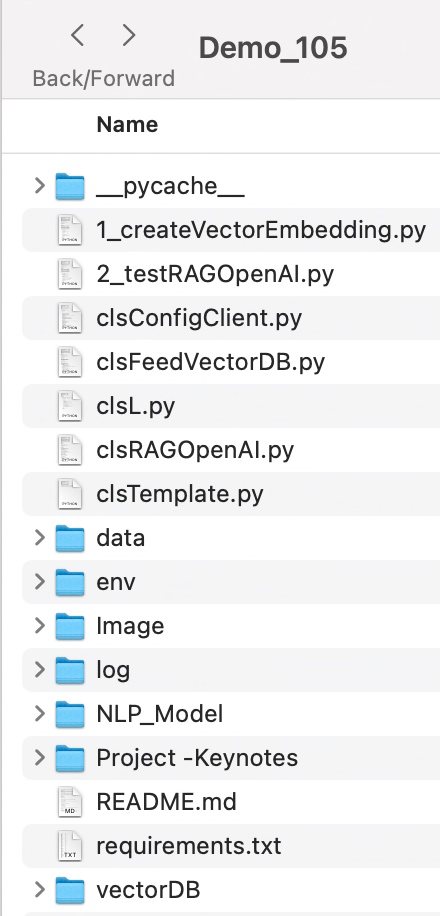



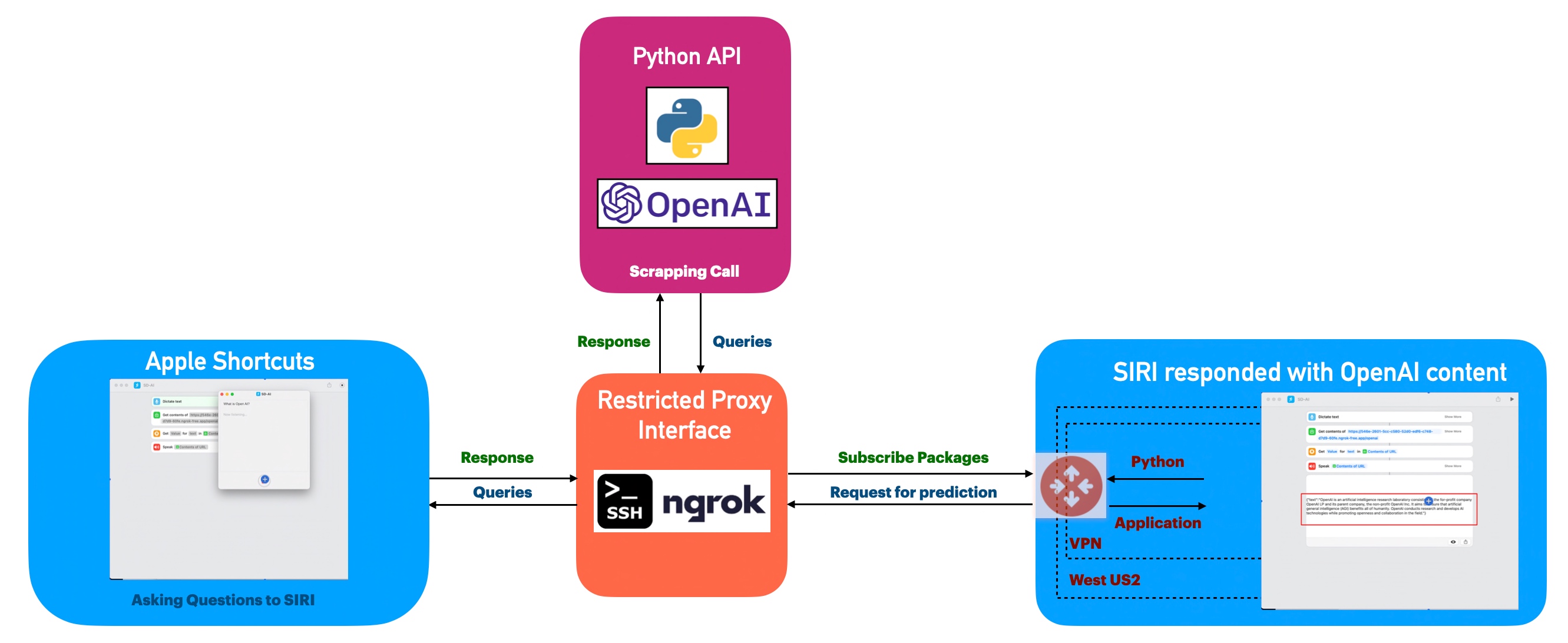


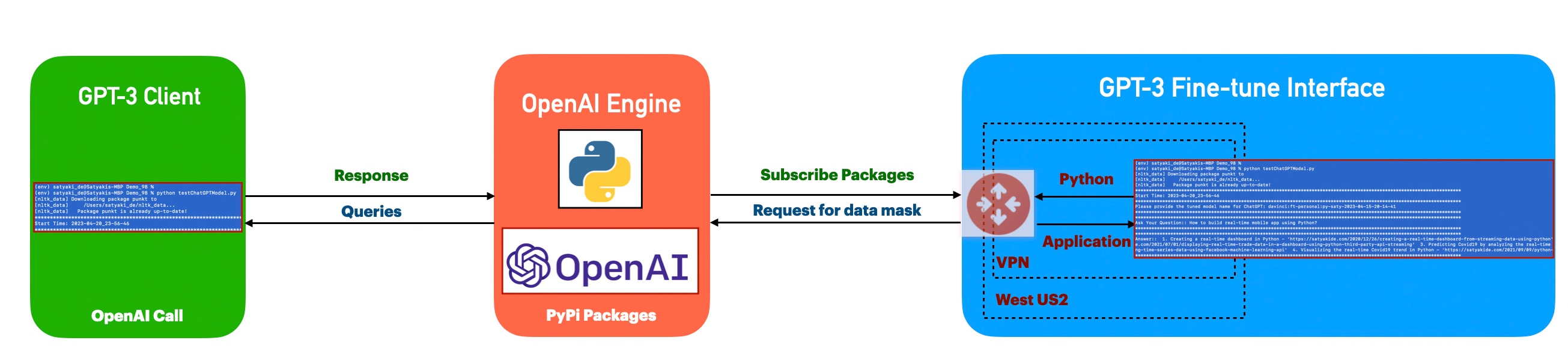
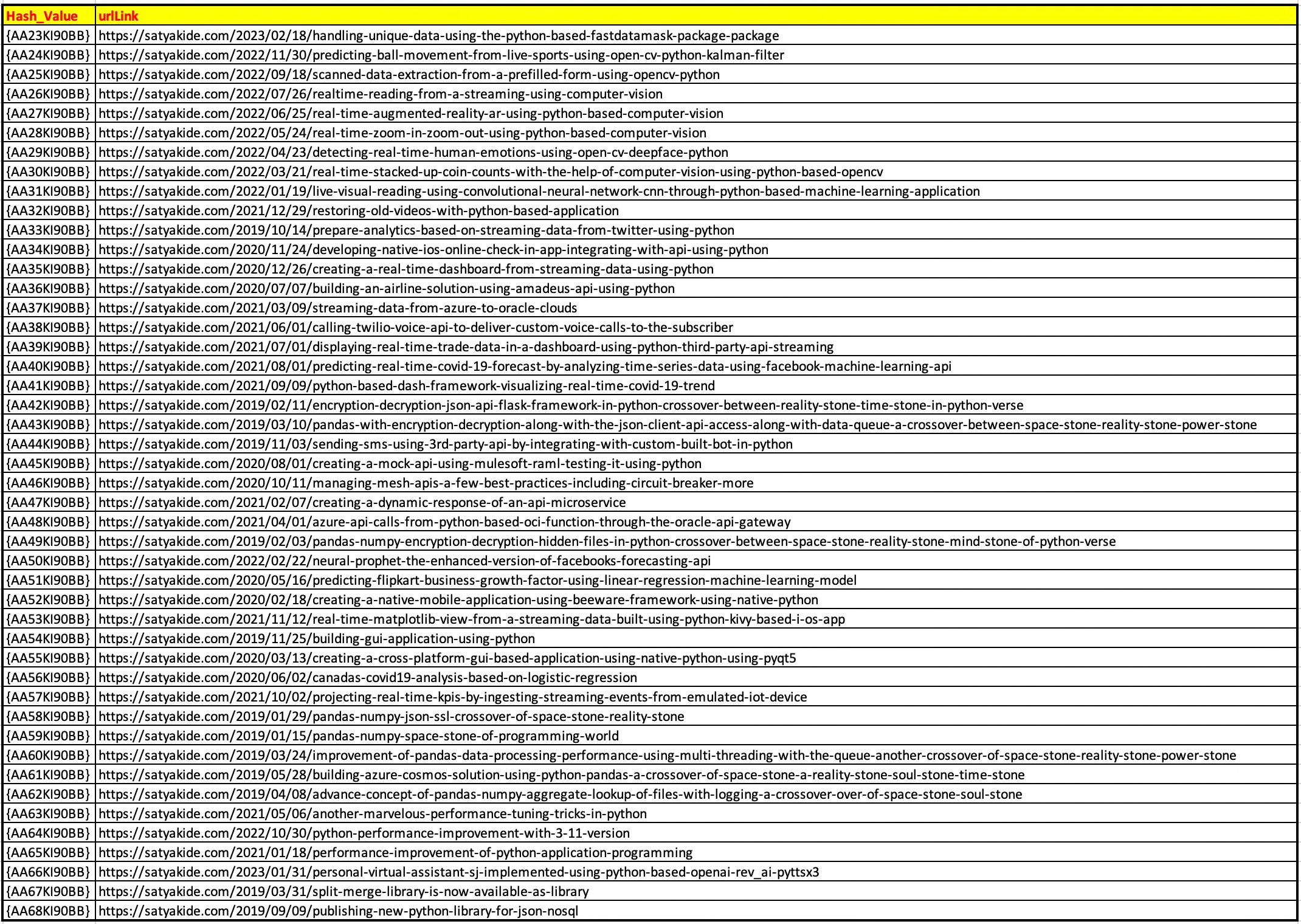


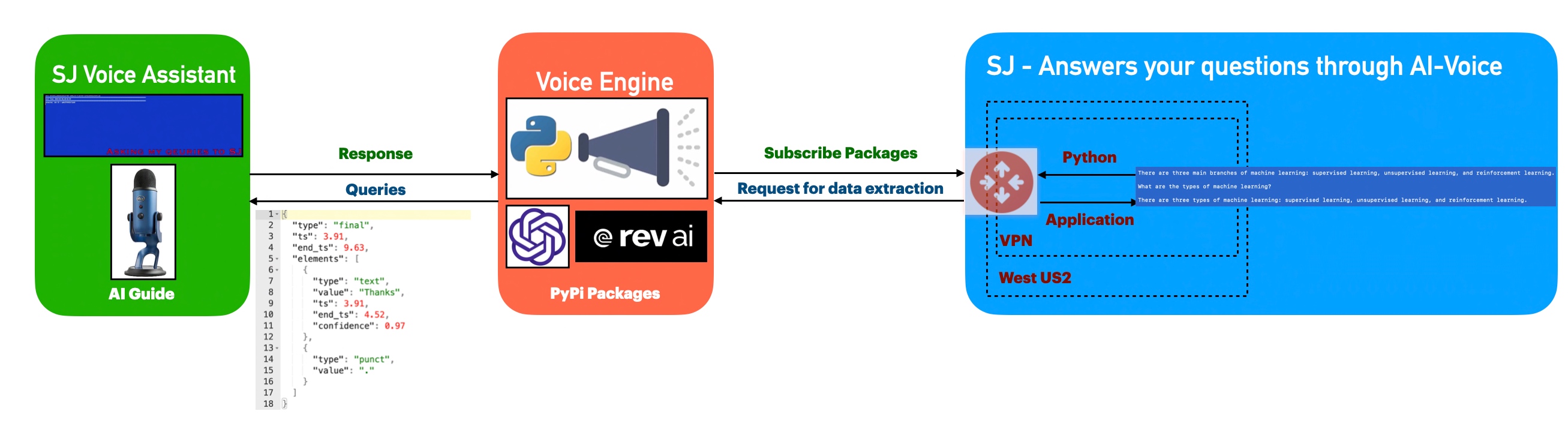

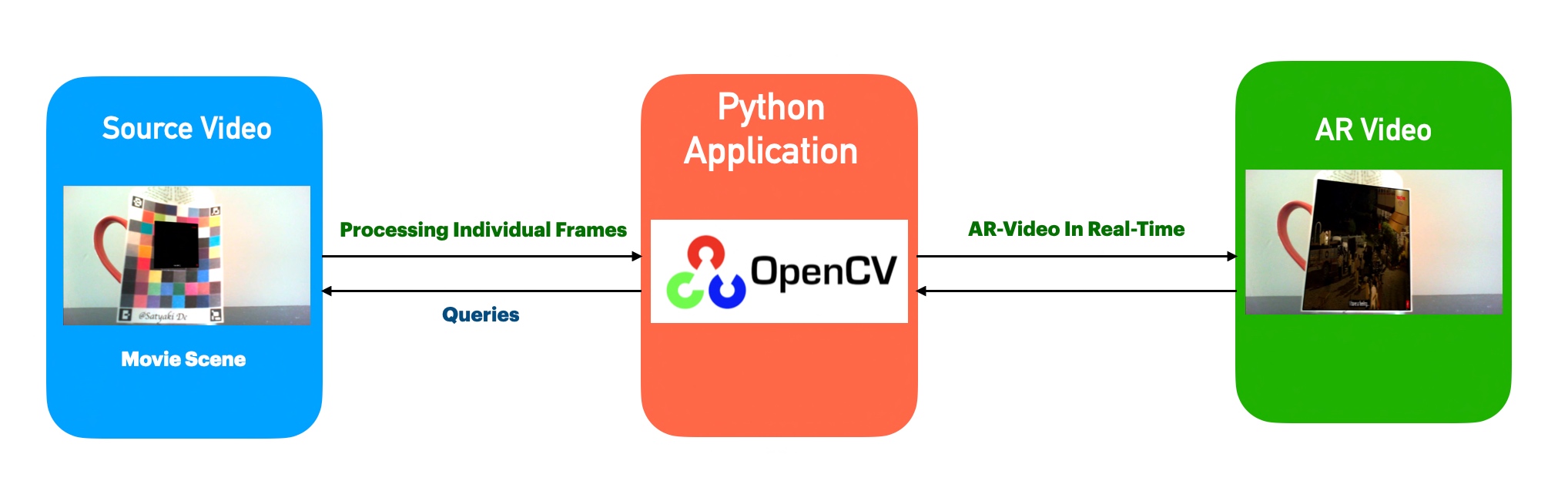


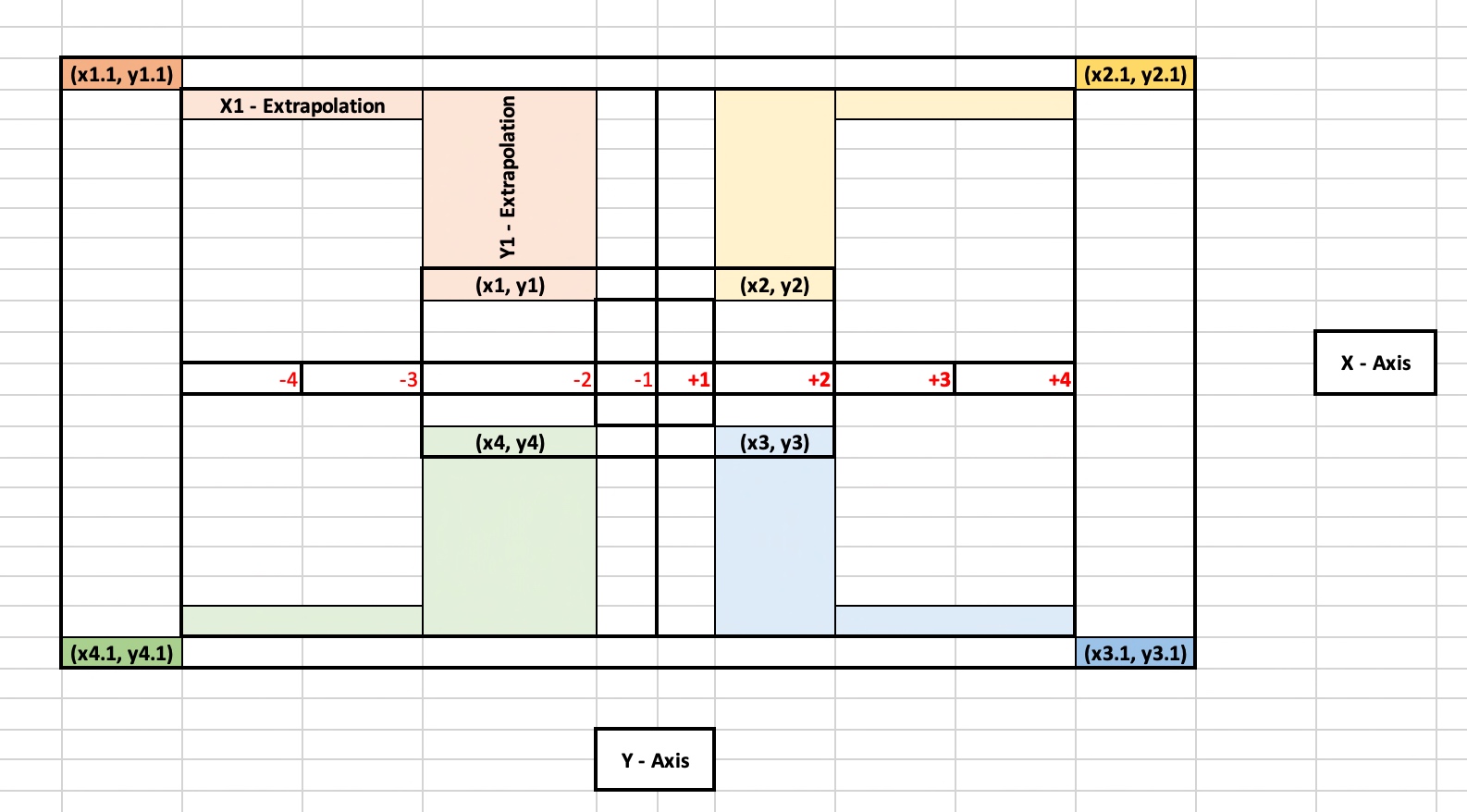


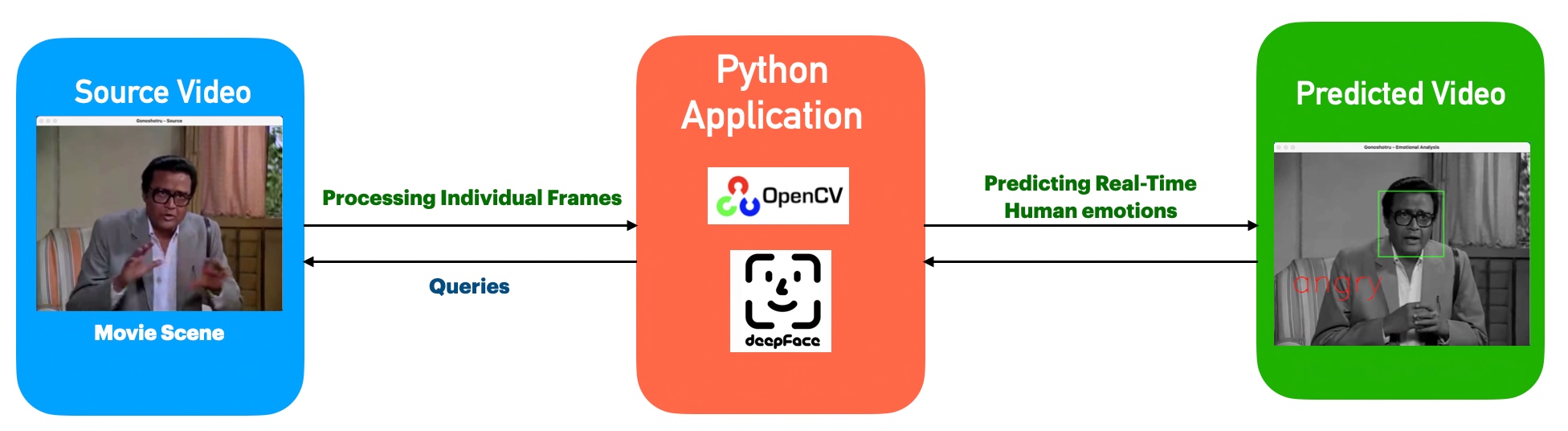

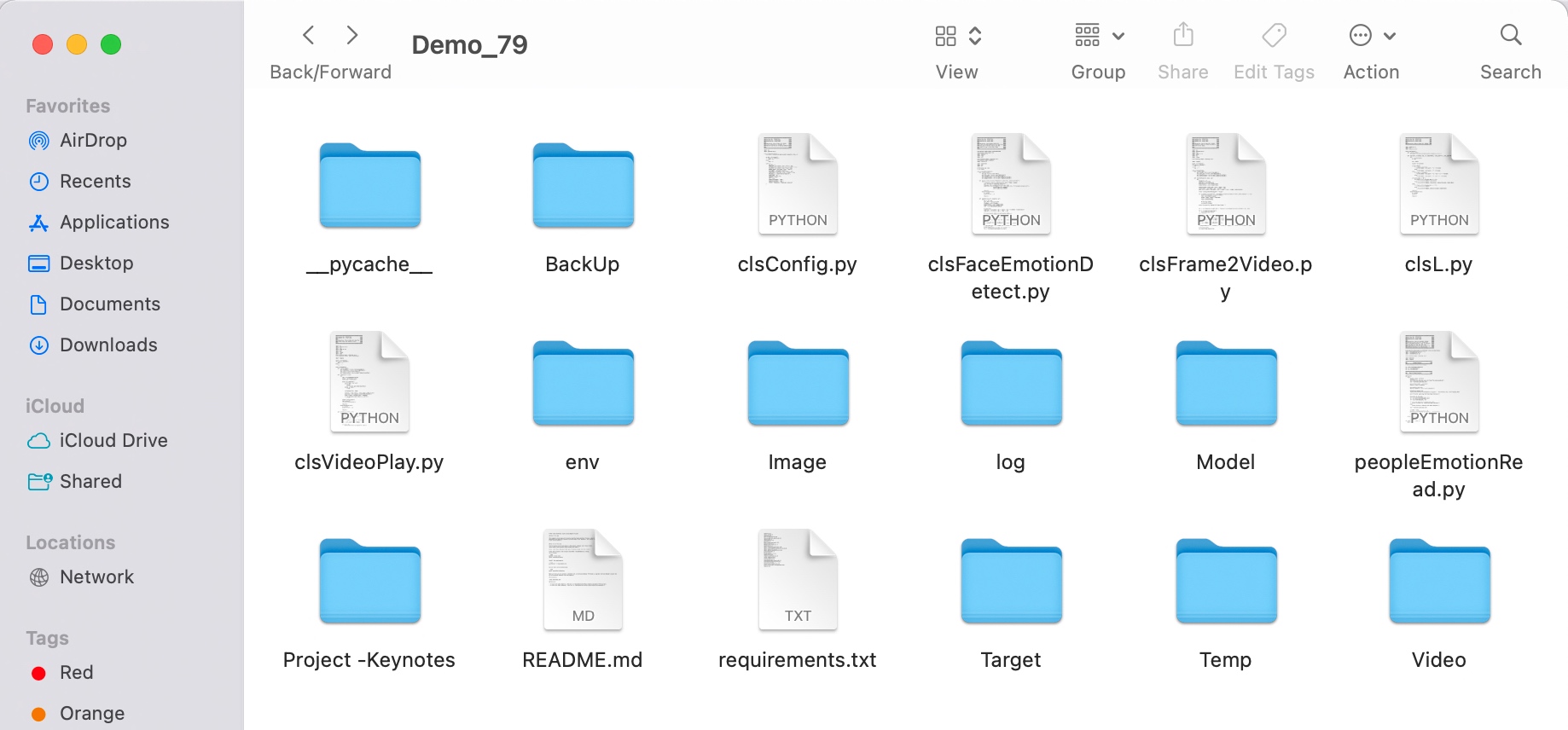
You must be logged in to post a comment.