This site mainly deals with various use cases demonstrated using Python, Data Science, Cloud basics, SQL Server, Oracle, Teradata along with SQL & their implementation. Expecting yours active participation & time. This blog can be access from your TP, Tablet & mobile also. Please provide your feedback.
Today, We’re going to discuss the way to send SMS through popular 3rd-party API (Twilio) using Python 3.7.
Before that, you need to register with Twilio. By default, they will give you some credit in order to explore their API.
And, then you can get a virtual number from them, which will be used to exchange SMS between your trusted numbers for trial Account.
The basic architecture can be depicted are as follows –
How to get a verified number for your trial account?
Here is the way, you have to do that –
You can create your own trial account by using this link.
Apart from that, you need to download & install Ngrok. This is available for multi-platform. For our case, we’re using Windows.
The purpose is to run your local web service through a global API like interface. I’ll explain that later.
You need to register & install that on your computer –
Once, you download & install you need to use the global link of any running local server application like this –
This is the dummy link. I’ll hide the original link. However, every time when you restart the application, you’ll get a new link. So, you will be safe anyway. 🙂
Once, you get the link, you have to update that global link under the messaging section. Remember that, you have to keep the “/sms” part after that.
Let’s see our sample code. here, I would be integrating my custom developed BOT developed in Python. However, I’ll be only calling that library. We’re not going post any script or explain that over here.
1. serverSms.py ( This script is a server script, which is using flask framework & it will respond to the user’s text message by my custom developed BOT using Python)
# /usr/bin/env python
##############################################
#### Written By: SATYAKI DE               ####
#### Written On: 03-Nov-2019              ####
####                                      ####
#### Objective: This script will respond  ####
#### by BOT created by me. And, reply to  ####
#### sender about their queries.          ####
#### We're using Twillio API for this.    ####
####                                      ####
##############################################

from flask import Flask, request, redirect
from twilio import twiml
from twilio.twiml.messaging_response import Message, MessagingResponse
import logging
from flask import request
from SDChatbots.clsTalk2Bot import clsTalk2Bot

app = Flask(__name__)

@app.route("/sms", methods=['GET', 'POST'])
def sms_ahoy_reply():
    """Respond to incoming messages with a friendly SMS."""
    # Start our response
    # resp = twiml.Response()
    message_body = request.form['Body']

    print(message_body)
    logging.info(message_body)

    y = clsTalk2Bot()
    ret_val = y.TalkNow(message_body)
    zMsg = str(ret_val)
    print('Response: ', str(zMsg))

    resp = MessagingResponse()

    # Add a message
    resp.message(zMsg)

    return str(resp)

if __name__ == "__main__":
    app.run(debug=True)
Key lines from the above scripts are –
@app.route("/sms", methods=['GET', 'POST'])
The route is a way to let your application understand to trigger the appropriate functionalities inside your API.
message_body = request.form['Body']
Here, the application is capturing the incoming SMS & print that in your server log. We’ll see that when we run our application.
y = clsTalk2Bot()ret_val = y.TalkNow(message_body)zMsg = str(ret_val)
Now, the application is calling my developed python BOT & retrieve the response & convert it as a string before pushing the response SMS to the user, who originally send the SMS.
resp = MessagingResponse() --This is for Python 3.7 +# Add a messageresp.message(zMsg)return str(resp)
Finally, you are preparing the return SMS & send it back to the user.
For the old version, the following line might work –
resp=twiml.Response()
But, just check with the Twilio API.
Let’s run our server application. You will see the following screen –
Let’s see, if one someone ask some question. How the application will respond –
And, let’s explore how our server application is receiving it & the response from the server –
Note that, we’ll be only sending the text to SMS, not the statistics sent by my BOT marked in RED. 😀
Let’s check the response from the BOT –
Yes! We did it. 😀
But, make sure you are regularly checking your billing as this will cost you money. Always, check the current balance –
You can check the usage from the following tab –
You can create a billing alarm to monitor your usage –
Let me know, how do you like it.
So, we’ll come out with another exciting post in the coming days!
N.B.: This is demonstrated for RnD/study purposes. All the data posted here are representational data & available over the internet.
Today, we’ll be discussing one new post of converting text into a voice using some third-party APIs. This is particularly very useful in many such cases, where you can use this method to get more realistic communication.
There are many such providers, where you can get an almost realistic voice for both males & females. However, most of them are subscription-based. So, you have to be very careful about your budget & how to proceed.
For testing purposes, I’ll be using voice.org to simulate this.
Let’s look out the architecture of this process –
As you can see, the user-initiated the application & provide some input in the form of plain text. Once the data is given, the app will send it to the third-party API for the process. Now, the Third-party API will verify the authentication & then it will check all the associate parameters before it starting to generate the audio response. After that, it will send the payload & that will be received by the calling python application. Here, it will be decoded & create the audio file & finally, that will be played at the invoking computer.
This third-party API has lots of limitations. However, they are giving you the platform to test your concept.
As of now, they support the following languages – English, Chinese, Catalan, French, Finnish, Dutch, Danish, German, Italian, Japanese, Korean, Polish, Norwegian, Portuguese, Russian, Spanish & Sweedish.
In our case, we’ll be checking with English.
To work with this, you need to have the following modules installed in python –
playsound
requests
base64
Let’s see the directory structure –
Again, we are not going to discuss any script, which we’ve already discussed here.
Hence, we’re skipping clsL.py here.
1. clsConfig.py (This script contains all the parameters of the server.)
##############################################
#### Written By: SATYAKI DE               ####
#### Written On: 12-Oct-2019              ####
####                                      ####
#### Objective: This script is a config   ####
#### file, contains all the keys for      ####
#### azure cosmos db. Application will    ####
#### process these information & perform  ####
#### various CRUD operation on Cosmos DB. ####
##############################################

import os
import platform as pl

class clsConfig(object):
    Curr_Path = os.path.dirname(os.path.realpath(__file__))

    os_det = pl.system()
    if os_det == "Windows":
        sep = '\\'
    else:
        sep = '/'

    config = {
        'APP_ID': 1,
        'url': "https://voicerss-text-to-speech.p.rapidapi.com/",
        'host': "voicerss-text-to-speech.p.rapidapi.com",
        'api_key': "xxxxxxxxxxxxxxxxxxxxxxxxxxxxxxxxxxxxx",
        'targetFile': "Bot_decode.mp3",
        'pitch_speed': "-6",
        'bot_language': "en-us",
        'audio_type': "mp3",
        'audio_freq': "22khz_8bit_stereo",
        'query_string_api': "hhhhhhhhhhhhhhhhhhhhhhhhhhhh",
        'b64_encoding': True,
        'APP_DESC_1': 'Text to voice conversion.',
        'DEBUG_IND': 'N',
        'INIT_PATH': Curr_Path,
        'LOG_PATH': Curr_Path + sep + 'log' + sep
    }
For security reasons, sensitive information masked with the dummy value.
This two information is private to each subscriber. Hence, I’ve removed them & updated with some dummy values.
You have to fill-up with your subscribed information.
2. clsText2Voice.py (This script will convert the text data into an audio file using a GET API request from the third-party API & then play that using the web media player.)
###############################################
#### Written By: SATYAKI DE                ####
#### Written On: 27-Oct-2019               ####
#### Modified On 27-Oct-2019               ####
####                                       ####
#### Objective: Main class converting      ####
#### text to voice using third-party API.  ####
###############################################

from playsound import playsound
import requests
import base64
from clsConfig import clsConfig as cf

class clsText2Voice:
    def __init__(self):
        self.url = cf.config['url']
        self.api_key = cf.config['api_key']
        self.targetFile = cf.config['targetFile']
        self.pitch_speed = cf.config['pitch_speed']
        self.bot_language = cf.config['bot_language']
        self.audio_type = cf.config['audio_type']
        self.audio_freq = cf.config['audio_freq']
        self.b64_encoding = cf.config['b64_encoding']
        self.query_string_api = cf.config['query_string_api']
        self.host = cf.config['host']

    def getAudio(self, srcString):
        try:
            url = self.url
            api_key = self.api_key
            tarFile = self.targetFile
            pitch_speed = self.pitch_speed
            bot_language = self.bot_language
            audio_type = self.audio_type
            audio_freq = self.audio_freq
            b64_encoding = self.b64_encoding
            query_string_api = self.query_string_api
            host = self.host

            querystring = {
                "r": pitch_speed,
                "c": audio_type,
                "f": audio_freq,
                "src": srcString,
                "hl": bot_language,
                "key": query_string_api,
                "b64": b64_encoding
            }

            headers = {
                'x-rapidapi-host': host,
                'x-rapidapi-key': api_key
            }

            response = requests.request("GET", url, headers=headers, params=querystring)

            # Converting to MP3
            targetFile = tarFile
            mp3File_64_decode = base64.decodebytes(bytes(response.text, encoding="utf-8"))
            mp3File_result = open(targetFile, 'wb')

            # create a writable mp3File and write the decoding result
            mp3File_result.write(mp3File_64_decode)
            mp3File_result.close()

            playsound(targetFile)

            return 0
        except Exception as e:
            x = str(e)
            print('Error: ', x)

            return 1
You can configure the voice of the audio by adjusting all the configurations. And, the text content will receive at srcString. So, whatever user will be typing that will be directly captured here & form the JSON payload accordingly.
In this case, you will be receiving the audio file in the form of a base64 text file. Hence, you need to convert them back to the sound file by these following lines –
# Converting to MP3targetFile = tarFilemp3File_64_decode = base64.decodebytes(bytes(response.text, encoding="utf-8"))mp3File_result = open(targetFile, 'wb')# create a writable mp3File and write the decoding resultmp3File_result.write(mp3File_64_decode)mp3File_result.close()
As you can see that, we’ve extracted the response.text & then we’ve decoded that to byte object to form the mp3 sound file at the receiving end.
Once we have our mp3 file ready, the following line simply plays the audio record.
playsound(targetFile)
Thus you can hear the actual voice.
3. callText2Voice.py (This is the main script that will invoke the text to voice API & then playback the audio once it gets the response from the third-party API.)
###############################################
#### Written By: SATYAKI DE                ####
#### Written On: 27-Oct-2019               ####
#### Modified On 27-Oct-2019               ####
####                                       ####
#### Objective: Main class converting      ####
#### text to voice using third-party API.  ####
###############################################

from clsConfig import clsConfig as cf
import clsL as cl
import logging
import datetime
import clsText2Voice as ct

# Disbling Warning
def warn(*args, **kwargs):
    pass

import warnings
warnings.warn = warn

var = datetime.datetime.now().strftime("%Y-%m-%d_%H-%M-%S")

def main():
    try:
        ret_2 = ''
        debug_ind = 'Y'

        general_log_path = str(cf.config['LOG_PATH'])

        # Enabling Logging Info
        logging.basicConfig(filename=general_log_path + 'consolidatedTwitter.log', level=logging.INFO)

        # Initiating Log Class
        l = cl.clsL()

        # Moving previous day log files to archive directory
        log_dir = cf.config['LOG_PATH']

        tmpR0 = "*" * 157

        logging.info(tmpR0)
        tmpR9 = 'Start Time: ' + str(var)
        logging.info(tmpR9)
        logging.info(tmpR0)

        print("Log Directory::", log_dir)
        tmpR1 = 'Log Directory::' + log_dir
        logging.info(tmpR1)

        # Query using parameters
        rawQry = str(input('Enter your string:'))

        x1 = ct.clsText2Voice()
        ret_2 = x1.getAudio(rawQry)

        if ret_2 == 0:
            print("Successfully converted from text to voice!")
            logging.info("Successfully converted from text to voice!")
            print("*" * 157)
            logging.info(tmpR0)
        else:
            print("Successfuly converted!")
            logging.info("Successfuly converted!")
            print("*" * 157)
            logging.info(tmpR0)

        print("*" * 157)
        logging.info(tmpR0)

        tmpR10 = 'End Time: ' + str(var)
        logging.info(tmpR10)
        logging.info(tmpR0)

    except ValueError:
        print("No relevant data to proceed!")
        logging.info("No relevant data to proceed!")

    except Exception as e:
        print("Top level Error: args:{0}, message{1}".format(e.args, e.message))

if __name__ == "__main__":
    main()
Essential lines from the above script –
# Query using parametersrawQry = str(input('Enter your string:'))x1 = ct.clsText2Voice()ret_2 = x1.getAudio(rawQry)
As you can see, here the user will be passing the text content, which will be given to our class & then it will project the audio sound of that text.
Let’s see how it runs –
Input Text:Welcome to Satyaki De’s blog. This site mainly deals with the Python, SQL from different DBs & many useful areas from the leading cloud providers.
And, here is the run command under Windows OS looks like –
And, please find the sample voice that it generates –
So, We’ve done it! 😀
Let us know your comment on this.
So, we’ll come out with another exciting post in the coming days!
N.B.: This is demonstrated for RnD/study purposes. All the data posted here are representational data & available over the internet.
Today, we will be projecting an analytics storyline based on streaming data from twitter’s developer account.
I want to make sure that this solely for educational purposes & no data analysis has provided to any agency or third-party apps. So, when you are planning to use this API, make sure that you strictly follow these rules.
In order to create a streaming channel from Twitter, you need to create one developer account.
As I’m a huge soccer fan, I would like to refer to one soccer place on Twitter for this. In this case, we’ll be checking BA Analytics for this.
Please find the steps to create one developer account –
Step -1:
You have to go to the following link. Over there you need to submit the request in order to create the account. You need to provide proper justification as to why you need that account. I’m not going into those forms. They are self-explanatory.
Once, your developer account activated, you need to click the following link as shown below –
Once you clicked that, the program will lead to you the following page –
If you don’t have any app, the first page will look something like the above page.
Step 2:
Now, you need to fill-up the following details. For security reasons, I’ll be hiding sensitive data here.
Step 3:
After creating that, you need to go to the next tab i.e. key’s & tokens. The initial screen will only have Consumer API keys.
Step 4:
To generate the Access token, you need to click the create button from the above screenshot & then the new page will look like this –
Our program will be using all these pieces of information.
So, now we’re ready for our Python program.
In order to access Twitter API through python, you need to install the following package –
pip install python-twitter
Let’s see the directory structure –
Let’s check only the relevant scripts here. We’re not going to discuss the clsL.py as we’ve already discussed. Please refer to the old post.
1. clsConfig.py (This script contains all the parameters of the server.)
##############################################
#### Written By: SATYAKI DE               ####
#### Written On: 12-Oct-2019              ####
####                                      ####
#### Objective: This script is a config   ####
#### file, contains all the keys for      ####
#### azure cosmos db. Application will    ####
#### process these information & perform  ####
#### various CRUD operation on Cosmos DB. ####
##############################################

import os
import platform as pl

class clsConfig(object):
    Curr_Path = os.path.dirname(os.path.realpath(__file__))

    os_det = pl.system()
    if os_det == "Windows":
        sep = '\\'
    else:
        sep = '/'

    config = {
        'APP_ID': 1,
        'EMAIL_SRC_JSON_FILE': Curr_Path + sep + 'src_file' + sep + 'srcEmail.json',
        'TWITTER_SRC_JSON_FILE': Curr_Path + sep + 'src_file' + sep + 'srcTwitter.json',
        'HR_SRC_JSON_FILE': Curr_Path + sep + 'src_file' + sep + 'srcHR.json',
        'ACCESS_TOKEN': '99999999-XXXXXXXXXXXXXXXXXXXXXXXXXXXXXXXXXXXXXXXX',
        'ACCESS_SECRET': 'YYYYYYYYYYYYYYYYYYYYYYYYYYYYYYYYYYYYYYYYYYYYYY',
        'CONSUMER_KEY': "aaaaaaaaaaaaaaaaaaaaaaa",
        'CONSUMER_SECRET': 'HHHHHHHHHHHHHHHHHHHHHHHHHHHHHHHHHHHHHHHHHHHH',
        'ARCH_DIR': Curr_Path + sep + 'arch' + sep,
        'PROFILE_PATH': Curr_Path + sep + 'profile' + sep,
        'LOG_PATH': Curr_Path + sep + 'log' + sep,
        'REPORT_PATH': Curr_Path + sep + 'report',
        'APP_DESC_1': 'Feedback Communication',
        'DEBUG_IND': 'N',
        'INIT_PATH': Curr_Path
    }
For security reasons, I’ve removed the original keys with dummy keys. You have to fill-up your own keys.
2. clsTwitter.py (This script will fetch data from Twitter API & process the same & send it to the calling method.)
###############################################
#### Written By: SATYAKI DE                ####
#### Written On: 12-Oct-2019               ####
#### Modified On 12-Oct-2019               ####
####                                       ####
#### Objective: Main class fetching sample ####
#### data from Twitter API.                ####
###############################################

import twitter
from clsConfig import clsConfig as cf
import json
import re
import string
import logging

class clsTwitter:
    def __init__(self):
        self.access_token = cf.config['ACCESS_TOKEN']
        self.access_secret = cf.config['ACCESS_SECRET']
        self.consumer_key = cf.config['CONSUMER_KEY']
        self.consumer_secret = cf.config['CONSUMER_SECRET']

    def find_element(self, srcJson, key):
        """Pull all values of specified key from nested JSON."""
        arr = []

        def fetch(srcJson, arr, key):
            """Recursively search for values of key in JSON tree."""
            if isinstance(srcJson, dict):
                for k, v in srcJson.items():
                    if isinstance(v, (dict, list)):
                        fetch(v, arr, key)
                    elif k == key:
                        arr.append(v)
            elif isinstance(srcJson, list):
                for item in srcJson:
                    fetch(item, arr, key)
            return arr

        finJson = fetch(srcJson, arr, key)
        return finJson

    def searchQry(self, rawQry):
        try:
            fin_dict = {}
            finJson = ''
            res = ''
            cnt = 0

            # Parameters to invoke Twitter API
            ACCESS_TOKEN = self.access_token
            ACCESS_SECRET = self.access_secret
            CONSUMER_KEY = self.consumer_key
            CONSUMER_SECRET = self.consumer_secret

            tmpR20 = 'Raw Query: ' + str(rawQry)
            logging.info(tmpR20)

            finJson = '['

            if rawQry == '':
                print('No data to proceed!')
                logging.info('No data to proceed!')
            else:
                t = twitter.Api(
                                  consumer_key = CONSUMER_KEY,
                                  consumer_secret = CONSUMER_SECRET,
                                  access_token_key = ACCESS_TOKEN,
                                  access_token_secret = ACCESS_SECRET
                               )

                response = t.GetSearch(raw_query=rawQry)
                print('Total Records fetched:', str(len(response)))

                for i in response:

                    # Converting them to json
                    data = str(i)
                    res_json = json.loads(data)

                    # Calling individual key
                    id = res_json['id']
                    tmpR19 = 'Id: ' + str(id)
                    logging.info(tmpR19)

                    try:
                        f_count = res_json['quoted_status']['user']['followers_count']
                    except:
                        f_count = 0
                    tmpR21 = 'Followers Count: ' + str(f_count)
                    logging.info(tmpR21)

                    try:
                        r_count = res_json['quoted_status']['retweet_count']
                    except:
                        r_count = 0
                    tmpR22 = 'Retweet Count: ' + str(r_count)
                    logging.info(tmpR22)

                    text = self.find_element(res_json, 'text')

                    for j in text:
                        strF = re.sub(f'[^{re.escape(string.printable)}]', '', str(j))
                        pat = re.compile(r'[\t\n]')
                        strG = pat.sub("", strF)
                        res = "".join(strG)

                    # Forming return dictionary
                    #fin_dict.update({id:'id', f_count: 'followerCount', r_count: 'reTweetCount', res: 'msgPost'})
                    if cnt == 0:
                        finJson = finJson + '{"id":' + str(id) + ',"followerCount":' + str(f_count) + ',"reTweetCount":' + str(r_count) + ', "msgPost":"' + str(res) + '"}'
                    else:
                        finJson = finJson + ', {"id":' + str(id) + ',"followerCount":' + str(f_count) + ',"reTweetCount":' + str(r_count) + ', "msgPost":"' + str(res) + '"}'

                    cnt += 1

            finJson = finJson + ']'

            jdata = json.dumps(finJson)
            ResJson = json.loads(jdata)

            return ResJson

        except Exception as e:
            ResJson = ''
            x = str(e)
            print(x)

            logging.info(x)
            ResJson = {'errorDetails' : x}

            return ResJson
The key lines from this snippet are as follows –
def find_element(self, srcJson, key):
    """Pull all values of specified key from nested JSON."""
    arr = []

    def fetch(srcJson, arr, key):
        """Recursively search for values of key in JSON tree."""
        if isinstance(srcJson, dict):
            for k, v in srcJson.items():
                if isinstance(v, (dict, list)):
                    fetch(v, arr, key)
                elif k == key:
                    arr.append(v)
        elif isinstance(srcJson, list):
            for item in srcJson:
                fetch(item, arr, key)
        return arr

    finJson = fetch(srcJson, arr, key)
    return finJson
This function will check against a specific key & based on that it will search from the supplied JSON & returns the value. This would be particularly very useful when you don’t have any fixed position of your elements.
3. callTwitterAPI.py (This is the main script that will invoke the Twitter API & then project the analytic report based on the available Twitter data.)
##############################################
#### Written By: SATYAKI DE               ####
#### Written On: 12-Oct-2019              ####
#### Modified On 12-Oct-2019              ####
####                                      ####
#### Objective: Main calling scripts.     ####
##############################################

from clsConfig import clsConfig as cf
import pandas as p
import clsL as cl
import logging
import datetime
import json
import clsTwitter as ct

# Disbling Warning
def warn(*args, **kwargs):
    pass

import warnings
warnings.warn = warn

def getMaximumFollower(df):
    try:
        d1 = df['followerCount'].max()
        d1_max_str = int(d1)

        return d1_max_str
    except Exception as e:
        x = str(e)
        print(x)
        dt_part1 = 0

        return dt_part1

def getMaximumRetweet(df):
    try:
        d1 = df['reTweetCount'].max()
        d1_max_str = int(d1)

        return d1_max_str
    except Exception as e:
        x = str(e)
        print(x)
        dt_part1 = ''

        return dt_part1

# Lookup functions from
# Azure cloud SQL DB

var = datetime.datetime.now().strftime("%Y-%m-%d_%H-%M-%S")

def main():
    try:
        dfSrc = p.DataFrame()
        df_ret = p.DataFrame()
        ret_2 = ''
        debug_ind = 'Y'

        general_log_path = str(cf.config['LOG_PATH'])

        # Enabling Logging Info
        logging.basicConfig(filename=general_log_path + 'consolidatedTwitter.log', level=logging.INFO)

        # Initiating Log Class
        l = cl.clsL()

        # Moving previous day log files to archive directory
        arch_dir = cf.config['ARCH_DIR']
        log_dir = cf.config['LOG_PATH']

        tmpR0 = "*" * 157

        logging.info(tmpR0)
        tmpR9 = 'Start Time: ' + str(var)
        logging.info(tmpR9)
        logging.info(tmpR0)

        print("Archive Directory:: ", arch_dir)
        print("Log Directory::", log_dir)
        tmpR1 = 'Log Directory::' + log_dir
        logging.info(tmpR1)

        # Query using parameters
        rawQry = 'q=from%3ABlades_analytic&src=typd'

        x1 = ct.clsTwitter()
        ret_2 = x1.searchQry(rawQry)

        # Capturing the JSON Payload
        res = json.loads(ret_2)

        # Converting dictionary to Pandas Dataframe
        df_ret = p.read_json(ret_2, orient='records')

        # Resetting the column orders as per JSON
        df_ret = df_ret[list(res[0].keys())]

        l.logr('1.Twitter_' + var + '.csv', debug_ind, df_ret, 'log')

        print('Realtime Twitter Data:: ')
        logging.info('Realtime Twitter Data:: ')
        print(df_ret)
        print()

        # Checking execution status
        ret_val_2 = df_ret.shape[0]

        if ret_val_2 == 0:
            print("Twitter hasn't returned any rows. Please check your queries!")
            logging.info("Twitter hasn't returned any rows. Please check your queries!")
            print("*" * 157)
            logging.info(tmpR0)
        else:
            print("Successfuly row feteched!")
            logging.info("Successfuly row feteched!")
            print("*" * 157)
            logging.info(tmpR0)

        print('Finding Story points..')
        print("*" * 157)
        logging.info('Finding Story points..')
        logging.info(tmpR0)

        # Performing Basic Aggregate
        # 1. Find the user who has maximum Followers
        df_ret['MaxFollower'] = getMaximumFollower(df_ret)

        # 2. Find the user who has maximum Re-Tweets
        df_ret['MaxTweet'] = getMaximumRetweet(df_ret)

        # Getting Status
        df_MaxFollower = df_ret[(df_ret['followerCount'] == df_ret['MaxFollower'])]

        # Dropping Columns
        df_MaxFollower.drop(['reTweetCount'], axis=1, inplace=True)
        df_MaxFollower.drop(['MaxTweet'], axis=1, inplace=True)

        l.logr('2.Twitter_Maximum_Follower_' + var + '.csv', debug_ind, df_MaxFollower, 'log')

        print('Maximum Follower:: ')
        print(df_MaxFollower)
        print("*" * 157)
        logging.info(tmpR0)

        df_MaxTwitter = df_ret[(df_ret['reTweetCount'] == df_ret['MaxTweet'])]
        print()

        # Dropping Columns
        df_MaxTwitter.drop(['followerCount'], axis=1, inplace=True)
        df_MaxTwitter.drop(['MaxFollower'], axis=1, inplace=True)

        l.logr('3.Twitter_Maximum_Retweet_' + var + '.csv', debug_ind, df_MaxTwitter, 'log')

        print('Maximum Re-Twitt:: ')
        print(df_MaxTwitter)
        print("*" * 157)
        logging.info(tmpR0)

        tmpR10 = 'End Time: ' + str(var)
        logging.info(tmpR10)
        logging.info(tmpR0)

    except ValueError:
        print("No relevant data to proceed!")
        logging.info("No relevant data to proceed!")

    except Exception as e:
        print("Top level Error: args:{0}, message{1}".format(e.args, e.message))

if __name__ == "__main__":
    main()
And, here are the key lines –
x1 = ct.clsTwitter()ret_2 = x1.searchQry(rawQry)
Our application is instantiating the newly developed class.
# Capturing the JSON Payloadres = json.loads(ret_2)# Converting dictionary to Pandas Dataframedf_ret = p.read_json(ret_2, orient='records')# Resetting the column orders as per JSONdf_ret = df_ret[list(res[0].keys())]
Converting the JSON to pandas dataframe for our analytic data point.
These two functions declared above in the calling script are generating the maximum data point from the Re-Tweet & Followers from our returned dataset.
Here is the post as to how to call this Dnpr library & what are the current limitations of this library.
Before we start let’s post the calling script & then explain how we can use them –
##############################################
#### Written By: SATYAKI DE ####
#### Written On: 08-Sep-2019 ####
#### ####
#### Objective: Main calling scripts. ####
##############################################
from dnpr.clsDnpr import clsDnpr
import datetime as dt
import json
# Disbling Warning
def warn(*args, **kwargs):
pass
import warnings
warnings.warn = warn
# Lookup functions from
def main():
try:
srcJson = [
            {"FirstName": "Satyaki", "LastName": "De", "Sal": 1000},
            {"FirstName": "Satyaki", "LastName": "De", "Sal": 1000},
            {"FirstName": "Archi", "LastName": "Bose", "Sal": 500},
            {"FirstName": "Archi", "LastName": "Bose", "Sal": 7000},
            {"FirstName": "Deb", "LastName": "Sen", "Sal": 9500}
          ]
print("=" * 157)
print("Checking distinct function!")
print("=" * 157)
print()
print("*" * 157)
print("Input Data: ")
srcJsonFormat = json.dumps(srcJson, indent=1)
print(str(srcJsonFormat))
print("*" * 157)
# Initializing the class
t = clsDnpr()
print("1. Checking distinct functionality!")
var1 = dt.datetime.now().strftime("%Y-%m-%d %H-%M-%S")
print("Start Time: ", str(var1))
# Invoking the distinct function
tarJson = t.distinct(srcJson)
print("*" * 157)
print("Output Data: ")
tarJsonFormat = json.dumps(tarJson, indent=1)
print(str(tarJsonFormat))
print("*" * 157)
if not tarJson:
print()
print("No relevant output data!")
print("*" * 157)
else:
print()
print("Relevant output data comes!")
print("*" * 157)
var2 = dt.datetime.now().strftime("%Y-%m-%d %H-%M-%S")
print("End Time: ", str(var2))
print("=" * 157)
print("End of distinct function!")
print("=" * 157)
print("2. Checking nvl functionality!")
srcJson_1 = [
{"FirstName": "Satyaki", "LastName": "", "Sal": 1000},
{"FirstName": "Archi", "LastName": "Bose", "Sal": 500},
{"FirstName": "Deb", "LastName": "", "Sal": 9500}
]
var3 = dt.datetime.now().strftime("%Y-%m-%d %H-%M-%S")
print("Start Time: ", str(var3))
strDef = 'FNU'
print("Default Value: ", strDef)
srcColName = 'LastName'
print('Candidate Column for NVL: ', srcColName)
# Invoking the nvl function
tarJson_1 = t.nvl(srcJson_1, srcColName, strDef)
print("*" * 157)
print("Output Data: ")
tarJsonFormat_1 = json.dumps(tarJson_1, indent=1)
print(str(tarJsonFormat_1))
print("*" * 157)
if not tarJson_1:
print()
print("No relevant output data!")
print("*" * 157)
else:
print()
print("Relevant output data comes!")
print("*" * 157)
var4 = dt.datetime.now().strftime("%Y-%m-%d %H-%M-%S")
print("End Time: ", str(var4))
print("=" * 157)
print("End of nvl function!")
print("=" * 157)
print("3. Checking partition-by functionality!")
srcJson_2 = [
{"FirstName": "Satyaki", "LastName": "", "Sal": 1000},
{"FirstName": "Satyaki", "LastName": "", "Sal": 700},
{"FirstName": "Archi", "LastName": "Bose", "Sal": 500},
{"FirstName": "Deb", "LastName": "", "Sal": 9500},
{"FirstName": "Archi", "LastName": "Bose", "Sal": 4500},
]
var5 = dt.datetime.now().strftime("%Y-%m-%d %H-%M-%S")
print("Start Time: ", str(var5))
GrList = ['FirstName', 'LastName']
print("Partition By Columns::: ", str(GrList))
grOperation = 'Max'
print('Operation toe be performed: ', grOperation)
strCandidateColumnName = 'Sal'
print('Column Name on which the aggregate function will take place: ', strCandidateColumnName)
# Invoking the partition by function - MAX
tarJson_1 = t.partitionBy(srcJson_2, GrList, grOperation, strCandidateColumnName)
print("*" * 157)
print("Output Data: ")
tarJsonFormat_1 = json.dumps(tarJson_1, indent=1)
print(str(tarJsonFormat_1))
print("*" * 157)
if not tarJson_1:
print()
print("No relevant output data!")
print("*" * 157)
else:
print()
print("Relevant output data comes!")
print("*" * 157)
var6 = dt.datetime.now().strftime("%Y-%m-%d %H-%M-%S")
print("End Time: ", str(var6))
var7 = dt.datetime.now().strftime("%Y-%m-%d %H-%M-%S")
print("Start Time: ", str(var7))
grOperation_1 = 'Min'
print('Operation toe be performed: ', grOperation_1)
# Invoking the Partition By function - MIN
tarJson_2 = t.partitionBy(srcJson_2, GrList, grOperation_1, strCandidateColumnName)
print("*" * 157)
print("Output Data: ")
tarJsonFormat_2 = json.dumps(tarJson_2, indent=1)
print(str(tarJsonFormat_2))
print("*" * 157)
if not tarJson_2:
print()
print("No relevant output data!")
print("*" * 157)
else:
print()
print("Relevant output data comes!")
print("*" * 157)
var8 = dt.datetime.now().strftime("%Y-%m-%d %H-%M-%S")
print("End Time: ", str(var8))
var9 = dt.datetime.now().strftime("%Y-%m-%d %H-%M-%S")
print("Start Time: ", str(var9))
grOperation_2 = 'Avg'
print('Operation toe be performed: ', grOperation_2)
# Invoking the Partition By function - Avg
tarJson_3 = t.partitionBy(srcJson_2, GrList, grOperation_2, strCandidateColumnName)
print("*" * 157)
print("Output Data: ")
tarJsonFormat_3 = json.dumps(tarJson_3, indent=1)
print(str(tarJsonFormat_3))
print("*" * 157)
if not tarJson_3:
print()
print("No relevant output data!")
print("*" * 157)
else:
print()
print("Relevant output data comes!")
print("*" * 157)
var10 = dt.datetime.now().strftime("%Y-%m-%d %H-%M-%S")
print("End Time: ", str(var10))
var11 = dt.datetime.now().strftime("%Y-%m-%d %H-%M-%S")
print("Start Time: ", str(var11))
grOperation_3 = 'Sum'
print('Operation toe be performed: ', grOperation_3)
# Invoking the Partition By function - Sum
tarJson_4 = t.partitionBy(srcJson_2, GrList, grOperation_3, strCandidateColumnName)
print("*" * 157)
print("Output Data: ")
tarJsonFormat_4 = json.dumps(tarJson_4, indent=1)
print(str(tarJsonFormat_4))
print("*" * 157)
if not tarJson_4:
print()
print("No relevant output data!")
print("*" * 157)
else:
print()
print("Relevant output data comes!")
print("*" * 157)
var12 = dt.datetime.now().strftime("%Y-%m-%d %H-%M-%S")
print("End Time: ", str(var12))
print("=" * 157)
print("End of partition function!")
print("=" * 157)
print("4. Checking regular expression functionality!")
print()
var13 = dt.datetime.now().strftime("%Y-%m-%d %H-%M-%S")
print("Start Time: ", str(var13))
print('::Function Regex_Like:: ')
print()
tarColumn = 'FirstName'
print('Target Column for Rexex_Like: ', tarColumn)
inpPattern = r"\bSa"
print('Input Pattern: ', str(inpPattern))
# Invoking the regex_like function
tarJson = t.regex_like(srcJson, tarColumn, inpPattern)
print('End of Function Regex_Like!')
print()
print("*" * 157)
print("Output Data: ")
tarJsonFormat = json.dumps(tarJson, indent=1)
print(str(tarJsonFormat))
print("*" * 157)
if not tarJson:
print()
print("No relevant output data!")
print("*" * 157)
else:
print()
print("Relevant output data comes!")
print("*" * 157)
var14 = dt.datetime.now().strftime("%Y-%m-%d %H-%M-%S")
print("End Time: ", str(var14))
var15 = dt.datetime.now().strftime("%Y-%m-%d %H-%M-%S")
print("Start Time: ", str(var15))
print('::Function Regex_Replace:: ')
print()
tarColumn = 'FirstName'
print('Target Column for Rexex_Replace: ', tarColumn)
inpPattern = r"\bSa"
print('Input Pattern: ', str(inpPattern))
replaceString = 'Ka'
print('Replacing Character: ', replaceString)
# Invoking the regex_replace function
tarJson = t.regex_replace(srcJson, tarColumn, inpPattern, replaceString)
print('End of Function Rexex_Replace!')
print()
print("*" * 157)
print("Output Data: ")
tarJsonFormat = json.dumps(tarJson, indent=1)
print(str(tarJsonFormat))
print("*" * 157)
if not tarJson:
print()
print("No relevant output data!")
print("*" * 157)
else:
print()
print("Relevant output data comes!")
print("*" * 157)
var16 = dt.datetime.now().strftime("%Y-%m-%d %H-%M-%S")
print("End Time: ", str(var16))
var17 = dt.datetime.now().strftime("%Y-%m-%d %H-%M-%S")
print("Start Time: ", str(var17))
print('::Function Regex_Substr:: ')
print()
tarColumn = 'FirstName'
print('Target Column for Regex_Substr: ', tarColumn)
inpPattern = r"\bSa"
print('Input Pattern: ', str(inpPattern))
# Invoking the regex_substr function
tarJson = t.regex_substr(srcJson, tarColumn, inpPattern)
print('End of Function Regex_Substr!')
print()
print("*" * 157)
print("Output Data: ")
tarJsonFormat = json.dumps(tarJson, indent=1)
print(str(tarJsonFormat))
print("*" * 157)
if not tarJson:
print()
print("No relevant output data!")
print("*" * 157)
else:
print()
print("Relevant output data comes!")
print("*" * 157)
var18 = dt.datetime.now().strftime("%Y-%m-%d %H-%M-%S")
print("End Time: ", str(var18))
print("=" * 157)
print("End of regular expression function!")
print("=" * 157)
except ValueError:
print("No relevant data to proceed!")
except Exception as e:
print("Top level Error: args:{0}, message{1}".format(e.args, e.message))
if __name__ == "__main__":
main()
Let’s explain the key lines –
As of now, the source payload that it will support is mostly simple JSON.
As you can see, we’ve relatively started with the simple JSON containing an array of elements.
# Initializing the class
t = clsDnpr()
In this line, you can initiate the main library.
Let’s explore the different functions, which you can use on JSON.
1. Distinct:
Let’s discuss the distinct function on JSON. This function can be extremely useful if you use NoSQL, which doesn’t offer any distinct features. Or, if you are dealing with or expecting your source with duplicate JSON inputs.
Let’s check our sample payload for distinct –
Here is the basic syntax & argument that it is expecting –
distinct(Input Json) returnOutput Json
So, all you have to ensure that you are passing a JSON input string.
As per our example –
# Invoking the distinct function tarJson = t.distinct(srcJson)
And, here is the output –
If you compare the source JSON. You would have noticed that there are two identical entries with the name “Satyaki” is now replaced by one unique entries.
Limitation: Currently, this will support only basic JSON. However, I’m working on it to support that much more complex hierarchical JSON in coming days.
2. NVL:
NVL is another feature that I guess platform like JSON should have. So, I built this library specially handles the NULL data scenario, where the developer may want to pass a default value in place of NULL.
Hence, the implementation of this function.
Here is the sample payload for this –
In this case, if there is some business logic that requires null values replaced with some default value for LastName say e.g. FNU. This function will help you to implement that logic.
Here is the basic syntax & argument that it is expecting –
nvl(
     Input Json,
     Prospective Null Column Name,
     Dafult Value in case of Null
   ) return Output Json
# Invoking the nvl function tarJson_1 = t.nvl(srcJson_1, srcColName, strDef)
So, in the above lines, this code will replace the Null value with the “FNU” for the column LastName.
And, Here is the output –
3. Partition_By:
I personally like this function as this gives more power to manipulate any data in JSON levels such as Avg, Min, Max or Sum. This might be very useful in order to implement some basic aggregation on the fly.
Here is the basic syntax & argument that it is expecting –
partition_by(
              Input Json,
              Group By Column List,
              Group By Operation,
              Candidate Column Name,
              Output Column Name
            ) return Output Json
Now, we would explore the sample payload for all these functions to test –
Case 1:
In this case, we’ll calculate the maximum salary against FirstName & LastName. However, I want to print the Location in my final JSON output.
So, if you see the sample data & let’s make it tabular for better understanding –
So, as per our business logic, our MAX aggregate would operate only on FirstName & LastName. Hence, the calculation will process accordingly.
In that case, the output will look something like –
As you can see, from the above picture two things happen. It will remove any duplicate entries. In this case, Satyaki has exactly two identical rows. So, it removes one. However, as part of partition by clause, it keeps two entries of Archi as the location is different. Deb will be appearing once as expected.
Let’s run our application & find out the output –
So, we meet our expectation.
Case 2:
Same, logic will be applicable for Min as well.
Hence, as per the table, we should expect the output as –
And, the output of our application run is –
So, this also come as expected.
Case 3:
Let’s check for average –
The only thing I wanted to point out, as we’ve two separate entries for Satyaki. So, the average will contain the salary from both the value as rightfully so. Hence, the average of (1000+700)/2 = 850.
Let’s run our application –
So, we’ve achieved our target.
Case 4:
Let’s check for Sum.
Now, let’s run our application –
In the next installment, we’ll be discussing the last function from this package i.e. Regular Expression in JSON.
I hope, you’ll like this presentation.
Let me know – if you find any special bug. I’ll look into that.
Till then – Happy Avenging!
Note: All the data posted here are representational data & available over the internet & for educational purpose only.
Please find the link of the PyPI package of new enhanced JSON library on Python. This is particularly very useful as I’ve accommodated the following features into it.
distinct
nvl
partition_by
regex_like
regex_replace
regex_substr
All these functions can be used over JSON payload through python. I’ll discuss this in details in my next blog post.
However, I would like to suggest this library that will be handy for NoSQL databases like Cosmos DB. Now, you can quickly implement many of these features such as distinct, partitioning & regular expressions with less effort.
After a brief gap, here is the latest edition of data pipeline implementation through Azure Data Factory.
Our objective is straightforward. In this post, we’ll develop a major ADF pipeline. However, our main aim in coming days to use the same pipe & enhance them in the coming days.
So, let’s get started!
Step -1:
The first step to view the sample data.
So, now, we’ll be loading this file in one of our already created SQL DB inside our cloud environment.
Step -2:
Now, we will upload this sample file to blobstore, which our application will use as a source in the flow.
Step -3:
Let’s create & set-up the initial data factory.
Now, clicking the create data factory, we’ll set-up the first time environment.
By clicking the “create,” the cloud will prepare the environment for the first time.
For security reason, I’m not displaying other essential options.
Now, you need to click Author & Monitor to finally arrive at the main development interface, which will look like this –
Now, you need to click “Create Pipeline.”
Once, you are on this page. You are ready to build your first data flow.
Step -4:
Let’s make the source data ready. To do that, we’ll be the first click the “Add Dataset” in this case. And, follow the given steps provided in the series of snapshot given below –
In this case, we would choose Azure Blob Storage as our source place.
Now, we have to choose the source file type.
Finally, you need to provide other essential information as shown in the next screenshot & you need to test it.
Now, you need to choose the source path & need to preview the data. You can only view the data once you can successfully connect.
So, if everything looks good. Then you can see the following page –
Once, you click it. You will be able to view it.
Step -5:
Now, we’ll be using the copy data option as shown below –
Now, we’ll be configuring the key places –
As you can see, you can choose the csv file as source.
You can then generate the mapping. By clicking the Mapping tab, you can view the detail.
Now, we’ll be preparing the dataflow.
So, basically, here we’ll be creating the flow as per our requirement. In our case, we’ll be using one primary filter before we push our data to the target.
And, the steps are as follows –
As from the above picture, we have configured the source by choosing the appropriate source data selection.
You have to turn-on debug preview mode. But, remember one crucial point. For that ADF will create one runtime cluster & for that you will be charged separately. However, you can view while building the data pipeline.
Finally, we’ll be selecting the target.
We’ll be dragging the sink/target. And, then configure that in this following steps –
So, In this case, It will create a new table.
Once, you prepare everything, you have to validate the basic flow.
Finally, we’ll create the trigger.
You need to click the trigger at the bottom. You need to mention the trigger timing. Just for testing purpose, we’ll mention one-time execution only.
Once, you click the finish button. The next page will look like me.
Here is the Action button. Once, you click the play/run button – you would trigger the task/flow & this would look like this.
So, we’re done for the day.
Let me know, what do you think?
Till then! Happy Avenging! 😀
Note: All the data posted here are representational data & available over the internet.
Today, I’ll be showing how to prepare a cluster in Azure Databricks from command prompt & will demonstrate any sample csv file process using Pyspark. This can be useful, especially when you want to customize your environment & need to install specific packages inside the clusters with more options.
This is not like any of my earlier posts, where my primary attention is on the Python side. At the end of this post, I’ll showcase one use of Pyspark script & how we can execute them inside Azure Data bricks.
Let’s roll the dice!
Step -1:
Type Azure Databricks in your search folder inside the Azure portal.
As shown in the red box, you have to click these options. And, it will take the application to new data bricks sign-in page.
Step -2:
Next step would be clicking the “Add” button. For the first time, the application will ask you to create a storage account associated with this brick.
After creation, the screen should look like this –
Now, click the Azure command-line & chose bash as your work environment –
For security reason, I’ve masked the details.
After successful creation, this page should look like this –
Once, you click the launch workspace, it will take you to this next page –
As you can see that, there are no notebook or python scripts there under Recents tab.
Step -3:
Let’s verify it from the command line shell environment.
As you can see, by default python version in bricks is 3.5.2.
Step -4:
Now, we’ll prepare one environment by creating a local directory under the cloud.
The directory that we’ll be creating is – “rndBricks.”
Step -5:
Let’s create the virtual environment here –
Using “virtualenv” function, we’ll be creating the virtual environment & it should look like this –
As you can see, that – this will create the first python virtual environment along with the pip & wheel, which is essential for your python environment.
After creating the VM, you need to update Azure CLI, which is shown in the next screenshot given below –
Before you create the cluster, you need to first generate the token, which will be used for the cluster –
As shown in the above screen, the “red” marked area is our primary interest. The “green” box, which represents the account image that you need to click & then you have to click “User Settings” marked in blue. Once you click that, you can see the “purple” area, where you need to click the Generate new token button in case if you are doing it for the first time.
Now, we’ll be using this newly generated token to configure data bricks are as follows –
Make sure, you need to mention the correct zone, i.e. westus2/westus or any region as per your geography & convenience.
Once, that is done. You can check the cluster list by the following command (In case, if you already created any clusters in your subscription) –
Since we’re building it from scratch. There is no cluster information showing here.
Step -6:
Let’s create the clusters –
Please find the command that you will be using are as follows –
Initially, the cluster status will show from the GUI are as follows –
After a few minutes, this will show the running state –
Let’s check the detailed configuration once the cluster created –
Step -7:
We need to check the library section. This is important as we might need to install many dependant python package to run your application on Azure data bricks. And, the initial Libraries will look like this –
You can install libraries into an existing cluster either through GUI or through shell command prompt as well. Let’s explore the GUI option.
GUI Option:
First, click the Libraries tab under your newly created clusters, as shown in the above picture. Then you need to click “Install New” button. This will pop-up the following windows –
As you can see, you have many options along with the possibilities for your python (marked in red) application as well.
Case 1 (Installing PyPi packages):
Note: You can either mention the specific version or just simply name the package name.
Case 2 (Installing Wheel packages):
As you can see, from the upload options, you can upload your local libraries & then click the install button to install the same.
UI Option:
Here is another way, you can install your python libraries using the command line as shown in the below screenshots –
Few things to notice. The first command shows the current running cluster list. Second, command updating your pip packages. And, the third command, install your desired pypi packages.
After installing, the GUI page under the libraries section will look like this –
Note that, for any failed case, you can check the log in this way –
If you click on the marked red area, it will pop-up the detailed error details, which is as follows –
So, we’re done with our initial set-up.
Let’s upload one sample file into this environment & try to parse the data.
Step -8:
You can upload your sample file as follows –
First, click the “data” & then click the “add data” marked in the red box.
You can import this entire csv data as tables as shown in the next screenshot –
Also, you can create a local directory here based on your requirements are explained as –
Step -9:
Let’s run the code.
Please find the following snippet in PySpark for our test –
1. DBFromFile.py (This script will call the Bricks script & process the data to create an SQL like a table for our task.)
###########################################
#### Written By: SATYAKI DE        ########
#### Written On: 10-Feb-2019       ########
####                               ########
#### Objective: Pyspark File to    ########
#### parse the uploaded csv file.  ########
###########################################

# File location and type
file_location = "/FileStore/tables/src_file/customer_addr_20180112.csv"
file_type = "csv"

# CSV options
infer_schema = "false"
first_row_is_header = "true"
delimiter = ","

# The applied options are for CSV files. For other file types, these will be ignored.
df = spark.read.format(file_type) \
  .option("inferSchema", infer_schema) \
  .option("header", first_row_is_header) \
  .option("sep", delimiter) \
  .load(file_location)

display(df)

# Create a view or table

temp_table_name = "customer_addr_20180112_csv"

df.createOrReplaceTempView(temp_table_name)

%sql

/* Query the created temp table in a SQL cell */

select * from `customer_addr_20180112_csv`
From the above sample snippet, one can see that the application is trying to parse the source data by providing all the parsing details & then use that csv as a table in SQL.
Let’s check step by step execution.
So, until this step, you can see that the application has successfully parsed the csv data.
And, finally, you can view the data –
As the highlighted blue box shows that the application is using this csv file as a table. So, you have many options to analyze the information flexibly if you are familiar with SQL.
After your job run, make sure you terminate your cluster. Otherwise, you’ll receive a large & expensive usage bill, which you might not want!
So, finally, we’ve done it.
Let me know what do you think.
Till then, Happy Avenging! 😀
Note: All the data posted here are representational data & available over the internet & for educational purpose only.
Today, we’ll be discussing a preview features from Microsoft Azure. Building an Azure function using Python on it’s Linux/Ubuntu VM. Since this is a preview feature, we cannot implement this to production till now. However, my example definitely has more detailed steps & complete code guide compared to whatever available over the internet.
In this post, I will take one of my old posts & enhance it as per this post. Hence, I’ll post those modified scripts. However, I won’t discuss the logic in details as most of these scripts have cosmetic changes to cater to this requirement.
In this post, we’ll only show Ubuntu run & there won’t be Windows or MAC comparison.
Initial Environment Preparation:
Set-up new virtual machine on Azure.
Set-up Azure function environments on that server.
Set-up new virtual machine on Azure:
I’m not going into the details of how to create Ubuntu VM on Microsoft Azure. You can refer the steps in more information here.
After successful creation, the VM will look like this –
Detailed information you can get after clicking this hyperlink over the name of the VM.
You have to open port 7071 for application testing from the local using postman.
You can get it from the network option under VM as follows –
Make sure that you are restricting these ports to specific network & not open to ALL traffic.
So, your VM is ready now.
To update Azure CLI, you need to use the following commands –
Set-up Azure function environments on that server:
To set-up the environment, you don’t have to go for Python installation as by default Ubuntu in Microsoft Azure comes up with desired Python version, i.e., Python3.6. However, to run the python application, you need to install the following app –
Microsoft SDK. You will get the details from this link.
Installing node-js. You will get the details from this link.
You need to install a docker. However, as per Microsoft official version, this is not required. But, you can create a Docker container to distribute the python function in Azure application. I would say you can install this just in case if you want to continue with this approach. You will get the details over here. If you want to know details about the Docker. And, how you want to integrate python application. You can refer to this link.
Creating an Azure function template on Ubuntu. The essential detail you’ll get it from here. However, over there, it was not shown in detailed steps of python packages & how you can add all the dependencies to publish it in details. It was an excellent post to start-up your knowledge.
Let’s see these components status & very brief details –
Microsoft SDK:
To check the dot net version. You need to type the following commands in Ubuntu –
dotnet –info
And, the output will look like this –
Node-Js:
Following is the way to verify your node-js version & details –
node -v
npm -v
And, the output looks like this –
Docker:
Following is the way to test your docker version –
docker -v
And, the output will look like this –
Python Packages:
Following are the python packages that we need to run & publish that in Azure cloud as an Azure function –
You must be wondered that why have I used this grep commands here. I’ve witnessed that on many occassion in Microsoft Azure’s Linux VM it produces one broken package called resource=0.0.0, which will terminate the deployment process. Hence, this is very crucial to eliminate those broken packages.
Now, we’re ready for our python scripts. But, before that, let’s see the directory structure over here –
Creating an Azure Function Template on Ubuntu:
Before we post our python scripts, we’ll create these following components, which is essential for our Python-based Azure function –
Creating a group:
Creating a group either through Azure CLI or using a docker, you can proceed. The commands for Azure CLI is as follows –
az group create –name “rndWestUSGrp” –location westus
I’m sure. You don’t want to face that again. And, here is the output –
Note that, here I haven’t used the double-quotes. But, to avoid any unforeseen issues – you should use double-quotes. You can refer the docker command from the above link, which I’ve shared earlier.
Now, you need to create one storage account where the metadata information of your function will be stored. You will create that as follows –
And, the final content of these two files (excluding the requirements.txt) will look like this –
Finally, we’ll create the template function by this following command –
func new
This will follow with steps finish it. You need to choose Python as your programing language. You need to choose an HTTP trigger template. Once you created that successfully, you’ll see the following files –
Note that, our initial function name is -> getVal.
By default, Azure will generate some default code inside the __init__.py. The details of those two files can be found here.
Since we’re ready with our environment setup. We can now discuss our Python scripts –
1. clsConfigServer.py (This script contains all the parameters of the server.)
2. clsEnDec.py (This script is a lighter version of encryption & decryption of our previously discussed scenario. Hence, we won’t discuss in details. You can refer my earlier post to understand the logic of this script.)
###########################################
#### Written By: SATYAKI DE        ########
#### Written On: 25-Jan-2019       ########
#### Package Cryptography needs to ########
#### install in order to run this  ########
#### script.                       ########
####                               ########
#### Objective: This script will   ########
#### encrypt/decrypt based on the  ########
#### hidden supplied salt value.   ########
###########################################

from cryptography.fernet import Fernet
import logging

from getVal.clsConfigServer import clsConfigServer as csf

class clsEnDec(object):

    def __init__(self):
        # Calculating Key
        self.token = str(csf.config['DEF_SALT'])

    def encrypt_str(self, data, token):
        try:
            # Capturing the Salt Information
            t1 = self.token
            t2 = token

            if t2 == '':
                salt = t1
            else:
                salt = t2

            logging.info("Encrypting the value!")

            # Checking Individual Types inside the Dataframe
            cipher = Fernet(salt)
            encr_val = str(cipher.encrypt(bytes(data,'utf8'))).replace("b'","").replace("'","")

            strV1 = "Encrypted value:: " + str(encr_val)
            logging.info(strV1)

            return encr_val

        except Exception as e:
            x = str(e)
            print(x)
            encr_val = ''

            return encr_val

    def decrypt_str(self, data, token):
        try:
            # Capturing the Salt Information
            t1 = self.token
            t2 = token

            if t2 == '':
                salt = t1
            else:
                salt = t2

            logging.info("Decrypting the value!")

            # Checking Individual Types inside the Dataframe
            cipher = Fernet(salt)
            decr_val = str(cipher.decrypt(bytes(data,'utf8'))).replace("b'","").replace("'","")

            strV2 = "Decrypted value:: " + str(decr_val)
            logging.info(strV2)

            return decr_val

        except Exception as e:
            x = str(e)
            print(x)
            decr_val = ''

            return decr_val
3. clsFlask.py (This is the main server script that will the encrypt/decrypt class from our previous scenario. This script will capture the requested JSON from the client, who posted from the clients like another python script or third-party tools like Postman.)
###########################################
#### Written By: SATYAKI DE            ####
#### Written On: 25-Jan-2019           ####
#### Package Flask package needs to    ####
#### install in order to run this      ####
#### script.                           ####
####                                   ####
#### Objective: This script will       ####
#### encrypt/decrypt based on the      ####
#### supplied salt value. Also,        ####
#### this will capture the individual  ####
#### element & stored them into JSON   ####
#### variables using flask framework.  ####
###########################################

from getVal.clsConfigServer import clsConfigServer as csf
from getVal.clsEnDec import clsEnDecAuth

getVal = clsEnDec()

import logging

class clsFlask(object):
    def __init__(self):
        self.xtoken = str(csf.config['DEF_SALT'])

    def getEncryptProcess(self, dGroup, input_data, dTemplate):
        try:
            # It is sending default salt value
            xtoken = self.xtoken

            # Capturing the individual element
            dGroup = dGroup
            input_data = input_data
            dTemplate = dTemplate

            # This will check the mandatory json elements
            if ((dGroup != '') & (dTemplate != '')):

                # Based on the Group & Element it will fetch the salt
                # Based on the specific salt it will encrypt the data
                if ((dGroup == 'GrDet') & (dTemplate == 'subGrAcct_Nbr')):
                    xtoken = str(csf.config['ACCT_NBR_SALT'])

                    strV1 = "xtoken: " + str(xtoken)
                    logging.info(strV1)
                    strV2 = "Flask Input Data: " + str(input_data)
                    logging.info(strV2)

                    #x = cen.clsEnDecAuth()
                    ret_val = getVal.encrypt_str(input_data, xtoken)
                elif ((dGroup == 'GrDet') & (dTemplate == 'subGrName')):
                    xtoken = str(csf.config['NAME_SALT'])

                    strV1 = "xtoken: " + str(xtoken)
                    logging.info(strV1)
                    strV2 = "Flask Input Data: " + str(input_data)
                    logging.info(strV2)

                    #x = cen.clsEnDecAuth()
                    ret_val = getVal.encrypt_str(input_data, xtoken)
                elif ((dGroup == 'GrDet') & (dTemplate == 'subGrPhone')):
                    xtoken = str(csf.config['PHONE_SALT'])

                    strV1 = "xtoken: " + str(xtoken)
                    logging.info(strV1)
                    strV2 = "Flask Input Data: " + str(input_data)
                    logging.info(strV2)

                    #x = cen.clsEnDecAuth()
                    ret_val = getVal.encrypt_str(input_data, xtoken)
                elif ((dGroup == 'GrDet') & (dTemplate == 'subGrEmail')):
                    xtoken = str(csf.config['EMAIL_SALT'])

                    strV1 = "xtoken: " + str(xtoken)
                    logging.info(strV1)
                    strV2 = "Flask Input Data: " + str(input_data)
                    logging.info(strV2)

                    #x = cen.clsEnDecAuth()
                    ret_val = getVal.encrypt_str(input_data, xtoken)
                else:
                    ret_val = ''
            else:
                ret_val = ''

            # Return value
            return ret_val

        except Exception as e:
            ret_val = ''
            # Return the valid json Error Response
            return ret_val

    def getDecryptProcess(self, dGroup, input_data, dTemplate):
        try:
            xtoken = self.xtoken

            # Capturing the individual element
            dGroup = dGroup
            input_data = input_data
            dTemplate = dTemplate

            # This will check the mandatory json elements
            if ((dGroup != '') & (dTemplate != '')):

                # Based on the Group & Element it will fetch the salt
                # Based on the specific salt it will decrypt the data
                if ((dGroup == 'GrDet') & (dTemplate == 'subGrAcct_Nbr')):
                    xtoken = str(csf.config['ACCT_NBR_SALT'])

                    strV1 = "xtoken: " + str(xtoken)
                    logging.info(strV1)
                    strV2 = "Flask Input Data: " + str(input_data)
                    logging.info(strV2)

                    #x = cen.clsEnDecAuth()
                    ret_val = getVal.decrypt_str(input_data, xtoken)
                elif ((dGroup == 'GrDet') & (dTemplate == 'subGrName')):
                    xtoken = str(csf.config['NAME_SALT'])

                    strV1 = "xtoken: " + str(xtoken)
                    logging.info(strV1)
                    strV2 = "Flask Input Data: " + str(input_data)
                    logging.info(strV2)

                    #x = cen.clsEnDecAuth()
                    ret_val = getVal.decrypt_str(input_data, xtoken)
                elif ((dGroup == 'GrDet') & (dTemplate == 'subGrPhone')):
                    xtoken = str(csf.config['PHONE_SALT'])

                    strV1 = "xtoken: " + str(xtoken)
                    logging.info(strV1)
                    strV2 = "Flask Input Data: " + str(input_data)
                    logging.info(strV2)

                    #x = cen.clsEnDecAuth()
                    ret_val = getVal.decrypt_str(input_data, xtoken)
                elif ((dGroup == 'GrDet') & (dTemplate == 'subGrEmail')):
                    xtoken = str(csf.config['EMAIL_SALT'])

                    strV1 = "xtoken: " + str(xtoken)
                    logging.info(strV1)
                    strV2 = "Flask Input Data: " + str(input_data)
                    logging.info(strV2)

                    #x = cen.clsEnDecAuth()
                    ret_val = getVal.decrypt_str(input_data, xtoken)
                else:
                    ret_val = ''
            else:
                ret_val = ''

            # Return value
            return ret_val

        except Exception as e:
            ret_val = ''
            # Return the valid Error Response
            return ret_val
4. __init__.py (This autogenerated script contains the primary calling methods of encryption & decryption based on the element header & values after enhanced as per the functionality.)
###########################################
#### Written By: SATYAKI DE            ####
#### Written On: 08-Jun-2019           ####
#### Package Flask package needs to    ####
#### install in order to run this      ####
#### script.                           ####
####                                   ####
#### Objective: Main Calling scripts.  ####
#### This is an autogenrate scripts.   ####
#### However, to meet the functionality####
#### we've enhanced as per our logic.  ####
###########################################
__all__ = ['clsFlask']

import logging
import azure.functions as func
import json

from getVal.clsFlask import clsFlask

getVal = clsFlask()

def main(req: func.HttpRequest) -> func.HttpResponse:
    logging.info('Python Encryption function processed a request.')

    str_val = 'Input Payload:: ' + str(req.get_json())
    str_1 = str(req.get_json())

    logging.info(str_val)

    ret_val = {}
    DataIn = ''
    dGroup = ''
    dTemplate = ''
    flg = ''

    if (str_1 != ''):
        try:
            req_body = req.get_json()
            dGroup = req_body.get('dataGroup')

            try:
                DataIn = req_body.get('data')
                strV15 = 'If Part:: ' + str(DataIn)

                logging.info(strV15)

                if ((DataIn == '') | (DataIn == None)):
                    raise ValueError

                flg = 'Y'
            except ValueError:
                DataIn = req_body.get('edata')
                strV15 = 'Else Part:: ' + str(DataIn)
                logging.info(strV15)
                flg = 'N'
            except:
                DataIn = req_body.get('edata')
                strV15 = 'Else Part:: ' + str(DataIn)
                logging.info(strV15)
                flg = 'N'

            dTemplate = req_body.get('dataTemplate')

        except ValueError:
            pass

    strV5 = "Encrypt Decrypt Flag:: " + flg
    logging.info(strV5)

    if (flg == 'Y'):

        if ((DataIn != '') & ((dGroup != '') & (dTemplate != ''))):

            logging.info("Encryption Started!")
            ret_val = getVal.getEncryptProcess(dGroup, DataIn, dTemplate)
            strVal2 = 'Return Payload:: ' + str(ret_val)
            logging.info(strVal2)

            xval = json.dumps(ret_val)

            return func.HttpResponse(xval)
        else:
            return func.HttpResponse(
                 "Please pass a data in the request body",
                 status_code=400
            )
    else:

        if ((DataIn != '') & ((dGroup != '') & (dTemplate != ''))):

            logging.info("Decryption Started!")
            ret_val2 = getVal.getDecryptProcess(dGroup, DataIn, dTemplate)
            strVal3 = 'Return Payload:: ' + str(ret_val)
            logging.info(strVal3)

            xval1 = json.dumps(ret_val2)

            return func.HttpResponse(xval1)
        else:
            return func.HttpResponse(
                "Please pass a data in the request body",
                status_code=400
            )
In this script, based on the value of an flg variable, we’re calling our encryption or decryption methods. And, the value of the flg variable is set based on the following logic –
So, if the application gets the “data” element then – it will consider the data needs to be encrypted; otherwise, it will go for decryption. And, based on that – it is setting the value.
Now, we’re ready to locally run our application –
func host start
And, the output will look like this –
Let’s test it from postman –
Encrypt:
Decrypt:
Great. Now, we’re ready to publish this application to Azure cloud.
As in our earlier steps, we’ve already built our storage account for the metadata. Please scroll to top to view that again. Now, using that information, we’ll make the function app with a more meaningful name –
az functionapp create –resource-group rndWestUSGrp –os-type Linux \ –consumption-plan-location westus –runtime python \ –name getEncryptDecrypt –storage-account cryptpy2019
On many occassion, without the use of “–build-native-deps” might leads to failure. Hence, I’ve added that to avoid such scenarios.
Now, we need to test our first published complex Azure function with Python through postman –
Encrypt:
Decrypt:
Wonderful! So, it is working.
You can see the function under the Azure portal –
Let’s see some other important features of this function –
Monitor: You can monitor two ways. One is by clicking the monitor options you will get the individual requests level details & also get to see the log information over here –
Clicking Application Insights will give you another level of detailed logs, which can be very useful for debugging. We’ll touch this at the end of this post with a very brief discussion.
As you can see, clicking individual lines will show the details further.
Let’s quickly check the application insights –
Application Insights will give you a SQL like an interface where you can get the log details of all your requests.
You can expand the individual details for further information.
You can change the parameter name & other details & click the run button to get all the log details for your debugging purpose.
So, finally, we’ve achieved our goal. This is relatively long posts. But, I’m sure this will help you to create your first python-based function on the Azure platform.
Hope, you will like this approach. Let me know your comment on the same.
I’ll bring some more exciting topic in the coming days from the Python verse.
Till then, Happy Avenging! 😀
Note: All the data posted here are representational data & available over the internet.
In this post, our objective is to combine traditional RDBMS from the cloud with Azure’s NO SQL, which is, in this case, is Cosmos DB. And, try to forecast some kind of blended information, which can be aggregated further.
Examining Source Data.
No SQL Data from Cosmos:
Let’s check one more time the No SQL data created in our last post.
Total, we’ve created 6 records in our last post.
As you can see in red marked areas. From item, one can check the total number of records created. You can also filter out specific record using the Edit Filter blue color button highlighted with blue box & you need to provide the “WHERE CLAUSE” inside it.
Azure SQL DB:
Let’s create some data in Azure SQL DB.
But, before that, you need to create SQL DB in the Azure cloud. Here is the official Microsoft link to create DB in Azure. You can refer to it here.
I won’t discuss the detailed steps of creating DB here.
From Azure portal, it looks like –
Let’s see how the data looks like in Azure DB. For our case, we’ll be using the hrMaster DB.
Let’s create the table & some sample data aligned as per our cosmos data.
We will join both the data based on subscriberId & then extract our required columns in our final output.
Good. Now, we’re ready for python scripts.
Python Scripts:
In this installment, we’ll be reusing the following python scripts, which is already discussed in my earlier post –
clsL.py
clsColMgmt.py
clsCosmosDBDet.py
So, I’m not going to discuss these scripts.
Before we discuss our scripts, let’s look out the directory structures –
Here is the detailed directory structure between the Windows & MAC O/S.
1. clsConfig.py (This script will create the split csv files or final merge file after the corresponding process. However, this can be used as usual verbose debug logging as well. Hence, the name comes into the picture.)
After creating a successful connection, our application will read the SQL & fetch the data & store that into a pandas dataframe and return the output to the primary calling function.
3. callCosmosAPI.py (This is the main script, which will call all the methods to blend the data. Hence, the name comes into the picture.)
##############################################
#### Written By: SATYAKI DE               ####
#### Written On: 25-May-2019              ####
#### Modified On 02-Jun-2019              ####
####                                      ####
#### Objective: Main calling scripts.     ####
##############################################

import clsColMgmt as cm
import clsCosmosDBDet as cmdb
from clsConfig import clsConfig as cf
import pandas as p
import clsLog as cl
import logging
import datetime
import json
import clsDBLookup as dbcon

# Disbling Warning
def warn(*args, **kwargs):
    pass

import warnings
warnings.warn = warn

def getDate(row):
    try:
        d1 = row['orderDate']
        d1_str = str(d1)
        d1_dt_part, sec = d1_str.split('.')
        dt_part1 = d1_dt_part.replace('T', ' ')

        return dt_part1
    except Exception as e:
        x = str(e)
        print(x)
        dt_part1 = ''

        return dt_part1

# Lookup functions from
# Azure cloud SQL DB

var = datetime.datetime.now().strftime("%Y-%m-%d_%H-%M-%S")

def main():
    try:
        df_ret = p.DataFrame()
        df_ret_2 = p.DataFrame()
        df_ret_2_Mod = p.DataFrame()

        debug_ind = 'Y'

        # Initiating Log Class
        l = cl.clsLog()

        general_log_path = str(cf.config['LOG_PATH'])

        # Enabling Logging Info
        logging.basicConfig(filename=general_log_path + 'consolidated.log', level=logging.INFO)

        # Moving previous day log files to archive directory
        arch_dir = cf.config['ARCH_DIR']
        log_dir = cf.config['LOG_PATH']

        print("Archive Directory:: ", arch_dir)
        print("Log Directory::", log_dir)

        print("*" * 157)
        print("Testing COSMOS DB Connection!")
        print("*" * 157)

        # Checking Cosmos DB Azure
        y = cmdb.clsCosmosDBDet()
        ret_val = y.test_db_con()

        if ret_val == 0:
            print()
            print("Cosmos DB Connection Successful!")
            print("*" * 157)
        else:
            print()
            print("Cosmos DB Connection Failure!")
            print("*" * 157)
            raise Exception

        print("*" * 157)

        # Accessing from Azure SQL DB
        x1 = dbcon.clsDBLookup()
        act_df = x1.azure_sqldb_read(cf.config['AZURE_SQL_1'])

        print("Azure SQL DB::")
        print(act_df)
        print()

        print("-" * 157)

        # Calling the function 1
        print("RealtimeEmail::")

        # Fetching First collection data to dataframe
        print("Fethcing Comos Collection Data!")

        sql_qry_1 = cf.config['SQL_QRY_1']
        msg = "Documents generatd based on unique key"
        collection_flg = 1

        x = cm.clsColMgmt()
        df_ret = x.fetch_data(sql_qry_1, msg, collection_flg)

        l.logr('1.EmailFeedback_' + var + '.csv', debug_ind, df_ret, 'log')
        print('RealtimeEmail Data::')
        print(df_ret)
        print()

        # Checking execution status
        ret_val = int(df_ret.shape[0])

        if ret_val == 0:
            print("Cosmos DB Hans't returned any rows. Please check your queries!")
            print("*" * 157)
        else:
            print("Successfully fetched!")
            print("*" * 157)

        # Calling the 2nd Collection
        print("RealtimeTwitterFeedback::")

        # Fetching First collection data to dataframe
        print("Fethcing Cosmos Collection Data!")

        # Query using parameters
        sql_qry_2 = cf.config['SQL_QRY_2']
        msg_2 = "Documents generated based on RealtimeTwitterFeedback feed!"
        collection_flg = 2

        val = 'crazyGo'
        param_det = [{"name": "@CrVal", "value": val}]
        add_param = 2

        x1 = cm.clsColMgmt()
        df_ret_2 = x1.fetch_data(sql_qry_2, msg_2, collection_flg, add_param, param_det)

        l.logr('2.TwitterFeedback_' + var + '.csv', debug_ind, df_ret, 'log')
        print('Realtime Twitter Data:: ')
        print(df_ret_2)
        print()

        # Checking execution status
        ret_val_2 = int(df_ret_2.shape[0])

        if ret_val_2 == 0:
            print("Cosmos DB hasn't returned any rows. Please check your queries!")
            print("*" * 157)
        else:
            print("Successfuly row feteched!")
            print("*" * 157)

        # Merging NoSQL Data (Cosmos DB) with Relational DB (Azure SQL DB)
        df_Fin_temp = p.merge(df_ret, act_df, on='subscriberId', how='inner')

        df_fin = df_Fin_temp[['orderDate', 'orderNo', 'sender', 'state', 'country', 'customerType']]

        print("Initial Combined Data (From Cosmos & Azure SQL DB) :: ")
        print(df_fin)

        l.logr('3.InitCombine_' + var + '.csv', debug_ind, df_fin, 'log')

        # Transforming the orderDate as per standard format
        df_fin['orderDateM'] = df_fin.apply(lambda row: getDate(row), axis=1)

        # Dropping the old column & renaming the new column to old column
        df_fin.drop(columns=['orderDate'], inplace=True)
        df_fin.rename(columns={'orderDateM': 'orderDate'}, inplace=True)

        print("*" * 157)
        print()
        print("Final Combined & Transformed result:: ")
        print(df_fin)

        l.logr('4.Final_Combine_' + var + '.csv', debug_ind, df_fin, 'log')
        print("*" * 157)

    except ValueError:
        print("No relevant data to proceed!")

    except Exception as e:
        print("Top level Error: args:{0}, message{1}".format(e.args, e.message))

if __name__ == "__main__":
    main()
Above lines are calling the Azure SQL DB method to retrieve the RDBMS data into our dataframe.
# Merging NoSQL Data (Cosmos DB) with Relational DB (Azure SQL DB)df_Fin_temp = p.merge(df_ret, act_df, on='subscriberId', how='inner')df_fin = df_Fin_temp[['orderDate', 'orderNo', 'sender', 'state', 'country', 'customerType']]
In these above lines, we’re joining the data retrieved from two different kinds of the database to prepare our initial combined dataframe. Also, we’ve picked only the desired column, which will be useful for us.
# Transforming the orderDate as per standard formatdf_fin['orderDateM'] = df_fin.apply(lambda row: getDate(row), axis=1)# Dropping the old column & renaming the new column to old columndf_fin.drop(columns=['orderDate'], inplace=True)df_fin.rename(columns={'orderDateM': 'orderDate'}, inplace=True)
In the above lines, we’re transforming our date field, as shown above in one of our previous images by calling the getDate method.
Let’s see the directory structure of our program –
Let’s see how it looks when it runs –
Windows:
MAC:
So, finally, we’ve successfully blended the data & make more meaningful data projection.
Following python packages are required to run this application –
pip install azure
pip install azure-cosmos
pip install pandas
pip install requests
pip install pyodbc
This application tested on Python3.7.1 & Python3.7.2 as well. As per Microsoft, their official supported version is Python3.5.
I hope you’ll like this effort.
Wait for the next installment. Till then, Happy Avenging. 😀
[Note: All the sample data are available/prepared in the public domain for research & study.]


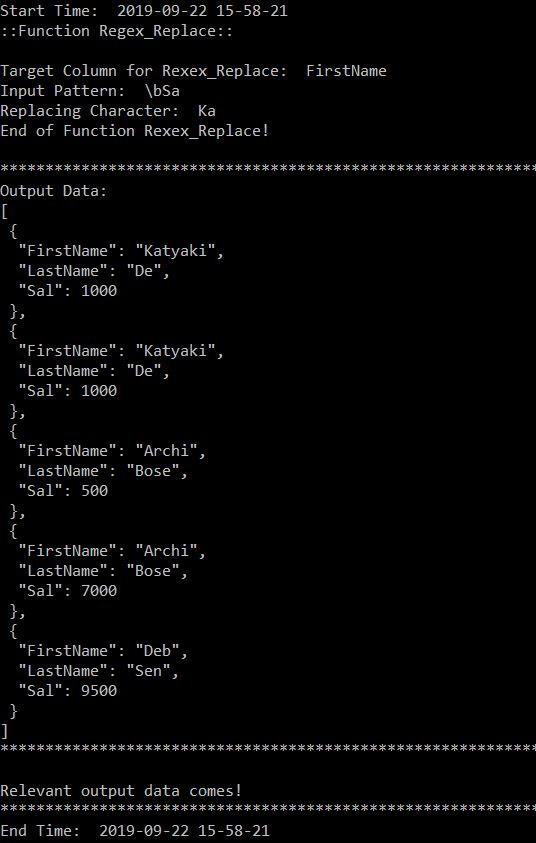


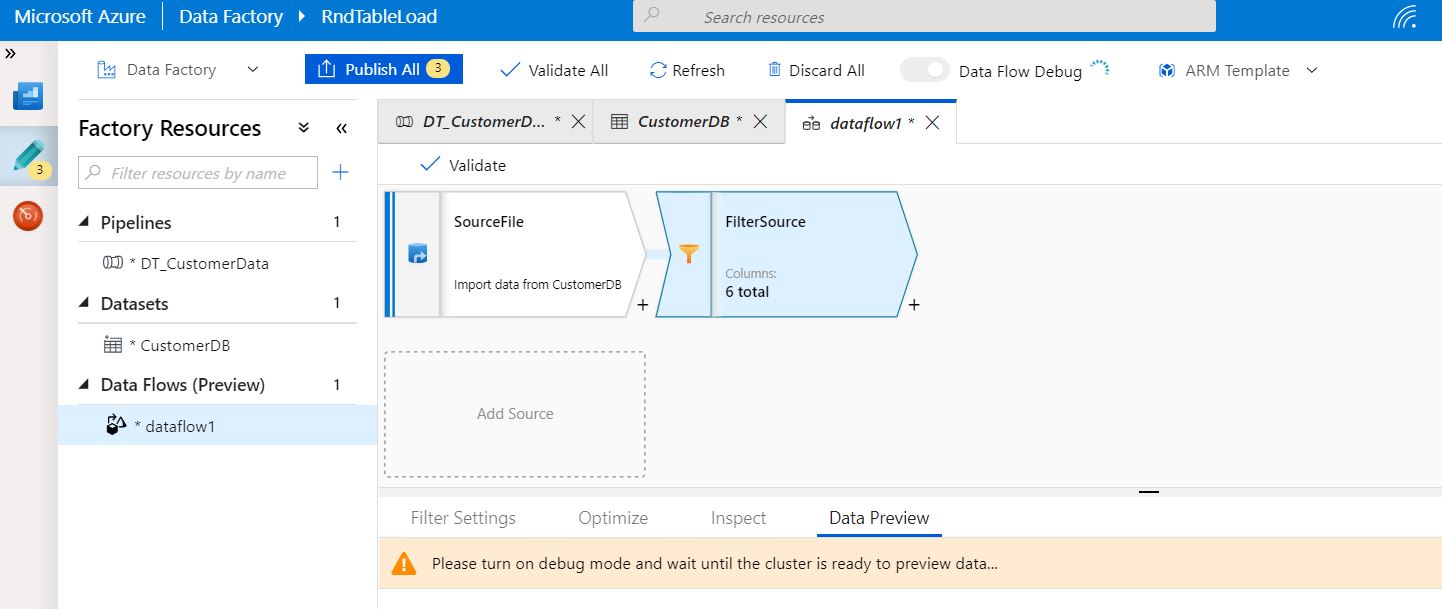


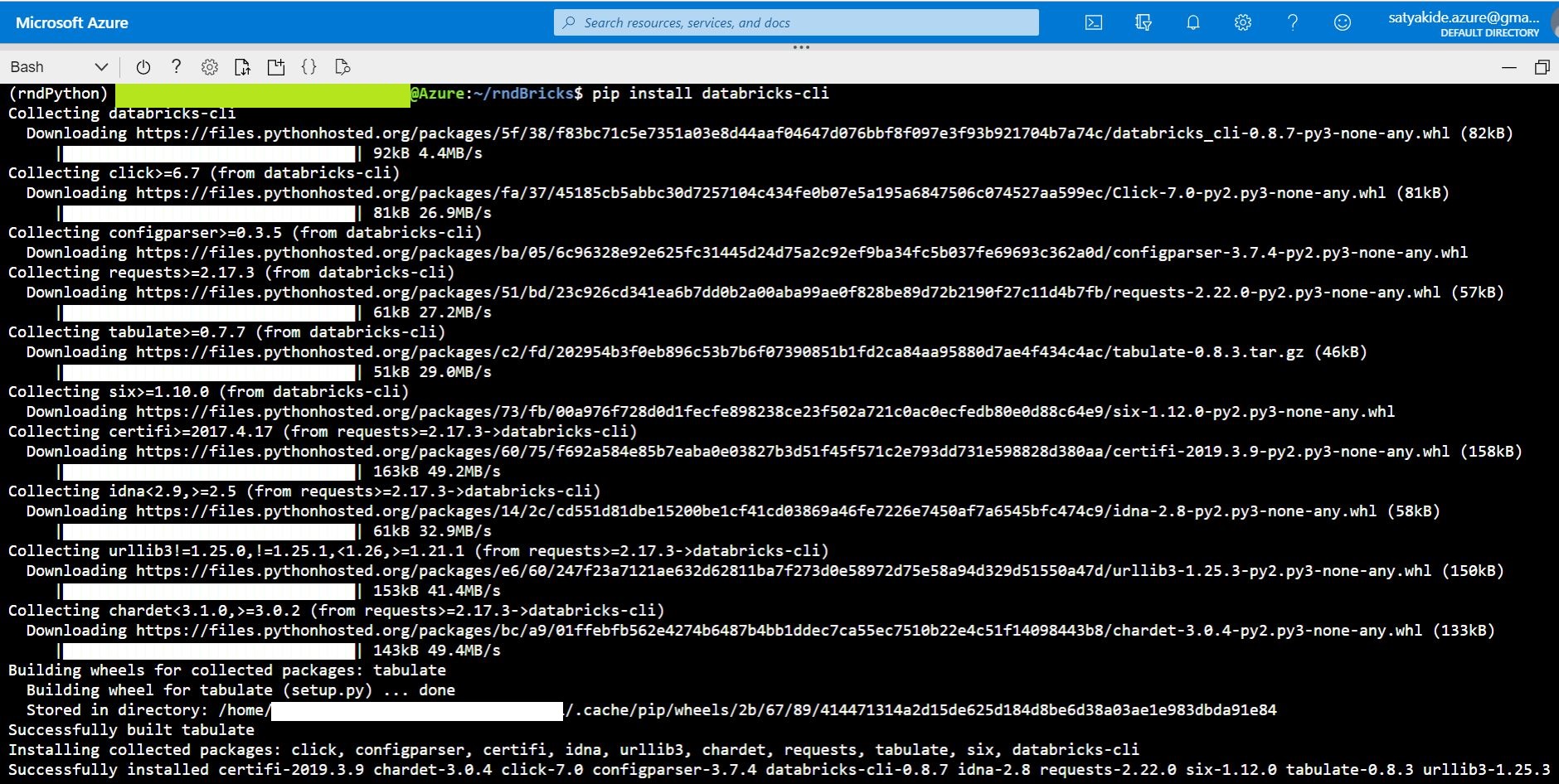





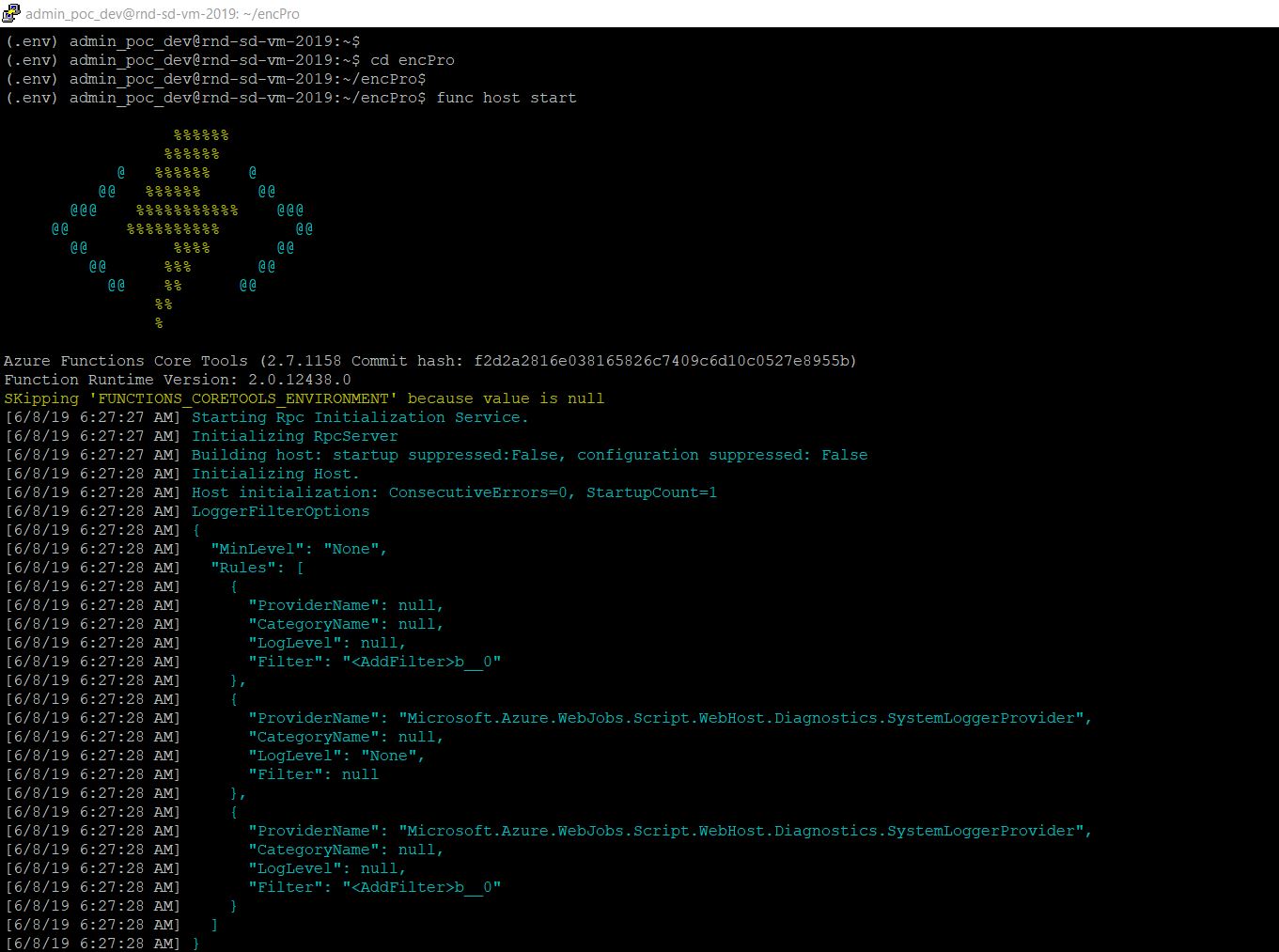
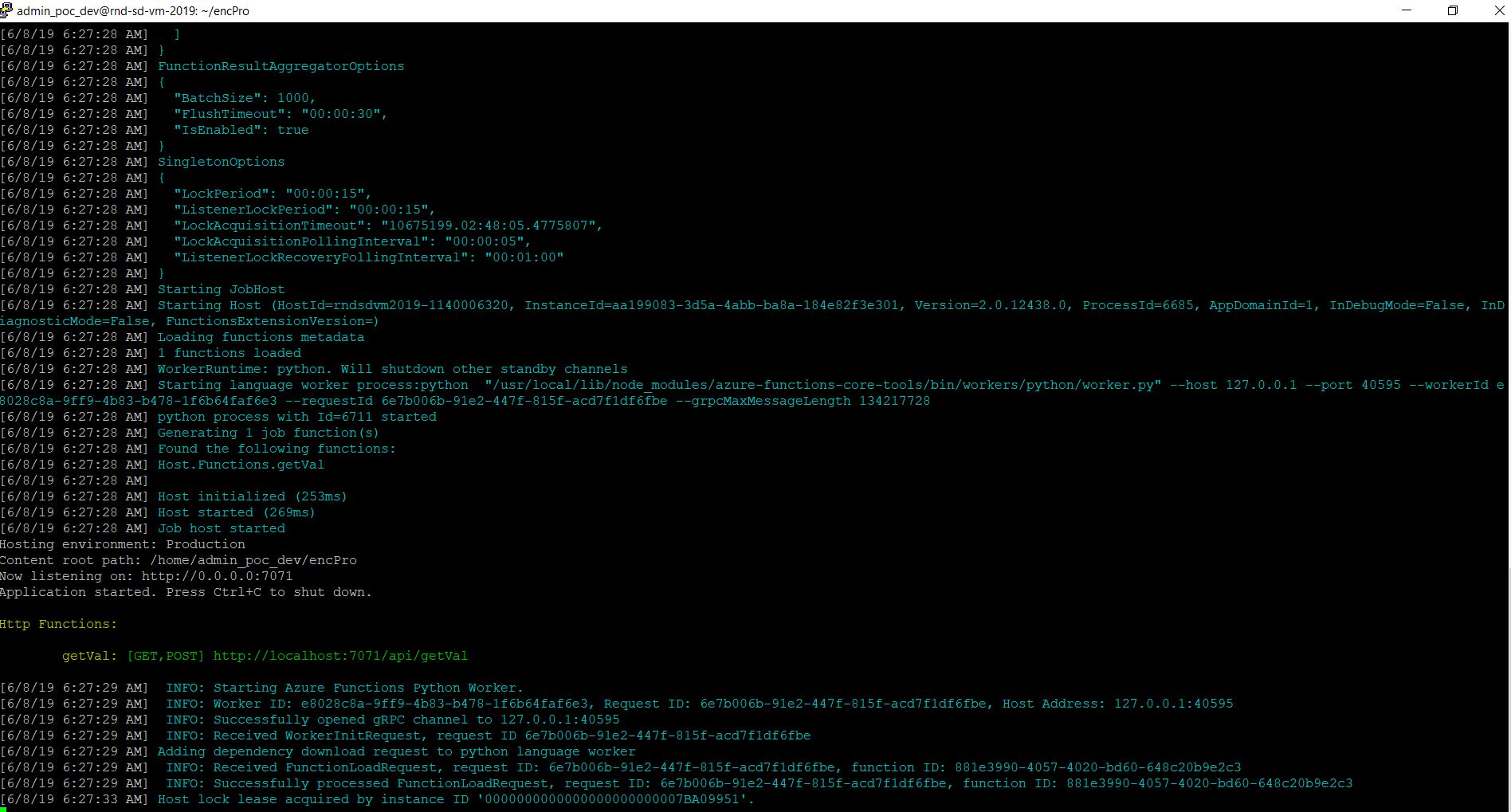


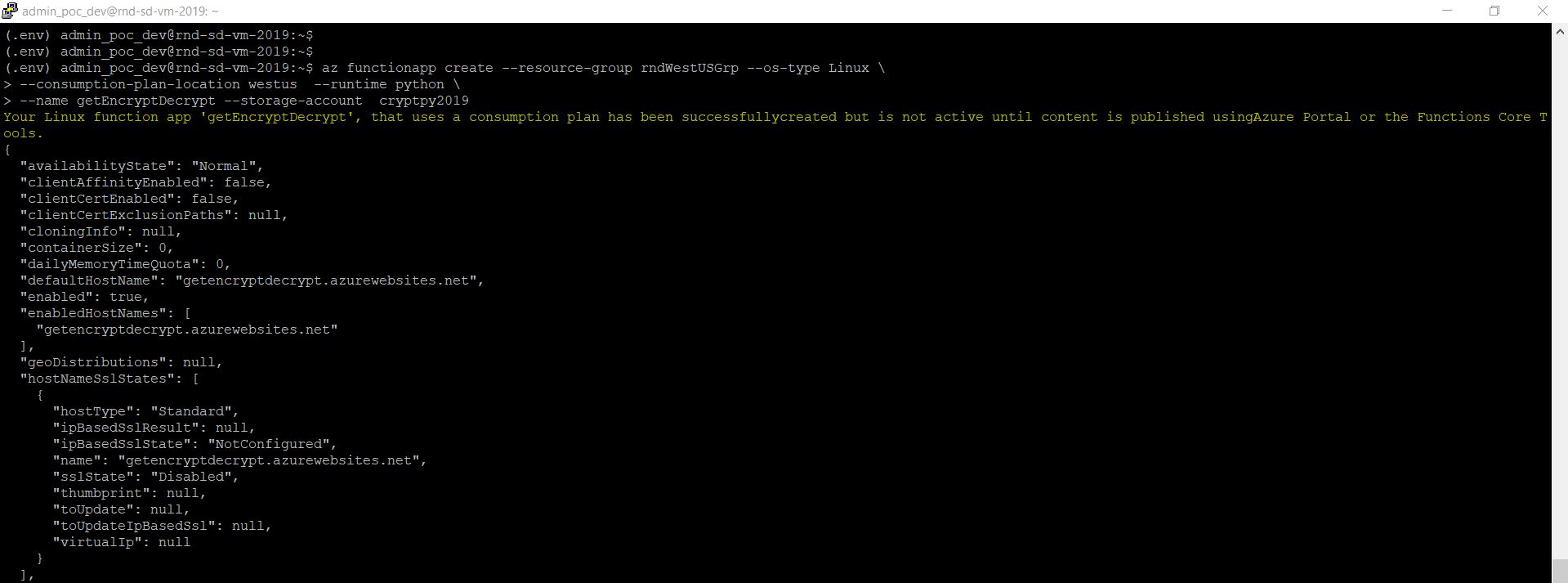


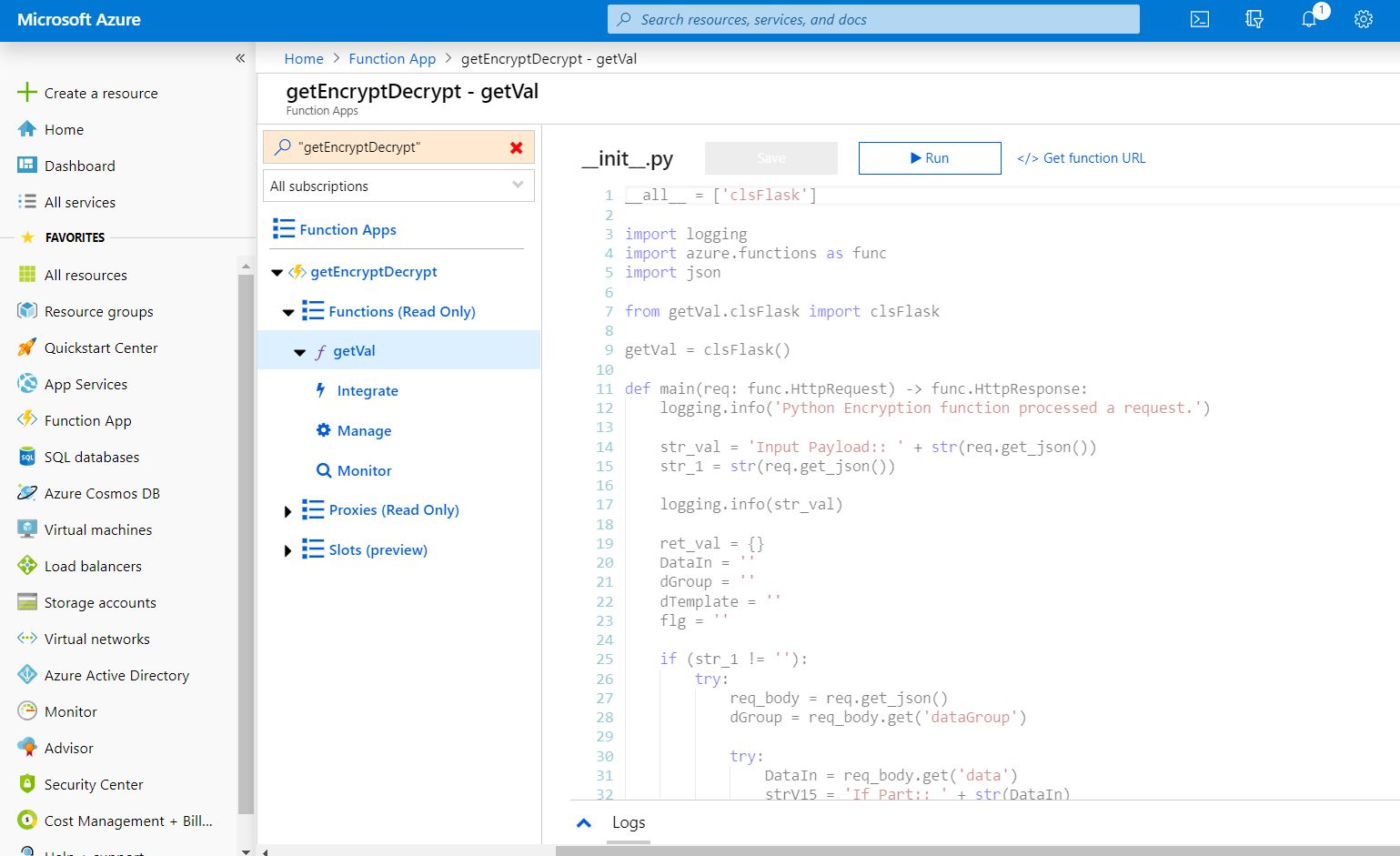


You must be logged in to post a comment.